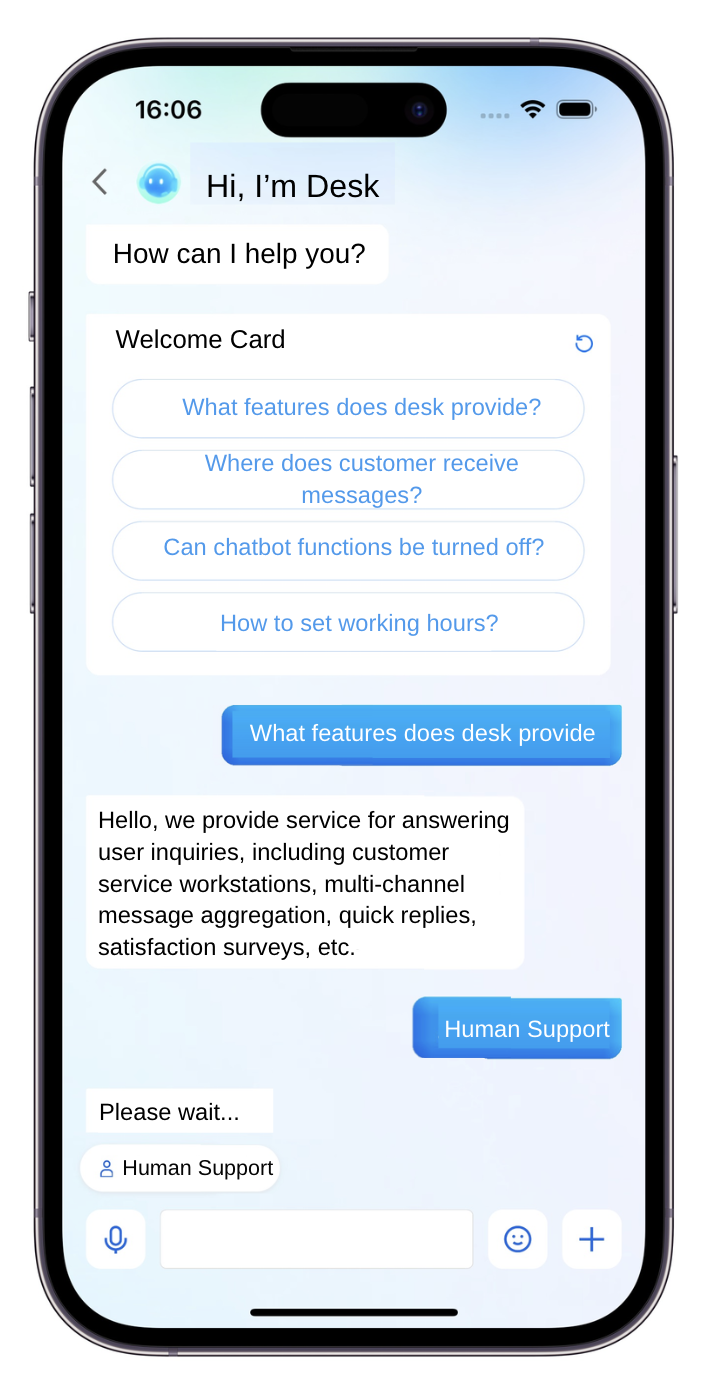
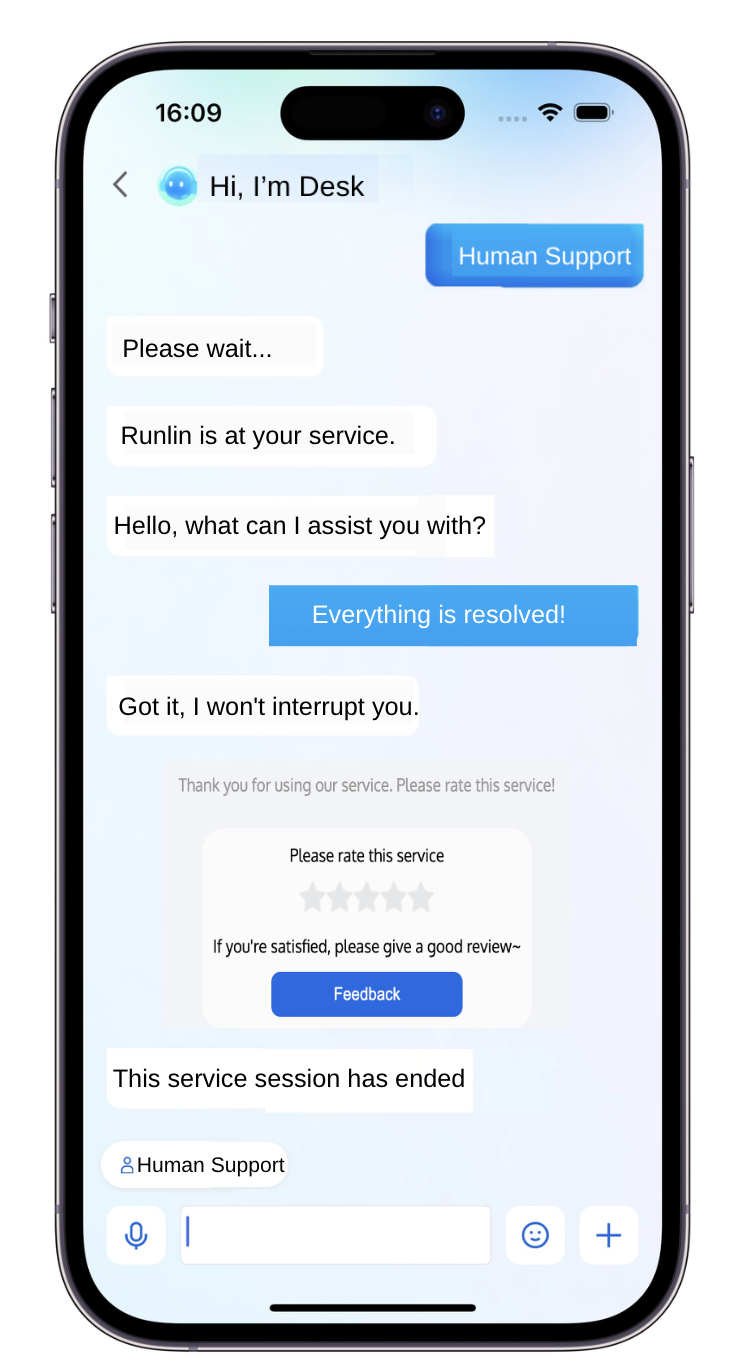
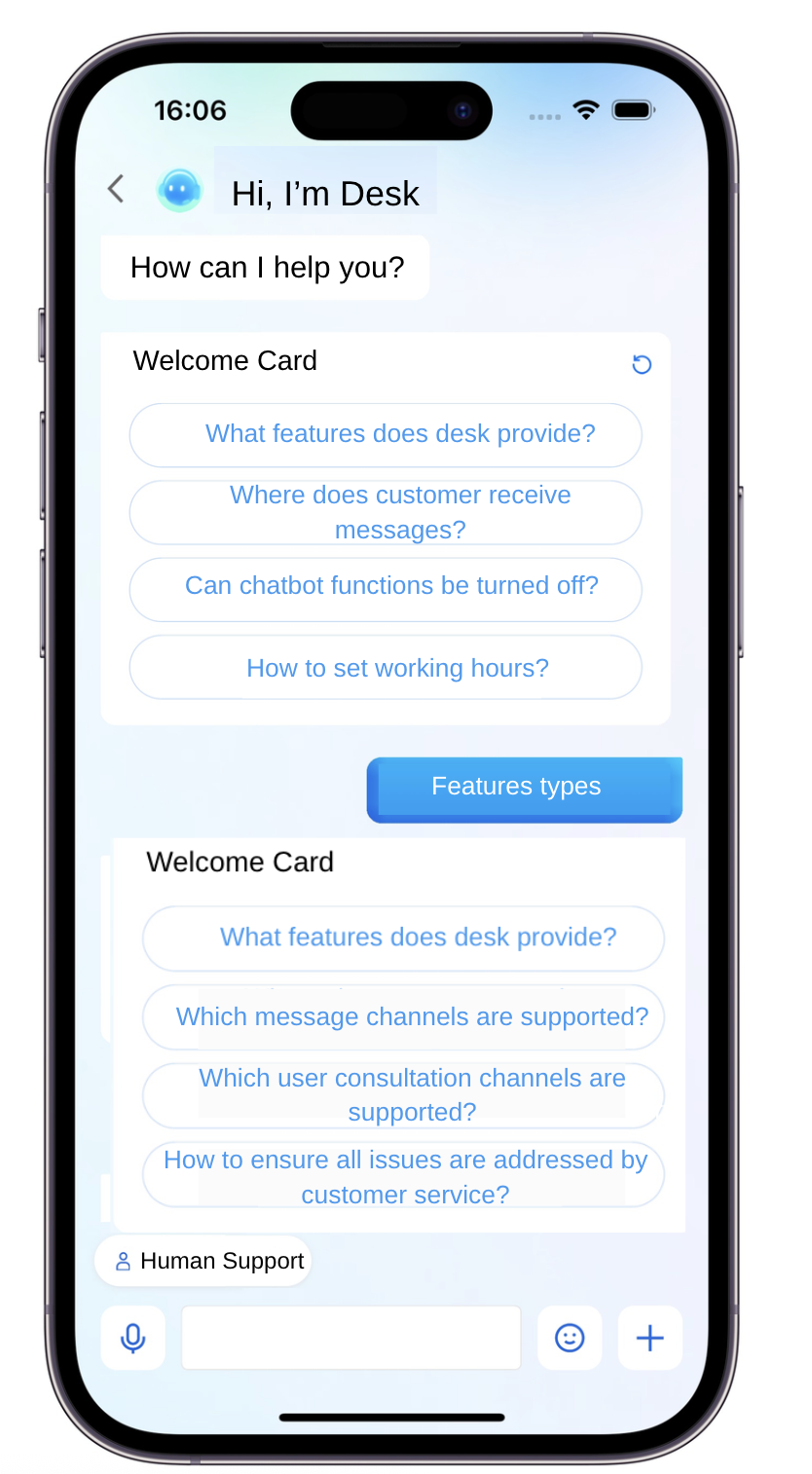
Customer UIKit customized for customer service scenarios provides a specialized user-side customer service session interface to meet scenario requirements. The UI, interaction, and feature experience are all designed for Desk scenarios.
In addition, Customer UIKit eliminates the need for IM integration, requiring only a few lines of code to develop.
Prerequisite
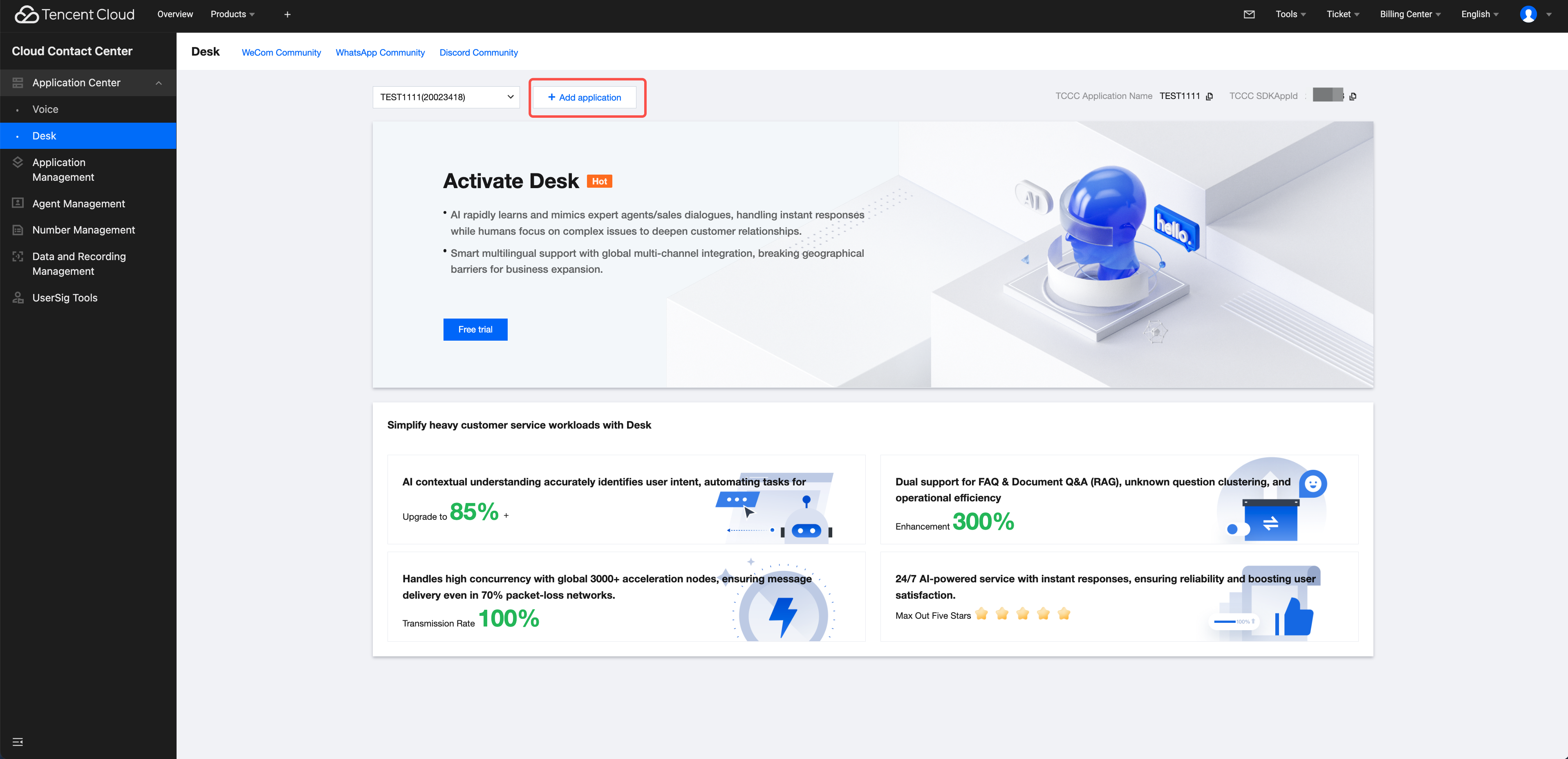
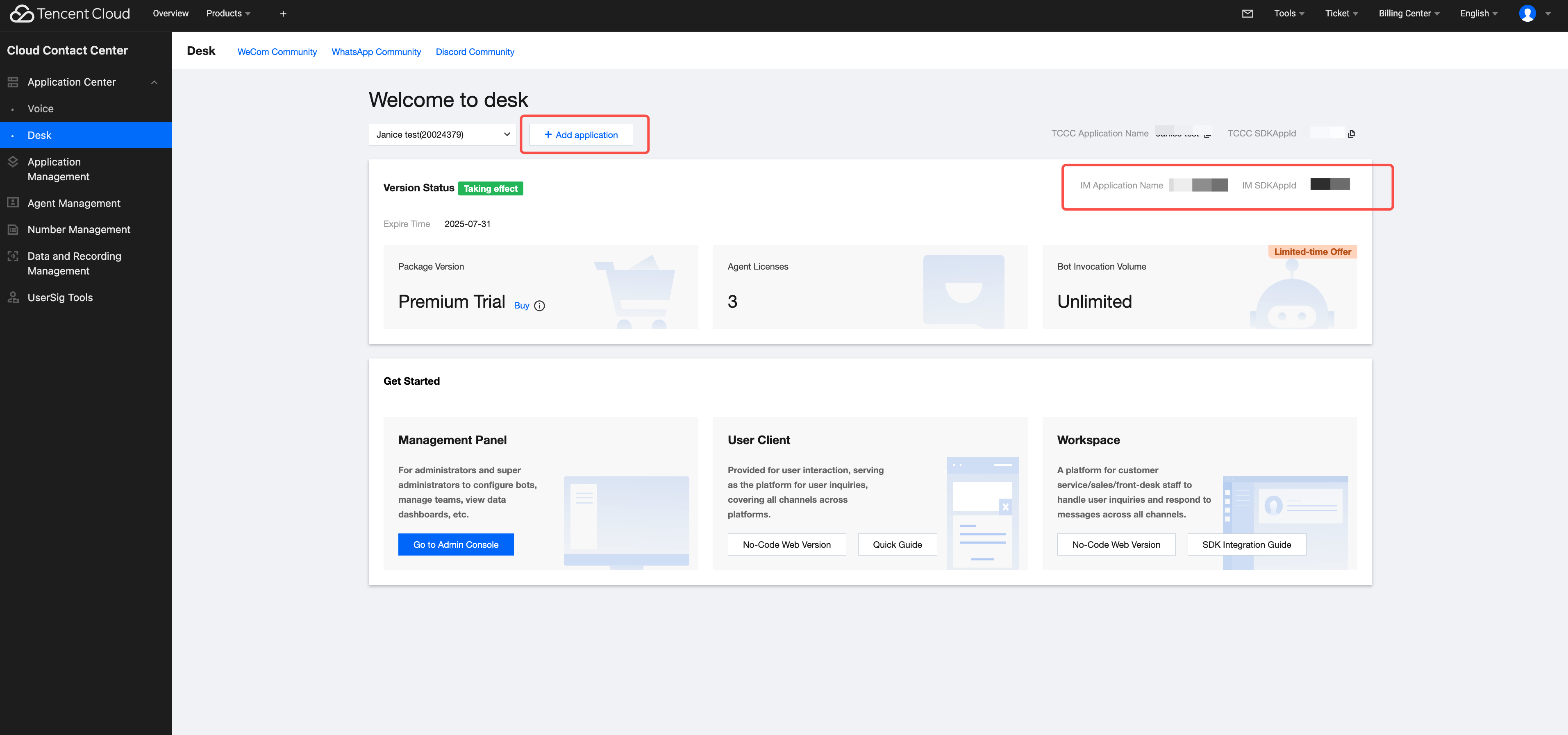
Understand relevant terminology and configuration details for online customer service, and complete the following steps: create a Tencent Cloud IM application, enable Desk, log in to the customer service management console, and obtain the customer service account ID. For details, see Quick Start.
Feature Demonstration
Quick Integration
Environment and Version
iOS version: iOS 13 or later.
Supports simulator debugging and real-device operation.
Demo Example
It is recommended to download and refer to the demo and its source code for the following steps, in conjunction with reading, so that access is better.
CocoaPods Integration
Method 1: Pull Remote CocoaPods Integration
In the XCode project, integrate TencentCloudAIDeskCustomer via Cocoapods.
pod 'TencentCloudAIDeskCustomer', :path => "../TDesk/TencentCloudAIDeskCustomer-iOS"
pod 'TDeskCustomerServicePlugin', :path => "../TDesk/TDeskCustomerServicePlugin"
pod 'TDeskChat', :path => "../TDesk/TDeskChat"
pod 'TDeskCommon', :path => "../TDesk/TDeskCommon"
pod 'TDeskCore', :path => "../TDesk/TDeskCore"
end
Logging in and Initialization
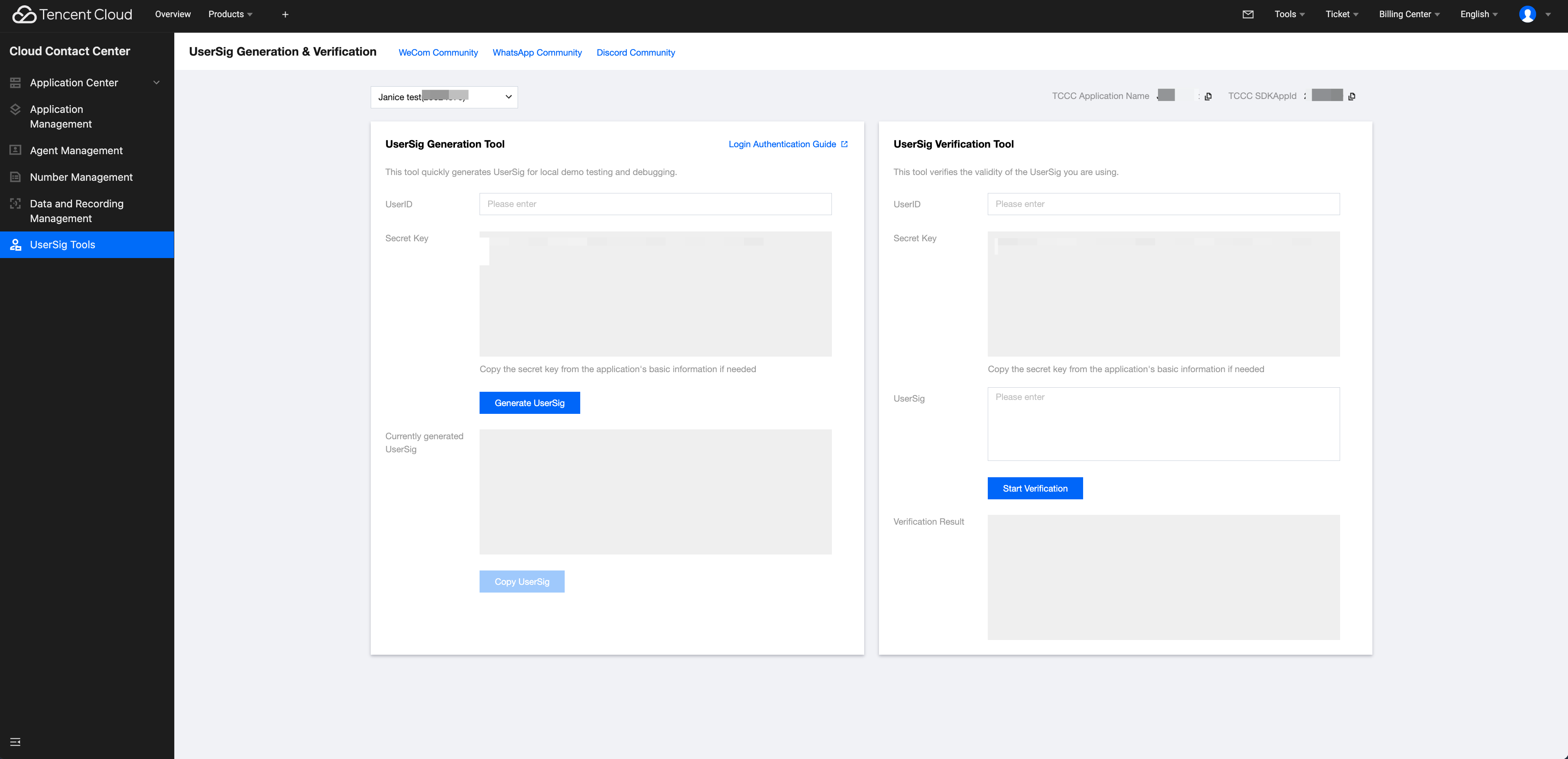
Call the loginWithSdkAppID method to complete UIKit login, then call setCustomerServiceUserID to set the UserID for online customer service. Sample code:
[[TencentCloudCustomerManager sharedManager] loginWithSdkAppID:"SDKAppID of the app" userID:"UserID of the current logged-in user" userSig:"UserSig of the current logged-in user" completion:^(NSError *error) {
if (error.code == 0) {
// If the default customer service account ID is not modified, there is no need to call the function. It can be obtained from the Desk homepage: https://desk.qcloud.com/
SDKAppID information can be obtained in the IM console by clicking Application Management > Create New Application, and choosing Customer Service Desk > Smart Customer Service, then enable smart customer service.
userID information. A random string can be locally generated, such as test-1234.