Post-Call Tags (Created via AI Analysis and Insights)
다운로드
포커스 모드
폰트 크기
Overview
Post-call Tags are used to automatically assign structured Tags to each call or extract key information based on the call content after the call ends, facilitating subsequent customer segmentation, data analysis, and precise follow-up.
This capability has now been consolidated and upgraded to the AI Insights module. Instead of adding Tags node by node within the conversation flow, you can create an Analysis Agent to first define the scope of calls to analyze, and then centrally configure the dimensions for analysis (such as customer intent, customer sentiment, conversation summary, and so on). The system will automatically analyze each conversation within the defined scope after the call ends and output structured results.
Creating an AI Agent for Analysis
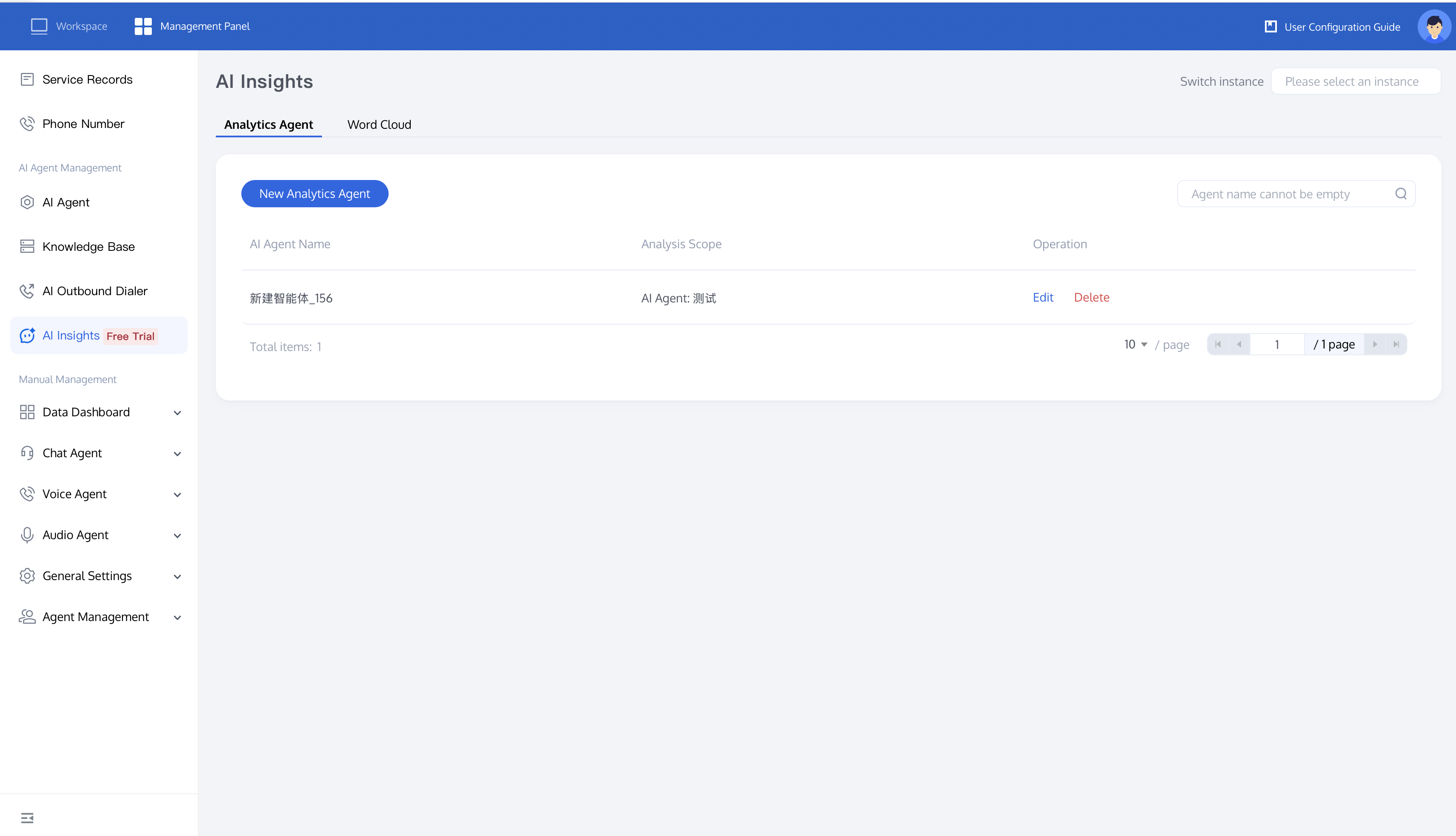
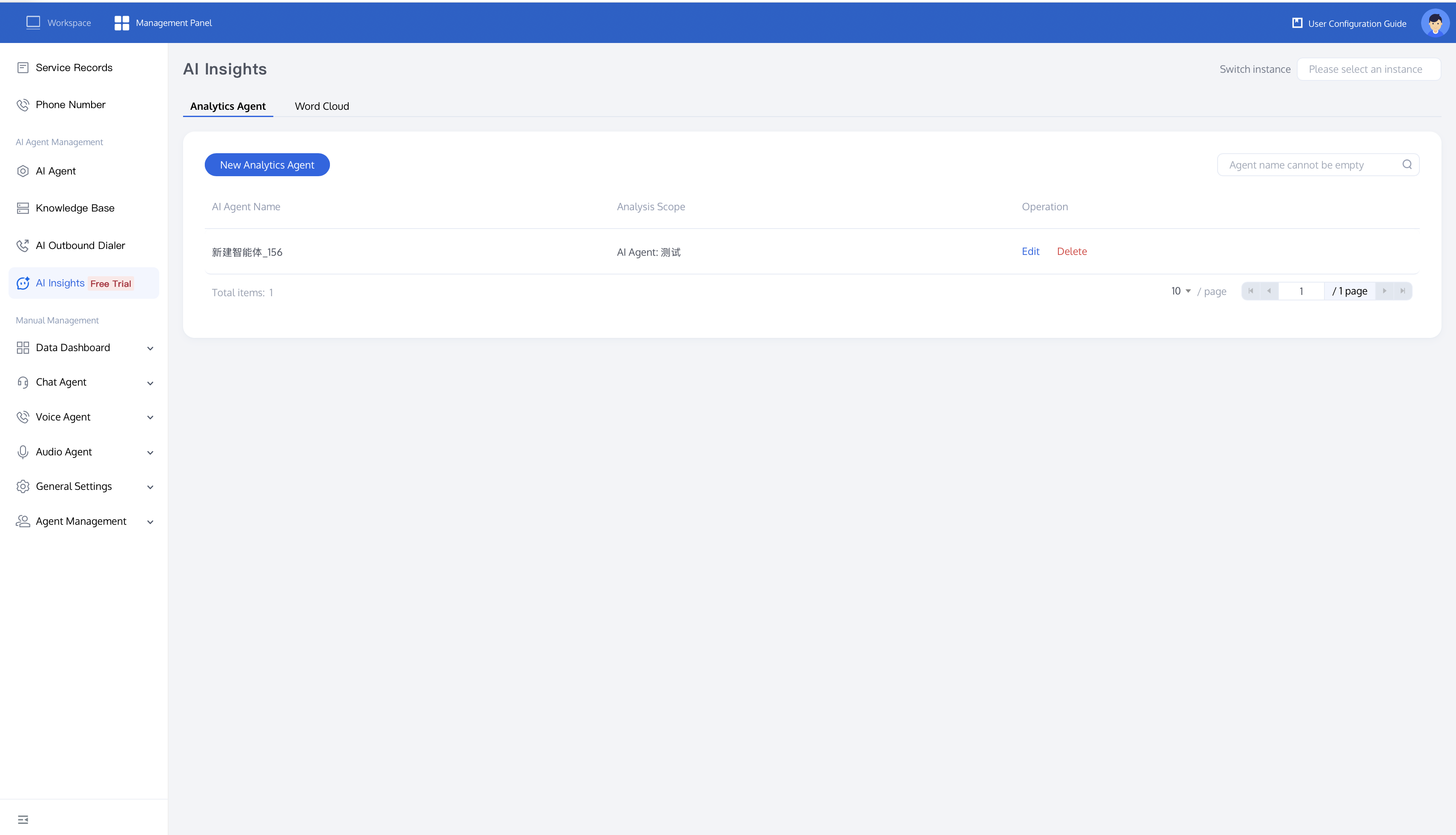
1. Log in to the Tencent Cloud Contact Center (TCCC) console. Click AI Insights in the left navigation pane. Under the Analysis Agents tab, click New Analysis Agent. Created AI Agents are listed here, displaying their AI Agent Name and Analysis Scope, and can be edited or deleted.
Configuring the Analysis Scope
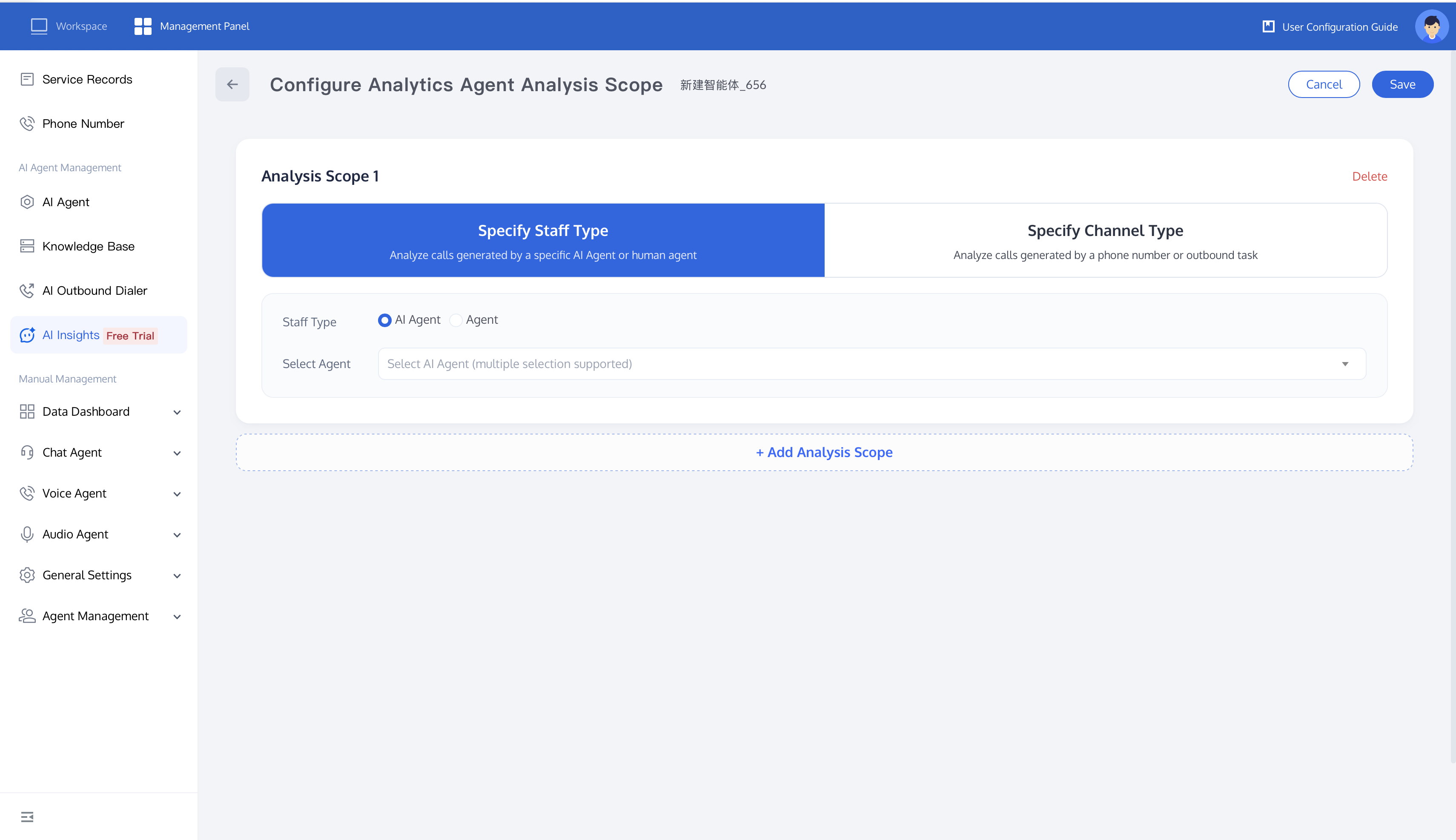
After creation, you first go to the Configure Analysis Agent Scope page to define which calls to analyze. Click the AI Agent name at the top to rename it. The system provides two selection methods:
Specify Personnel Type: Analyze calls generated by a specific AI Agent or Agent. After selecting the Personnel Type (AI Agent or Agent), select specific objects in the Select Agent section (multiple selection is supported).
Specify Channel Type: Analyze calls associated with a specific phone number or call task.
Click + Add Analysis Scope to configure multiple scopes. The Delete button in the upper-right corner of each scope card can be used to remove it. After configuration is complete, click Save in the upper-right corner (or click Cancel to abandon the current operation).
Configuring Analysis Dimensions
After defining the analysis scope, you go to the analysis dimension configuration. The main body of the page consists of several Analysis Dimension Cards, each representing an item of content to be analyzed from the calls. The system pre-configures three common dimensions by default: Customer Intention, Customer Analysis, and Session Summary. You can edit these directly, or add or delete dimensions.
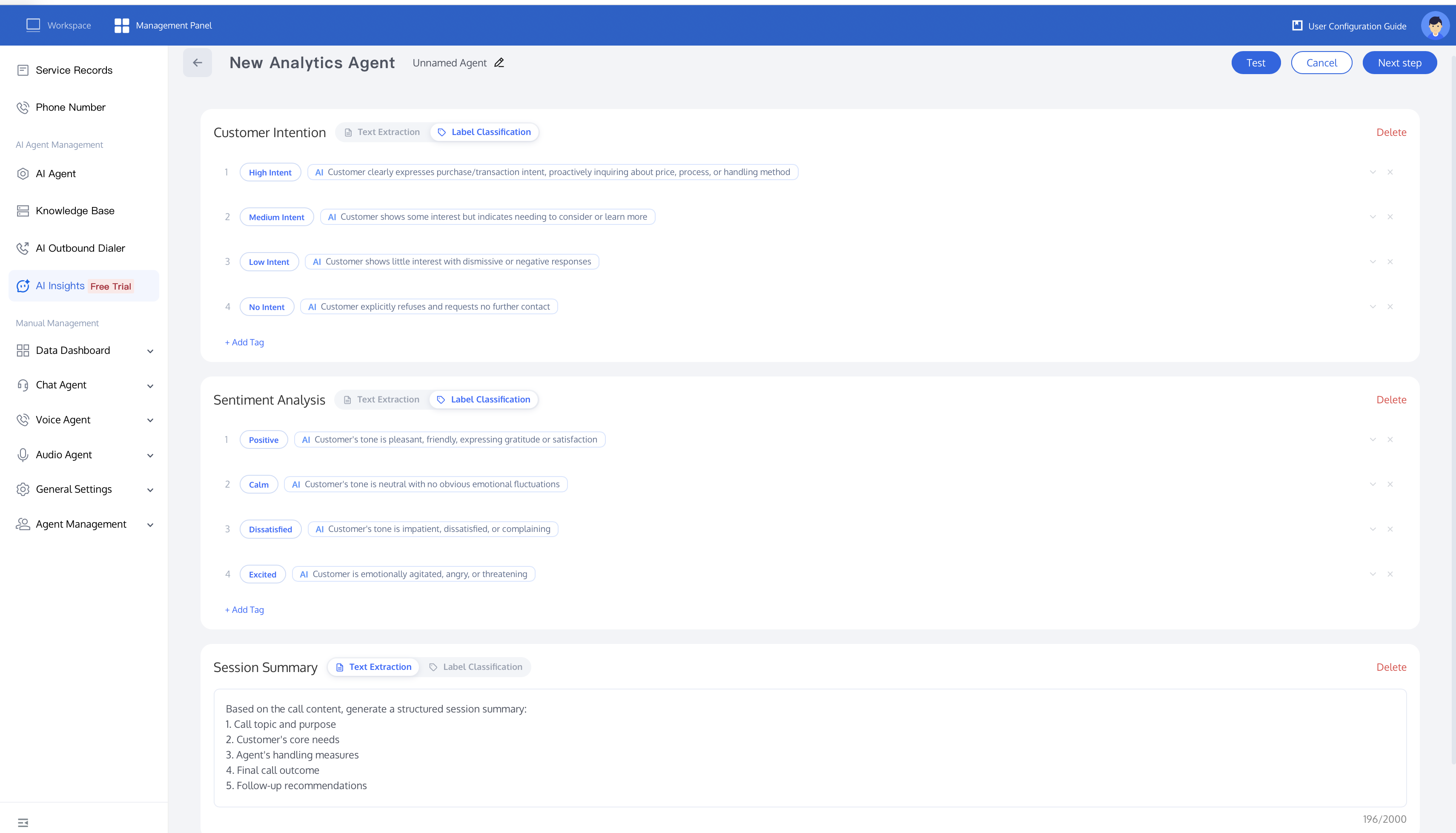
Two analysis methods are supported for each dimension and can be switched on the right side of the card title:
Text Extraction: AI extracts or generates a piece of free text from the conversation based on the description you provide. This method is suitable for scenarios where the content is open-ended and cannot be exhaustively covered by fixed options, such as "customer intent" or "conversation summary". You only need to describe the information you wish to extract or the desired output format in the input box.
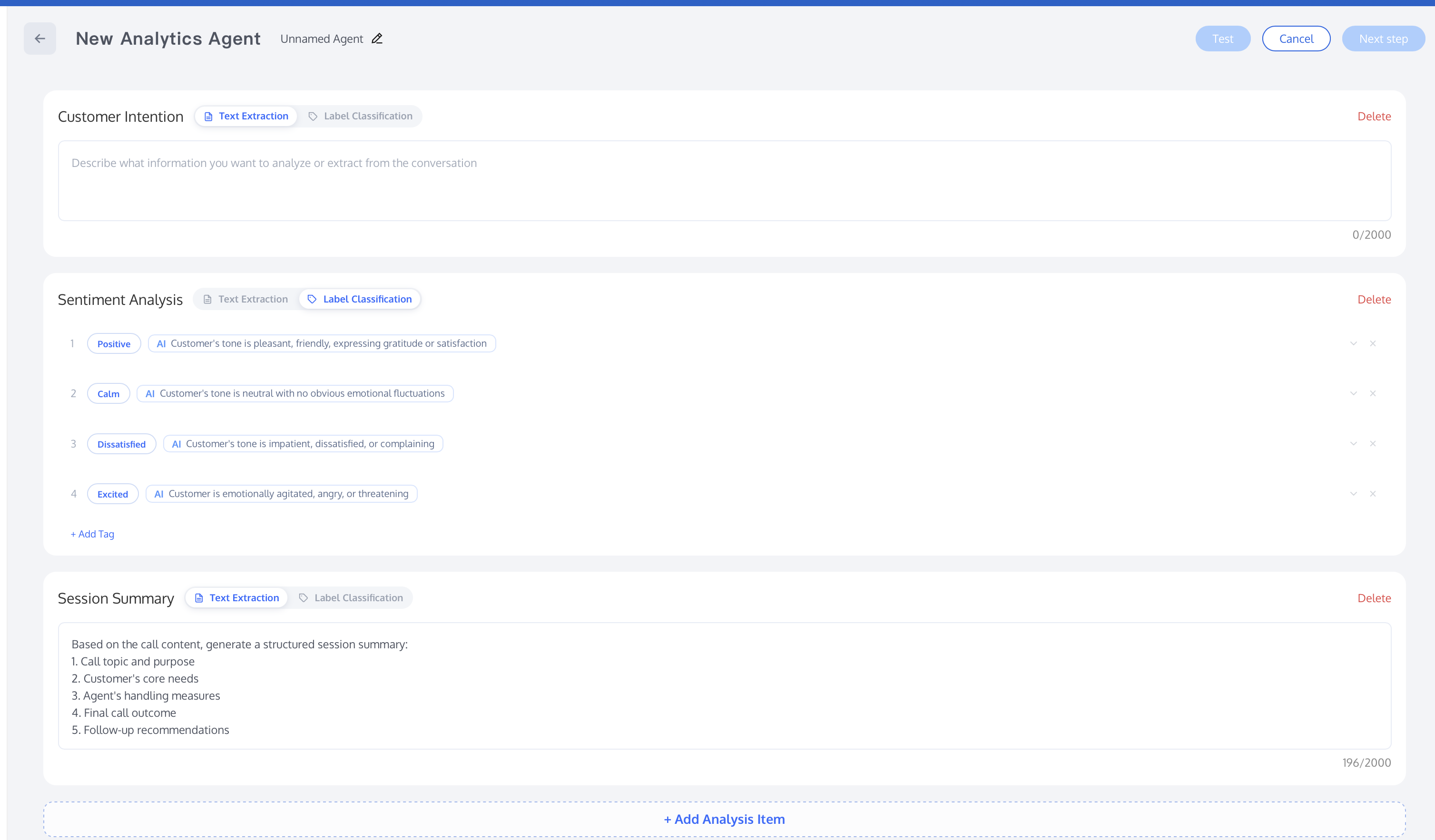
Customer Intention: Enter a description of the customer information you want to analyze or extract from the conversation (such as whether there is purchase intent, products of interest, budget range, and so on).
Session Summary: You can directly use the built-in prompt template to have AI generate a structured conversation summary, for example: ① Call topic and purpose; ② Customer's core request; ③ Agent/Agent's handling measures; ④ Final call outcome; ⑤ Follow-up suggestions.
Tag Classification: AI classifies each conversation into one of your pre-defined Tags. This method is suitable for scenarios where the results are enumerable and require statistical grouping, such as "customer sentiment". For each Tag, enter the Tag Name and provide an AI judgment description. AI will then automatically select the most matching Tag based on this information.
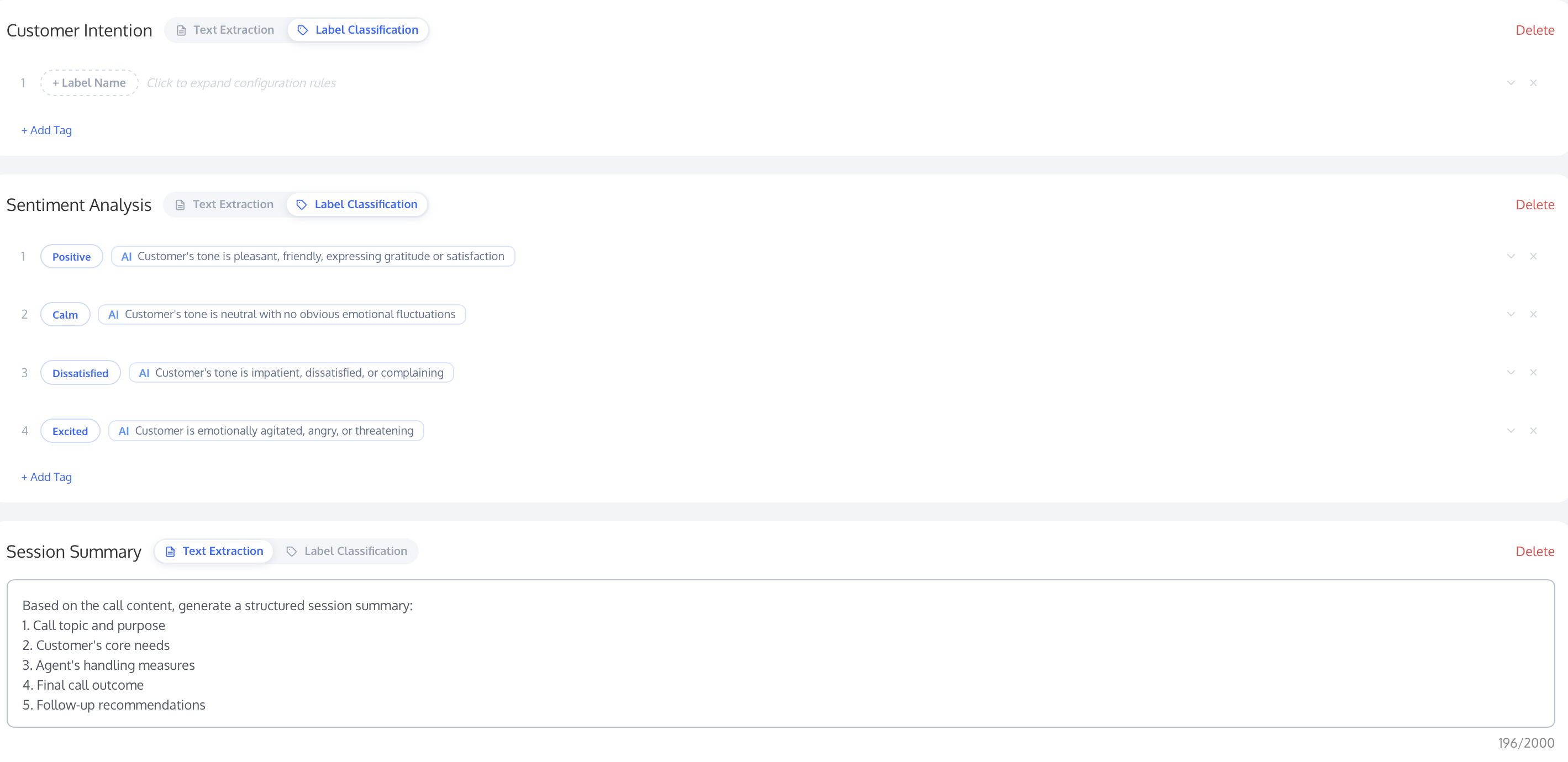
Taking the pre-configured Customer Sentiment dimension as an example, four Tags and their judgment descriptions are pre-configured:
Positive: The customer's tone is cheerful, attitude is friendly, and they express gratitude or satisfaction.
Calm: The customer's tone is normal with no significant emotional fluctuation.
Dissatisfied: The customer's tone is impatient, dissatisfied, or complaining.
Excited: The customer is emotionally agitated, angry, or threatening.
Click + Add Tag to continue adding Tags. For each Tag, you can adjust its order up or down or delete it using the controls on the right side.
Configuration Description:
You can remove an analysis dimension using the Delete button in the upper-right corner of its card. You can add a custom dimension using the Add button at the bottom of the page.
The same AI Agent can be configured with multiple dimensions simultaneously, which can be either text extraction or Tag classification.
During configuration, you can click the top Test button to preview the analysis results. After confirming everything is correct, click Save / Next to complete the creation. Once created, the AI Agent will be listed under AI Analysis & Insights > Analysis Agents, where you can edit or delete it at any time.
View the analysis results
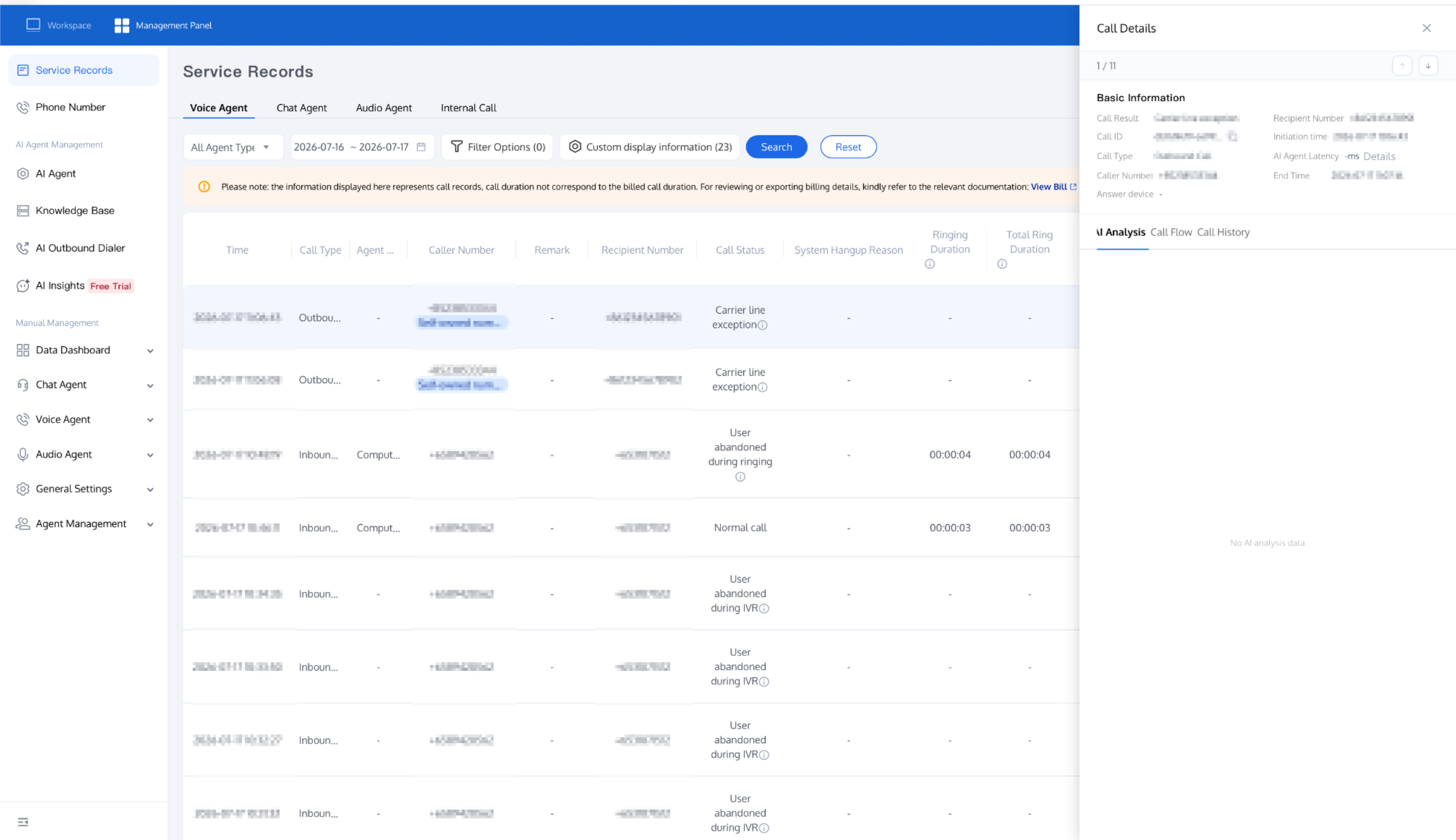
After a call ends, go to the Service Records page, select the target call record, and click Details to open the Call Details panel. In the panel, switch to the AI Analysis tab to view the multi-dimensional analysis results (intent, sentiment, conversation summary, and various Tags) automatically generated by the analysis AI Agent for that call. You can also cross-reference these results with the Call Process and Historical Calls tabs, as well as the ASR text and Recording below.
Analysis results are not displayed during a real-time call. Instead, they are automatically categorized into their corresponding analysis dimensions after the call ends, facilitating unified search and statistics. If the call has not been analyzed or falls outside the scope of any analysis AI Agent, the AI Analysis tab will display the message "No AI analysis data available."
Obtaining Post-Call Tags Via API
Users can obtain analysis results and post-call Tags via the API for data analysis and precise follow-up. For specific operations, see Query AI Call Content Extraction Results.
Related Guidelines
Select the corresponding path based on your deployment method.
First time user? Deploy a functional AI Agent in just five minutes create a conversation flow or integrate an external model.
Want to learn about our conversation flow nodes? Go to Conversation Nodes.
Build a knowledge base for your conversation flow? Go to Build Your Knowledge Base.
How to test your model? Refer to Test Conversation Workflow.
Configure a voice AI Agent with your own model? Go to Integrate External Model, Edit Conversation Content, Configure Voice Interaction, and Add Call Control.
Want to view application scenarios? Try Voice Notification, Lead Mining, Feedback Collection, or Customer Support.
How to make outbound and inbound calls with an AI Agent? Refer to AI Agent Outbound Calls or AI Agent Inbound Calls.
View data logs? Refer to Call Records, Call Recordings, Latency.
How to create and view post-call Tags? Refer to Post-call Tags (Created via AI Analysis Insights) or Post-call Tags (Created via External LLM).
피드백