This document provides a comprehensive overview of the core concepts and features of Push Service, explains its compatibility and limitations across various platforms and business scenarios, and guides you to maximize Push Service for effective user engagement.
Core Concepts
The core concepts of the Push Service are summarized in the table below:
Term
Description
SDKAppID (Application ID)
A unique identifier assigned by Tencent Cloud Chat to distinguish each application. Generated automatically during app creation; data is isolated across SDKAppIDs. Push Service uses SDKAppID to identify developer applications.
App Secret Key (appKey)
The client authentication key used to validate client integrations during Push Service registration.
Development Platform
Supports major client development platforms and frameworks including Android, iOS, HarmonyOS, and more. See the platform compatibility section below for details.
Registration ID
A unique device identifier on the Push Service platform, generated automatically after successful registration via the registerPush interface. Reinstalling the app after uninstalling changes this ID.
Online Push (Self-Built Push Channel)
Tencent Cloud Chat Push Service provides a proprietary long connection channel for message push. When users are online, messages are delivered instantly through this channel, ensuring global coverage, stable connectivity, high reliability, and strong security.
Offline Push (Integrated Vendor Push Channel)
Uses system-level push channels provided by mobile OS vendors. When users are offline, notifications are delivered using these channels.
Push Features
Push Service is designed to reliably reach users, break the application loop, and deliver critical messages, notifications, and reminders directly to targeted users. These capabilities help increase user engagement, conversion, and retention. Push Service offers the following features:
Basic Features
Push Service supports five primary push types: All Users Push, Tag Push, Specified User Push, Chat Message Push, and Audio and Video Call Message Push, covering a broad range of business scenarios.
Push Type
Description
Typical Scenario
All Users Push
Sends messages to all reachable users within the app. See All Users/Tag Push API for details.
Used for important announcements, marketing campaigns, and routine operations
Tag Push
Sends messages to user segments filtered by tags or attributes (gender, region, interests, etc.). See All Users/Tag Push API for details.
Sends messages directly to a batch of user IDs. See Single Push API for details.
Small-scale or repeated batch push
Chat Message Push
In C2C Chat, Group Chat, and Community scenarios, when users are offline, offline push notifies users of new messages. Tapping the notification opens the Chat interface. Requires integration with Tencent Cloud Chat Service. See Integrate Chat Offline Push for usage.
Chat message reminders, group notifications, community updates
Audio and Video Call Message Push
In one-on-one or multi-party audio and video call scenarios, offline push delivers call notifications in Notification and VoIP styles. Requires integration with Tencent Cloud Real-Time Audio and Video TRTC TUICallKit Service. For product details, see TUICallKit Component Introduction.
Incoming call notifications, video conference invitations
Recall All Users Push or Tag Push messages. Useful for correcting incorrect content that may negatively impact the app.
Smart Push
Template Push
Create reusable message templates with fixed structure and variable fields on the push platform. Pass only variable values during push; the platform automatically generates the final message. Templates streamline batch pushes, reducing development and operational costs.
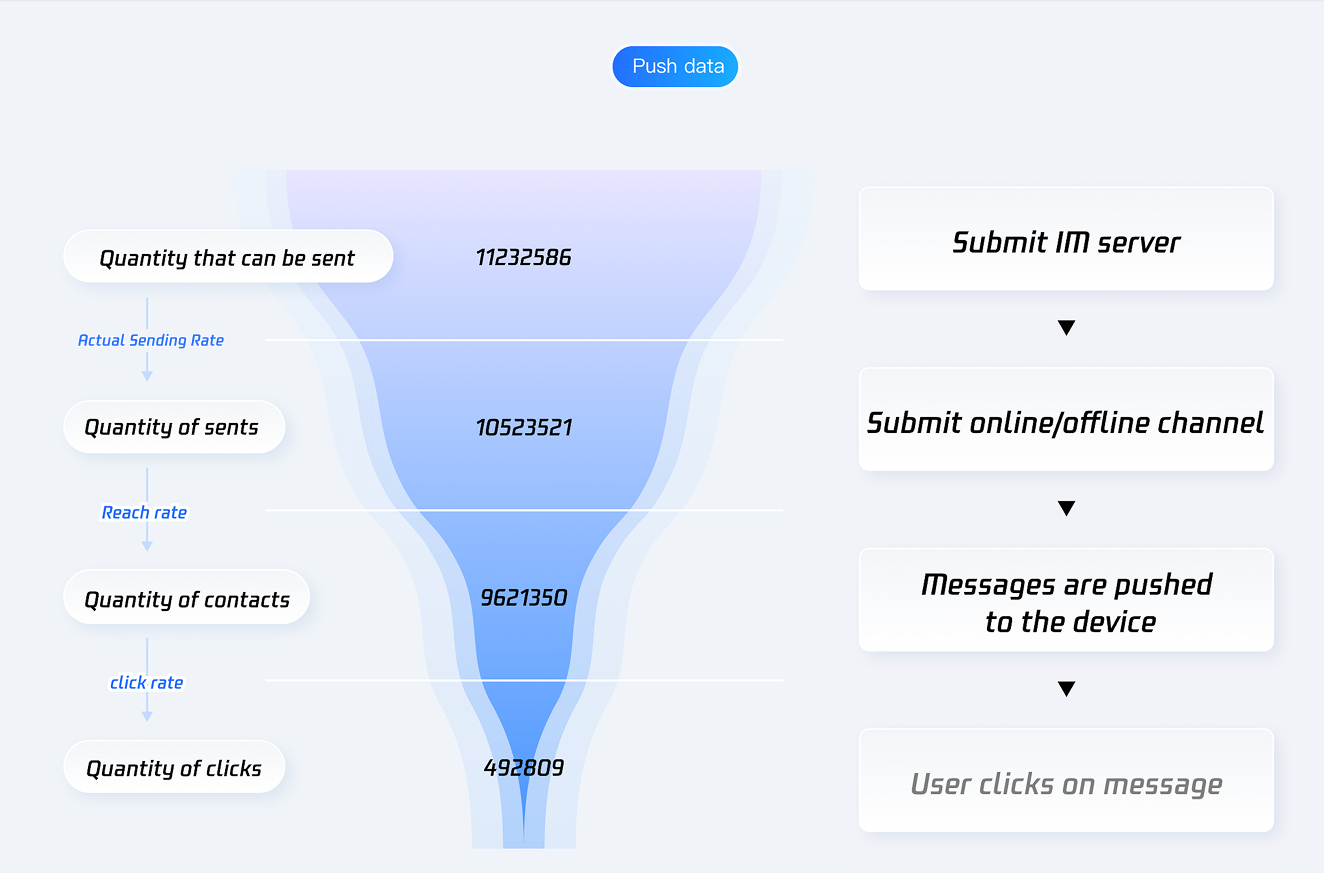
Push Service provides robust data analytics to track key metrics such as Delivery Rate, Click Rate, and conversion rate, helping you optimize your push strategies.
Push Data Conversion Funnel
Tracks metrics including sendable count, sent count, delivered count, and click count, along with funnel conversion rates for Actual Send Rate, Delivery Rate, and Click Rate.
Term
Description
Sendable Count
The total number of valid devices eligible to receive push messages, filtered from the selected target audience for the push task.
Note:
Devices that have been uninstalled, have invalid tokens, are invalid, have not registered the app, or have been offline for an extended period are excluded, as they cannot receive push notifications.
Sent Count
The total number of valid devices from the sendable pool that have successfully received the message via the TIMPush online channel or Vendor Channel.
Note:
Devices are excluded if restricted by vendor quota or frequency limits, if the notification bar is disabled, or if the device is invalid and cannot properly receive or display push notifications.
Delivered Count
The total number of messages that have reached the user's device after being sent through the TIMPush online channel or Vendor Channel.
Two statistical methods are used based on vendor receipt characteristics:
For TIMPush online channel and Xiaomi Vendor Channel, the count is based on successful delivery receipts from the vendor.
For Huawei, FCM, Meizu, OPPO, vivo, Honor, APNs, and other Vendor Channels, the calculation is "vendor successful sent count − explicit delivery failure count".
Click Count
The total number of click receipts recorded after the push notification is successfully displayed on the user's device.
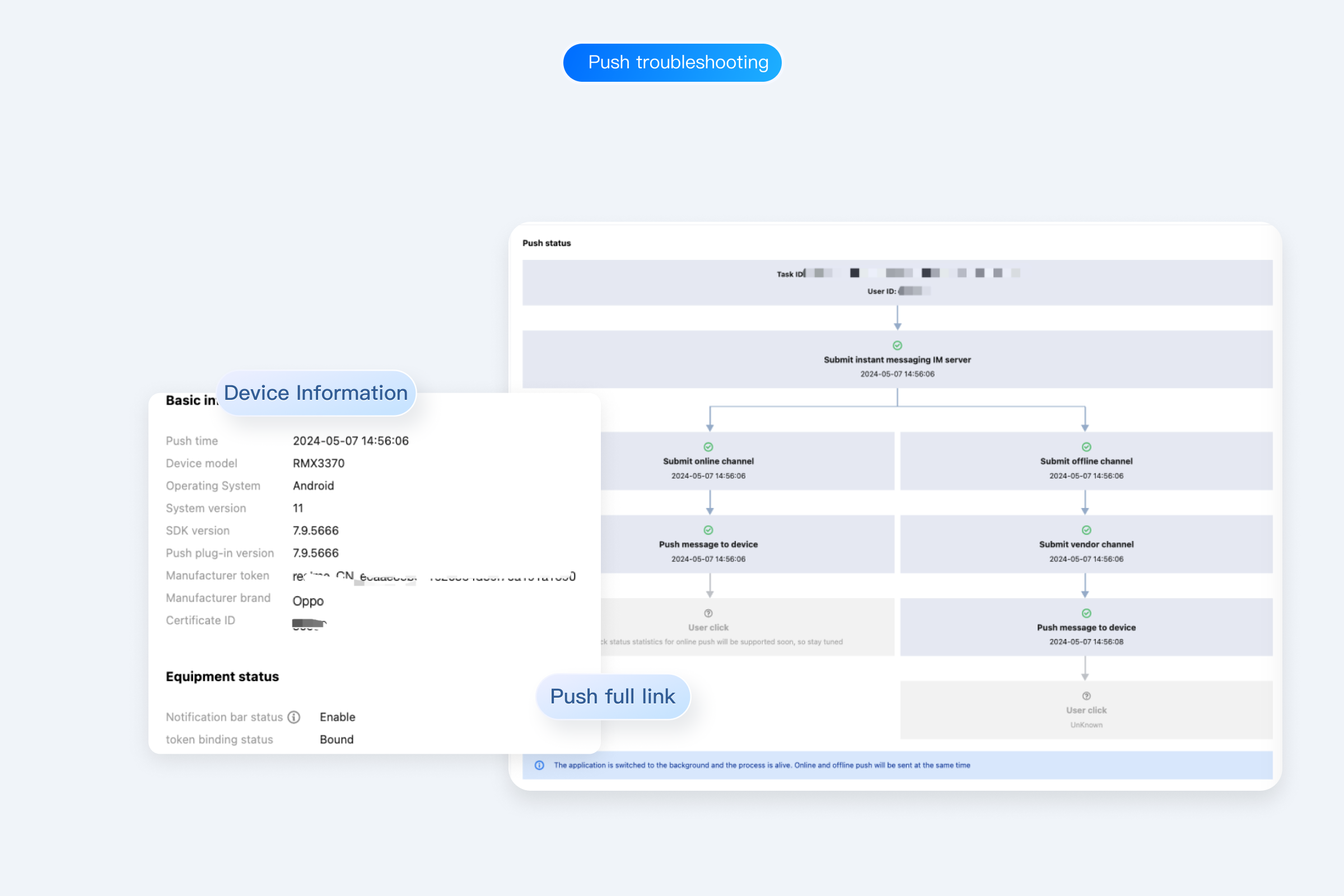
View details for recent pushes. Query records generated via console push tools or server APIs.
Message Link
View full message delivery link, push details, and device information for a specific user in a specific push.
Push Loss Analysis
Analyze cases of message loss or undelivered pushes. Calculates message loss rates at each stage, identifies bottlenecks, and provides actionable data to refine push strategies and improve Delivery Rate.
Comparison: Online Push vs. Offline Push
Push Service supports both Online Push and Offline Push. These push methods differ in trigger conditions, channels, message formats, and feature boundaries. See the detailed comparison below:
Dimension
Online Push
Offline Push
Trigger Condition
App is running in the foreground or background process is active
App process has been terminated by the system or manually closed by the user
Channel Used
Self-built push channel
Integrated vendor push channels:
Android: Xiaomi, Huawei, Honor, OPPO, vivo, Meizu, Google FCM (international).
iOS: APNs.
Message Format
Supports notification messages and Passthrough Messages; developers can fully customize processing logic
Supports only notification bar messages (vendor system displays notification); Passthrough Messages are not supported
Real-Time Performance
Delivered in milliseconds via long connection
Delivered in seconds to minutes; timing is subject to vendor channel scheduling policies
Delivery Rate
Extremely high as long as connection is active
Influenced by vendor channel quota, message category, device settings, etc.
Message Format
Fully customizable
Subject to vendor channel specifications
User Perception
Developers can choose to display notification bar, show in-app dialog, or handle silently
Displayed in system notification bar; user taps to launch app
Vendor Configuration Required
Not required
Required; must apply for push permissions on each vendor platform and configure vendor channel parameters in Push Service console
Usage
Online Push is automatically enabled after SDK integration. For details, see SDK Integration:
1. Integrate Push Service SDK and complete initialization.
2. When app process is active, SDK automatically establishes a long connection with the Push Service backend.
3. Server sends messages via Push API or console; SDK receives messages automatically.
4. Handle received messages using SDK callback methods.
Offline Push requires additional vendor channel configuration. For details, see Vendor Configuration:
1. Register app and request push service permissions on each vendor platform.
2. Enter vendor channel configuration details (AppID, AppKey, AppSecret, etc.) in Tencent Cloud Push Service console.
3. Complete client SDK integration as required by each platform (Push Service SDK includes mainstream vendor SDKs for one-click integration).
4. When server sends push, set PushFlag = 0; Push Service backend automatically determines device status and selects the optimal channel.
Note:
Push Service supports two push strategies:
Online + Offline Full Coverage: When users are online, messages are delivered via self-built channel. When users are offline, switches to vendor channel for offline notifications. Recommended for maximum message reach. (PushFlag = 0, default)
Online Push Only: Messages are delivered only via self-built channel when users are online. No push when offline. Suitable for time-sensitive messages where expired notifications are not relevant. (PushFlag = 1)
Development Platform Support
To support diverse development needs, Push Service offers solutions for multiple platforms:
Vendor
Native Language
Cross-Platform
Flutter
React Native
Unity
Unreal Engine
Android
Xiaomi
✓
✓
✓
✓
✓
Huawei
✓
✓
✓
✓
✓
OPPO
✓
✓
✓
✓
✓
vivo
✓
✓
✓
✓
✓
Meizu
✓
✓
✓
✓
✓
Honor
✓
✓
✓
✓
✓
FCM
✓
✓
✓
✓
✓
iOS
FCM
✓
✓
✓
✓
✓
Harmony
FCM
✓
Not supported
Not supported
Not supported
Not supported
If you need support for more platforms, please submit a ticket to contact us.
This document provides a comprehensive overview of Push Service concepts and features, clarifies compatibility and boundaries across platforms and business scenarios, and helps you maximize Push Service for efficient user engagement.