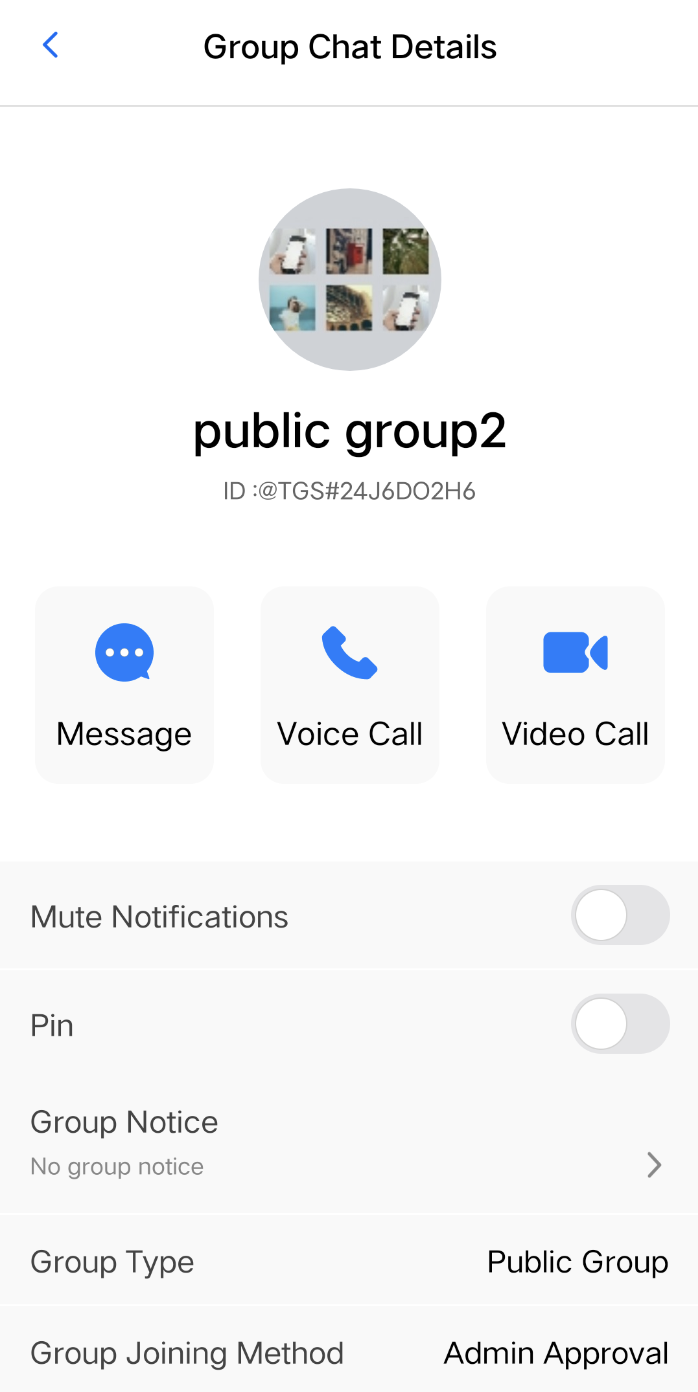
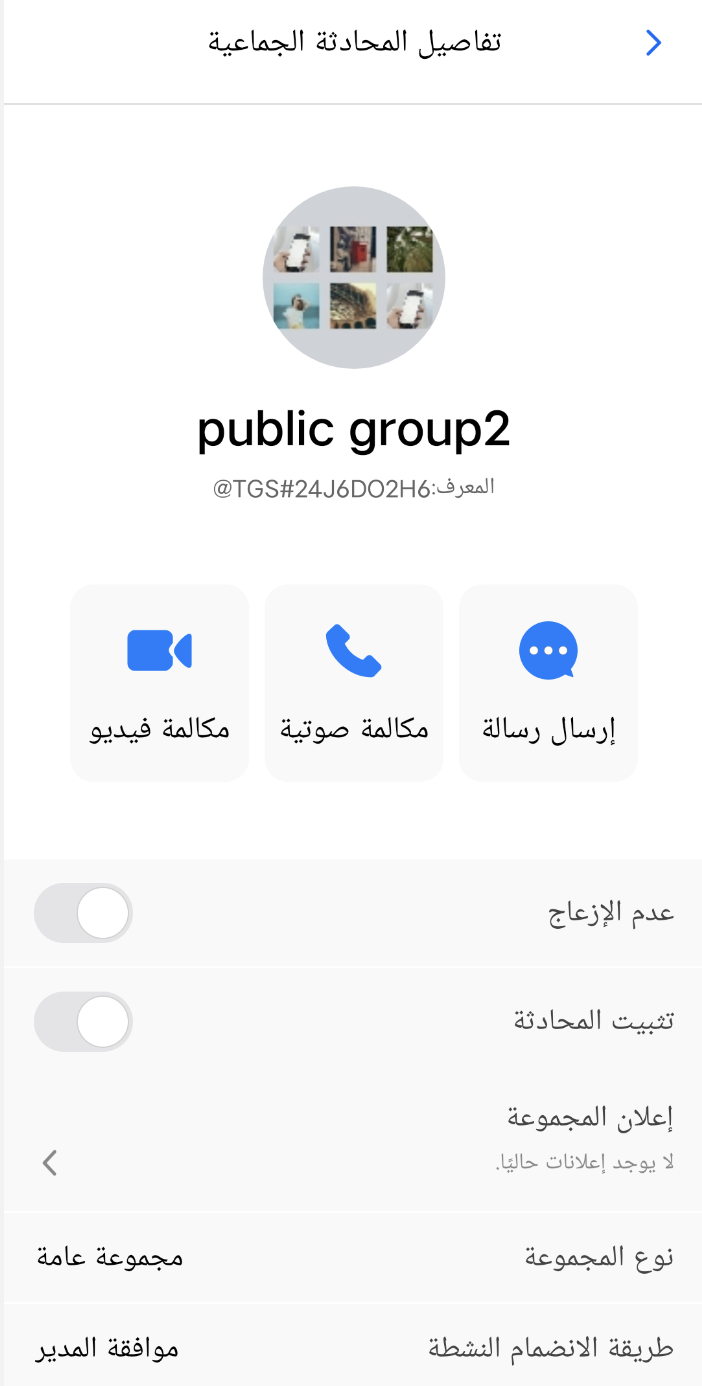
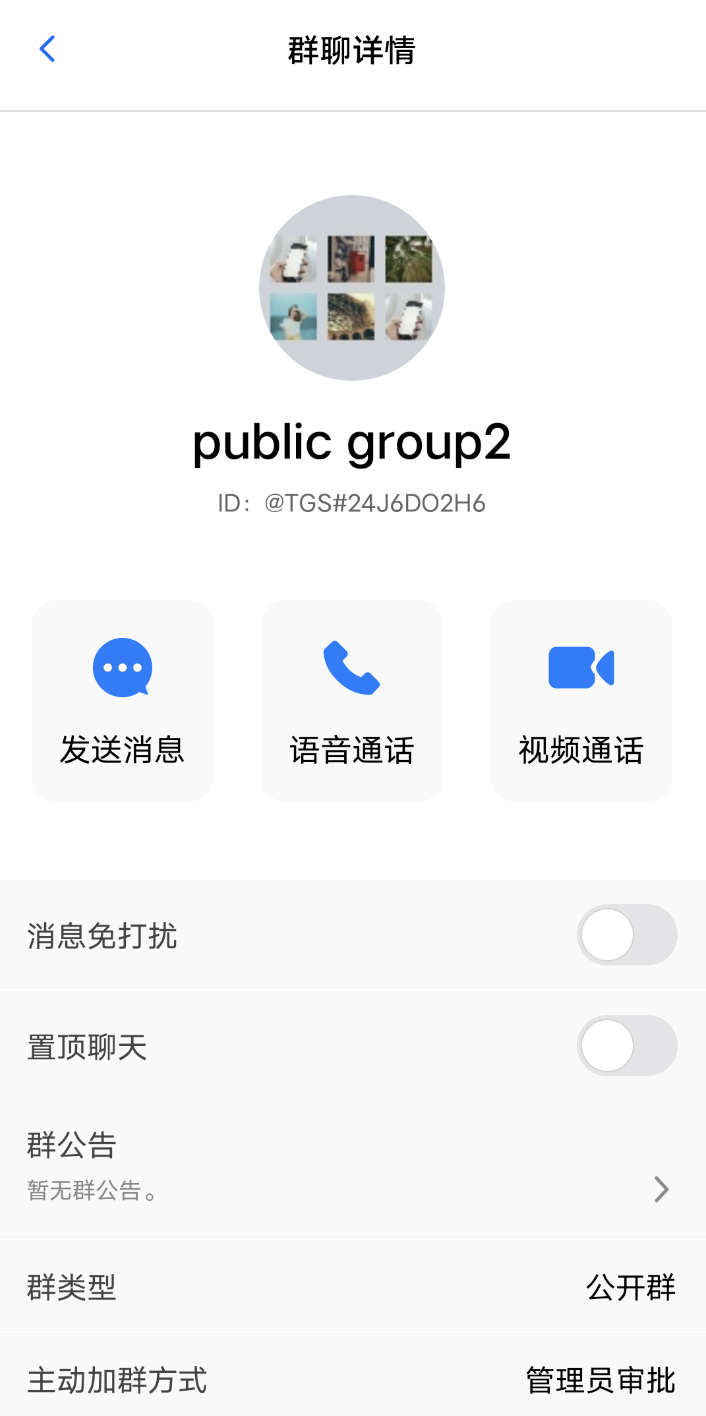
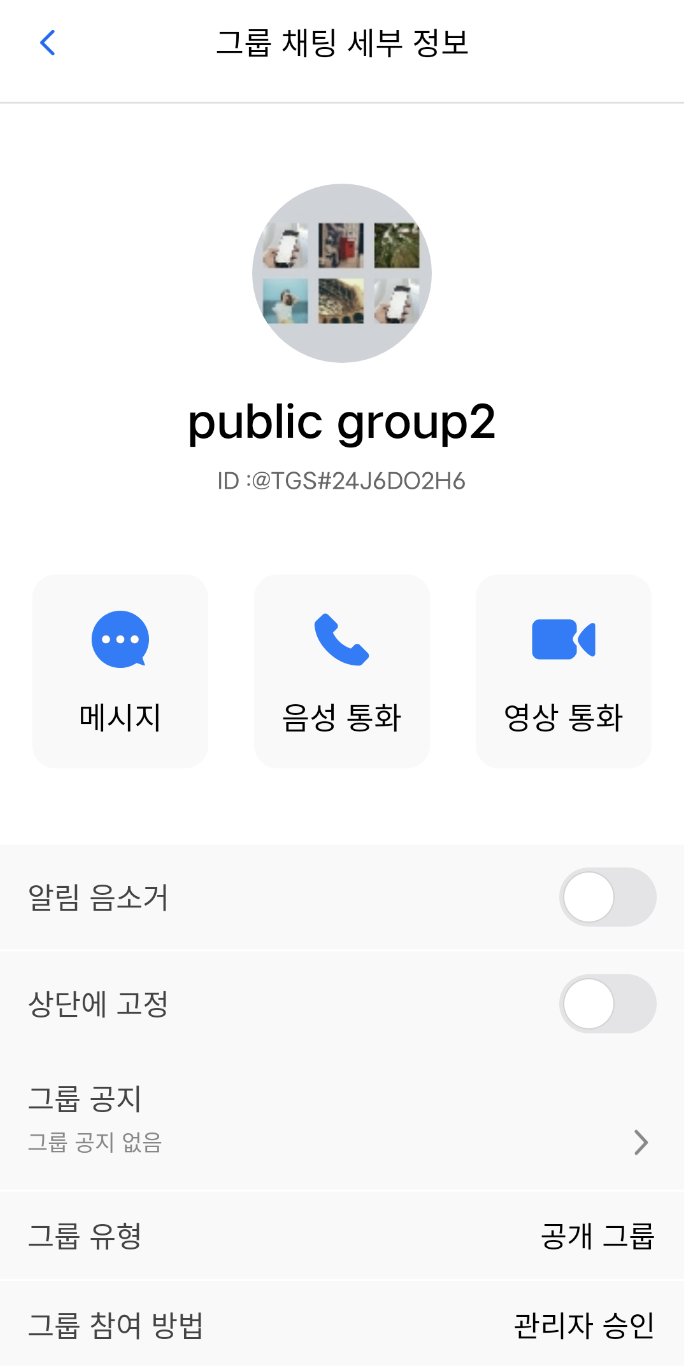
The Android TUIKit comes with , English, Arabic and Simplified Chinese language packs by default, which serve as the interface display language. According to the guidance in this document, you can use the default language pack, or customize the language translation expressions and add other language packs.
Note:
Starting from version 7.5.4852, TUIKit has added support for RTL languages (languages with text direction from right to left, such as Arabic, Hebrew, etc.). When the language in the app is an RTL language, TUIKit will automatically switch to the RTL style; meanwhile, the built-in languages have been expanded to include Arabic.
English
Arabic
Simplified Chinese
Using the built-in language
If your app only requires English, Arabic and Simplified Chinese languages, please refer to this section.
Follow the system language
You can use TUIKit directly without any additional steps. The language inside the component will follow the system language.
Specify the displayed language
If you need to specify the language for the TUIKit interface, you need to call the following code during Application initialization to set it. For example, to set it to Simplified Chinese:
* The available language options are enumerated as follows:
* TUIThemeManager.LANGUAGE_EN ---- English
* TUIThemeManager.LANGUAGE_ZH_CN ---- Simplified Chinese
* TUIThemeManager.LANGUAGE_AR ---- Arabic
*/
}
Notice:
Calling the changeLanguage method alone will not automatically refresh the UI. After changing the language, you will need to retrieve the translated strings and set them again to the corresponding UI components for the changes to take effect.
Modify language dynamically
You can refer to the code in the LanguageSelectActivity.java file of TUIKitDemo. You can also use the following method to switch the language, for example to Simplified Chinese:
Solution for Language Switching Failure After Using WebView
The failure to switch languages after using WebView is a bug in Android 7 and later versions. This is due to WebView's initialization process, which modifies the App's language to match the phone's system language. To resolve this issue, the following code needs to be invoked within the setThemeInternal method in TUIThemeManager.java:
Should your application necessitate the inclusion of additional languages, or the modification of certain translation entries, please refer to this section. This chapter illustrates the process of adding new language packs and customizing translations, using the addition of a Korean language pack to the TUIGroup component as an example.
Adding New Language Resource Files
Within the TUIGroup component directory in Android Studio, add a new Android Resource File via the right-click menu.
Create resource directories by Locale dimension, inputting the filename as 'strings'.
The language selection is set to Korean ("ko: Korean"), the region is designated as "KR: South Korea", and upon confirmation, the Korean resource file values-ko-rKR/strings.xml is successfully created.
Personalized Custom Translation
The previous step has successfully generated the Korean resource file values-ko-rKR/strings.xml. Now, replicate the content from the values/strings.xml file into the values-ko-rKR/strings.xml file, substituting the corresponding English with Korean, as depicted in the illustration.
The 'name' attribute within various language resource files remains consistent, while the specific content can be customized through translation.
Follow System Language
Simply utilize TUIKit, and upon setting the default language of your mobile device to Korean and launching the App, the App's language will automatically display in Korean.
Specified Display Language
Should you require to set the TUIKit interface language to Korean, it is advisable to initially add Korean to the language manager during the Application initialization, followed by setting the TUIKit interface language to Korean.