tencent cloud

TDMQ for CKafka

Release Notes and Announcements
Release Notes
Broker Release Notes
Announcement
Product Introduction
Introduction and Selection of the TDMQ Product Series
What Is TDMQ for CKafka
Strengths
Scenarios
Technology Architecture
Product Series Introduction
Apache Kafka Version Support Description
Comparison with Apache Kafka
High Availability
Use Limits
Regions and AZs
Related Cloud Services
Billing
Billing Overview
Pricing
Billing Example
Changing from Postpaid by Hour to Monthly Subscription
Renewal
Viewing Consumption Details
Overdue Payments
Refund
Getting Started
Guide for Getting Started
Preparations
VPC Network Access
Public Domain Name Access
User Guide
Usage Process Guide
Configuring Account Permission
Creating Instance
Configuring Topic
Connecting Instance
Managing Messages
Managing Consumer Group
Managing Instance
Changing Instance Specification
Configuring Traffic Throttling
Configuring Elastic Scaling Policy
Configuring Advanced Features
Viewing Monitoring Data and Configuring Alarm Rules
Synchronizing Data Using CKafka Connector
Use Cases
Cluster Resource Assessment
Client Practical Tutorial
Log Integration
Open-Source Ecosystem Integration
Replacing Supporting Route (Old)
Migration Guide
Migration Solution Overview
Migrating Cluster Using Open-Source Tool
Troubleshooting
Topics
Clients
Messages
​​API Reference
History
Introduction
API Category
Making API Requests
Other APIs
ACL APIs
Instance APIs
Routing APIs
DataHub APIs
Topic APIs
Data Types
Error Codes
SDK Reference
SDK Overview
Java SDK
Python SDK
Go SDK
PHP SDK
C++ SDK
Node.js SDK
SDK for Connector
Security and Compliance
Permission Management
Network Security
Deletion Protection
Event Record
CloudAudit
FAQs
Instances
Topics
Consumer Groups
Client-Related
Network-Related
Monitoring
Messages
Agreements
CKafka Service Level Agreements
Contact Us
Glossary

Data Processing Rule Description

PDF
フォーカスモード
フォントサイズ
最終更新日: 2026-01-20 17:02:41

Overview

When you process data inflow and outflow tasks through the TDMQ for CKafka (CKafka) connector, basic data cleansing operations are often required, such as formatting raw data, parsing specific fields, and converting data formats. Developers often need to build their own extract, transform, and load (ETL) pipeline for data cleansing.
Logstash is a free, open-source, server-side data processing pipeline that can collect data from multiple data sources, transform it, and then send it to corresponding targets. Logstash boasts a rich set of filter plugins, making it a widely used and powerful data transformation tool.
However, building, configuring, and maintaining your own Logstash service increases development and Ops complexity. To address this, CKafka provides a data processing service comparable to Logstash. Developers can create their own data processing tasks simply through the console interface. The data processing service allows users to edit corresponding data processing rules, supports building chain processing, and enables previewing data processing results. This helps users easily and efficiently build a data processing service to meet data cleansing and transformation needs.


Feature Comparison List

Logstash
Connector Data Processing Service
Feature
Codec.json
Filter.grok
Filter.mutate.split
Filter.date
Filter.json
Filter.mutate.convert
Filter.mutate.gsub
Filter.mutate.strip
Filter.mutate.join
Filter.mutate.rename
Filter.mutate.update
Filter.mutate.replace
Filter.mutate.add_field
Filter.mutate.remove_field
Filter.mutate.copy
Filter.mutate.merge

TODO
Filter.mutate.uppercase

TODO
Filter.mutate.lowercase

TODO

Introduction to Operation Methods

Data Parsing

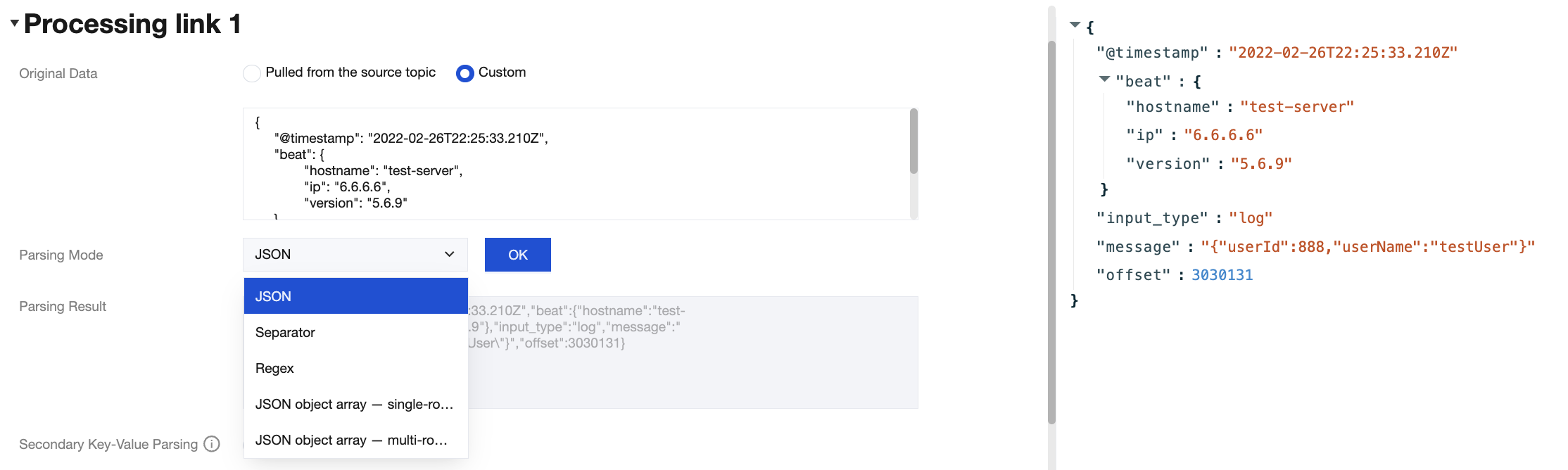
Select the corresponding data parsing mode and click to preview the results.


Date Format Processing

1. Enter raw data that contains a date format. The following is an example.
{
"@timestamp": "2022-02-26T22:25:33.210Z",
"beat": {
"hostname": "test-server",
"ip": "6.6.6.6",
"version": "5.6.9"
},
"input_type": "log",
"message": "{\\"userId\\":888,\\"userName\\":\\"testUser\\"}",
"offset": 3030131
}
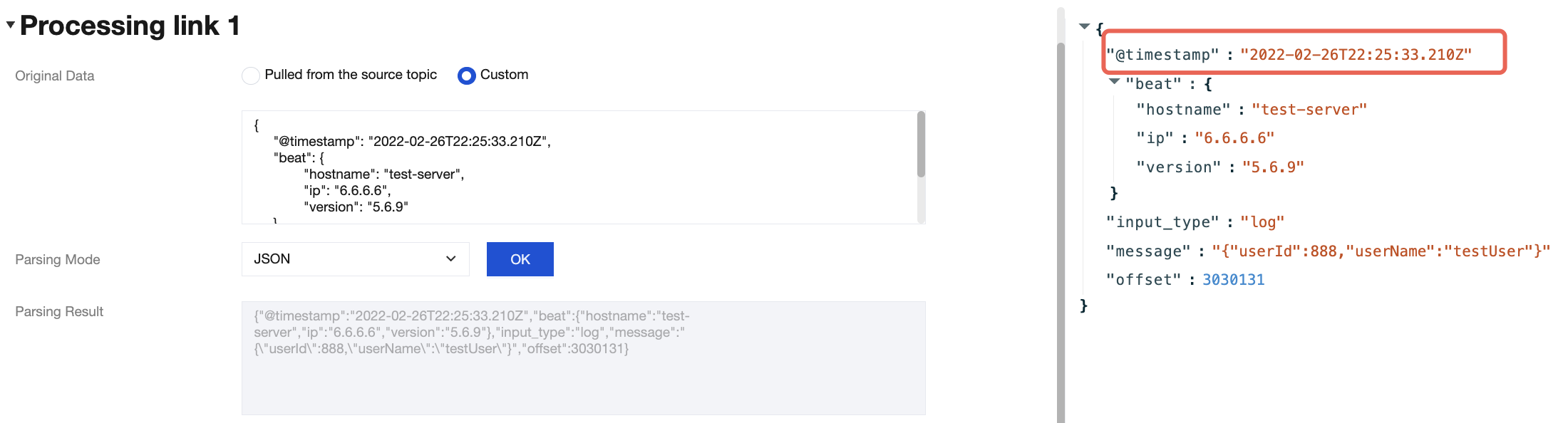
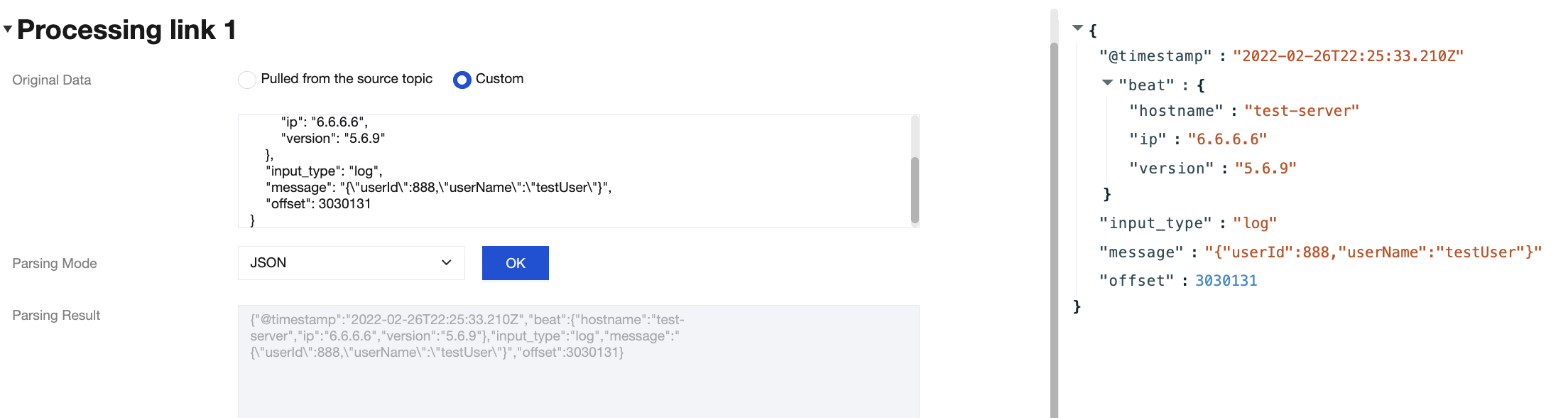
2. The parsing result is as follows:

3. Processing method through the CKafka connector:
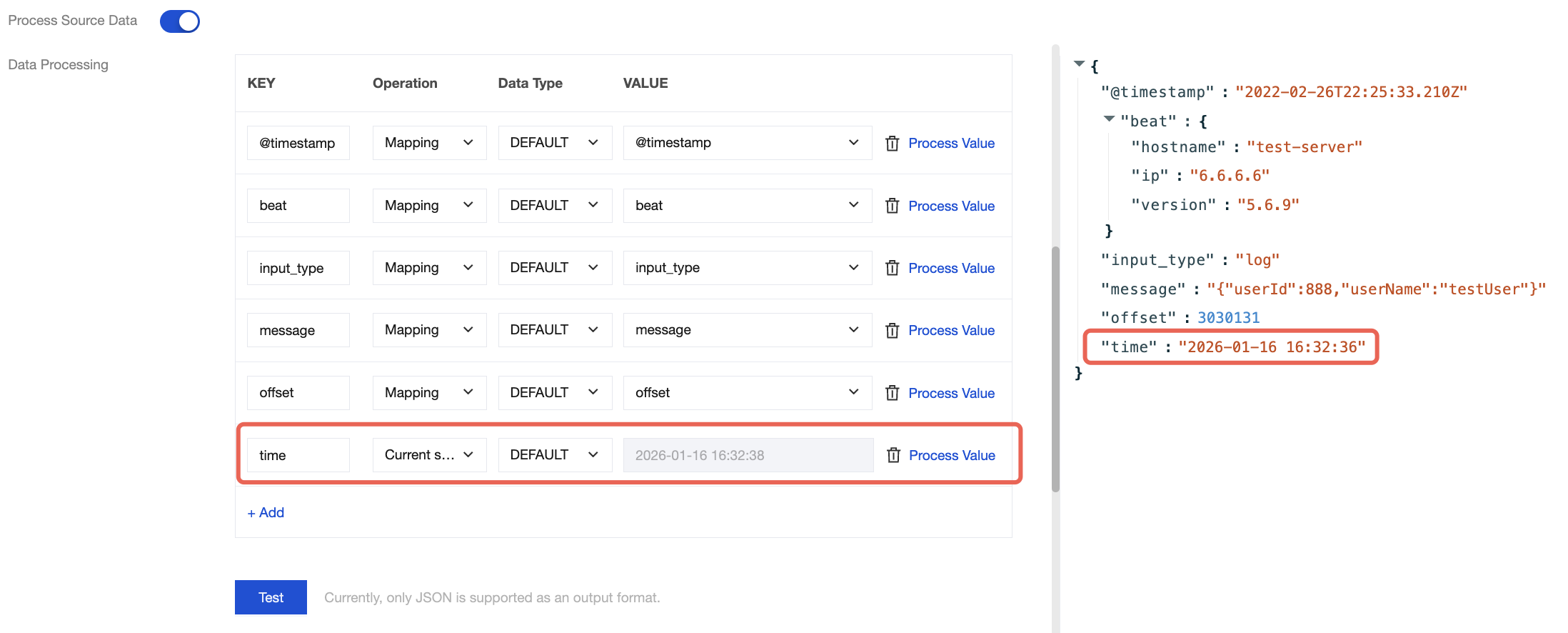
3.1 Assign a value to a specific field by presetting the system's current time.

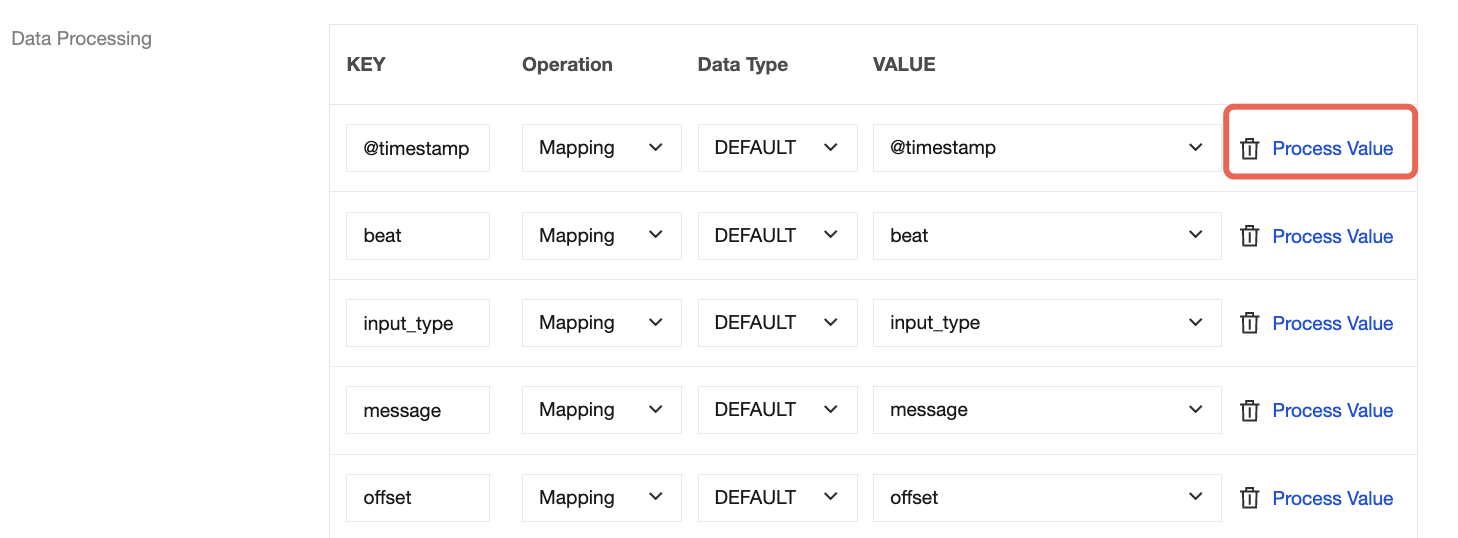
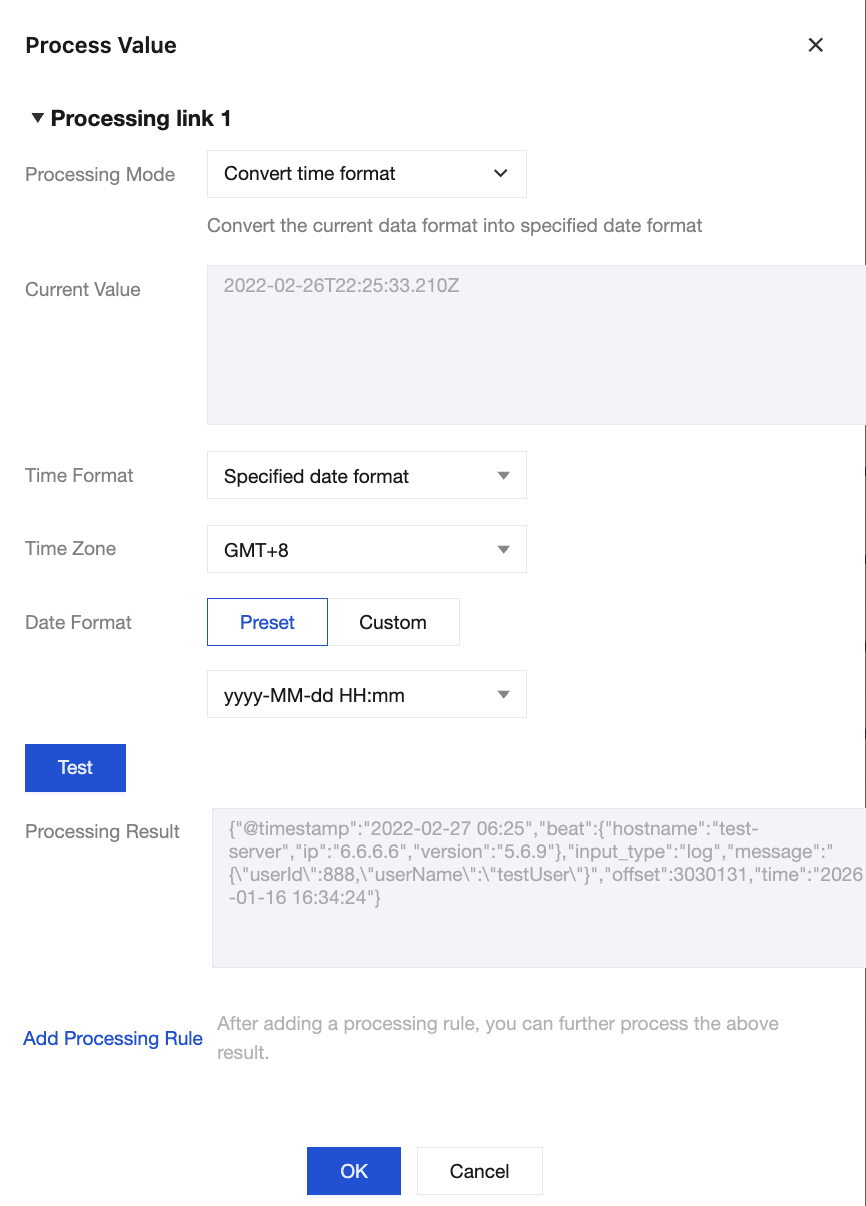
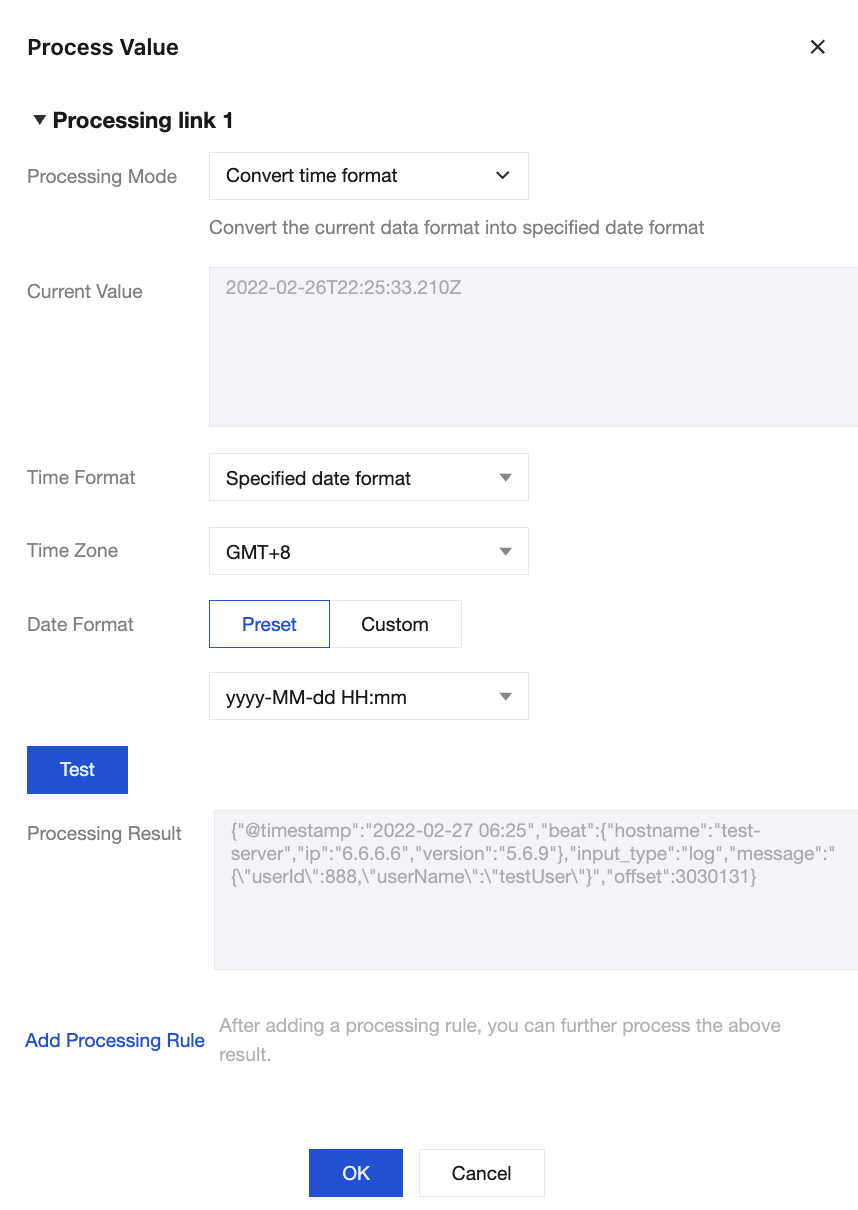
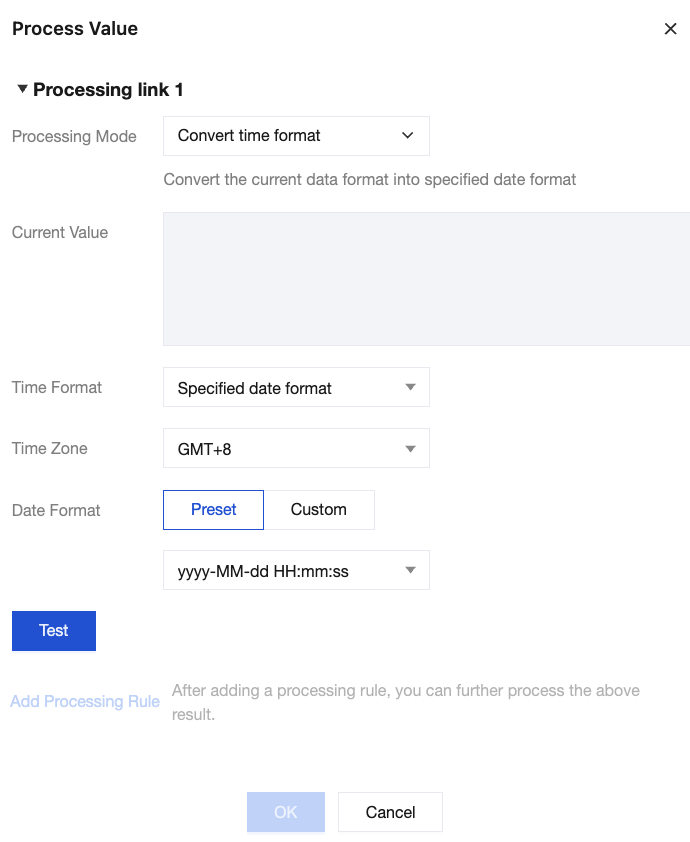
3.2 Process date data using the Process Value feature in the Data Processing module.


Select Convert Time Format for the processing mode, select the time format, time zone, and date format, and then click OK.

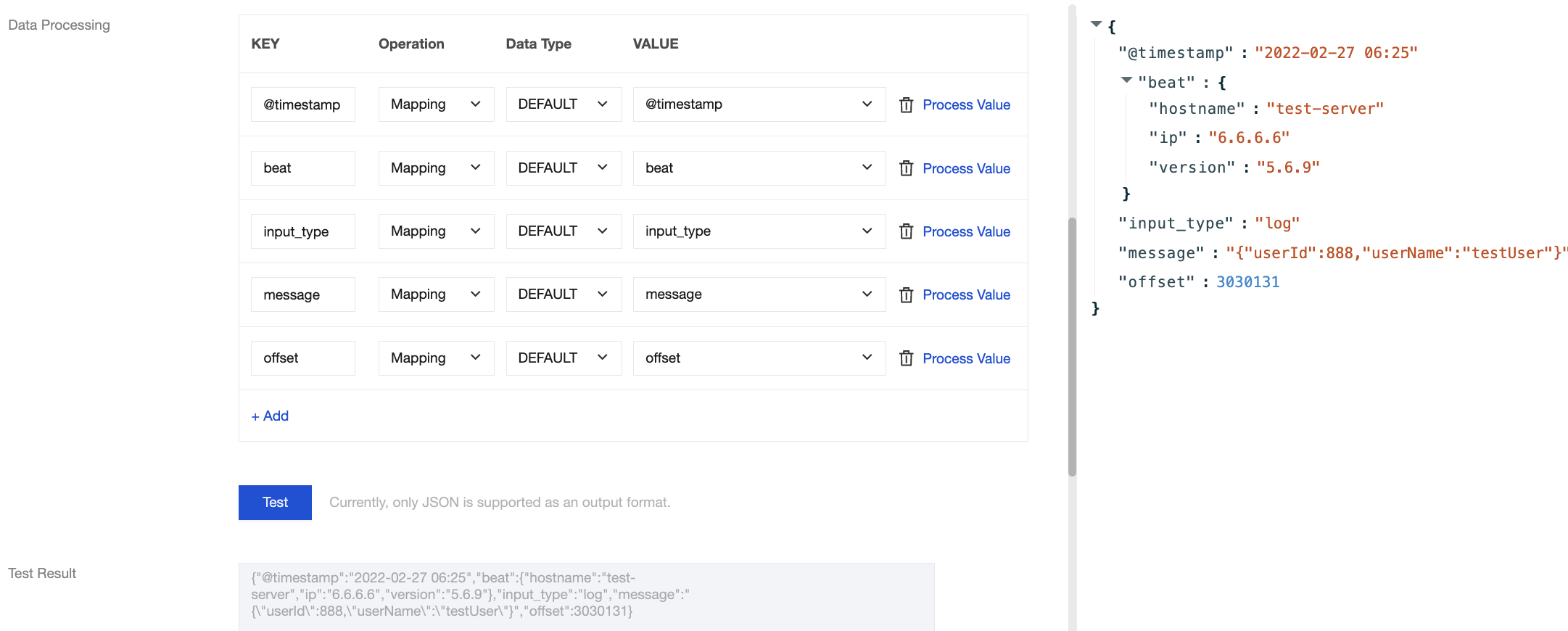
4. Click Test to view the converted time format.


Parsing Nested JSON Structures

1. Enter raw data that contains a nested JSON format. The following is an example.
{
"@timestamp": "2022-02-26T22:25:33.210Z",
"beat": {
"hostname": "test-server",
"ip": "6.6.6.6",
"version": "5.6.9"
},
"input_type": "log",
"message": "{\\"userId\\":888,\\"userName\\":\\"testUser\\"}",
"offset": 3030131
}
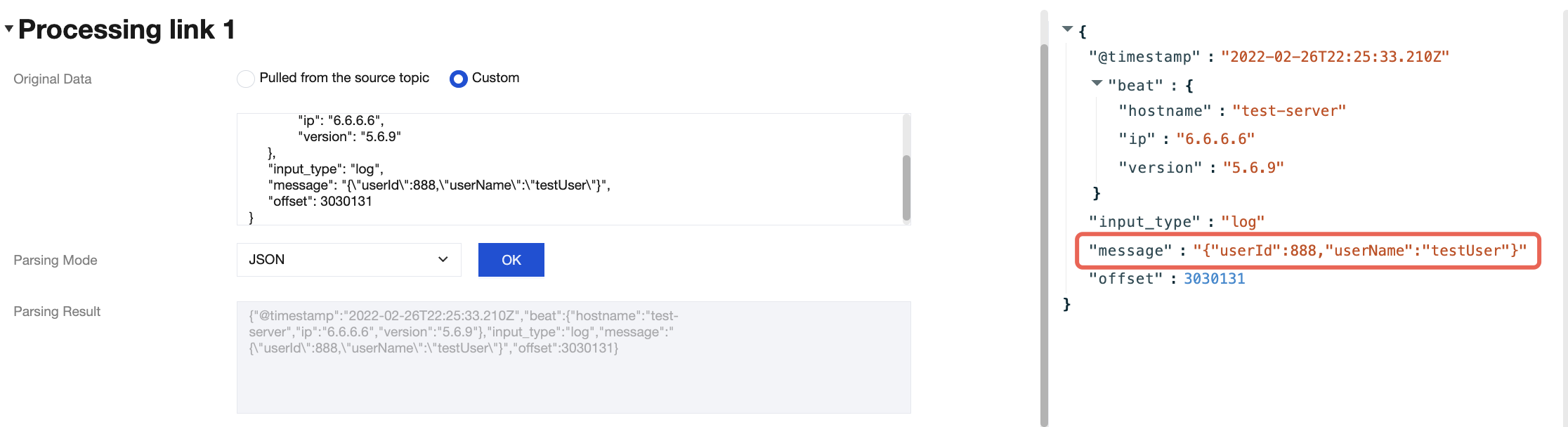
2. The parsing result is as follows:


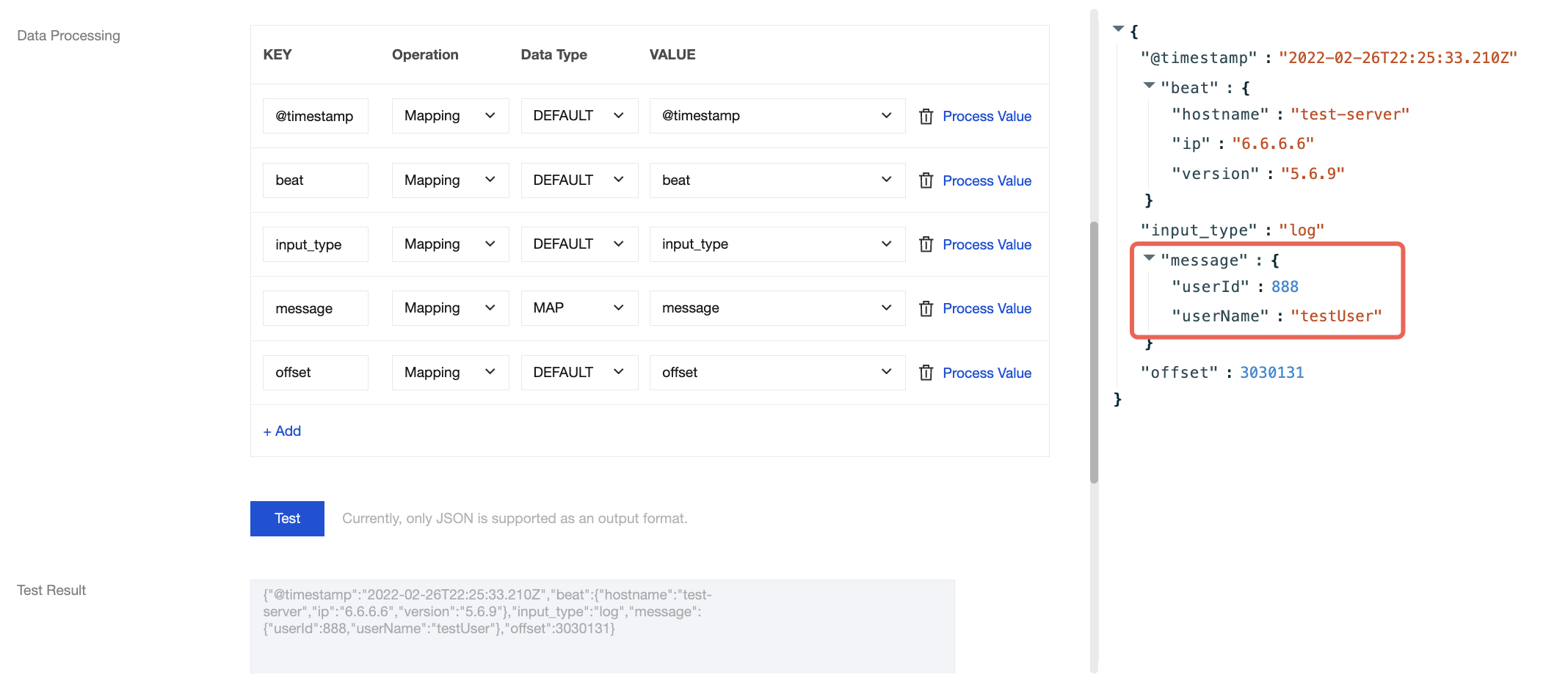
3. Select the MAP operation for this field to parse it into JSON format:


Data Modification

Enter raw data. The following is an example.
{
"@timestamp": "2022-02-26T22:25:33.210Z",
"beat": {
"hostname": "test-server",
"ip": "6.6.6.6",
"version": "5.6.9"
},
"input_type": "log",
"message": "{\\"userId\\":888,\\"userName\\":\\"testUser\\"}",
"offset": 3030131
}
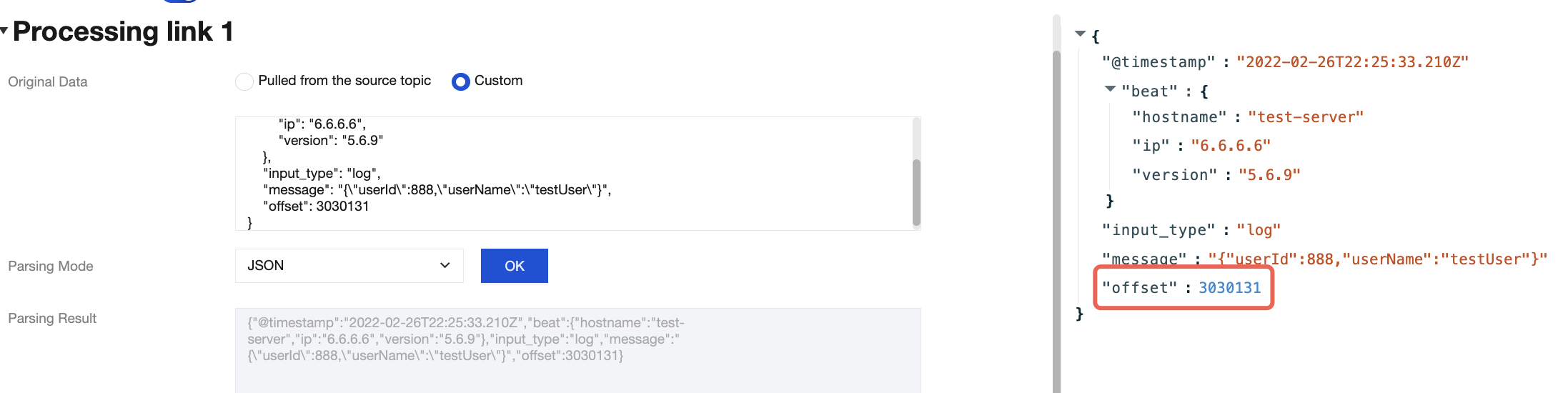
The parsing result is as follows:


Processing methods through the connector:
Method 1: Click Process Value and define rules.


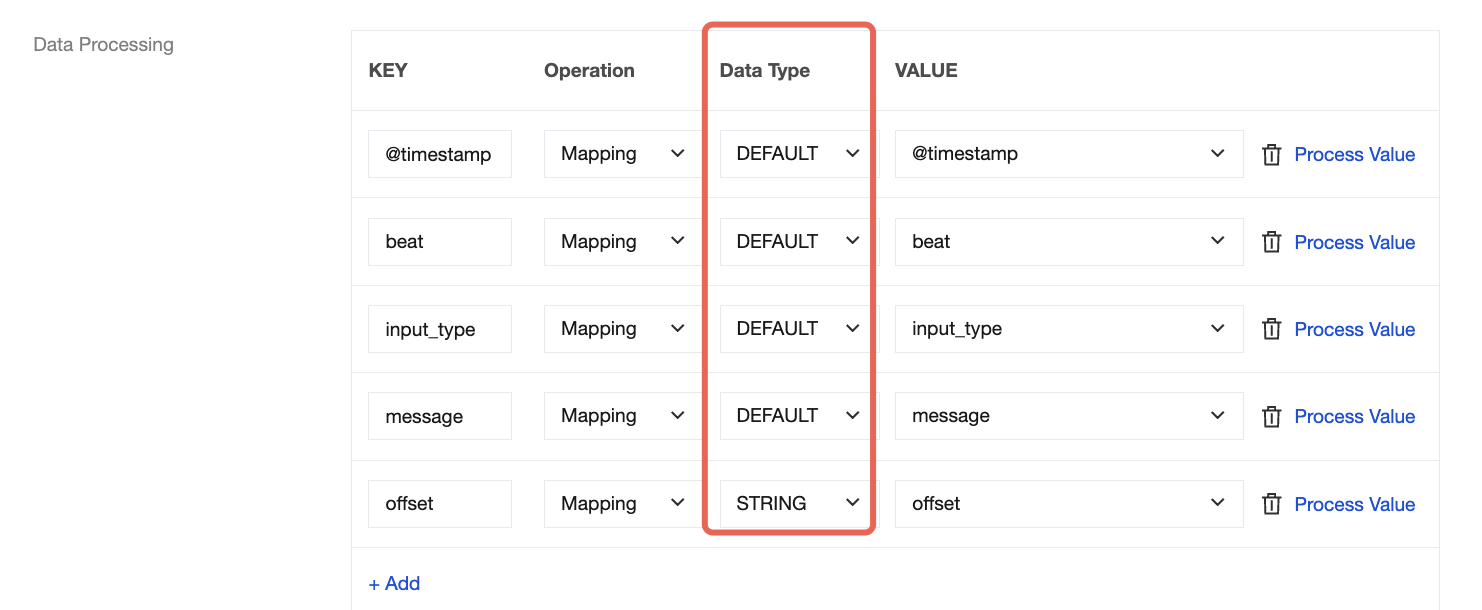
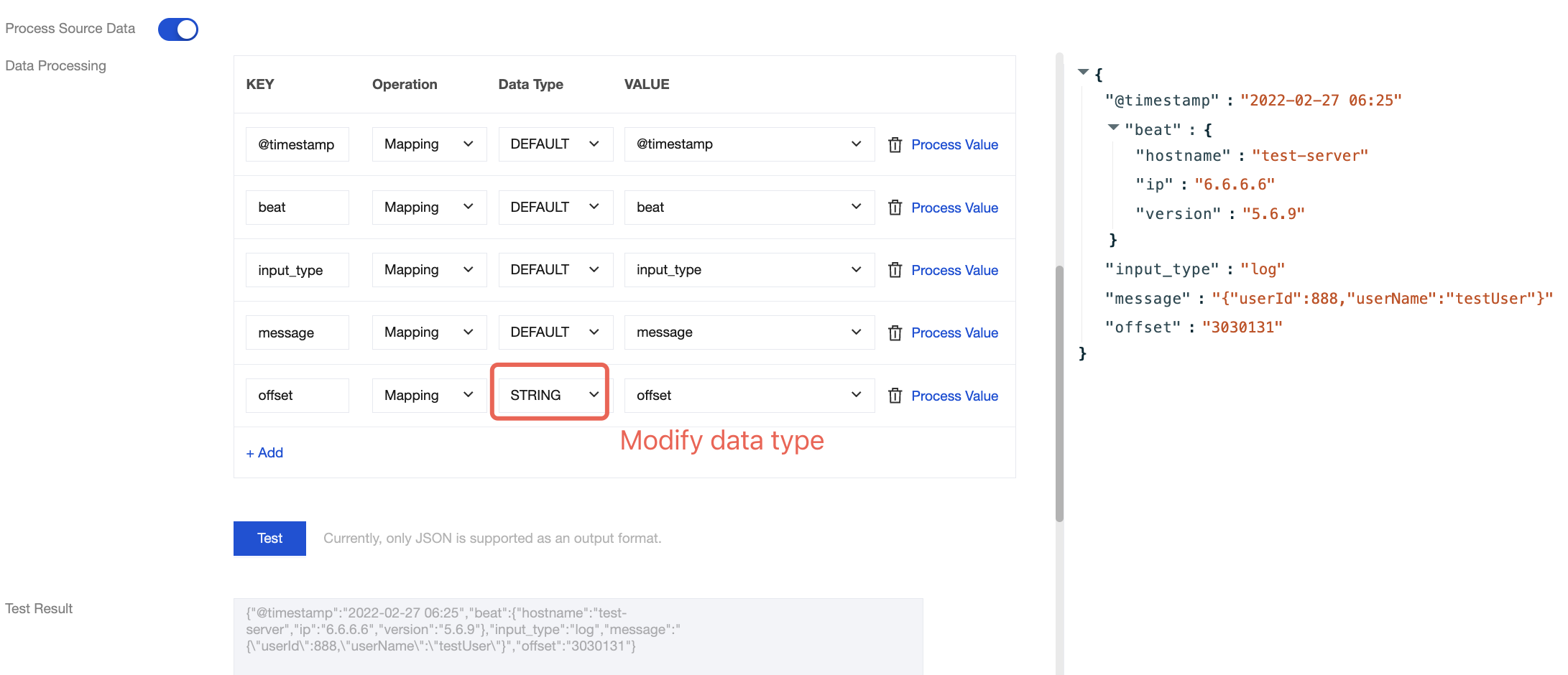
Method 2: Select the data type to change the data format of the corresponding field.


Before the change:


After the change:


Method 3: Implement the join concatenation feature using JSONPath syntax. For example, use the syntax $.concat($.data.Response.SubnetSet[0].VpcId, \\"#\\", $.data.Response.SubnetSet[0].SubnetId, \\"#\\", $.data.Response.SubnetSet[0].CidrBlock) to concatenate Virtual Private Cloud (VPC) and subnet properties, separated by the # character. For more information about JSONPath syntax, see JSONPath.


Field Modification

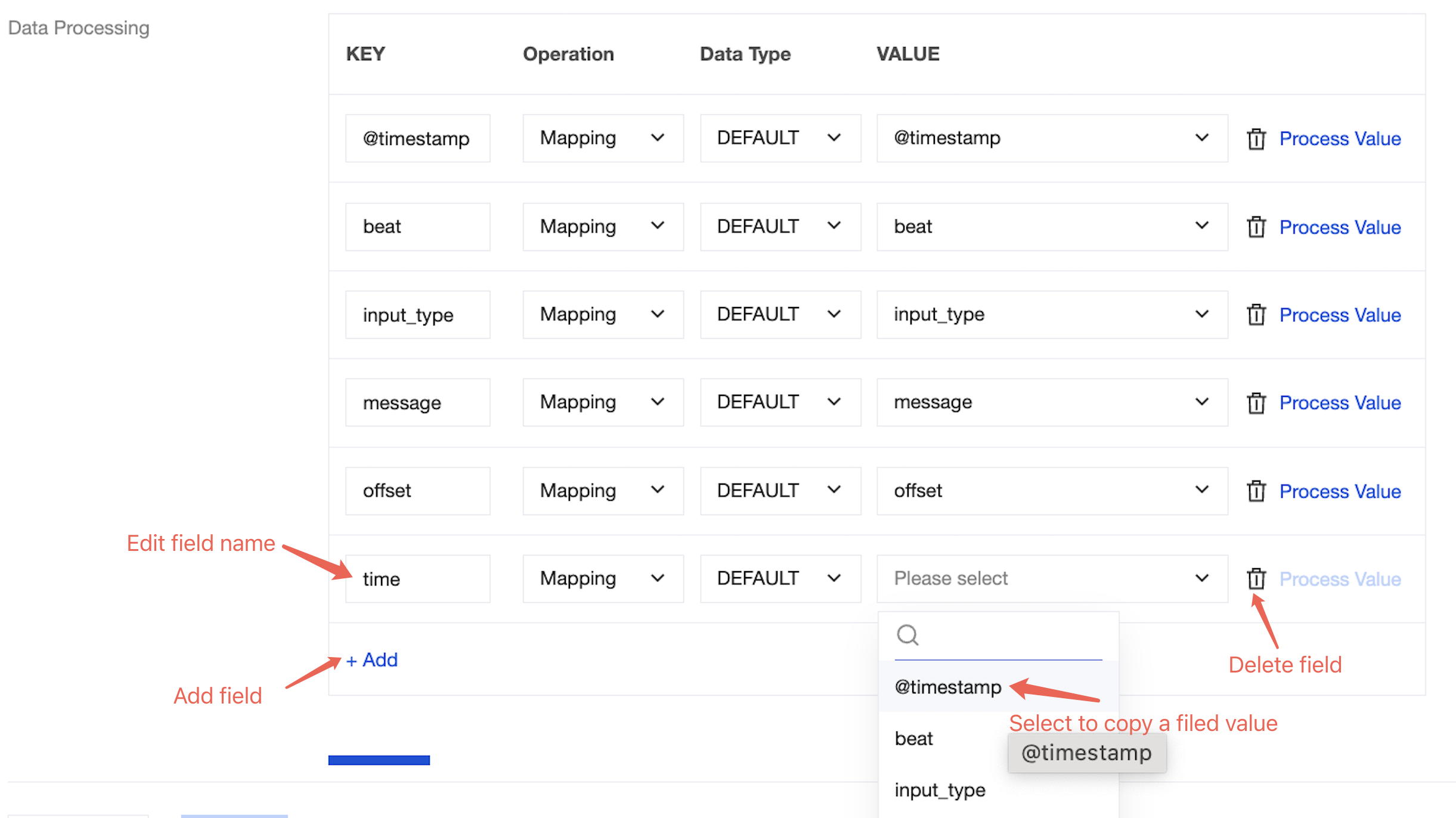
During data processing with the CKafka connector, you can use various methods to edit and modify the parsed data fields to obtain your desired data. For example:
You can modify the field name in the KEY column.
You can choose to copy the value of a field in the VALUE column.
You can click Add at the bottom to add a field.
You can click

on the right to delete a field.


Practical Case Demonstrations

Case 1: Multi-Level Field Parsing

Input message:
{
"@timestamp": "2022-02-26T22:25:33.210Z",
"beat": {
"hostname": "test-server",
"ip": "6.6.6.6",
"version": "5.6.9"
},
"input_type": "log",
"message": "{\\"userId\\":888,\\"userName\\":\\"testUser\\"}",
"offset": 3030131
}
Target message:
{
"@timestamp": "2022-02-26T22:25:33.210Z",
"input_type": "log",
"hostname": "test-server",
"ip": "6.6.6.6",
"userId": 888,
"userName": "testUser"
}
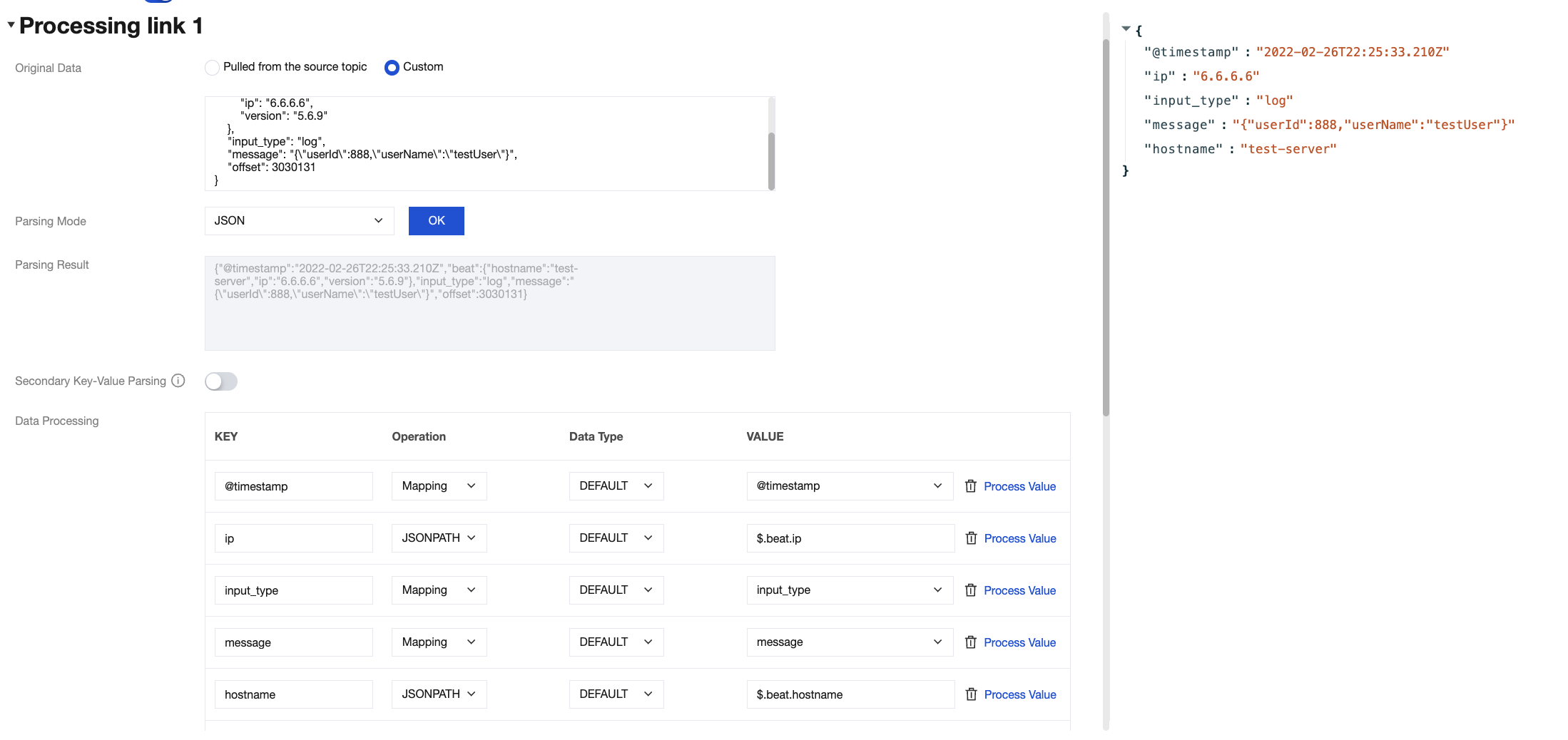
Configuration method through the connector:
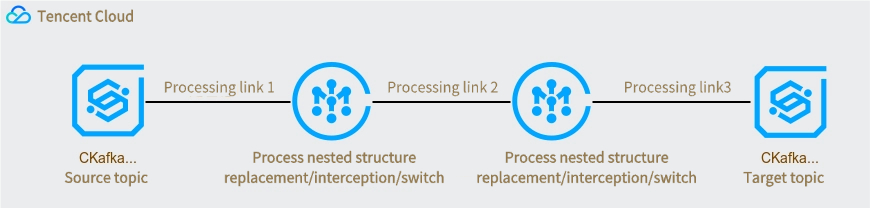
1.1 Processing chain 1 is configured as follows:


1.2 The result of processing chain 1 is as follows:
{
"@timestamp": "2022-02-26T22:25:33.210Z",
"input_type": "log",
"message": "{\\"userId\\":888,\\"userName\\":\\"testUser\\"}",
"hostname": "test-server",
"ip": "6.6.6.6"
}
1.3 Processing chain 2 is configured as follows:

1.4 The result of processing chain 2 is as follows:
{
"@timestamp": "2022-02-26T22:25:33.210Z",
"input_type": "log",
"hostname": "test-server",
"ip": "6.6.6.6",
"userId": 888,
"userName": "testUser"
}

Case 2: Non-JSON Data Parsing

Input message:
region=Shanghai$area=a1$server=6.6.6.6$user=testUser$timeStamp=2022-02-26T22:25:33.210Z
Target message:
{
"region": "Shanghai",
"area": "a1",
"server": "6.6.6.6",
"user": "testUser",
"timeStamp": "2022-02-27 06:25:33",
"processTimeStamp": "2022-06-27 11:14:49"
}
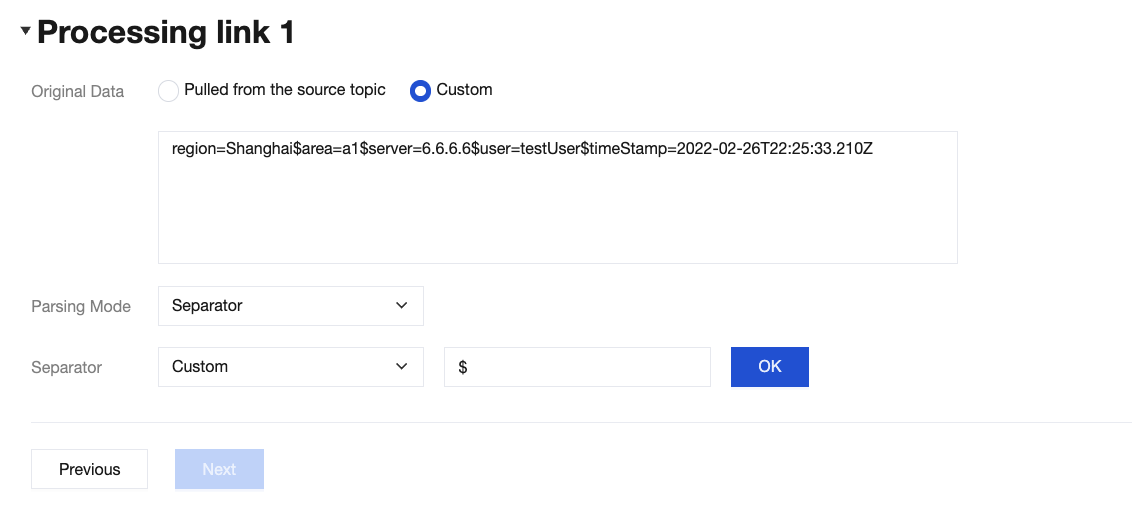
Configuration method through the connector:
1.1 Use the delimiter $ to parse the original message.


1.2 Initial parsing result:
{
"0": "region=Shanghai",
"1": "area=a1",
"2": "server=6.6.6.6",
"3": "user=testUser",
"4": "timeStamp=2022-02-26T22:25:33.210Z"
}
1.3 Use the delimiter = to perform secondary parsing on the result:


1.4 Secondary parsing result:
{
"0": "region=Shanghai",
"1": "area=a1",
"2": "server=6.6.6.6",
"3": "user=testUser",
"4": "timeStamp=2022-02-26T22:25:33.210Z",
"0.region": "Shanghai",
"1.area": "a1",
"2.server": "6.6.6.6",
"3.user": "testUser",
"4.timeStamp": "2022-02-26T22:25:33.210Z"
}
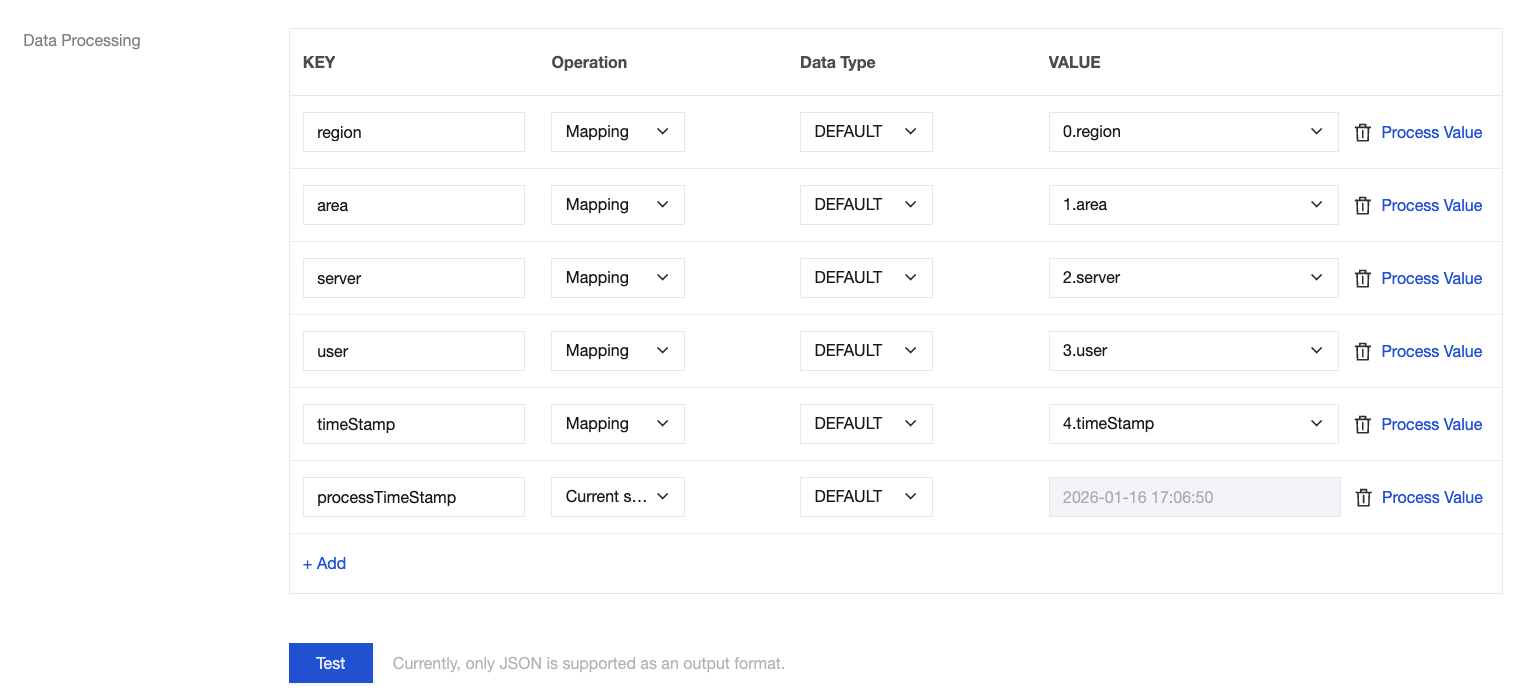
1.5 Edit and delete fields, adjust the timestamp format, and add a field for the current system time.


Final result:
{
"region": "Shanghai",
"area": "a1",
"server": "6.6.6.6",
"user": "testUser",
"timeStamp": "2022-02-27 06:25:33",
"processTimeStamp": "2022-06-27 11:14:49"
}


ヘルプとサポート

この記事はお役に立ちましたか?

フィードバック