Displaying Custom Branding and Client Icons
ダウンロード
フォーカスモード
フォントサイズ
Custom Branding
The custom branding feature allows administrators to configure enterprise-specific branding information, including the brand name and Logo, in the iOA console. After the client starts, it displays the custom brand, enhancing corporate identity recognition.
1. Log in to the Tencent iOA Zero Trust Security Management System console and choose Personalized Settings > Custom brand in the left sidebar.
2. On the Custom Branding page, click Edit.
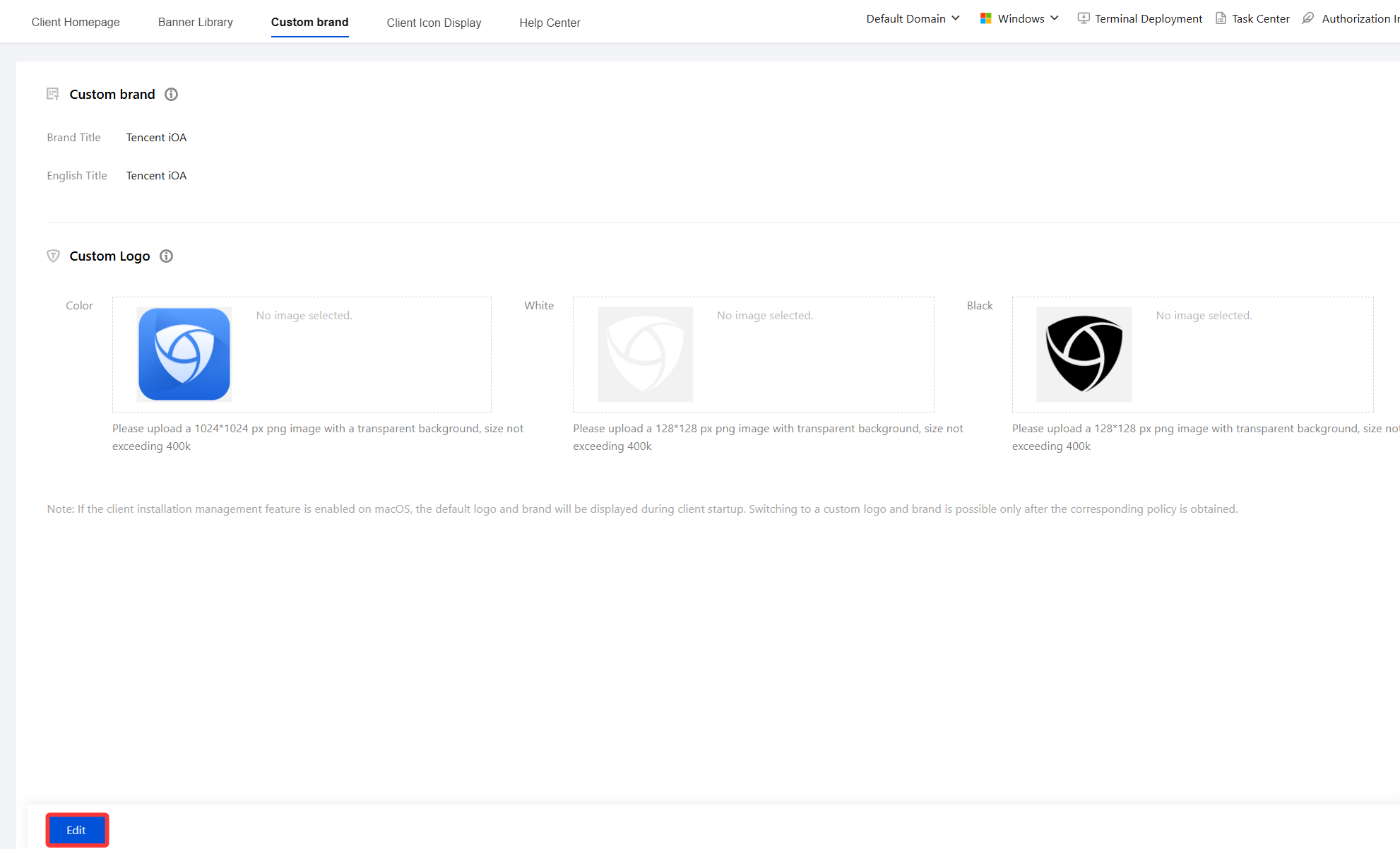
3. Configure the branding information, including the brand title, Logo, and other details.
Parameter Name | Description |
Brand title | Enter a Chinese brand name. This name will be displayed in the lower-left corner of the client. |
English title | Enter an English brand name. When the client language is switched to English, this name will be used for brand display in the English environment. |
Custom Logo | Color: Upload a PNG image with a transparent background, a size of 1024*1024 px, and a file size no more than 400 KB. White: Upload a PNG image with a transparent background, a size of 128*128 px, and a file size no more than 400 KB. Black: Upload a PNG image with a transparent background, a size of 128*128 px, and a file size no more than 400 KB. |
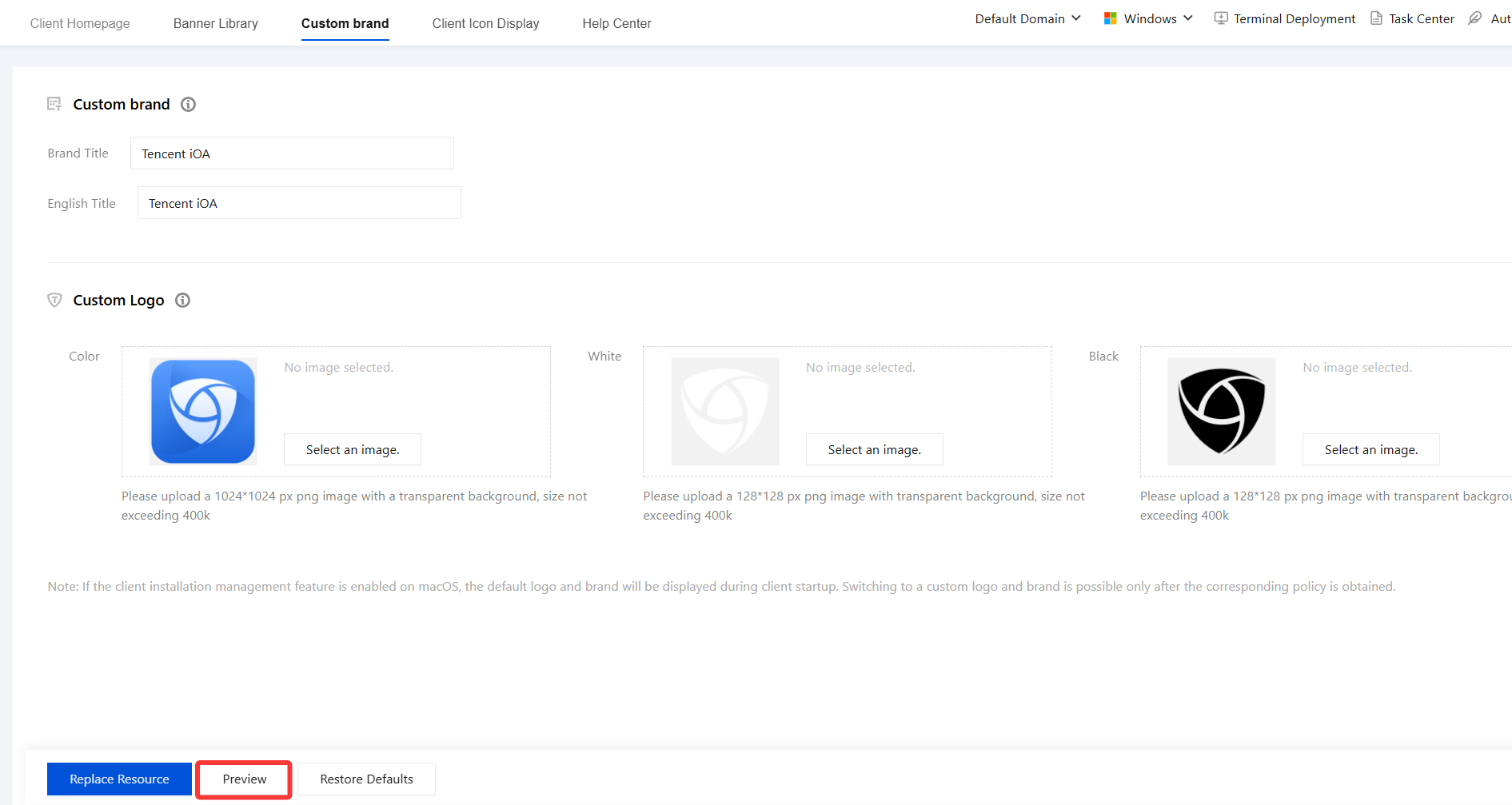
4. Click Preview to view the client icon style.
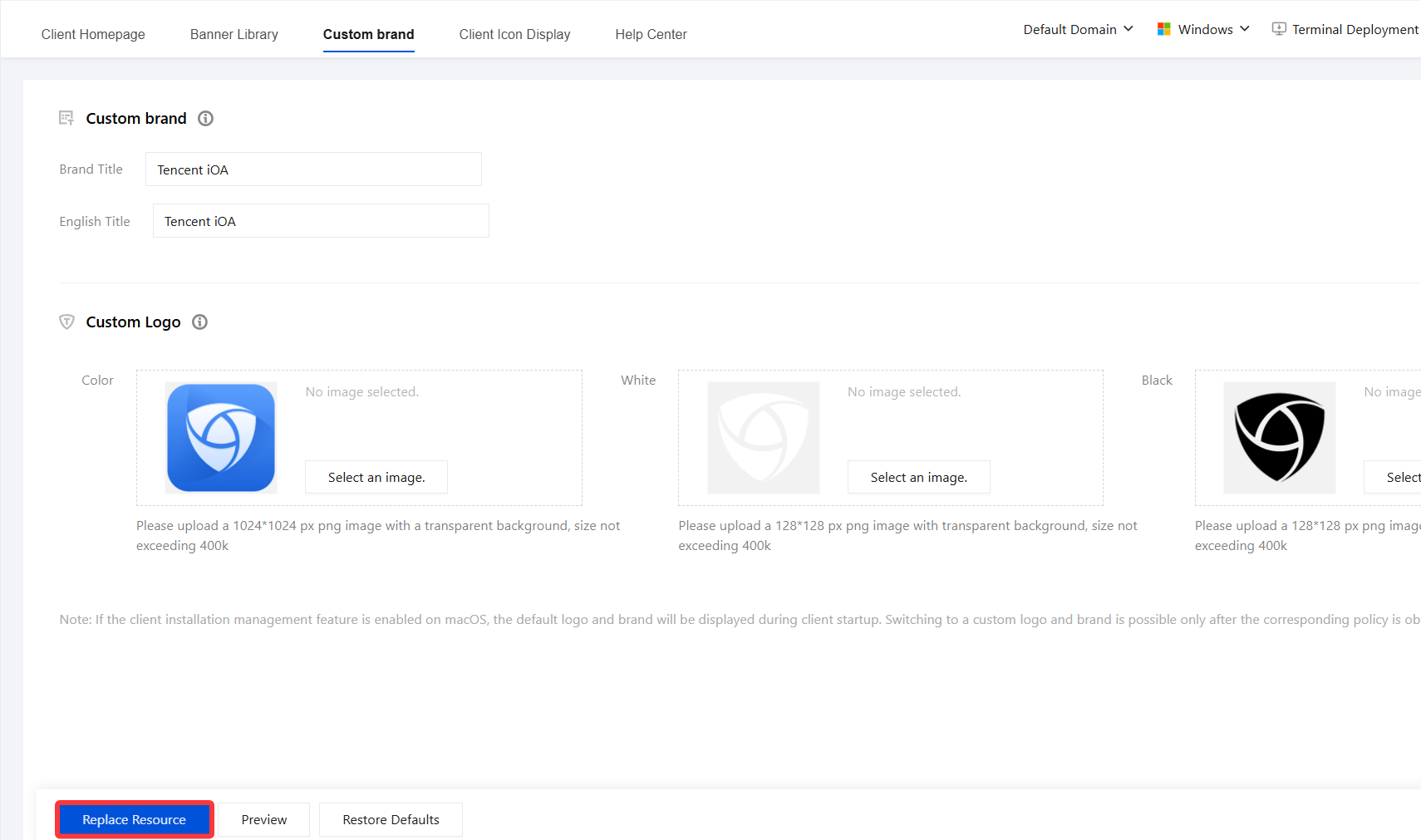
5. After completing the brand title and Logo upload, click Replace Resource. The policy will then be delivered automatically to the client.
Client Icon Display
The client icon display feature allows administrators to flexibly control how the iOA client icon is displayed on terminal devices. Based on enterprise security policies or user experience requirements, administrators can choose whether to display the client icon on the desktop, in the Start menu, or in the system tray.
1. Log in to the Tencent iOA Zero Trust Security Management System console and choose Personalized Settings > Client lcon Display in the left sidebar.
2. On the Client Icon Display page, click Edit.
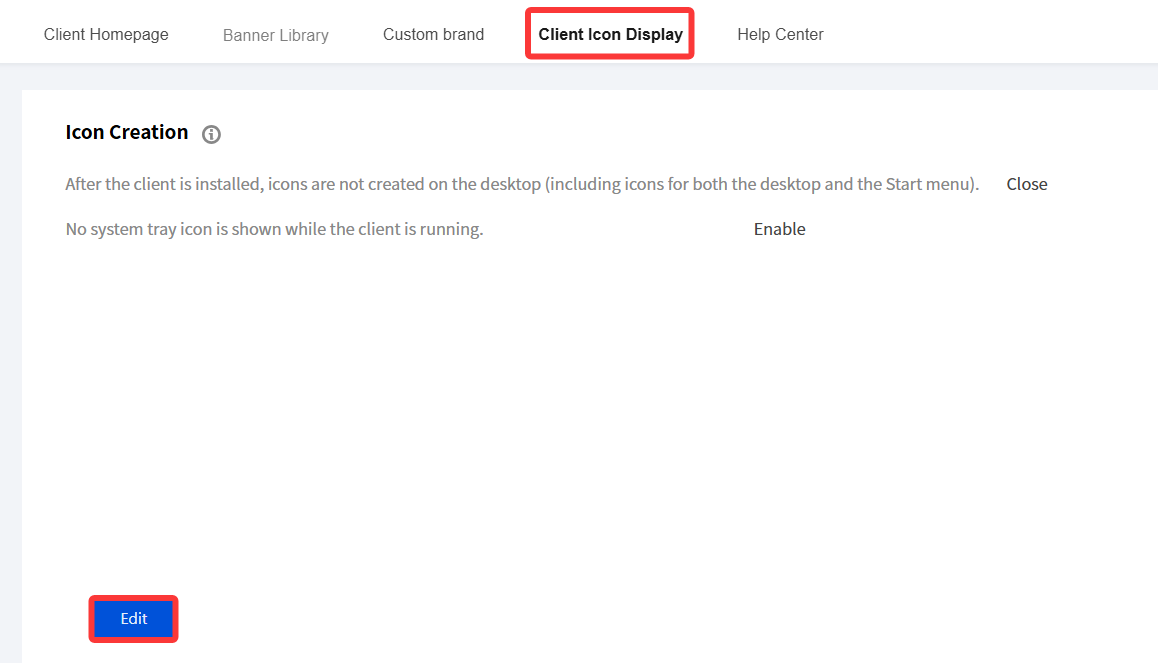
3. Enable or disable the following two toggles as needed:
Switch Item | Feature Description |
Do not create a desktop icon after client installation. | After this feature is enabled, the iOA client does not create shortcut icons on the desktop or in the Start menu after installation, and users cannot find and launch the client through conventional entry points. |
Do not display an icon in the system tray while the client is running. | After this feature is enabled, the iOA client does not display an icon in the system tray (bottom-right corner of the taskbar) when running in the background, and users cannot exit or configure settings through the tray menu. |
4. After confirming that the toggle configuration is correct, click Save Settings. The policy will then be delivered to the client.
5. To discard the current changes, click Cancel Modification. The page will then revert to the last saved state.
フィードバック