In the online education scenario, this solution can compose and record the audios/videos of the teacher and students during class and add other materials and AI analysis capability to restore the in-person class experience. It can also add other business features to enrich the video playback effect.
Social live streaming
During live streaming, this solution can use the stream mix recording method to mix multiple streams and relay them for audit, thereby reducing the audit costs. It can also store the recording files according to applicable regulations to meet regulatory requirements.
Financial regulation
In scenarios such as online account opening and financial audiovisual recording, this solution can record all transaction processes from a global perspective and archive the recording files to meet subsequent service or regulatory requirements.
Others
In customer service and complaint handling scenarios, this solution can record the service process and complaint content in real time, making it easier to optimize the service quality, check the reasonableness of complaints, and improve the efficiency of complaint handling.
Business process
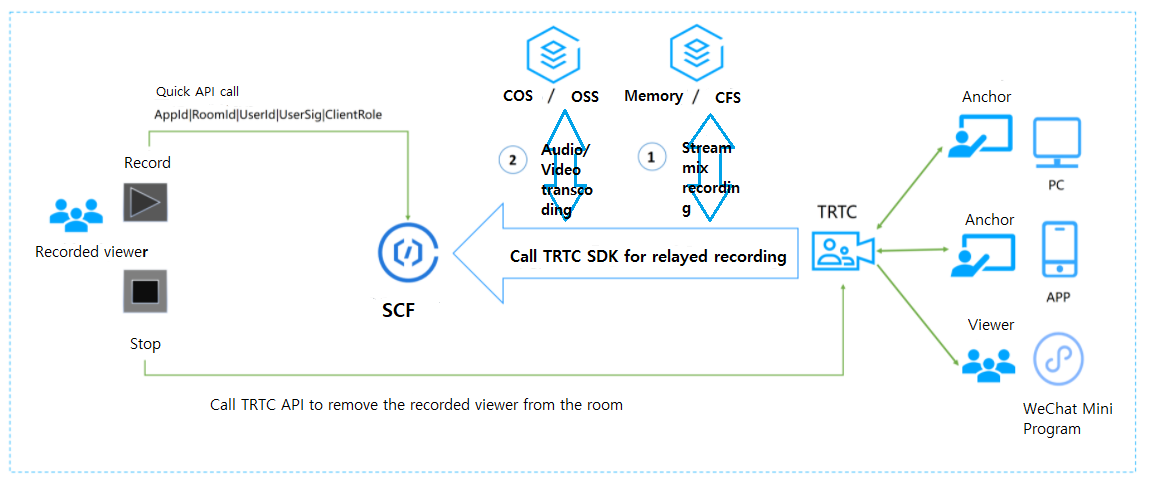
This document describes how to use API Gateway and SCF to mix record the anchor audio/video streams in a TRTC room and upload the recording file to COS for storage. This solution provides out-of-the-box, flexible, convenient, and programmable live recording capabilities. SCF offers 512 MB of memory by default for recording file storage. If you need more storage space, you can choose to use the mount capability of CFS. The workflow is as shown below:
The recording rules are as follows:
Up to 6 audio/video streams can be recorded.
If there are less than 6 users in the room, streams of subsequent users entering the room will be automatically mixed. If there are more than 6 users in the room, only streams of the first 6 users entering the room will be recorded.
If IsReserve is true, after the user exits the room, the user's stream will still be in the stream mix task, and the last frame of video image and mute will be used to complement the stream. If IsReserve is false, after the user exits the room, the user's stream will be deleted from the stream mix task. If a new user enters the room later, the new user's stream will be added to the stream mix.
The parameters for calling APIs are as follows:
Parameter
Type
Required
Description
SdkAppId
Int
Yes
Application ID, which is used to distinguish different TRTC applications.
RoomId
Int
Yes
Room ID in integer type, which is used to uniquely identify a room in a TRTC application.
StrRoomId
String
No
Room ID in string type. Either RoomId or StrRoomId must be configured. If both are configured, RoomId will be used.
UserId
String
Yes
Recorded user ID, which is used to uniquely identify a user in a TRTC application.
UserSig
String
Yes
Recorded user signature, which is used to authenticate the user login.
CosConfig
cosConfig
Yes
COS storage configuration for recording file storage.
Callback
String
No
Callback address after recording. The POST method is used for callback.
Mode
String
No
10: mixed audio stream output in MP3 format (default mode).
11: mixed video stream output in MP4 format.
12: mixed audio/video stream output in MP4 format.
IsReserve
Boolean
No
false: when the anchor exits the room, the stream being mixed will be automatically deleted.
true: when the anchor exits the room, the last frame of the video image and mute will be used to complement the stream in the stream mix task. The default value is true.
The parameters involved in CosConfig are as follows:
Path in the bucket. For example, for /test, the root directory is /.
Note:
UserId is the specified user ID. Idempotency is not guaranteed for multiple requests to API Gateway.
If SecretId and SecretKey are not configured in CosConfig, the function will use the permission of the execution role SCF_ExecuteRole when accessing COS.
Trigger conditions for stopping recording:
The TRTC room is terminated. When there is no anchor in the TRTC room for more than 300s, the room will be automatically terminated.
The user removal API is actively called to kick the recorded user out of the room.
To stop recording for users with RoomId, you need to call the RemoveUser API.
To stop recording for users with StrRoomId, you need to call the RemoveUserByStrRoomId API.
After recording is stopped, the data returned by the function is as follows:
Parameter
Type
Required
Description
SdkAppId
String
Yes
Application ID.
RoomId
String
Yes
Room ID in integer type.
UserId
String
Yes
Recorded user ID.
StrRoomId
String
Yes
Room ID in string type.
Files
Array
Yes
[{},{},{},{}]
Note:
If callback is configured, after the stop, SCF will pass the returned data to the callback address in POST method.
Each item in the Files array is a JSON object as follows:
Parameter
Type
Required
Description
UserId
String
Yes
Recorded user ID.
RecordFile
String
Yes
URL of the recording file uploaded to COS.
Status
Int
Yes
0: failure.
1: success.
Message
String
Yes
Execution result of the recording task, such as recording failed, transcoding failed, and write to COS failed.
Directions
Creating function
1. Log in to the SCF console and select Function Service on the left sidebar.
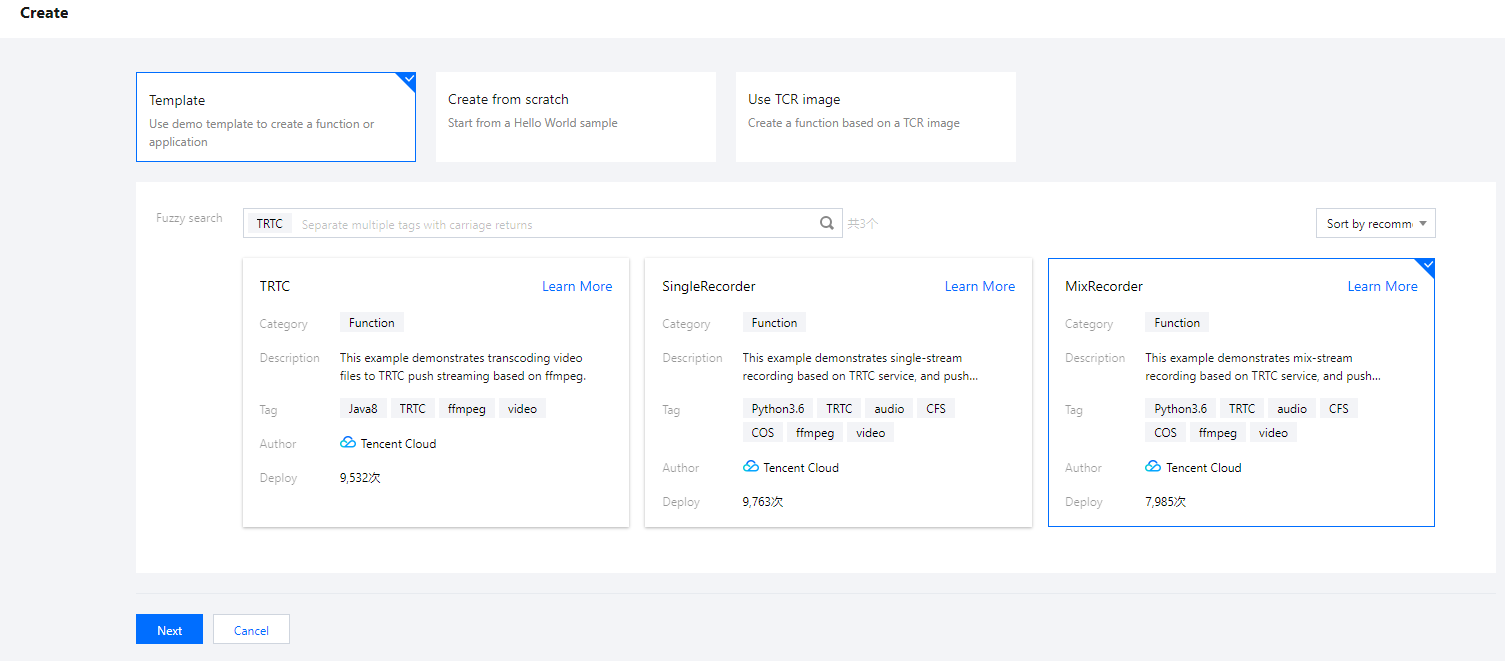
2. At the top of the Function Service page, select the Guangzhou region and click Create to enter the function creating page and configure the function as shown below:
Creation method: select Template.
Fuzzy search: enter "TRTC", search, and select the Mix audio/video stream recording template.
Click Learn More in the template to view relevant information in the Template Details pop-up window, which can be downloaded.
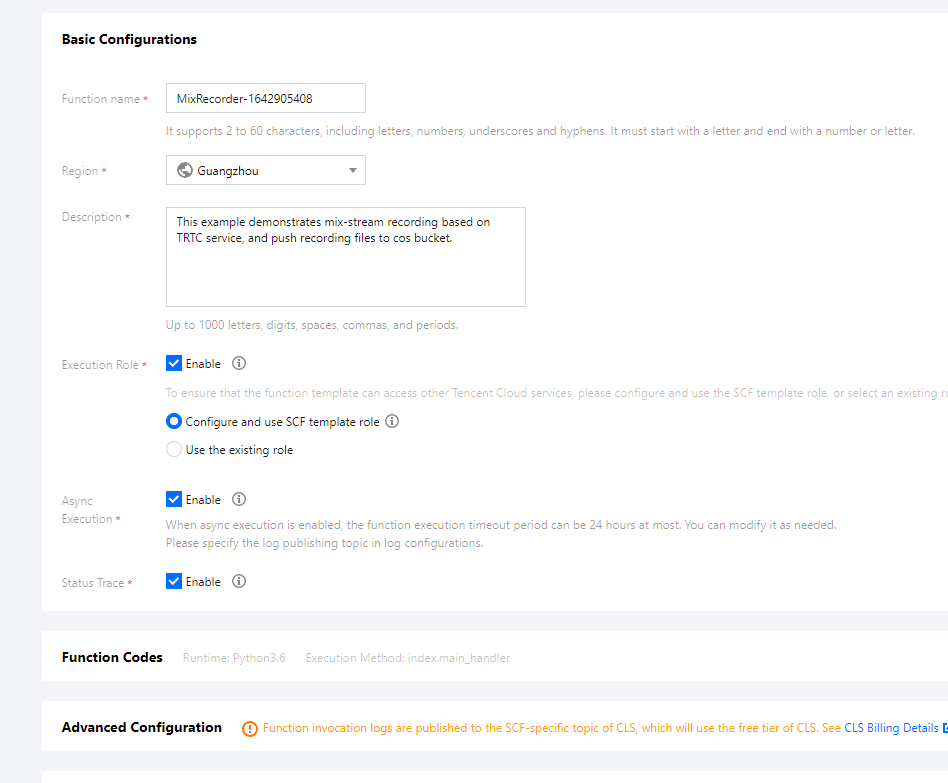
3. Click Next and configure the related information as shown below:
Function Name: the function name is automatically generated by default.
Async Execution: select the checkbox to enable the async execution. When it's enabled, the function will respond to the event in async execution mode. The event goes to async execution status after being invoked without waiting for the processing result.
Status Trace: select the checkbox to enable the status trace. When it's enabled, it will keep the logs of real-time status of response for async function events. You can query and stop the event and check the related statistics. Data of event status will be retained for three days.
Execution Timeout Period: it can be modified as needed.
Execution Role: SCF_ExecuteRole is used as the execution role by default, which grants the access permissions of QcloudCOSFullAccess and QcloudCFSFullAccess.
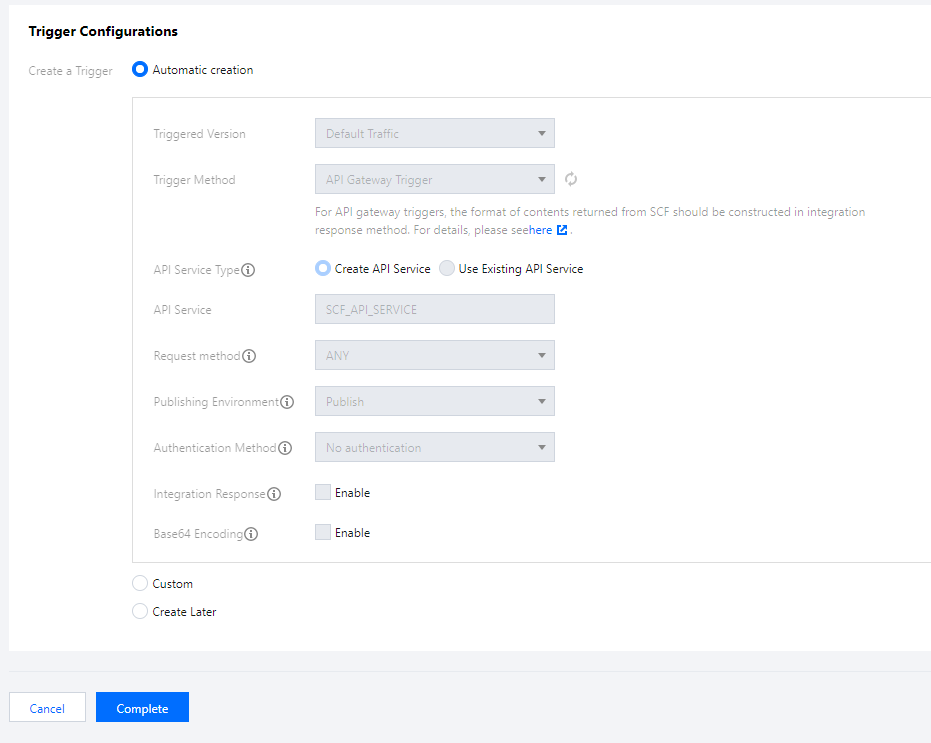
4. Configure an API Gateway trigger. An API service is created by default and the integration response is disabled. You can customize the trigger, but please ensure that the integration response is disabled as shown below:
5. Click Complete.
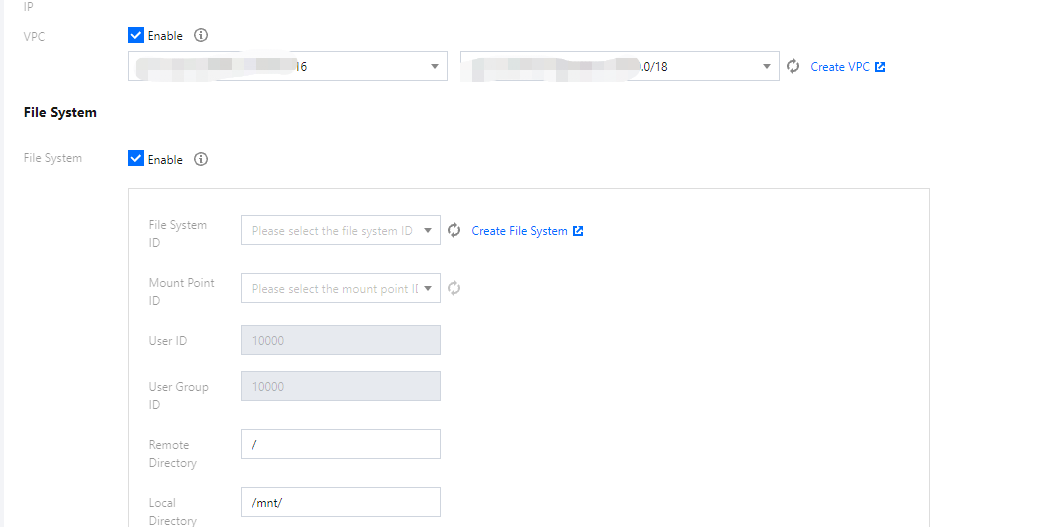
6. If you need to use the mount capability of CFS, as CFS can only be accessed in VPC, you should use the VPC of CFS as the VPC of the function as shown below:
Note:
To enable CFS, you need to set the environment variable CFS_PATH to a local directory, such as /mnt/audio/.
Creating TRTC application
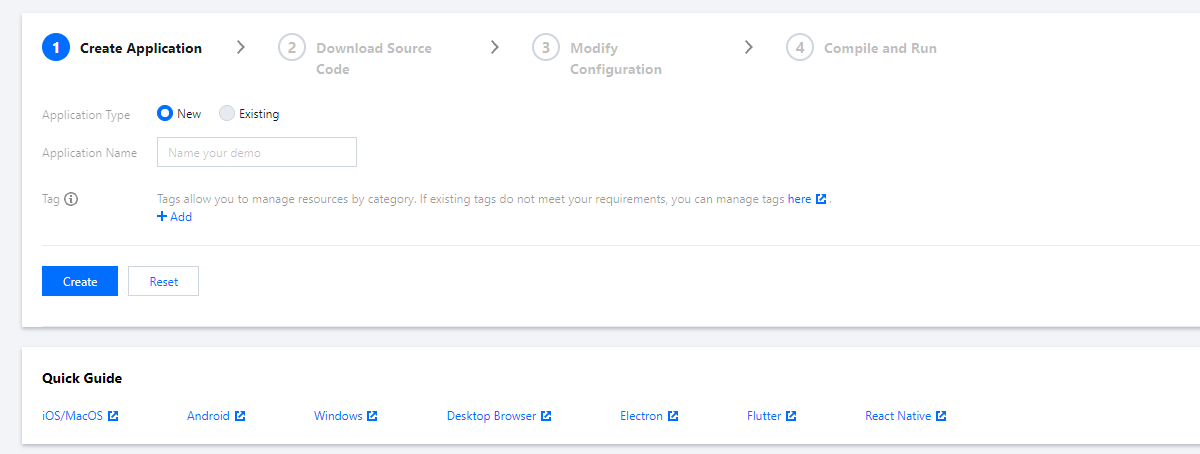
1. Log in to the TRTC console and select Development Assistance > Demo Quick Run on the left sidebar.
2. Enter the demo name and click Create. You can choose a template for test run according to your client, such as the demo for desktop browser.
Testing function
1. Refer to Web to make user_00001 and user_00002 enter the TRTC room.
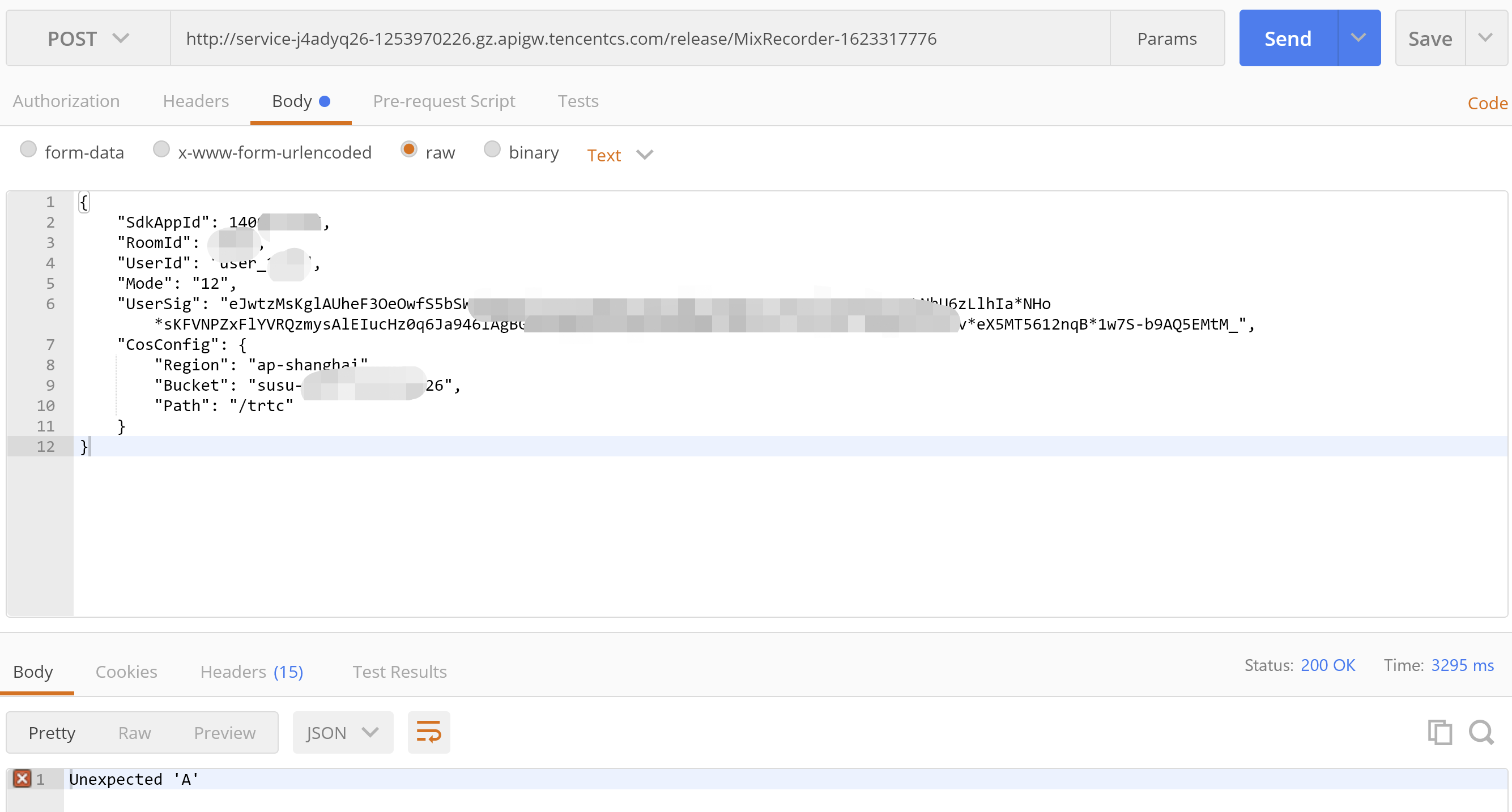
2. Use Postman to construct an HTTP request, where roomId is the room ID of the created TRTC application, and userId is the ID of another random user (which must be unique). Below is the sample code:
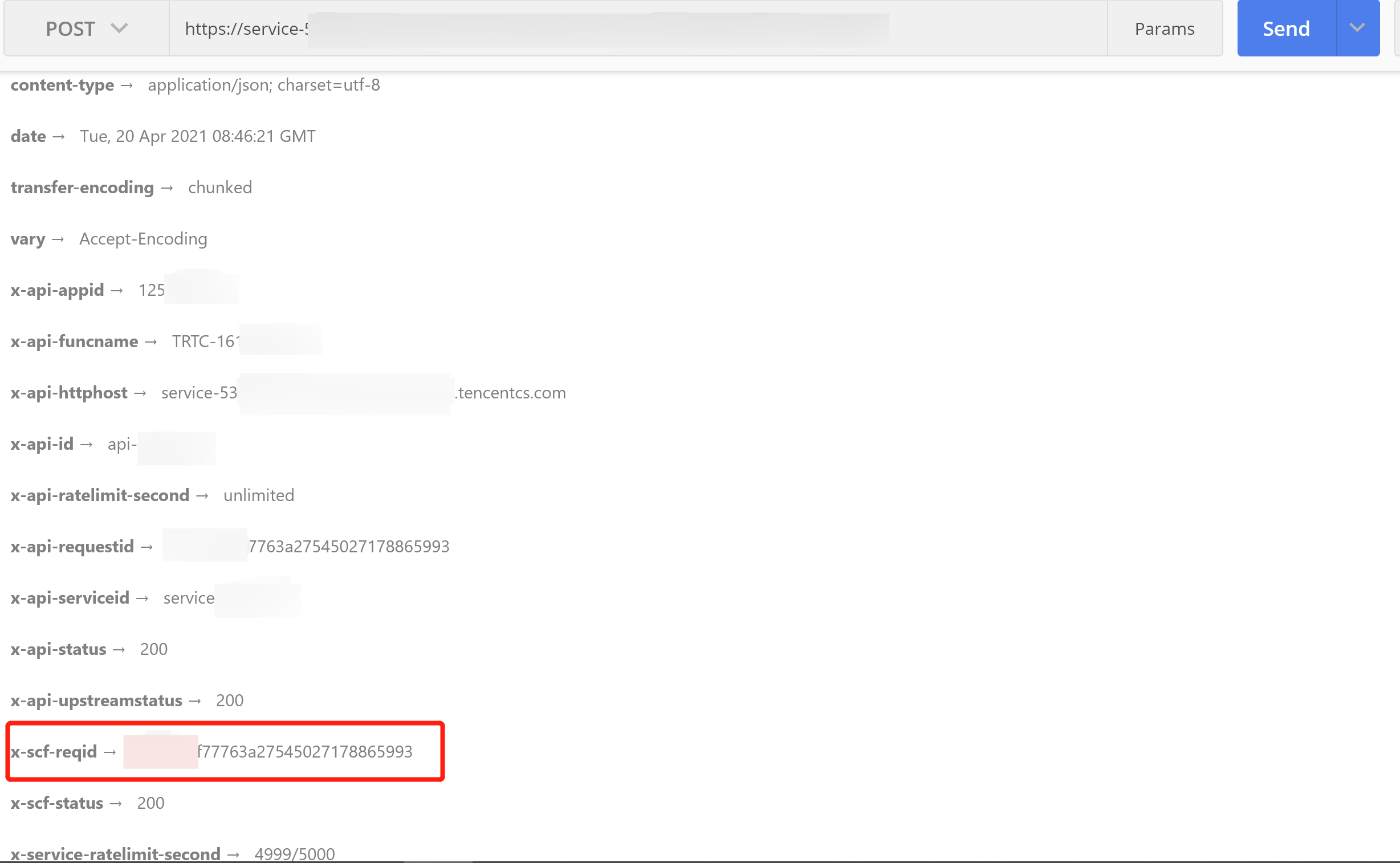
3. After the request is sent, an async function response "Async run task submitted" will be received. The RequestId of this function will be returned through x-scf-reqid in the HTTP header as shown below:
4. On the Function Service page in the SCF console, click the name of the function created in the Creating function step above to enter the function details page.
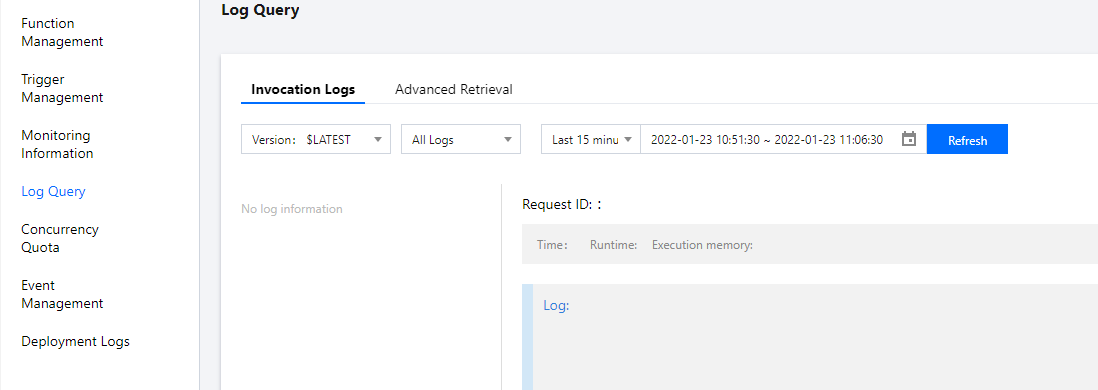
5. Select the Log Query tab on the function details page to view the printed recording log information as shown below:
6. Log in to the TRTC console and click the room ID on the Monitoring Dashboard page to view all users in the room, one of whom is the recorded user.