This document describes how to create a function through the console.
Creating functions via the console
1. Log in to the SCF console and click Function Service on the left sidebar.
2. Select the region and namespace where to create a function at the top of the Functions page and click Create to enter the function creation process as shown below:
3. On the Create function page, select a function creation method as needed.
Template: You need to enter the required function name and use configuration items in the function template to create the function.
Create from scratch: You need to enter the required function name and runtime environment to create the function.
Use TCR image: You can create a function based on a TCR image. For more information, see Usage.
4. Configure the basic information of the function.
Create from template
Create from scratch
Use TCR image
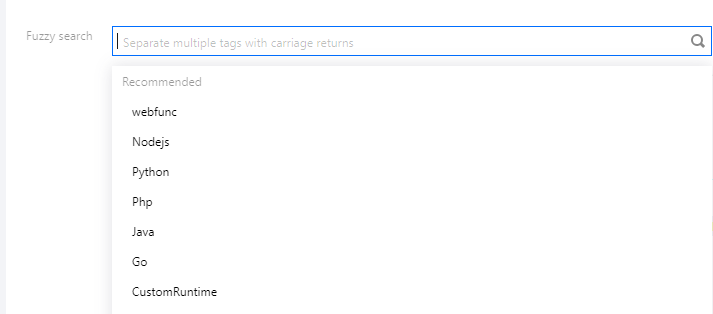
1. Add a tag in Fuzzy search to find a template as shown below:
2. Select the template and click Next.
3. Enter the basic information of the function.
Function name: The function name is automatically populated by default and can be modified as needed.
Region: The region is automatically populated by default and can be modified as needed.
Time zone: SCF uses the UTC time by default, which you can modify by configuring the TZ environment variable. After you select a time zone, the TZ environment variable corresponding to the time zone will be added automatically.
Enter the basic information of the function.
Function type: Select Event-triggered function or HTTP-triggered function.
Event-triggered function: Receives JSON-formatted events from TencentCloud API or various triggers to trigger the function execution. For more information, see Basic Concepts.
HTTP-triggered function: Directly receives HTTP requests to trigger the function execution in web service scenarios. For more information, see Function Overview.
Function name: The function name is automatically populated by default and can be modified as needed.
Region: The region is automatically populated by default and can be modified as needed.
Runtime environment: The runtime environment is automatically populated by default and can be modified as needed.
Time zone: SCF uses the UTC time by default, which you can modify by configuring the TZ environment variable. After you select a time zone, the TZ environment variable corresponding to the time zone will be added automatically.
Enter the basic information of the function.
Function type: Select Event-triggered function or HTTP-triggered function.
Event-triggered function: Receives JSON-formatted events from TencentCloud API or various triggers to trigger the function execution. For more information, see Basic Concepts.
HTTP-triggered function: Directly receives HTTP requests to trigger the function execution in web service scenarios. For more information, see Function Overview.
Function name: The function name is automatically populated by default and can be modified as needed.
Region: Select the region where the function is deployed, which must be the same as the region where the image repository is located.
Time zone: SCF uses the UTC time by default, which you can modify by configuring the TZ environment variable. After you select a time zone, the TZ environment variable corresponding to the time zone will be added automatically.
5. Configure the function code.
Create from template
Create from scratch
Use TCR image
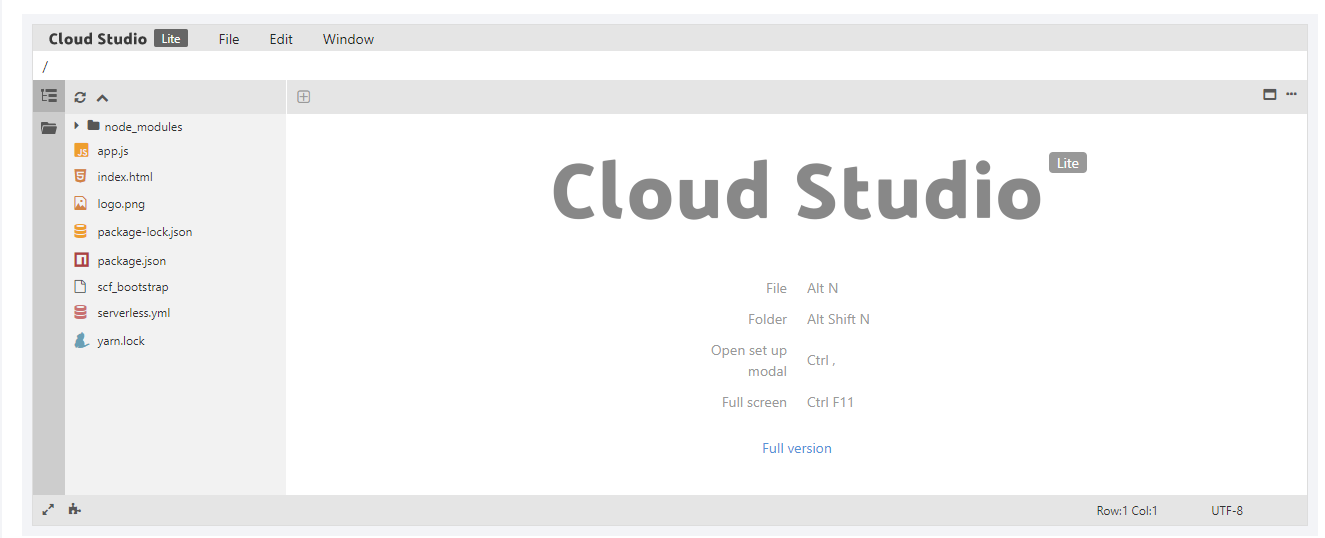
The runtime environment and execution method are automatically populated by default as shown below:
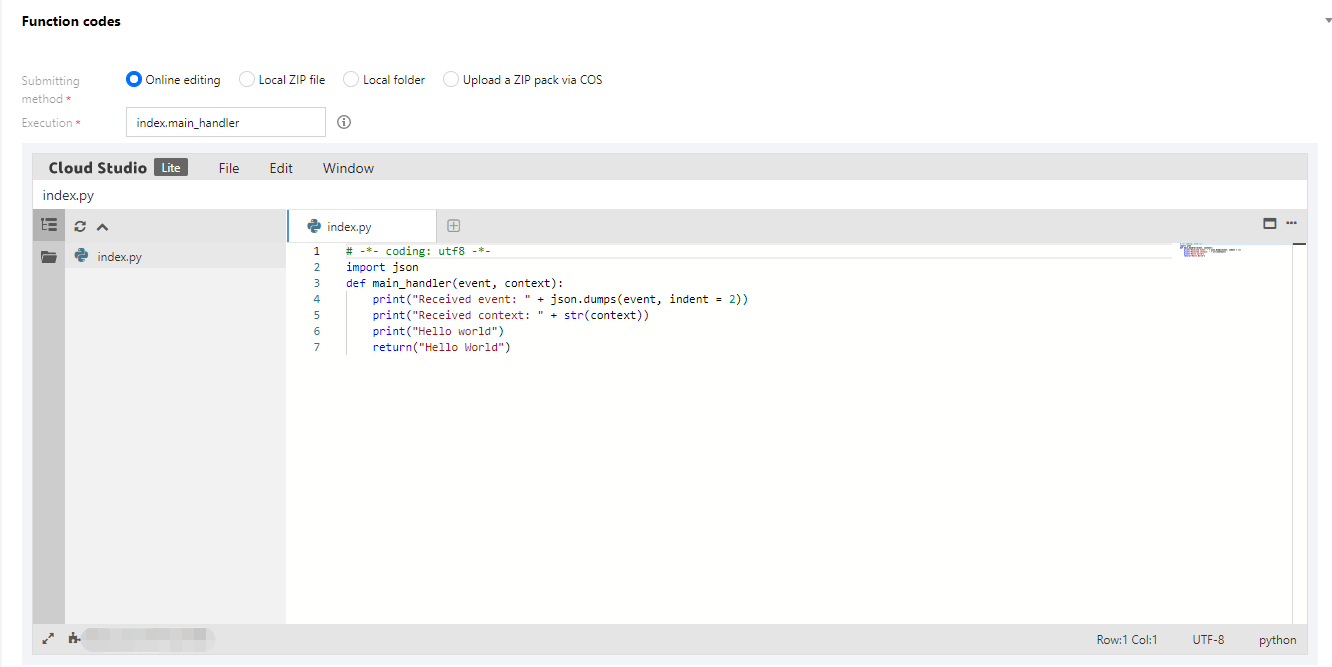
Select the function code submitting method and execution method as shown below:
Submitting method: Online editing, Local ZIP file, Local folder, and Upload a ZIP pack via COS are supported.
For scripting languages: You can directly use the function code editor.
For non-scripting languages: You can submit the function code by uploading a zip package or through COS and then edit it.
Execution: It specifies the starting file and function while invoking the cloud function. For more information, see Function Overview.
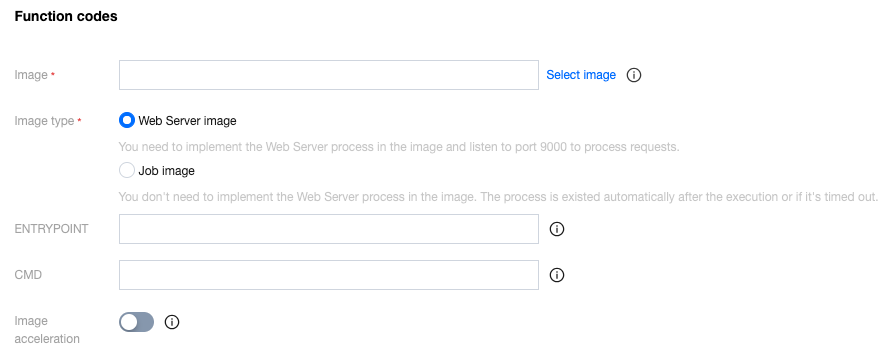
Enter the image information as shown below:
Image: Select an image already built in the image repository in the current region.
Image type: Support two types of image functions.
Web Server image: The mirror needs to include an Http Server and listen on port 9000. After the instance is pulled up, the event body is imported into the instance in the form of an HTTP request.
Job image: The mirror does not need to include an Http Server and does not expose any ports. After the instance is pulled up, a specific command will be executed according to the CMD and EntryPoint specified by the user. After execution, the instance will be automatically released. The event body is injected into the instance in the form of an environment variable.
ENTRYPOINT: (Optional) Set the startup command of the container. Enter an executable command (such as python). If it's left blank, the Entrypoint in the Dockerfile is used.
CMD: (Optional) Set the startup parameters of the container. Separate each parameter with a space. If it's left blank, the CMD in the Dockerfile is used.
Image acceleration: It is disabled by default. After it is enabled, SCF will pulling image much more quickly. It takes over 30 seconds to enable this option; therefore, wait patiently.
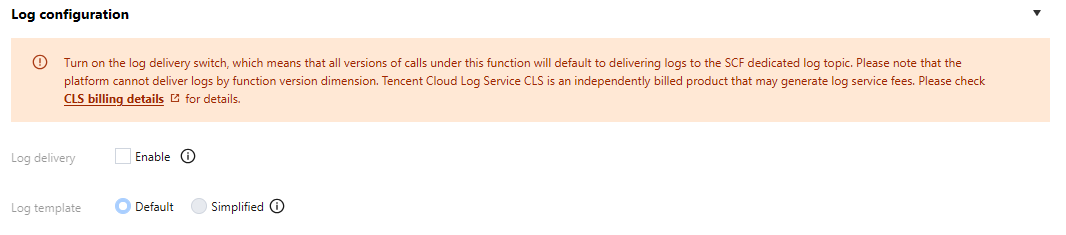
6. In Log configuration, choose whether to enable log delivery as shown below:
7. Log delivery is disabled by default. After it is enabled, the execution logs of the function can be delivered to the specified location in real time. For more information, see Log Delivery Configuration.
Note:
Currently, you cannot select the log template for image-based functions and HTTP-triggered functions.
8. In Advanced configuration, configure the environment, permission, layer, and network of the function as needed. For more information, see Function Overview.
9. In Trigger configurations, choose whether to create a trigger. If you select Custom, see Trigger Overview.
10. Click Complete. You can view the created function on the Functions page.