TKE supports the installation of the Nginx-ingress add-on and uses it to access Ingress traffic. For more information about Nginx-ingress, see Nginx-ingress. This document describes the best practices for the Nginx-ingress add-on.
Opening multiple Nginx Ingress traffic entries for the cluster
After the Nginx-ingress add-on is installed, there will be an Nginx-ingress operator add-on under kube-system. You can use this add-on to create multiple Nginx Ingress instances. Each Nginx Ingress instance uses a different IngressClass and uses a different CLB as a traffic entry, so that different Ingresses can be bound to different traffic entries. You can create multiple Nginx Ingress instances for the cluster based on your actual needs.
1. Log in to the TKE console and select Cluster in the left sidebar.
2. On the Cluster page, click the ID of the target cluster to go to the cluster details page.
3. In the left sidebar, click Add-on management to go to the Add-on list page.
4. Click the installed Nginx-ingress add-on to go to the details page.
5. Click Add Nginx Ingress instance to configure the Nginx Ingress instances as needed, and specify a different IngressClass name for each instance.
6. When creating an Ingress, you can specify a specific IngressClass to bind the Ingress to a specific Nginx Ingress instance. You can create an Ingress via the console or YAML.
Using the console to create an Ingress
Using YAML to create an Ingress
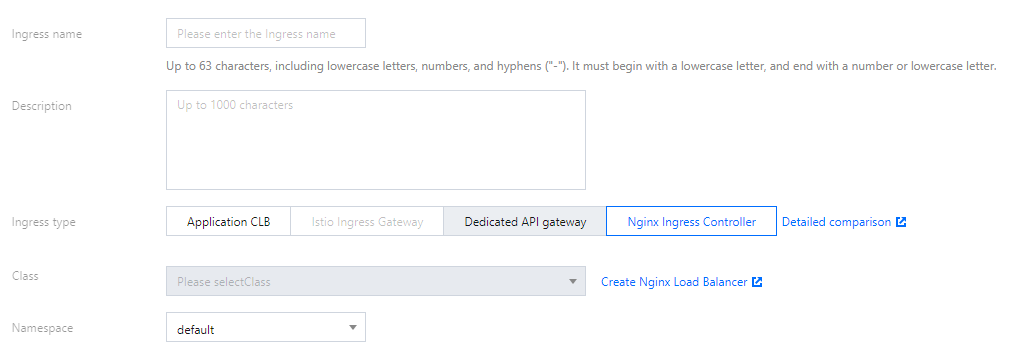
You can refer to the Managing Ingress in Console > Creating an Ingress section to create an Ingress. Also, take note of the following points:
Ingress type: Select Nginx Load Balancer.
Class: Select the newly created Nginx Ingress instance.
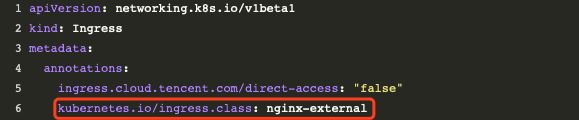
You can refer to the Managing Ingresses Using Kubectl > Creating an Ingress section to create an Ingress. Also, specify the annotation (kubernetes.io/ingress.class) of ingressClass as shown below:
Performance optimization
CLB-to-Pod direct access mode
When the cluster network mode is Global Router, CLB-to-Pod direct access mode is not enabled by default. It is recommended to enable CLB-to-Pod direct access mode based on the following directions:
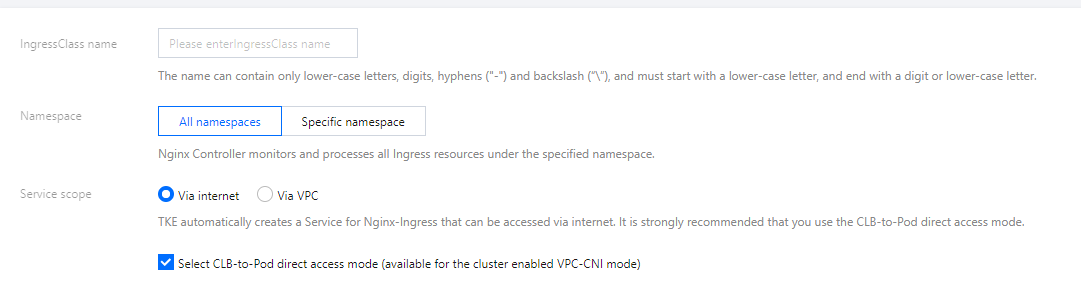
2. When creating an Nginx Ingress instance, you can check Select CLB-to-Pod direct access mode to enable traffic to bypass the NodePort and reach the Pod directly to improve performance, as shown below:
As the traffic entry, if LB needs a higher concurrency or throughput, you can set the bandwidth limit based on the actual needs when creating an Nginx Ingress instance and allocate a higher bandwidth for Nginx Ingress, as shown below:
If you have a bill-by-CVM account (Checking Account Type), the bandwidth limit is determined by the node bandwidth. You can adjust the node bandwidth limit based on the following conditions:
If the CLB-to-Pod direct access mode is enabled, the total LB bandwidth is the sum of the bandwidths of the nodes where the Nginx Ingress instance Pods locate. It is recommended to plan some nodes with a high public network bandwidth to deploy Nginx Ingress instances (specify a node pool as DaemonSet to deploy).
If the CLB-to-Pod direct access mode is not enabled, the total bandwidth of LB is the sum of the public network bandwidths of all nodes.
Nginx Ingress parameter optimization
The Nginx Ingress instance can optimize the kernel parameters and the configuration of Nginx Ingress by default. For more information, see Nginx Ingress High-Concurrency Practices. You can refer to the following directions for customization.
Modifying the kernel parameters
Modifying the configuration of the Nginx Ingress instance
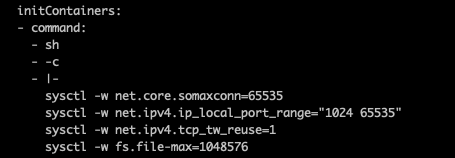
Edit the deployed DaemonSet or Deployment of nginx-ingress-conntroller (depending on the instance deployment options) and modify initContainers as shown below. Note that you cannot modify the resources under kube-system in the console. You need to use kubectl to modify initContainers.
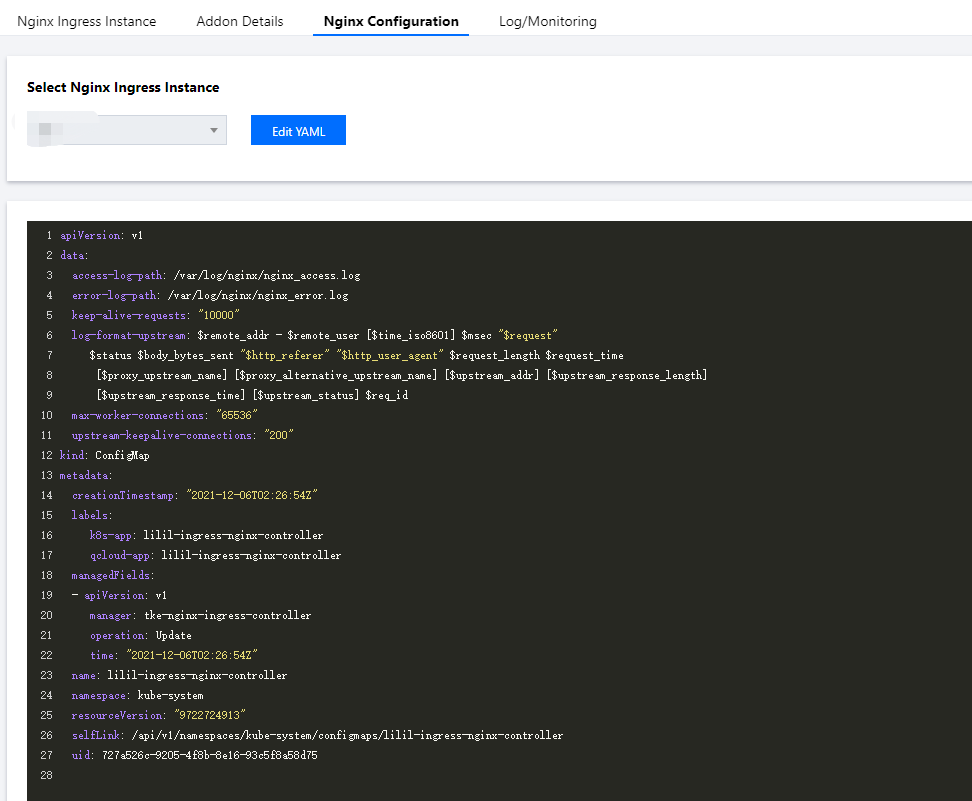
In the Nginx Configuration section, select the Nginx Ingress instance and click Edit YAML to modify the ConfigMap configuration of the instance, as shown below:
Note
For more information about ConfigMap configuration, see Official Document.
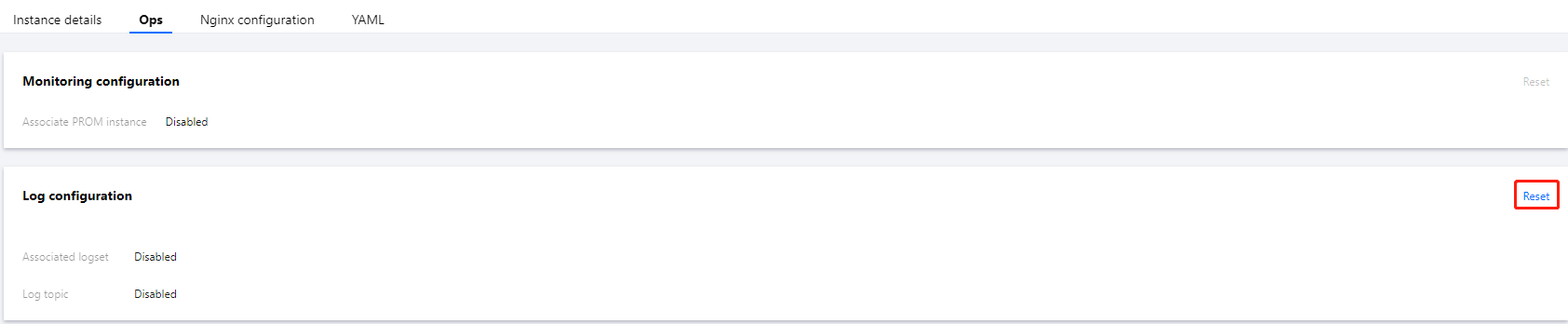
The logging feature allows you to view the status metrics of an instance and helps you with troubleshooting. After you create an Nginx Ingress instance, go to its details page and enable the logging feature for the instance in the operations section, as shown below:
Note:
For v0.49.3 instances, the indexing configuration file for log collection is located in a custom resource definition (CRD) object named LogConfig. If you disable or re-enable the logging feature after modifying LogConfig, the configuration of LogConfig is reset. Therefore, you must back up the data in the object in a timely manner. The deletion of the Nginx Ingress instance and the upgrade of the Nginx-ingress add-on do not affect the indexing configuration file.
If you need to customize the logging feature, see here for reference.
Log search and log dashboard
After enabling the log configuration, you can click More under Operation on the right side of an instance in the Nginx Ingress list, and select Check access logs in CLS or View Access Log Dashboard.
Click Check access logs in CLS to go to the CLS console and select the logset and topic corresponding to the instance in Search and Analyze to view the access and error logs of Nginx Ingress.
Click View Access Log Dashboard to go to the dashboard that displays statistics based on the Nginx Ingress log data.