When the backup business instance data needs to be restored, you can perform a clone operation to clone the data into a new and independent database instance based on existing backup files. Application scenarios include:
Historical data analysis: Instance cloning can be used for data query and analysis, eliminating the risk of interference with online business performance.
Production instance rollback/replacement: Through IP address switch, the clone instance can be switched to the new production instance rapidly, avoiding the complexity of manually restoring data one by one.
Prerequisites
The TencentDB for MongoDB Replica Set Instance or Sharded Instance is in Running status.
The automatic or manual backup operation has been performed.
2. In the left sidebar, expand the MongoDB dropdown list and select either Replica Set Instance or Sharded Cluster Instance. The operations for replica set instances and sharded cluster instances are similar.
3. Above the instance list on the right, select the region.
4. In the instance list, find the target instance.
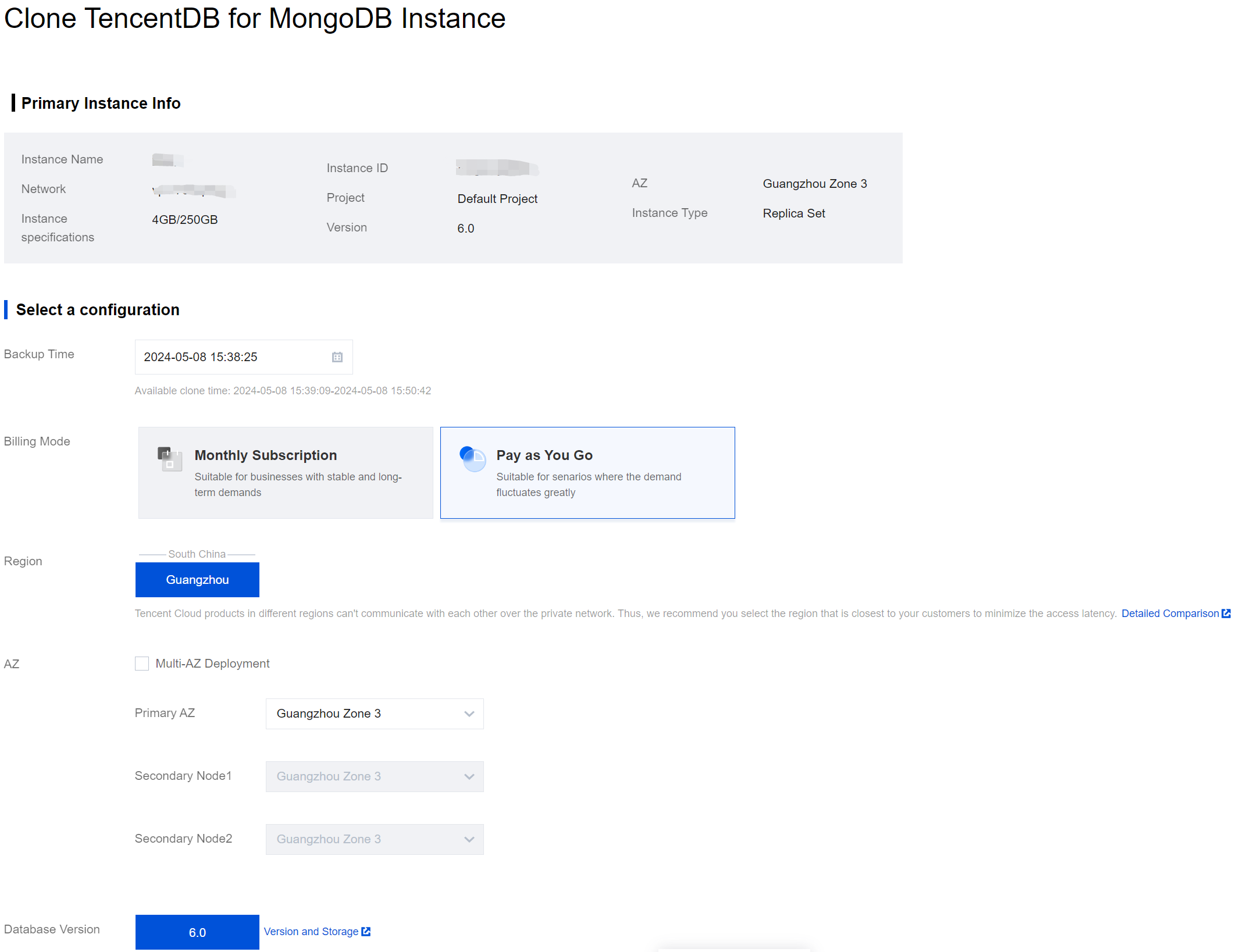
5. Click the target instance ID to go to the instance details page.
6. Select the Backup and Rollback tab, and enter the Backup Task List page.
7. In the backup task list, find the backup file to be restored.
8. In the Operation column, click Clone.
9. On the Clone TencentDB for MongoDB Instance page, confirm the primary instance information, select the rollback time point in the Backup Time Point time box, choose the billing mode and configuration specifications for the new instance, and purchase the new instance. For more information on how to configure additional parameters, see Creating a MongoDB Instance.
Note:
The rollback time can be selected as any point in time within the backup retention period based on the backup retention policy.
The time required for cloning data is related to the backup data volume, data structure, and instance specifications. You can consider upgrading the instance specifications to obtain a faster cloning speed and reduce the waiting time. After the cloning is completed, you can downgrade the instance specifications.
10. Confirm the cost, and click Buy Now.
11. Return to the Instance List page. Once the instance has been created and the data from the source instance has been synchronized with the newly cloned instance, the new instance can be used. You may achieve the purpose of rolling back data by swapping the IP of the cloned new instance with the original instance.
Note:
After the instance is cloned, the source instance can be retained or terminated based on your own needs.
More Entrances
1. In the Backup and Rollback tab's backup task list, find the backup file you need to restore.
2. In the Operation column, click Collection Rollback.
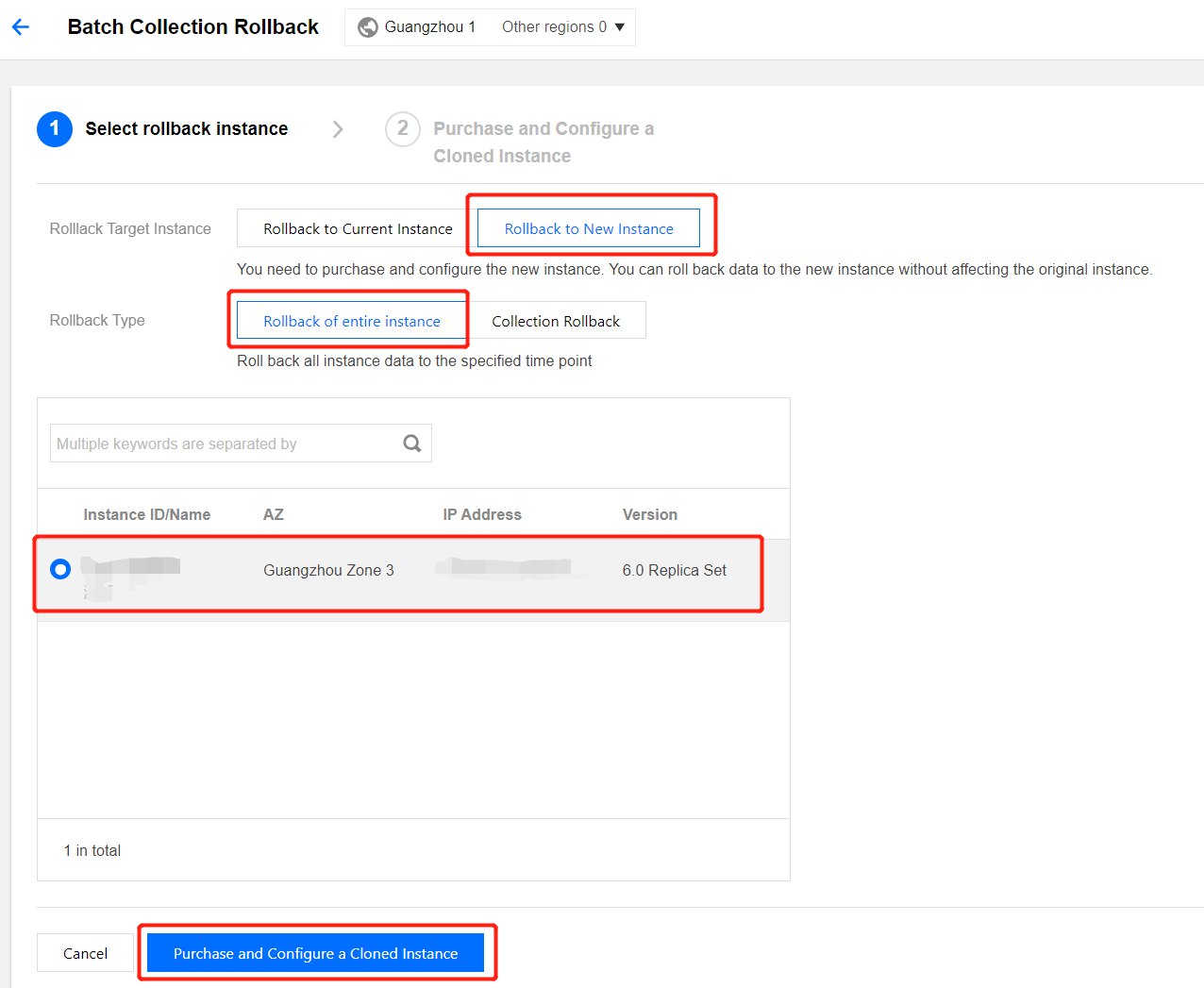
3. On the Select Rollback Instance tab of the Batch Collection Rollback configuration wizard, select Rollback to New Instance under Rollback Target Instance, and select Rollback of entire instance under Rollback Type.
4. In the instance list below, select an instance to be rolled back. You can search for it in the search box by instance ID, instance name, or IP address.
5. Click Purchase and Configure a Cloned Instance, enter the CloneTencentDB for MongoDB Instance page, confirm the primary instance information, choose the billing model, configuration specifications, and purchase the new instance. For more information on how to configure additional parameters, see Creating TencentDB for MongoDB Instance.