tencent cloud

Tencent Cloud Agent Development Platform

Release Notes and Announcements
Release Notes
Product Announcement
Product Introduction
Product Overview
Advantages
Use Cases
Model Introduction
Purchase Guide
Package Subscription
Previous Version
Getting Started
Agent Application and Its Three Modes
Creating a "Content Summary Assistant" in Standard Mode
Creating a “Webpage Scraping Assistant” in Single Workflow Mode
Creating a “Stand-up Comedy Content Creation Assistant” in Multi-Agent Mode
Operation Guide
Application Development
Workflow
Multi-Agent
Knowledge Base
Widget
Plugin Marketplace
Model List 
Prompt Templates
Application Templates
Platform Management
Business, Workspace and Permissions
API Documentation
History
API Category
Making API Requests
Atomic Capability APIs
Operation Optimization APIs
Document Library APIs
Q&A Database APIs
Knowledge Tag APIs
Application Management APIs
Enterprise Management APIs
Billing APIs
Release Management APIs
Dialogue Endpoint APIs
Data Statistics APIs
Data Types
Error Codes
Application API Documentation
Dialogue API Overview
Dialog API Documentation (WebSocket)
Dialog API Documentation (HTTP SSE)
Image Chat or File Chat (Real-time Document Parsing + Chat)
Offline Document Upload
Tencent Cloud Agent Development Platform Operation COS Guide
ADP Document Parsing Protocol
FAQs
Product FAQs
Technical FAQs
Related Agreements
Tencent Cloud Agent Development Platform Service Level Agreement
Tencent Cloud Agent Development Platform Service Specific Terms
Tencent Cloud Agent Development Platform Privacy Policy
Tencent Cloud Agent Development Platform Data Processing and Security Agreement
Open-Source License Statement
Lighthouse OpenClaw Connector Plugin Service Agreement
Contact Us
Glossary

ListView List

PDF
Mode fokus
Ukuran font
Terakhir diperbarui: 2026-02-03 15:30:52

Component Feature

The list view container component (ListView) is a basic container for hosting and showing multiple list items (ListViewItem) and building vertical information lists.
The component is responsible for managing the list structure, display quantity, and overall status info. Details and interaction are defined by the internal list item component.

Basic Usage

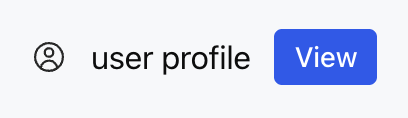
Configure multiple ListViewItems through the children property to quickly build a standard list view.
Template example:
<ListView>
<ListViewItem gap="16px" align="center">
<Icon name="profile" size="lg" />
<Text value="user profile" />
<Button label="view" size="sm" />
</ListViewItem>
</ListView>
Effect display as follows:


Attribute Description

Attribute Name
Type
Description
Default Value
children ★
ListViewItem[]
List Item Array
-
limit
number | "auto"
Display Quantity Limit
-
status
WidgetStatus
Status Configuration
-
Note:
★ Marked with required attribute.

WidgetStatus Type Description

status is used to show auxiliary status info in the list area, currently supported the following two formats:
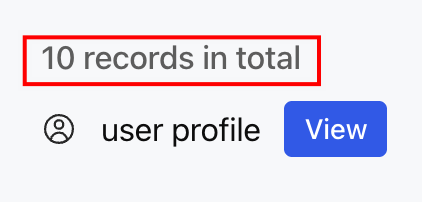
1. string: direct display of status text, suitable for simple prompt.
Template example:
<ListView status="10 records in total">
<ListViewItem gap="16px" align="center">
<Icon name="profile" size="lg" />
<Text value="user profile" />
<Button label="view" size="sm" />
</ListViewItem>
</ListView>
Effect display as follows:


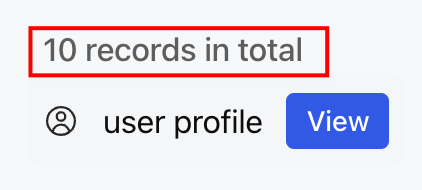
2. Object: Configure the content of the configuration state through an object containing a text field.
Template example:
<ListView status={{ text: "10 records in total" }}>
<ListViewItem gap="16px" align="center">
<Icon name="profile" size="lg" />
<Text value="user profile" />
<Button label="view" size="sm" />
</ListViewItem>
</ListView>
Effect display as follows:


Note:
Although the type definition includes the icon and favicon fields, the current implementation only displays text content and does not support icon display.

ListViewItem Child Component

The ListView must contain one or more ListViewItems as child components for defining the specific content and interaction behavior of each row. For detailed configuration, see ListViewItem List Item.

Usage Examples

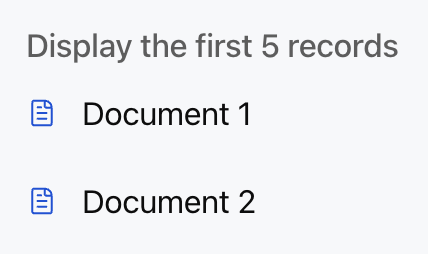
The following example shows a list view with a maximum number and status prompt.
Template example:
<ListView limit={5} status="Display the first 5 records">
<ListViewItem
gap="12px"
align="center"
onClickAction={{ type: "select_item", payload: { id: "1" } }}
>
<Icon name="document" color="#0052D9" />
<Text value="Document 1" />
</ListViewItem>
<ListViewItem gap="12px" align="center">
<Icon name="document" color="#0052D9" />
<Text value="Document 2" />
</ListViewItem>
</ListView>
Effect display as follows:


Bantuan dan Dukungan

Apakah halaman ini membantu?

masukan