tencent cloud

Tencent Cloud Agent Development Platform

Release Notes and Announcements
Release Notes
Product Announcement
Product Introduction
Product Overview
Advantages
Use Cases
Model Introduction
Purchase Guide
Package Subscription
Previous Version
Getting Started
Agent Application and Its Three Modes
Creating a "Content Summary Assistant" in Standard Mode
Creating a “Webpage Scraping Assistant” in Single Workflow Mode
Creating a “Stand-up Comedy Content Creation Assistant” in Multi-Agent Mode
Operation Guide
Application Development
Workflow
Multi-Agent
Knowledge Base
Widget
Plugin Marketplace
Model List 
Prompt Templates
Application Templates
Platform Management
Business, Workspace and Permissions
API Documentation
History
API Category
Making API Requests
Atomic Capability APIs
Operation Optimization APIs
Document Library APIs
Q&A Database APIs
Knowledge Tag APIs
Application Management APIs
Enterprise Management APIs
Billing APIs
Release Management APIs
Dialogue Endpoint APIs
Data Statistics APIs
Data Types
Error Codes
Application API Documentation
Dialogue API Overview
Dialog API Documentation (WebSocket)
Dialog API Documentation (HTTP SSE)
Image Chat or File Chat (Real-time Document Parsing + Chat)
Offline Document Upload
Tencent Cloud Agent Development Platform Operation COS Guide
ADP Document Parsing Protocol
FAQs
Product FAQs
Technical FAQs
Related Agreements
Tencent Cloud Agent Development Platform Service Level Agreement
Tencent Cloud Agent Development Platform Service Specific Terms
Tencent Cloud Agent Development Platform Privacy Policy
Tencent Cloud Agent Development Platform Data Processing and Security Agreement
Open-Source License Statement
Lighthouse OpenClaw Connector Plugin Service Agreement
Contact Us
Glossary

ListViewItem

PDF
Mode fokus
Ukuran font
Terakhir diperbarui: 2026-02-03 15:29:19

Component Feature

The list item component (ListViewItem) is used to show each entry in a ListView and is the basic unit to build list interfaces.
The component supports flexible child component composition, alignment, and spacing control, and is configurable with entire row click action, suitable for scenarios where information display and operation entry coexist.

Basic Usage

Define the display content inside the list item through the children property, and combine components such as icons and text to form a basic list structure.
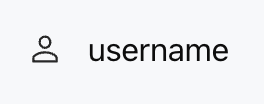
Template example:
<ListViewItem gap="16px" align="center">
<Icon name="user" size="lg" />
<Text value="username" />
</ListViewItem>
Effect display as follows:


Attribute Description

Attribute Name
Type
Description
Default Value
children
ChatKitComponent[]
Component List
-
onClickAction
ActionConfig
Action triggered when clicking the entire list item
-
gap
number | string
child element spacing
-
align
Alignment
vertical alignment
"start"
Note:
Marked with required attribute.

Alignment Type Description

Control the vertical alignment of child components in a list item. Support the following values:
"start" - top alignment
"center" - center alignment
"end" - bottom alignment
"baseline" - baseline alignment
"stretch" - stretch alignment

Interactive Effect Description

When onClickAction is configured:
Hover to change the background to gray.
Display pointer hand cursor.
The entire list item is clickable.
Suitable for scenarios where operations like redirection or selection need to be triggered.

Usage Examples

The following example shows a clickable list item. Click to redirect to the user profile webpage.
Template example:
<ListView>
<ListViewItem
gap="16px"
align="center"
onClickAction={{
type: "sys.go_to_url",
payload: { url: "/profile" }
}}
>
<Icon name="profile" size="lg" color="#0052D9" />
<Col gap="4px" flex={1}>
<Text value="user profile" size="md" weight="semibold" />
<Caption value="View and edit personal info" size="sm" />
</Col>
<Button label="View" variant="outline" size="sm" />
</ListViewItem>
</ListView>
Effect display as follows:


Typical Layout Mode

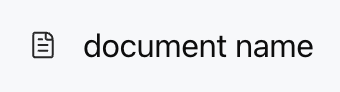
1. Icon + Text
Suitable for a simple list or lightweight display of information.
Template example:
<ListViewItem gap="12px" align="center">
<Icon name="document" />
<Text value="document name" />
</ListViewItem>
Effect display as follows:


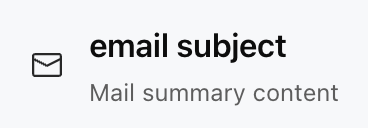
2. Icon + Title + Description
List items suitable for displaying supplementary remarks.
Template example:
<ListViewItem gap="16px" align="center">
<Icon name="mail" size="lg" />
<Col gap="4px" flex={1}>
<Text value="email subject" weight="semibold" />
<Caption value="Mail summary content" />
</Col>
</ListViewItem>
Effect display as follows:


3. Complete information card
Suitable for complex scenarios with action buttons in the list.
Template example:
<ListViewItem gap="16px" align="center">
<Image src="https://cdn.xiaowei.qq.com/webim/assets/static/widget/lib-v1.0.0/img/self_introduction.png" size="48px" radius="full" />
<Col gap="4px" flex={1}>
<Text value="Julian" weight="semibold" />
<Caption value="Product manager" />
</Col>
<Button label="Follow" size="sm" />
</ListViewItem>
Effect display as follows:


Bantuan dan Dukungan

Apakah halaman ini membantu?

masukan