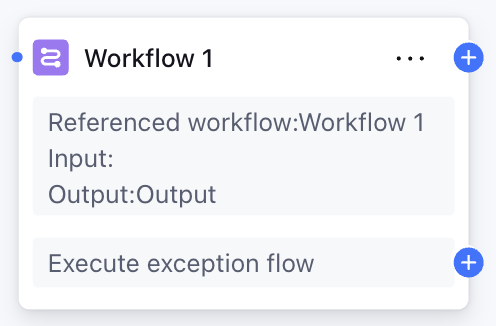
Node Function
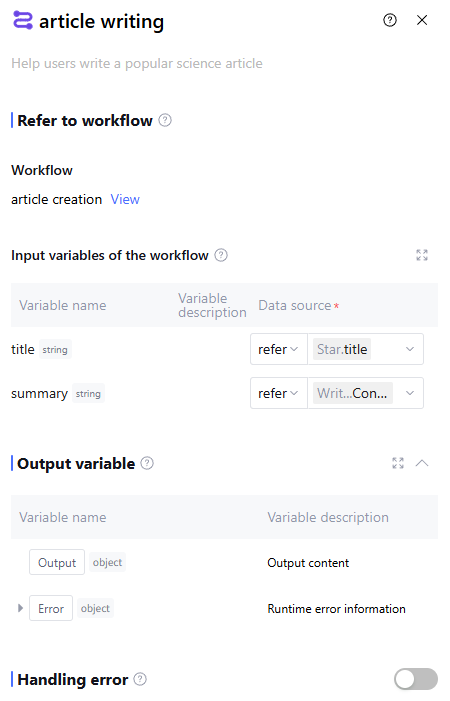
The Workflow Node belongs to the Information Processing Node, supporting users to introduce workflows in the "To be released" and "Released" status as nodes into the current workflow. It is commonly used for reusing workflow logic to achieve modular split and management of complex tasks. For example: Workflow A is for confirming user profiles, and Workflow B is for recommending products. Workflow B can introduce Workflow A as a workflow node into the canvas and execute subsequent nodes based on user profiles.
Directions
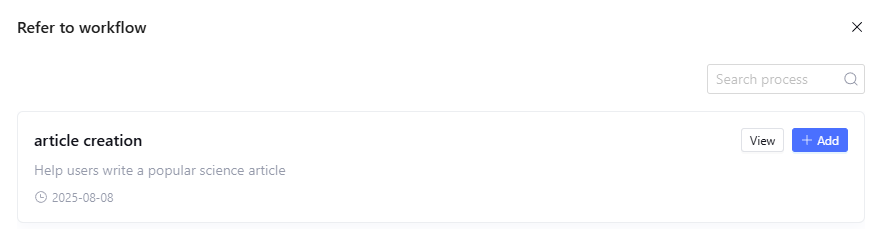
Refer to Workflow
Support users to introduce workflows with "To be released" and "Released" status. Upon success, show the necessary input variables for calling the workflow in "Input variables of the workflow". Support nested workflows with a maximum of 5 layers.
Input variables of the workflow
Automatically display the necessary input variables based on the introduced workflow. Only support user configuration of the "data source" option, with two options: "refer" and "input". "Refer" allows selecting output variables from all preceding nodes, while "input" supports manually filling in a fixed value.
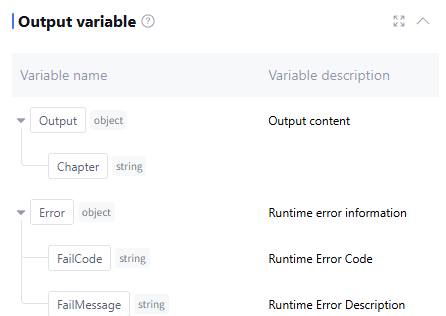
Output Variable
The output variable processed by this node defaults to the output of the introduced workflow as well as runtime Error info (data type: object, this field is empty during normal operation). Manual addition by users is not supported.
Handling error
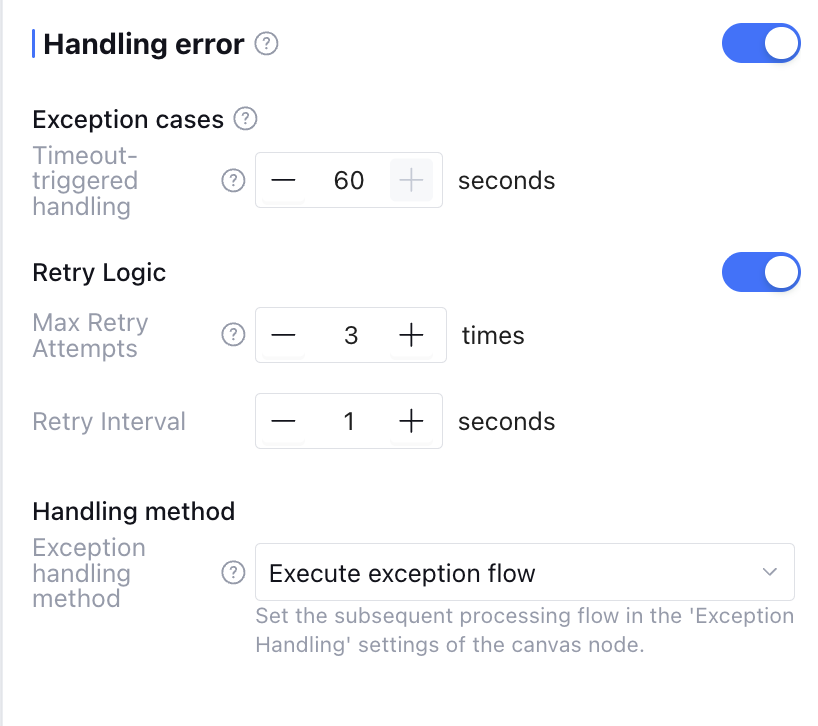
Exception handling can be enabled manually (off by default), supporting exception retry and exception handling method configuration. The configuration content is as follows:
|
Max Retry Attempts | Maximum number of times to rerun when the node running exceptionally. If retry exceeds the set number of times, consider that node call failed and execute the exception handling method below. Default is 3 times. |
Retry Interval | Interval between each rerun, default is 1 second. |
Exception Handling Method | Support three types, including "Output Specific Content", "Execution Exception Flow", and "Interrupt Flow". |
Exception Output Variable | When the exception handling method is set to "Output Specific Content", the output variable returned when retries exceed the maximum number. |
When the exception handling method is set to "Output Specific Content", the workflow will not be interrupted after an exception occurs. The node returns the output variable and variable value set by the user in the output content directly after retry.
When the exception handling method is set to "Execution Exception Flow", the workflow will not be interrupted after an exception occurs. The node executes the exception handling process customized by users after retry.
When the exception handling method is set to "Interrupt Process", there are no more settings. The workflow execution is interrupted after an exception occurs.
Application Example
For details, please refer to the Start Node example. FAQs
1. Can I modify the imported workflow on the workflow configuration page?
Modification is not supported on the workflow configuration page. If you need to modify the imported workflow, you can click "View" to enter the sub-workflow and make changes.
2. Can I replace the workflow on the workflow configuration page?
The workflow node requires first selecting the imported workflow to create. Once created, replacing the imported workflow is not supported.