Configuring TLS Encryption for the Client Access Point
Unduh
Mode fokus
Ukuran font
TDMQ for RabbitMQ supports TLS encryption, allowing clusters to be bound with SSL certificates. It also supports both one-way and mutual authentication modes.
After you enable encryption for the access point, SSL certificates will be used to encrypt data transmitted between the client and the server. This prevents data from being intercepted or eavesdropped on during network transmission, ensuring secure data transmission and meeting confidential business requirements.
One-Way Authentication
One-way authentication involves the client authenticating the server, which is based on server certificates. The server uses the certificate you selected to establish a connection with the client. You need to purchase or issue the server certificate yourself, put it under the management of SSL Certificates, and then configure it in the RabbitMQ console.
Mutual Authentication
Mutual authentication refers to mutual authentication between the client and server. RabbitMQ uses server certificates and client CA certificates to authenticate both the server and client, ensuring a secure and reliable communication link between the client and server.
Authentication of the server by the client is based on server certificates.
Authentication of the client by the server is accomplished through the CA certificate. When a client initiates a connection request, it will transmit its device certificate to the server. The server will then verify the validity of this device certificate against the pre-registered CA certificate. If verification succeeds, the client is allowed to connect to the server.
Constraints and Limitations
Only Managed Edition clusters support the TLS encryption feature.
Access points with encryption enabled cannot be deleted directly. You need to disable encryption first.
Binding an SSL certificate involves a cluster restart. It is recommended to configure multi-node mirrored queues for the cluster in the console before binding to avoid service interruption or data loss during the certificate binding process. For specific steps, see Configuring a Mirroring Policy.
During the certificate binding process, the cluster status is Reconfiguring. During this time, no other configuration change operations are allowed. After the binding is completed, the cluster status returns to normal.
Due to the inherent limitations of RabbitMQ, a cluster can only be bound to either one server certificate (for one-way authentication) or a pair of server and CA certificates (for mutual authentication). In scenarios with multiple access points, the certificates bound to the cluster are used for encryption.
Configuring TLS Encryption
Prerequisites
You have completed the management of a self-signed certificate or purchased a certificate in the SSL certificate console. For specific steps, see Getting Started with SSL Certificates.
Step 1: Binding an SSL Certificate
1. Log in to the TDMQ for RabbitMQ console.
2. In the left sidebar, choose Cluster, select a region, and click the ID of the target cluster to go to the basic cluster information page.
3. On the Basic Information page, select the Certificate Management tab, and click Bind Certificate in the upper-right corner.
4. Configure the authentication method and certificate information in the pop-up window.
Parameter | Description |
Authentication Method | One-way authentication and mutual authentication are supported. One-way authentication: The client authenticates the server. Mutual authentication: The client and the server authenticate each other. |
Certificate Source | Only SSL certificates managed by Tencent Cloud are supported. Note: If you are using the RabbitMQ TLS encryption feature for the first time, click Grant RabbitMQ Service Permission to Download and Apply SSL Certificate Functionality. |
Server Certificate | Select an SSL certificate from the drop-down list. Only certificates with the Issued status are supported. The server certificate is used for the client to authenticate the server. |
CA Certificate | When the authentication method is set to mutual authentication, you need to select the SSL certificate from the drop-down list. The CA certificate is used for the server to authenticate the client. |
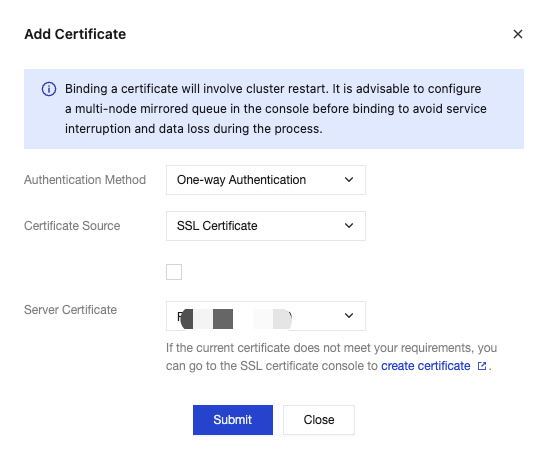
5. Click Submit, and the cluster status will change to Reconfiguring. After 3–5 minutes, the cluster will complete the SSL certificate binding.

Step 2: Enabling Encryption for an Access Point
1. On the Certificate Management page, select the Client Access tab, click Convert IP to Domain in the Operation column of the target access point, and then click Confirm in the pop-up window. After conversion, an access point with port 5672 will be displayed in the Network column.
Note:
Enabling TLS encryption requires using the domain name of the access point. Therefore, you need to convert the IP address of the access point to a domain name first. If the access point is already a domain name, skip this step.
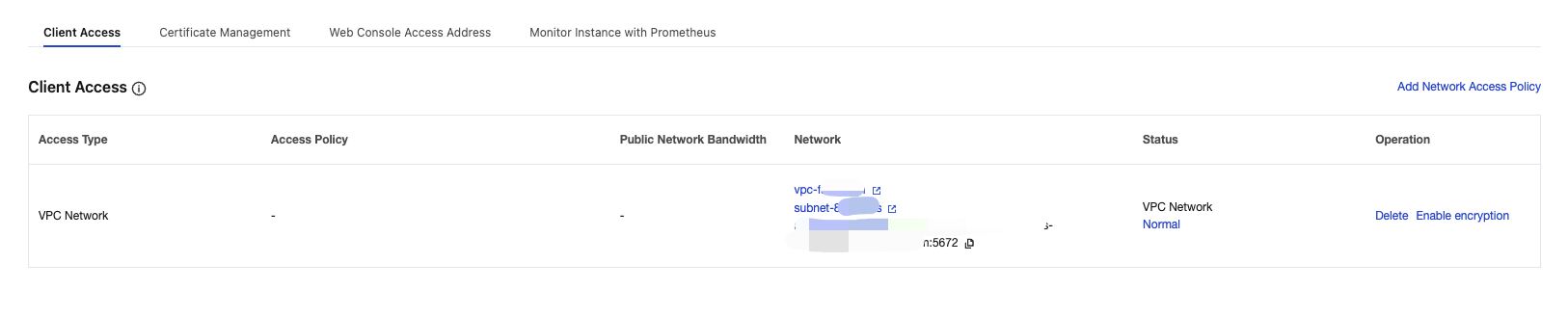
2. After converting the IP address to a domain name, click Enable Encryption in the Operation column of the access point.
3. In the pop-up window, click OK. After encryption is enabled, an encrypted access point with port 5671 will be displayed in the Network column.
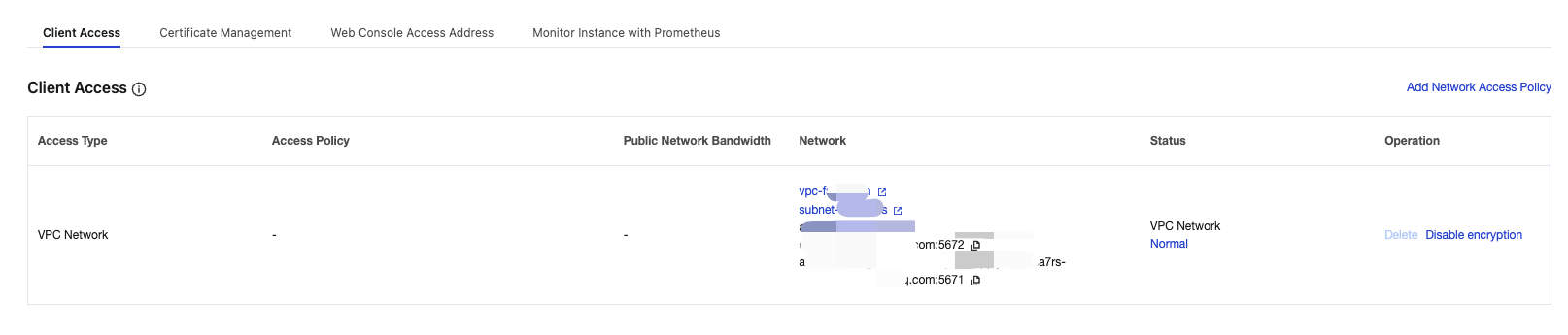
Step 3: Using the Encrypted Access Point to Send and Receive Messages
After completing the TLS encryption configuration, you can use the encrypted access point (port 5671) in the client to connect to the cluster and send and receive messages.
Disabling Encryption
When you no longer need TLS encryption, you can disable it in the console.
1. Log in to the TDMQ for RabbitMQ console.
2. In the left sidebar, choose Cluster, select a region, and click the ID of the target cluster to go to the basic cluster information page.
3. On the Basic Information page, select the Client Access tab, and click Disable Encryption in the Operation column of the target access point.
4. In the pop-up window, click OK to complete disabling.
Unbinding a Certificate
If any access point has encryption enabled, the certificate cannot be unbound until encryption is disabled for all access points.
1. Log in to the TDMQ for RabbitMQ console.
2. In the left sidebar, choose Cluster, select a region, and click the ID of the target cluster to go to the basic cluster information page.
3. On the Basic Information page, select the Certificate Management tab and click Unbind Certificate in the upper-right corner.
4. In the pop-up window, click Delete, and the cluster status will change to Reconfiguring. After 3–5 minutes, the cluster will unbind the SSL certificate.
Bantuan dan Dukungan
Apakah halaman ini membantu?
Anda juga dapat Menghubungi Penjualan atau Mengirimkan Tiket untuk meminta bantuan.
masukan