Granting Tag-Level Permission to Sub-account
Unduh
Mode fokus
Ukuran font
Scenarios
You can use the policy feature of the Cloud Access Management (CAM) console to grant the read/write permissions for RabbitMQ resources owned by the root account and bound with tags to sub-accounts based on tags. Sub-accounts that obtain the permissions can then control resources under the corresponding tags.
Prerequisites
You have created sub-accounts for employees using the Tencent Cloud root account. For detailed operations, see Creating a Sub-account.
At least one RabbitMQ instance is available.
At least one tag is available. If no tag exists, you can create tags by seeing Tag Management.
Operation Steps
Step 1: Binding Tags to Resources
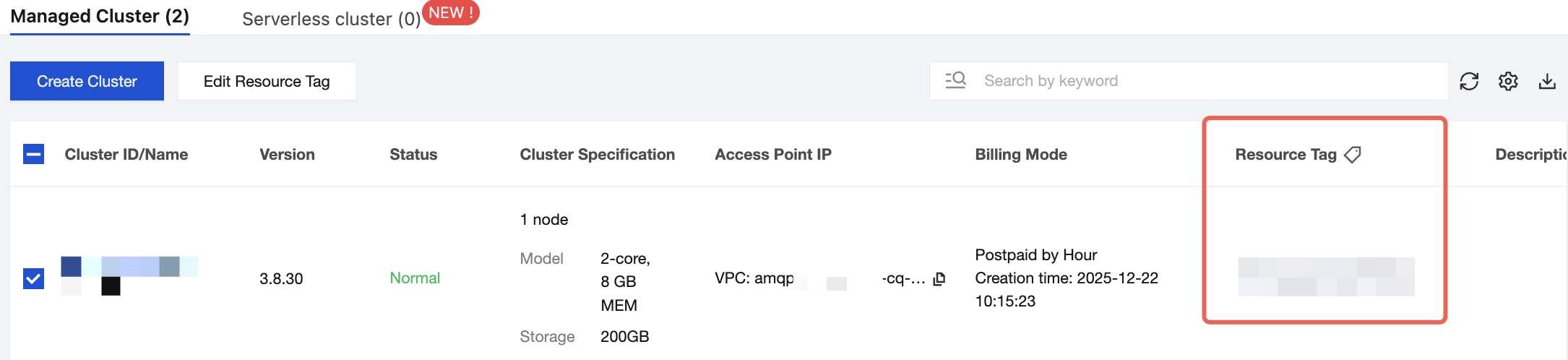
1. Use the root account to log in to the TDMQ for RabbitMQ console and go to the Cluster Management page.
2. Select the target cluster, click Edit Resource Tag in the upper-left corner, and bind resource tags to the cluster.
Step 2: Authorization by Tag
1. Log in to the CAM console.
2. In the left sidebar, select Policies, click Create a custom policy, and set the policy creation method to Authorize by Tag.
3. In the visualized policy generator, select the target service. The specific selection instructions are as follows:
Managed Edition: Enter TDMQ to filter, and select Tencent Distributed Message Queue (tdmq) from the results.
Serverless Edition: Enter trabbit to filter, and select RabbitMQ Serverless (trabbit) from the results.
4. In Action, select All actions. You can also select specific operations based on your business needs.
Note:
You can filter to view whether the APIs support tag-based authorization by using the "Whether tag-based authorization is supported" option in the Operation, which includes all APIs of the service.
Yes: Tag-based authorization of APIs is supported, including the operational permissions for resources associated with the corresponding tags.
No: Tag-based authorization of APIs is not supported.
To support authorization for multiple services, you can click Add in the upper-left corner to add multiple authorization statements and configure authorization policies for other services.
5. In the Select a tag (resource_tag), select the tag keys and tag values bound to the cluster resources. You can select multiple tag keys and tag values.
6. In the Select Condition Key, select condition keys. You can select both condition keys resource_tag and request_tag, or select either of them.
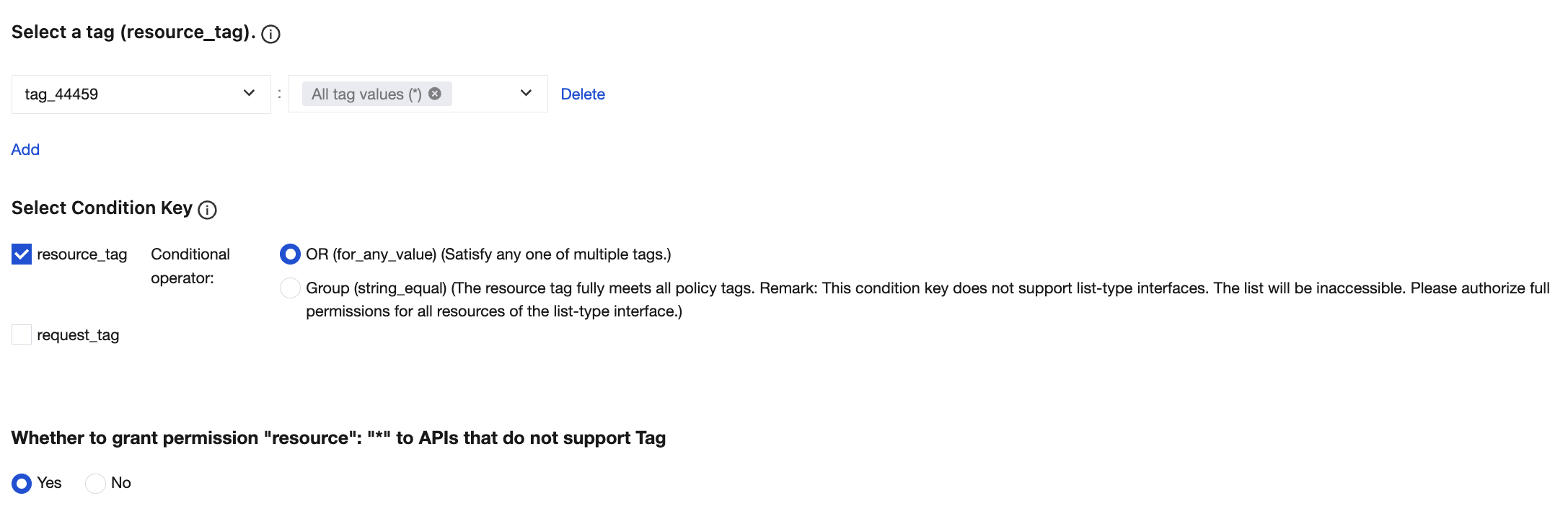
7. Determine whether to Whether to grant permission "resource": "*" to APIs that do not support Tag. If you check this option, APIs that do not support tags will include operation permissions for all resources.
8. Click Next to set the policy name. The policy name is automatically generated by the console, with the default name of "policygen", with the suffix number generated based on the creation date. You can customize it.
9. Click Select User or Select User Group to select the users or user groups to be granted resource permissions.
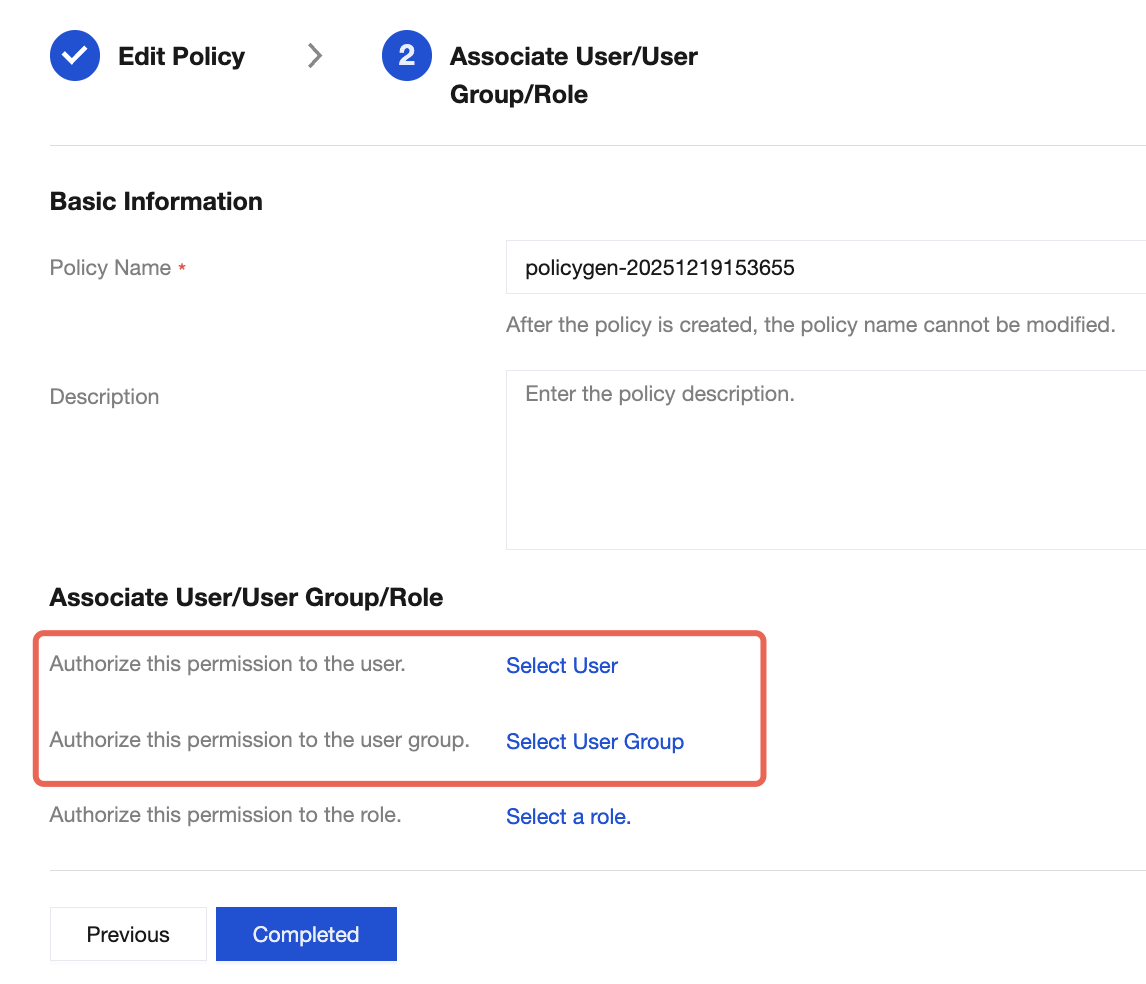
10. Click Complete. The relevant sub-accounts will be able to control resources under the specified tag according to the policy.
Bantuan dan Dukungan
Apakah halaman ini membantu?
Anda juga dapat Menghubungi Penjualan atau Mengirimkan Tiket untuk meminta bantuan.
masukan