Setting Up HTTPS for a Website
Unduh
Mode fokus
Ukuran font
Scenarios
Enabling HTTPS allows websites built from certain Lighthouse application images to perform data transfer and identity authentication over encrypted HTTPS connections.
Description
The HTTPS configuration feature is implemented based on TAT, allowing you to upload and install SSL certificates with one click.
The Lighthouse console only displays the result of the HTTPS configuration command executed by TAT, and does not represent the actual activation status of HTTPS on your instance. After the configuration is completed, we recommend that you verify it by visiting
https://your hostname.Use Limits
Application images that support HTTPS configuration: WordPress, WooCommerce, SRS Media Server, Typecho, Cloudreve, Matomo, LAMP, Theia IDE, Cloud Studio, and OpenFaaS. To configure
HTTPS for Lighthouse instances created from other images, see How to Install SSL Certificates.You also need to ensure that TAT in the Lighthouse instance is online. To check its status, go to the instance details page, click the Overview tab, and view the TAT card. Otherwise, HTTPS cannot be configured.
Operation Steps
Prerequisites
You have successfully added domain resolution in Lighthouse. For details, see Add Domain Resolution.
Your current account has an SSL certificate in the Tencent Cloud SSL Certificates console with a status of Issued and a bound domain that matches the selected hostname.
Obtaining SSL Certificates
You can choose to apply for a free certificate or upload an existing local certificate. For details, see Uploading (Hosting) SSL Certificates.
Setting Up HTTPS
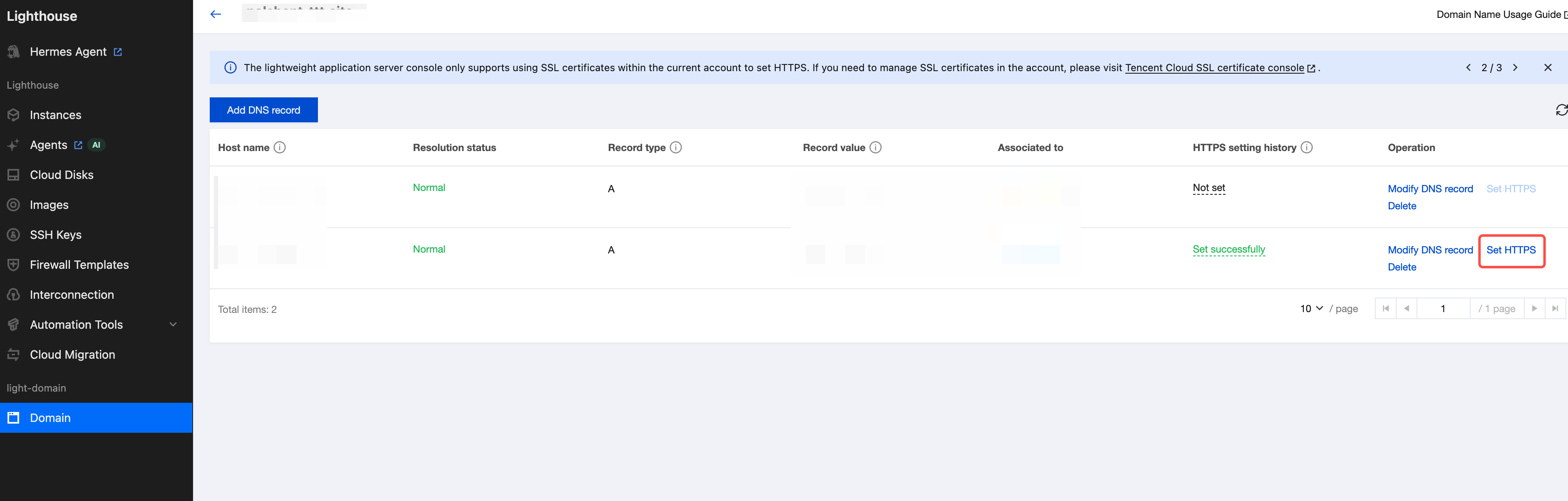
1. Go to the domain resolution list from the domain page, and click Set HTTPS in the operation column of the corresponding domain resolution record.
2. Select SSL certificate.
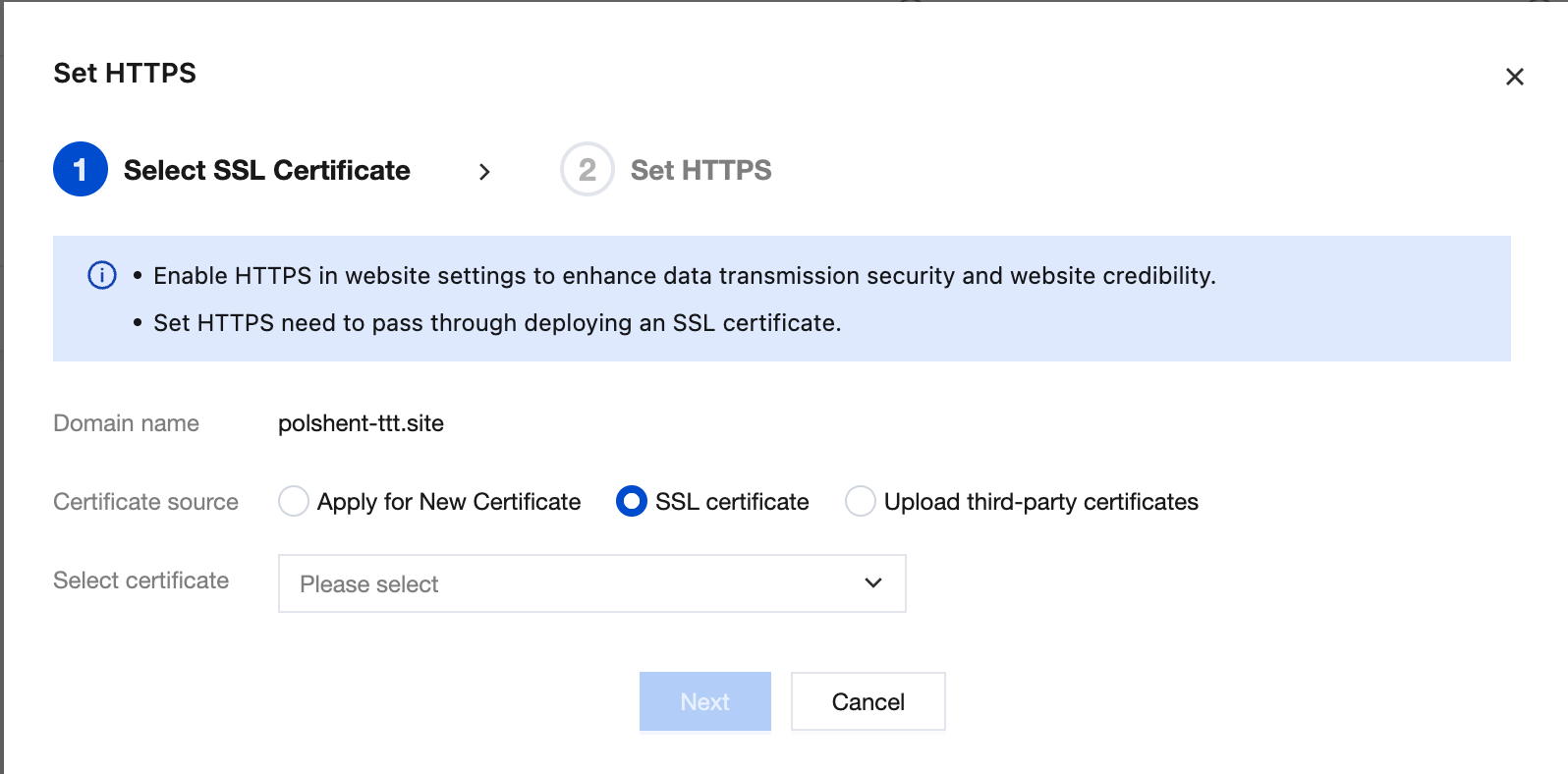
3. Click OK.
1. Log in to the Lighthouse console and select Servers in the left sidebar.
2. In the instance list, select the target instance and go to the instance details page.
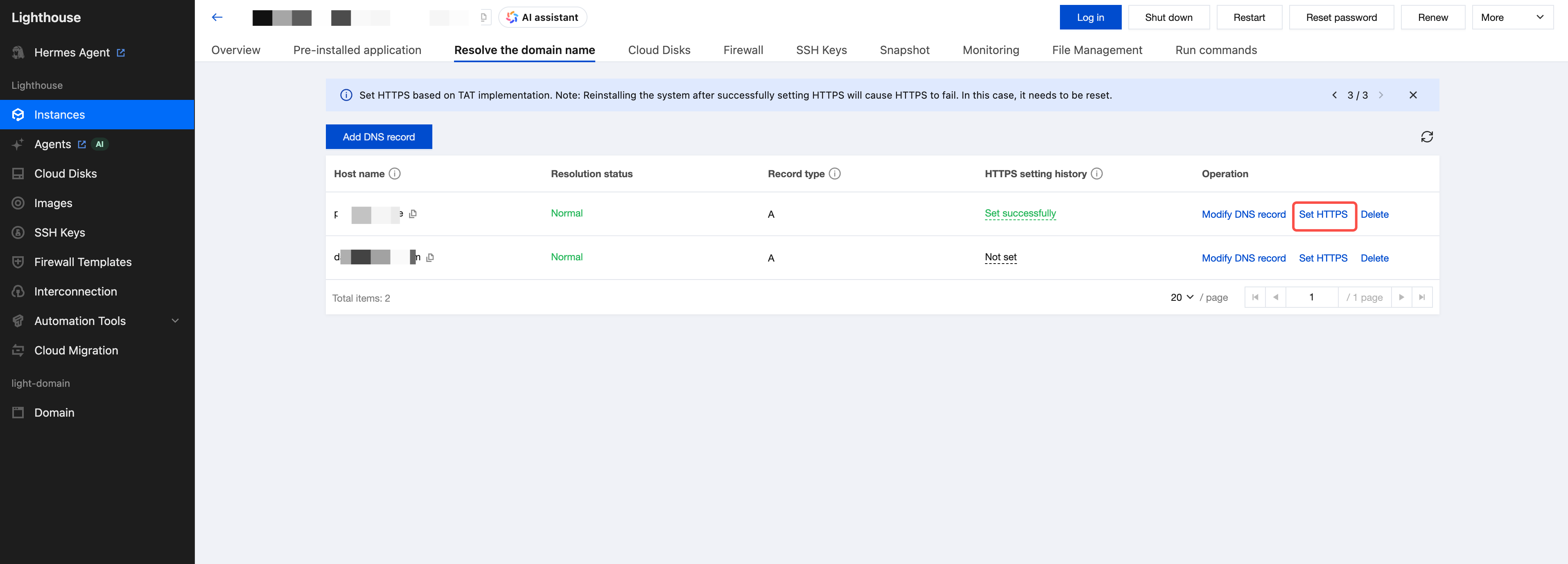
3. Select the Resolve the domain name tab, and click Set HTTPS in the operation column of the corresponding domain resolution record.
4. Select an SSL certificate.
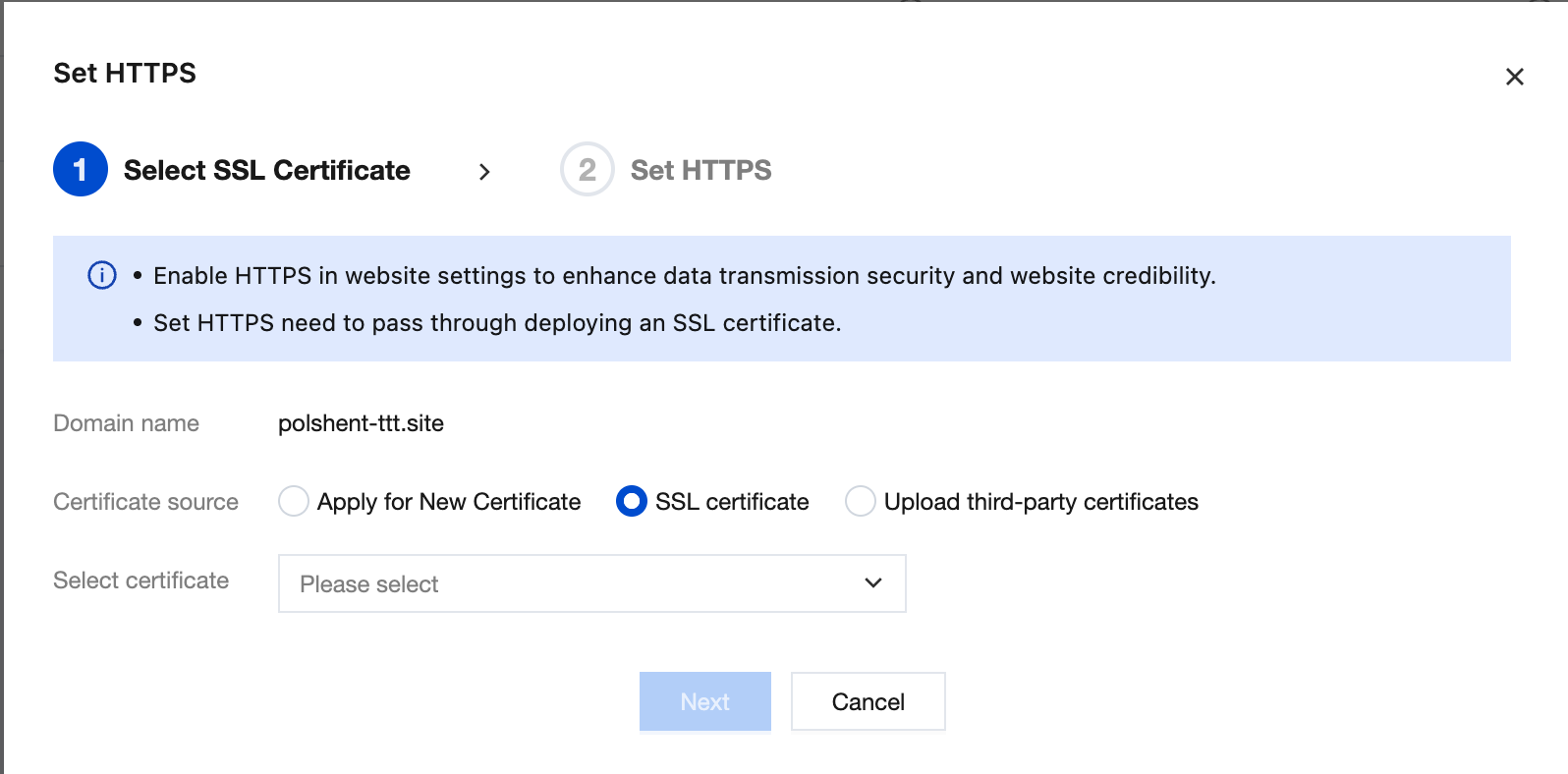
5. Click OK.
Note:
The Lighthouse console only displays the history and status of HTTPS configurations, and does not support rolling back configured HTTPS through this feature. If your deployed website no longer requires HTTPS encryption, see Deleting HTTPS Configuration.
Uploading and Deploying a Third-Party Certificate
The HTTPS configuration feature of Tencent Cloud Lighthouse supports third-party certificates.
Operation Steps
1. In the Set HTTPS dialog box, click the Upload third-party certificates option.
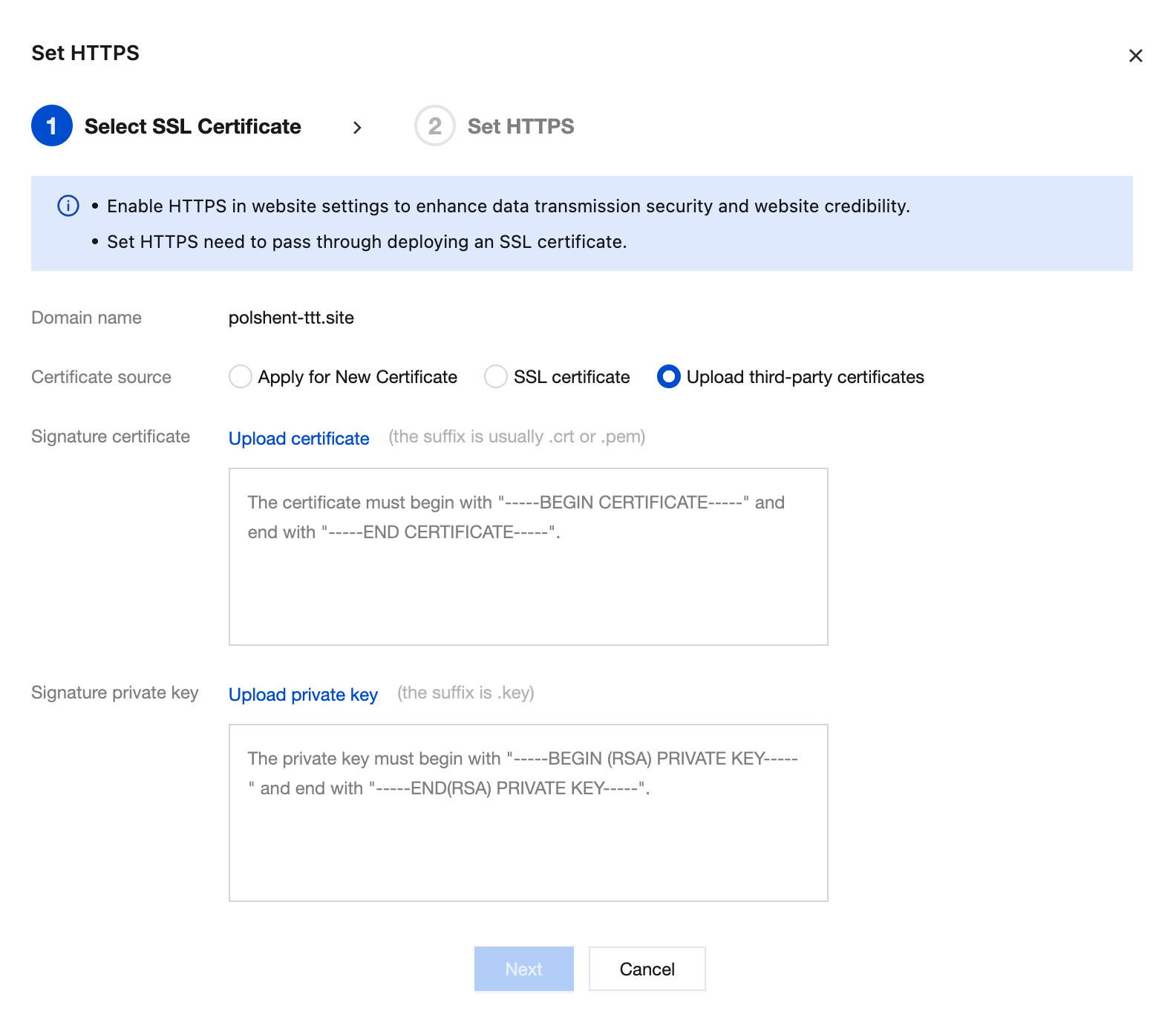
2. Upload the certificate file and the certificate private key file, or directly copy and paste the content of the corresponding files.
Note:
1. Only uploading and deploying SVR certificates is supported. Deploying CA certificates is not supported.
2. The domain bound to the uploaded certificate must be the same as the domain for which HTTPS is configured.
3. Click OK to start deployment.
Applying for and Deploying a Certificate Online
When configuring HTTPS, if the region and image of the server where your website is deployed meet the requirements (see the description below for details), you can choose Apply Online. The system will then automatically apply for a new free SSL certificate and deploy it to the Lighthouse instance without any additional operations.
Note:
Currently, only Hong Kong (China) and other countries/regions support configuring HTTPS by applying for a certificate online.
Application template images that support online certificate application: WordPress, WooCommerce, Cloudreve, Typecho, Matomo, and LAMP.
For the quota of free certificate applications, see Free Certificate Quota Description.
1. In the Configure HTTPS dialog box, select Apply for New Certificate.
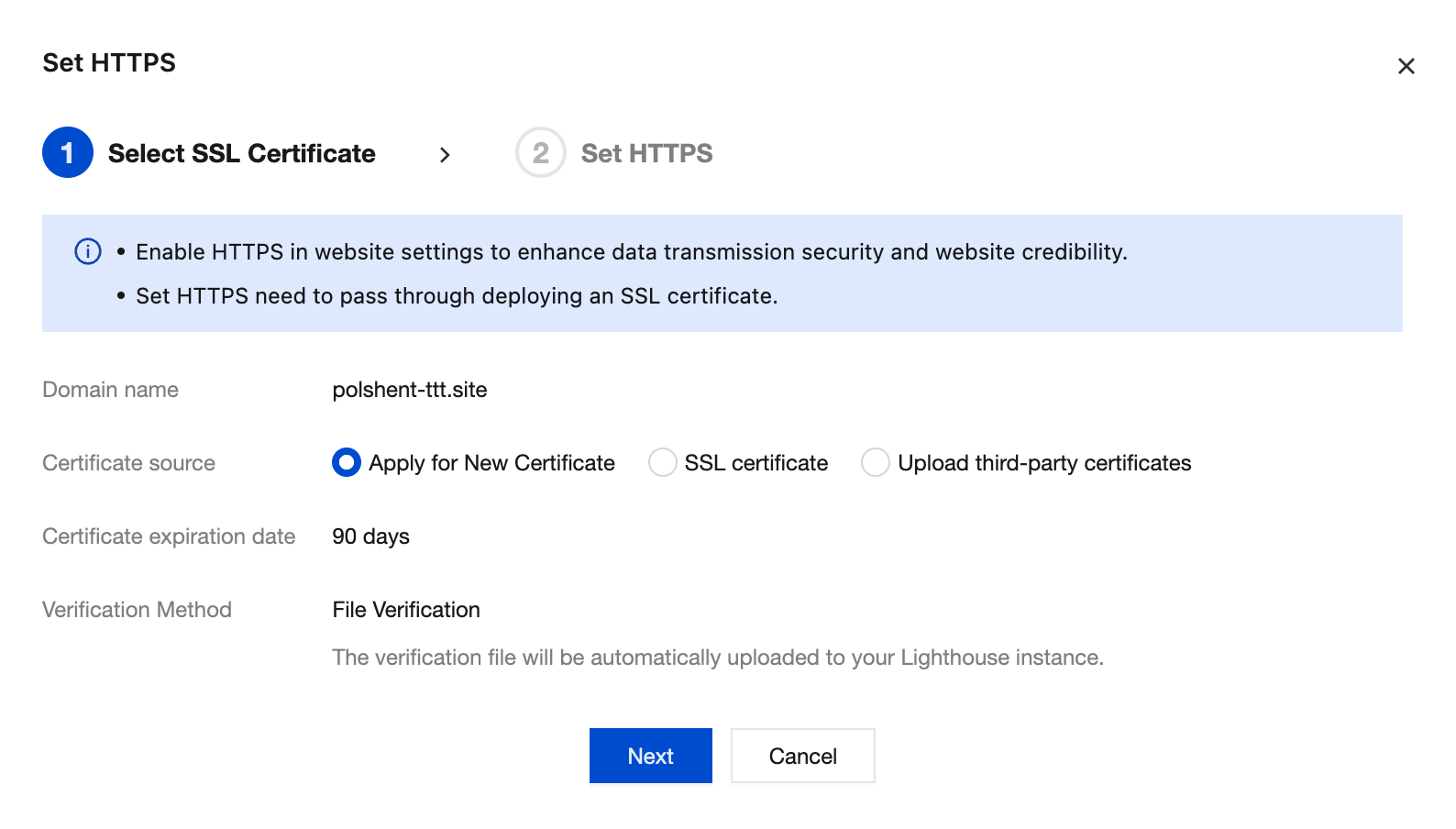
2. After clicking OK, wait until the configuration is successful.
Note:
The online application process typically takes 1 to 2 minutes. If the page indicates that HTTPS configuration is not yet complete, do not close the dialog box. Otherwise, you will need to configure it again.
Bantuan dan Dukungan
Apakah halaman ini membantu?
Anda juga dapat Menghubungi Penjualan atau Mengirimkan Tiket untuk meminta bantuan.
masukan