CSS 콘솔에서 도메인 이름을 추가하면 시스템에서 도메인 관리에서 볼 수 있는 CNAME(접미사 .tlivecdn.com)을 할당합니다. 도메인에 액세스할 수 있도록 하려면 DNS 서비스 제공 업체에 CNAME 레코드를 추가해야 합니다. 구성이 적용된 후에만 CSS를 사용할 수 있습니다.
주의 사항
푸시 도메인과 재생 도메인은 모두 CNAME 레졸루션을 완료해야 합니다.
CNAME 레코드를 추가하는 방법에 대한 자세한 지침은 DNS 서비스 제공업체에 문의하십시오.
CNAME 설정 완료 후 약 15분이 지나면 적용됩니다. 멀티 레이어 CNAME 을 설정한 경우 CSS에서 효과적으로 레졸루션 결과를 모니터링할 수 없습니다. 도메인에 액세스할 수 있으면 CNAME 구성이 성공한 것입니다.
CNAME 설정 완료 후 오랫동안 적용되지 않으면 도메인 설정 관련을 참고하여 문제를 해결하십시오.
전제 조건
도메인 등록을 완료해야 합니다.
CSS 콘솔의 도메인 관리에서 자체 도메인 추가를 완료하고, 도메인 이름 소유권 인증과 도메인 CNAME 주소 상태가
(CNAME 미설정)임을 확인 완료해야 합니다.
설정 단계
본문은 Tencent Cloud, Alibaba Cloud, Baidu Cloud, DNSPod, www.net.cn, Xinnet에서 CNAME 레코드를 구성하는 방법을 보여줍니다. 작업 단계는 참고용으로 실제 설정에 부합하지 않는다면 본인이 사용하는 DNS 서비스 업체 정보를 기준으로 하시기 바랍니다. 도메인 CNAME 설정 완료 후, CNAME 레코드 인증을 참고하여 CNAME 설정이 완료되었는지 확인할 수 있습니다.
CNAME 원클릭 구성
도메인이 DNSPod에서 호스팅되는 경우 클릭 한 번으로 CSS 콘솔에서 CNAME 레코드를 추가할 수 있습니다.
1. CSS 콘솔에 로그인하고 왼쪽 사이드바에서 도메인 관리를 선택합니다. 세 가지 방법으로 원클릭 CNAME 구성 창을 열 수 있습니다.
도메인 관리 페이지에서
아이콘 위에 마우스를 놓고 원클릭 구성을 클릭합니다.
CNAME 레코드를 추가할 도메인 이름을 클릭하거나 관리를 클릭합니다. 기본 정보 탭에서 원클릭 구성을 클릭합니다.
CSS 콘솔에서 도메인을 추가할 때 기본 설정을 마친 후 CNAME을 구성하라는 메시지가 표시됩니다.
2. 도메인에 대한 CNAME 레코드를 추가하지 않은 경우 지금 추가를 클릭합니다. 구성은 약 15분 후에 적용됩니다.
2. 리스트에서 CNAME 레코드를 추가할 도메인이 속한 열을 확인하고 해당 도메인 이름을 클릭하여 ‘레코드 추가 ’인터페이스로 이동합니다.
3. 다음 단계를 통해 CNAME 레코드를 추가할 수 있습니다.
3.1 호스트 레코드에 서브 도메인을 입력합니다. 예를 들어 www.123.com의 레졸루션을 추가해야 할 경우 호스트 레코드에 'www'만 입력하면 됩니다. 123.com의 레졸루션만 추가하려는 경우 호스트 레코드를 공백으로 남겨두면 시스템이 입력창에 ‘@’를 자동으로 입력합니다. @의 CNAME은 MX 레코드의 정상적인 레졸루션에 영향을 주므로 신중하게 추가하십시오.
3.2 레코드 유형은 CNAME입니다.
3.3 분할 영역의 경우 "기본값"인지 확인하십시오. 그렇지 않으면 일부 사용자의 경우 구문 분석에 실패할 수 있습니다.
예를 들어 모든 China Unicom 사용자는 2.com으로, 다른 사용자는 1.com으로 지정하려면 값이 1.com이고 분할 영역이 기본값인 레코드와 값이 2.com이고 분할 영역이 2.com인 레코드를 추가할 수 있습니다. 분할 영역은 China Unicom입니다.
3.4 레코드 값은 CNAME이 가리키는 도메인 이름입니다. 도메인 이름만 입력할 수 있습니다. 레코드가 생성된 후 도메인 이름 뒤에 ‘.’가 자동으로 추가됩니다.
3.5 MX는 비워 둡니다.
3.6 TTL(Time to Live)을 입력할 필요는 없습니다. 추가할 때, 시스템에서 자동으로 생성되며 기본값은 600초입니다(TTL은 캐시 시간으로 값이 작을수록 레코드 변경 사항이 전역적으로 더 빠르게 적용됨).
Alibaba Cloud 설정 방법
DNS 서비스 제공 업체가 Alibaba Cloud이고 도메인 ICP비안을 완료하였다면 다음 단계를 참고하여 CNAME 레코드를 추가합니다.
1. Alibaba Cloud 콘솔에 로그인하여 Alibaba Cloud DNS > DNS 관리로 이동합니다.
2. CNAME 레코드를 추가할 도메인을 선택하고 DNS 설정을 클릭합니다.
3. 레코드 추가를 선택하고 레코드 추가 페이지에 다음과 같이 설정합니다.
레코드 유형: CNAME을 선택합니다.
호스트 레코드: 서브 도메인의 접두사를 입력합니다. 예를 들어 재생 도메인이 ‘play.myqcloud.com’인 경우 play를 입력하고, ‘myqloud.com’을 레졸루션하려는 경우 @을 입력합니다. 와일드카드 레코드를 추가하려면 \\*을 입력합니다.
ISP 라인: 기본값을 권장합니다.
레코드값: Tencent Cloud 콘솔의 도메인 이름 관리 페이지에서 도메인의 해당 CNAME 값을 입력합니다. 형식은 domain.tlivecdn.com입니다.
TTL: 10분 입력을 권장합니다.
4. 확인을 클릭하여 완료합니다.
Baidu Cloud 설정 방법
DNS 서비스 제공 업체가 Baidu Cloud인 경우 다음 단계에 따라 CNAME 레코드를 추가 할 수 있습니다.
2. CSS에 추가한 도메인을 선택하고 작업 열에서 레졸루션를 클릭해 DNS 페이지로 이동합니다.
3. 해당 페이지에서 다음과 같이 설정하여 DNS 레코드를 추가합니다.
호스트 레코드: 도메인의 두 번째 레벨 도메인(접두사)을 입력합니다. 예를 들어 재생 도메인이 ‘play.myqcloud.com’인 경우play를 입력하고, ‘myqloud.com’을 레졸루션하는 경우 @을 입력하십시오. 와일드카드 레코드를 추가하려면 \\*을 입력하십시오.
레코드 유형: CNAME 레코드를 선택합니다.
레졸루션 라인: 기본값 선택을 권장합니다.
레코드값: CSS 콘솔의 도메인 이름 관리 페이지에서 도메인의 해당 CNAME 값을 작성합니다. 형식은 domain.tlivecdn.com입니다.
TTL: 10분 입력을 권장합니다.
4. 확인을 클릭하여 제출합니다.
www.net.cn 설정 방법
DNS 서비스 제공 업체가 Wanwang인 경우 아래 단계에 따라 CNAME 레코드를 추가할 수 있습니다.
1. Wanwang 회원 센터에 로그인하십시오.
2. 왼쪽 사이드바에서 제품 관리 > 나의 클라우드 레졸루션를 클릭하여 클라우드 레졸루션 리스트 페이지로 이동합니다.
3. 레졸루션하려는 도메인을 클릭하고 레졸루션 레코드 페이지로 이동하십시오.
4. 레졸루션 레코드 페이지로 이동한 후 레졸루션 추가를 클릭하여 레졸루션 레코드 설정을 시작합니다.
5. CNAME 레졸루션 레코드를 설정하려면 레코드 유형을 CNAME으로 선택하십시오. 호스트 레코드의 경우 도메인 접두사(www)를 입력합니다. 레코드 값으로 가리킬 CNAME을 입력합니다. 기본 레졸루션 라인과 TTL을 유지합니다.
6. 모두 입력 후 저장을 클릭하여 레졸루션 설정을 완료합니다.
Xinnet 설정 방법
DNS 서비스 제공 업체가 Xinnet인 경우, 별명(CNAME 레코드) 설정을 통해 CNAME 레코드를 추가할 수 있습니다.
별명 레코드를 통해 여러 이름을 동일한 컴퓨터에 매핑할 수 있습니다. 일반적으로 WWW와 MAIL 서비스를 모두 제공하는 컴퓨터에 사용됩니다. 예를 들어host.mydomain.com (A 레코드)이라는 컴퓨터는 사용자가 서비스에 액세스할 수 있도록 WWW 및 MAIL 서비스를 동시에 제공하는 경우, 해당 컴퓨터에 WWW와 MAIL의 두 개의 별칭(CNAME)을 설정할 수 있습니다. 다음 이미지를 참고하십시오.
CNAME 레코드 인증 적용 확인
DNS 서비스 제공 업체에 따라 CNAME 레코드 적용 시간이 조금씩 다르며, 일반적으로 30분 내에 적용됩니다. 다음 방법을 통해 CNAME 레코드가 적용되었는지 확인할 수 있습니다.
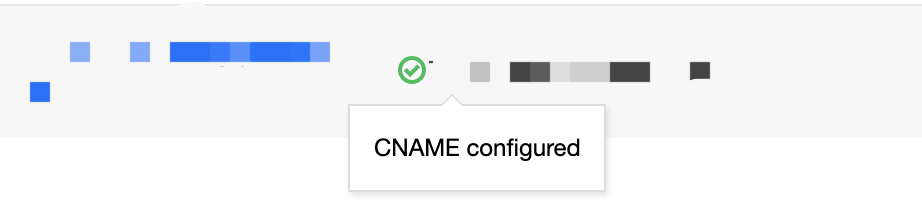
방법1: CSS 콘솔의 도메인 관리로 이동하여 조회 결과 접미사가.myqcloud.com인 도메인의 상태 부호가
로 변경되었다면 CNAME 적용이 완료된 것입니다.
방법2: CSS 콘솔의 도메인 관리로 이동하여 도메인을 추가할 때 기본 설정을 완료한 후 CNAME 구성 단계에서 도메인의 CNAME 상태를 볼 수 있습니다.
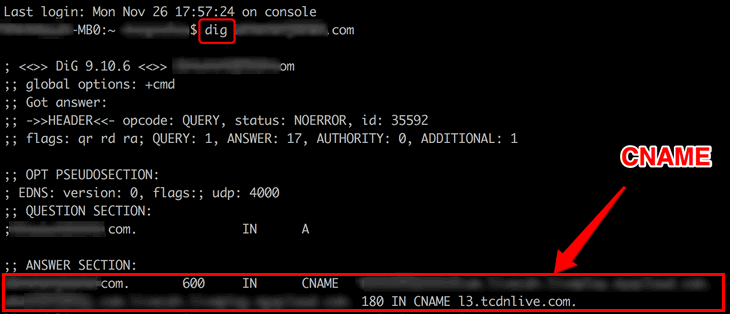
방법3: Linux/Mac 시스템에서 dig 명령어를 통해 확인합니다. 명령 형식: dig 자체 도메인. 첫 번째 열에 CSS가 제공한 타깃 도메인으로 레졸루션 되었다고 표시된다면 CNAME 적용이 완료된 것입니다.
방법4: Windows 시스템은 시작 > 실행 > cmd 입력과 엔터키를 누르고, 명령 라인 모드에서:nslookup 자체 도메인을 입력합니다. CSS에서 제공한 타깃 도메인 이름이 표시되면 CNAME 구성이 완료된 것입니다.
주의:
CNAME 설정 완료 후 오랫동안 구성이 적용되지 않으면 도메인 설정 관련을 참고하십시오.