On the Domain Management page of the Cloud Streaming Services (CSS) console, you can perform a series of operations on your domain names according to your business needs, including enabling, disabling, and deleting the domain names.
Note
CSS provides a test domain name xxxx.livepush.myqcloud.com by default. You can use it for push testing, but we do not recommend using it as the push domain name for your real business. This domain name cannot be deleted.
Prerequisites
1. You have activated the CSS service. Viewing a Domain Name
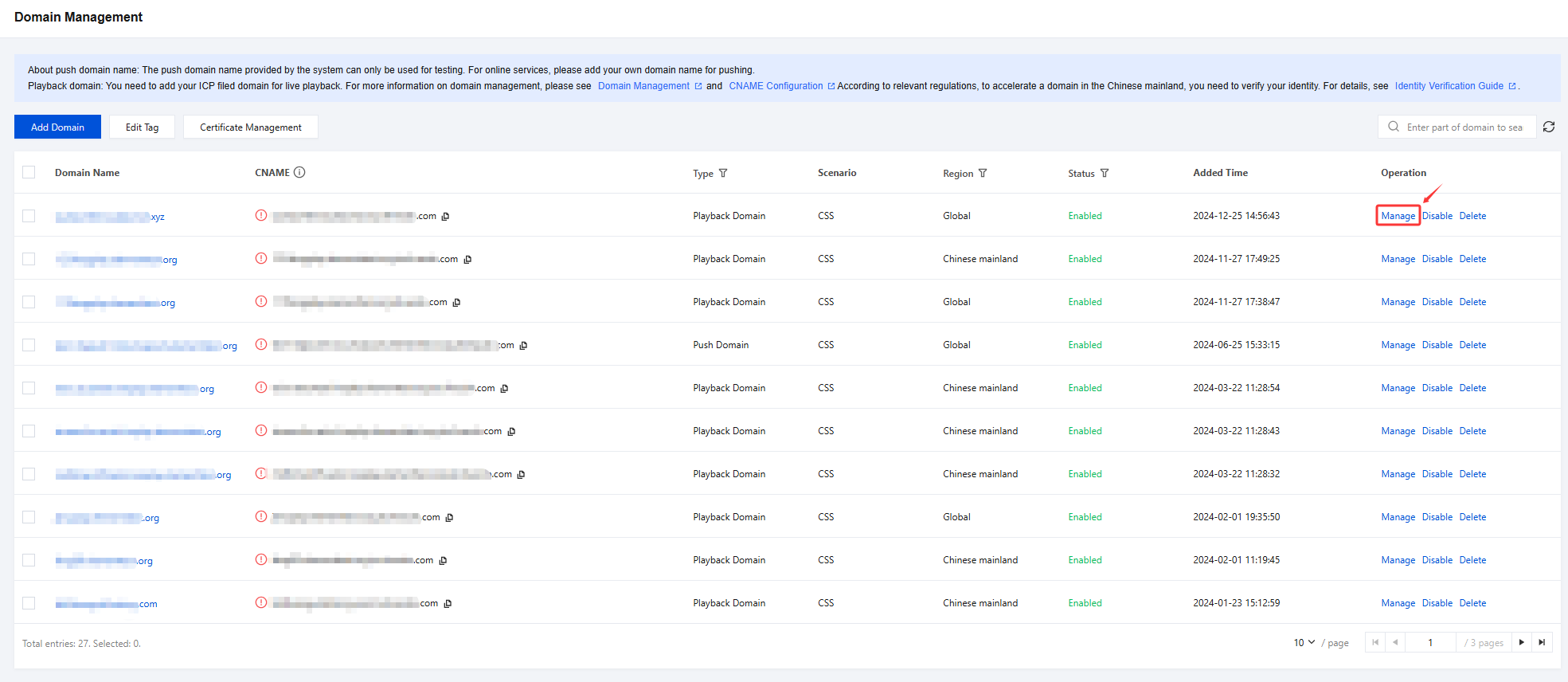
Log in to the CSS console and select Domain Management. you can view the CNAME configuration status, type, status,and domain name addition time. To view details, click the domain name or Manage on its right. Configuring a Domain Name
Disabling a Domain Name
If you do not want to use a live streaming domain name temporarily, you can disable it. Here are the steps to disable a domain name:
Note:
After a live streaming domain name is disabled, the domain name information will still be retained in the system, but the live streaming services will no longer process requests for the domain name. This means users will no longer be able to initiate live streaming push and playback through the domain name. Additionally, ongoing streaming or playback will not be interrupted.
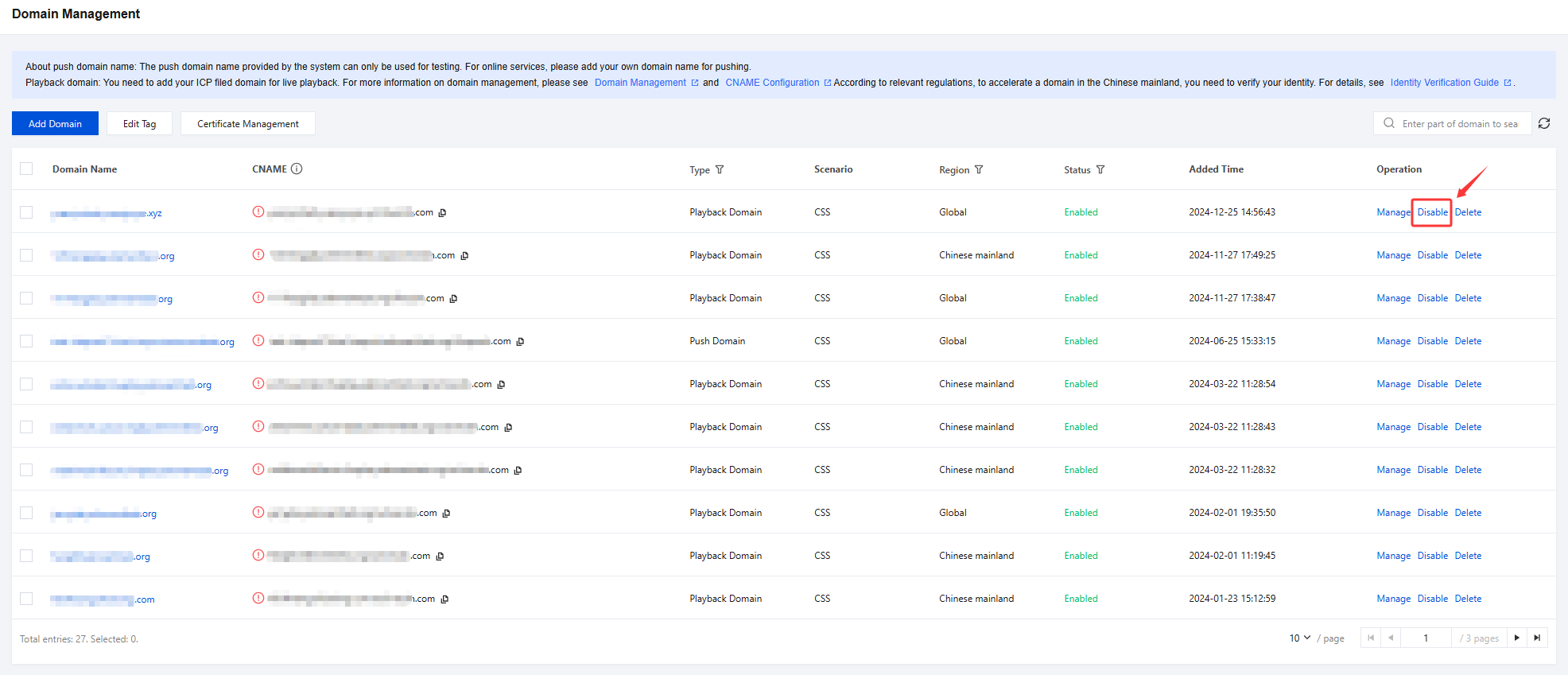
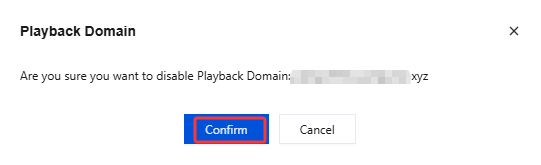
1. Log in to the CSS console and select Domain Management. In the domain name list, find the domain name you want to disable and click Disable. 2. In the pop-up window, click Confirm to disable the live streaming domain name.
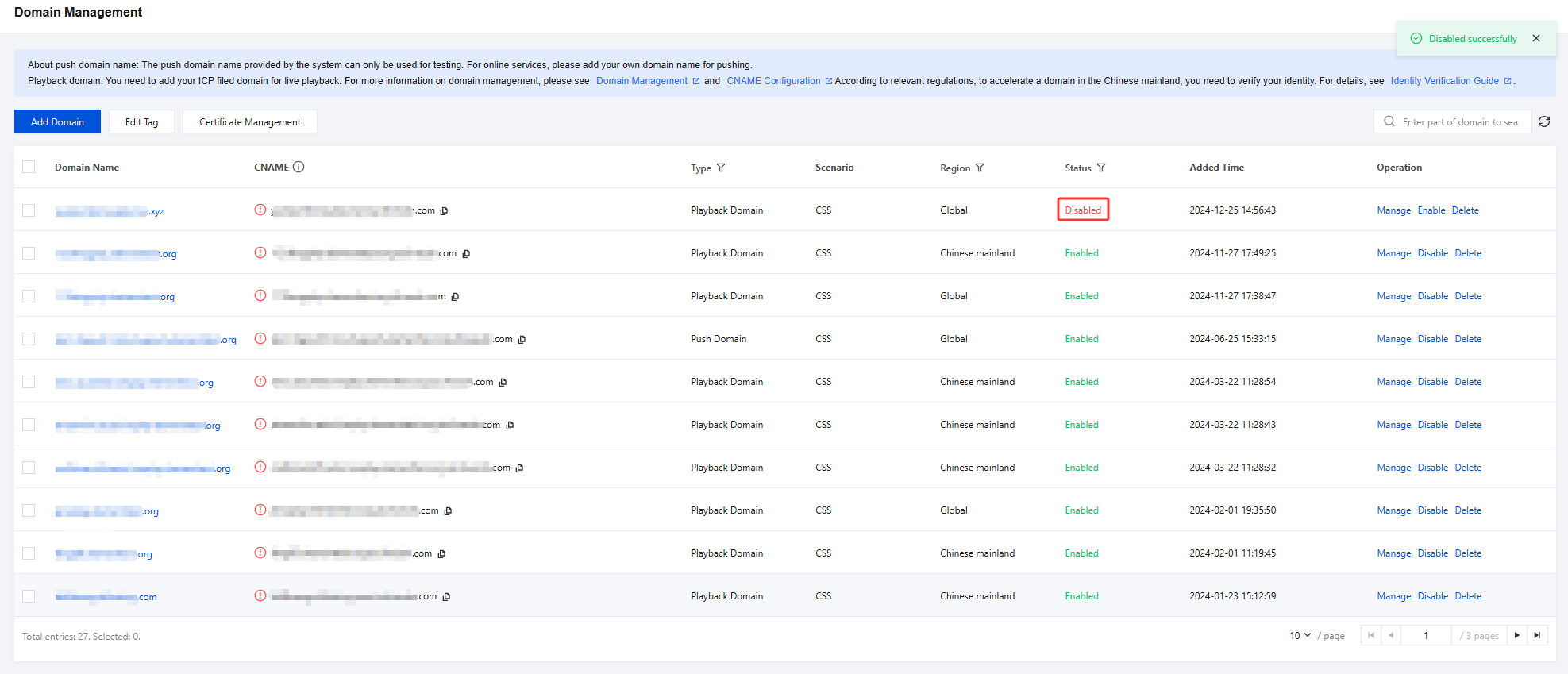
3. In the Status column on the Domain Management page, you can see that the current status of the domain name has changed to Disabled. The domain name has been successfully disabled and cannot be used for live streaming push and playback.
Enabling a Domain Name
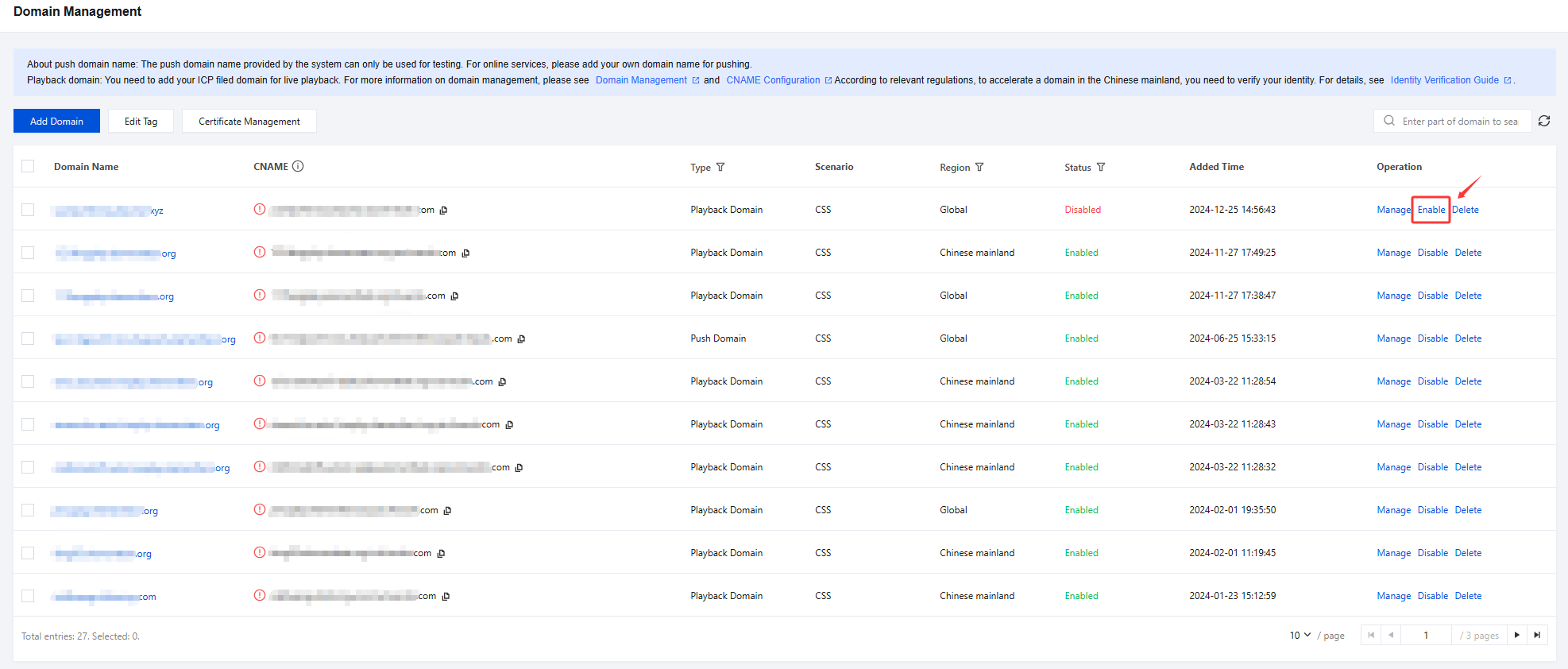
If you need to re-enable a disabled domain name, follow these steps:
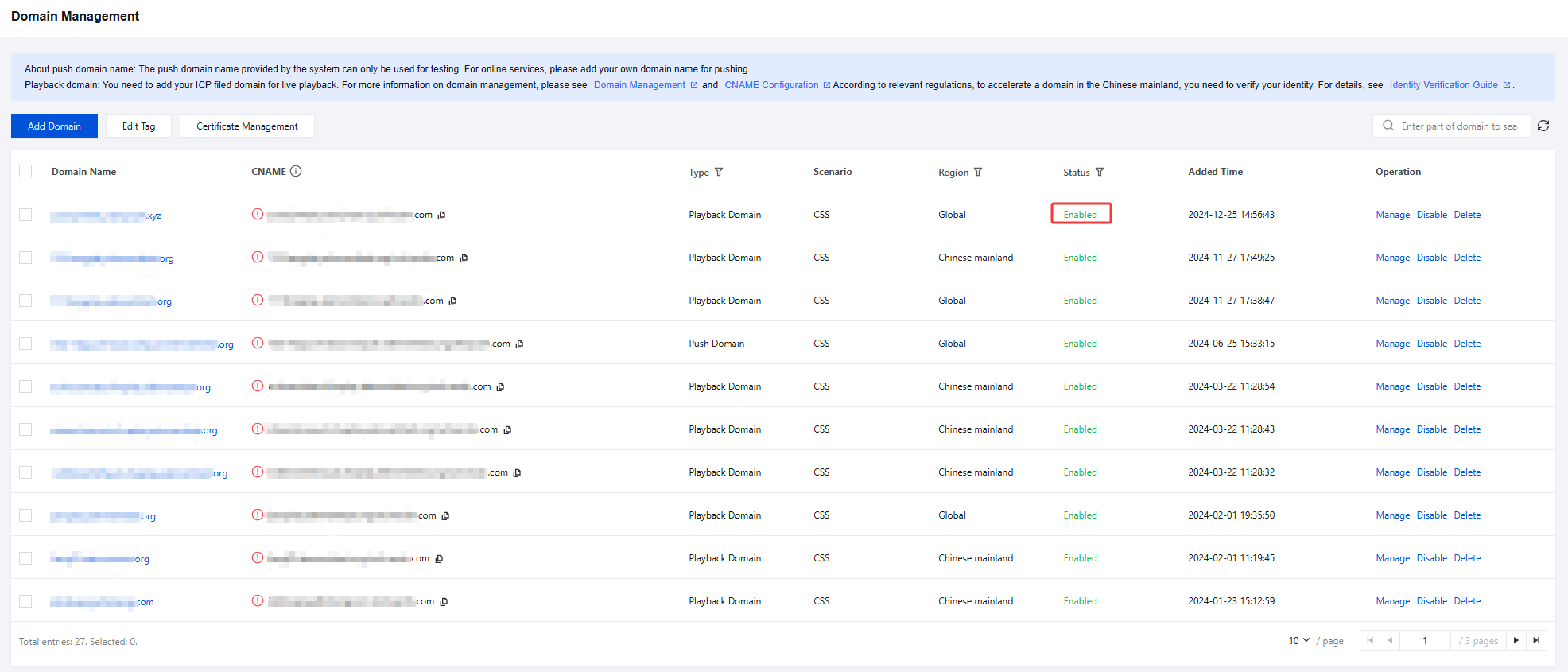
1. Log in to the CSS console and select Domain Management. In the domain name list, find the domain name you want to re-enable and click Enable. Live streaming services will be resumed for the domain name. 2. In the Status column on the Domain Management page, you can see that the current status of the domain name has changed to Enabled. You can use this domain name again for live streaming push and playback.
Deleting a Domain Name
Note:
Deletion is irreversible. When you delete a domain name, all its configurations will be permanently deleted.
You can still view the usage data of deleted domain names.
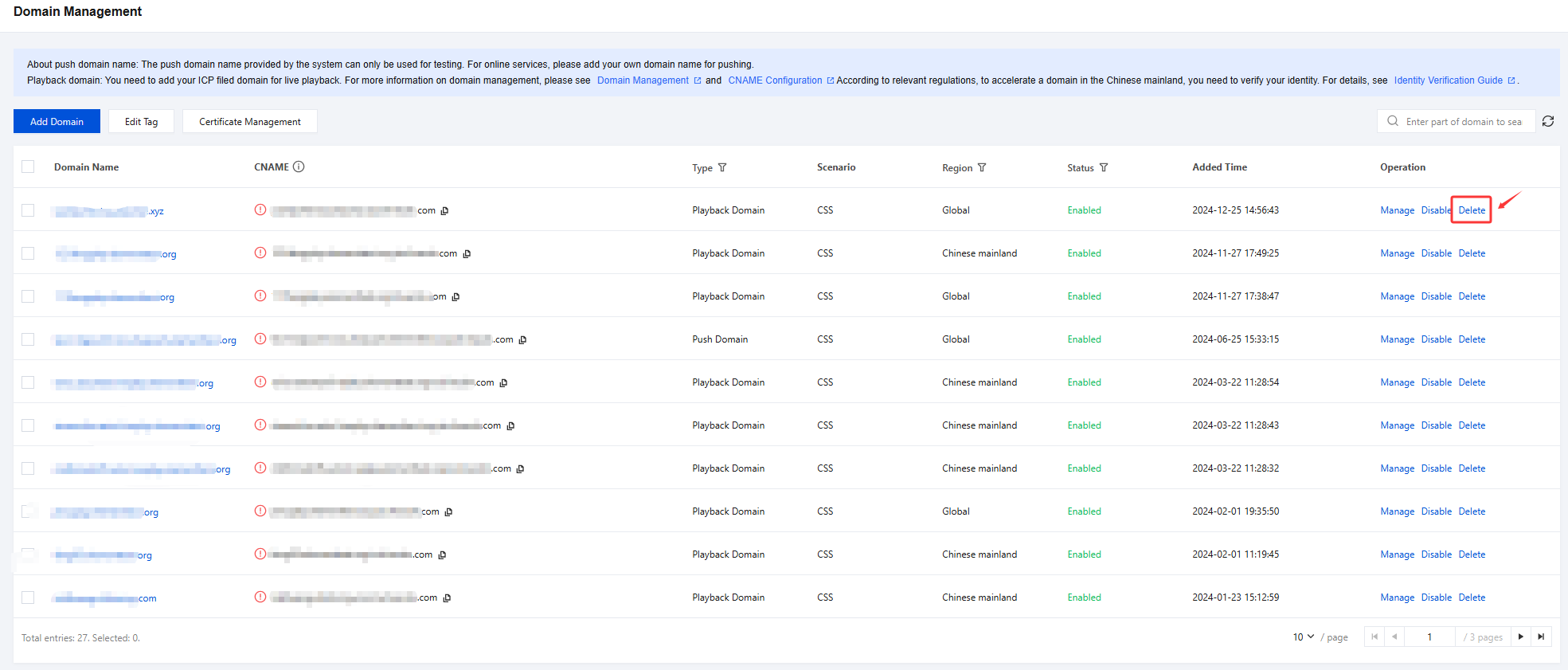
If you need to delete a domain name, follow these steps:
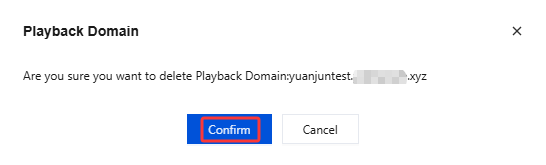
1. Log in to the CSS console and select Domain Management. In the domain name list, find the domain name you want to delete and click Delete. 2. In the pop-up window, click Confirm to delete the domain name from your CSS console.