tencent cloud

Cloud Virtual Machine

Release Notes and Announcements
Release Notes
Public Image Release Notes
Official End of Support Plan for the Operating System
Announcements
Product Introduction
CVM Overview
Strengths
Basic Concepts
Regions and Zones
Tutorial
Service Regions and Service Providers
Billing
Billing Overview
Billing Modes
Billing Items
Billing Mode Conversion Overview
Purchasing Instances
Configuration Adjustment Billing Guide
Overdue Payments
Getting Started
Purchasing a Customized Linux Instance
Purchasing a Customized Windows Instance
User Guide
Operation Guide Overview
Use Limits
Instances
Spot Instances
Reserved Instances
Images
Storage
Backup and Restoration
Network
Security
Passwords/Keys
Monitoring and Alarms
Ops Management
Convenience Features
Migrating a Server
Online Migration
Migration Consultation
Troubleshooting
CVM Login Failures
Windows Instance Login Failures
Linux Instance Login Failures
Other Login Failures
Instance Running Failures
Linux Instance Memory Failures
Network Failures
Use Cases
Suggestions on CVM Model Selection
Environment Building
Website Building
Application Building
Visual GUI Building
Uploading Local Files to CVM
Network Performance Test
Other Practical Tutorials
API Documentation
History
Introduction
API Category
Making API Requests
Region APIs
Instance APIs
Cloud Hosting Cluster APIs
Image APIs
Instance Launch Template APIs
Placement Group APIs
Key APIs
Security Group APIs
Network APIs
Data Types
Error Codes
Security and Compliance
CAM
Network
FAQs
Regions and Zones
Billing
Instances
Storage
Images
Server Migration
Network
Security
Operating Systems
Ops and Monitoring
CAM
NTP Service
Scenarios
Agreements
CVM Service Level Agreements
Red Hat Enterprise Linux Image Service Agreement
Public IP Service Level Agreement
Glossary
DocumentationCloud Virtual MachineTroubleshootingLinux Instance Login FailuresUnable to Log In with the New Password After a Password Change

Unable to Log In with the New Password After a Password Change

PDF
Focus Mode
Font Size
Last updated: 2025-11-25 11:24:38

Symptom Description

After the root password is changed in the Cloud Virtual Machine (CVM) console of Tencent Cloud, CVM instances cannot be logged in with the new password.

Possible Causes

The attributes of the /etc/shadow or /etc/passwd file corresponding to the CVM instance account may not be properly configured. For example, attributes such as i or a are configured (indicating that data cannot be deleted or modified), causing the account password change not to take effect. In this case, only the password before the change can be used for login.
Note:
In Linux systems, the /etc/passwd file stores account information, and the /etc/shadow file stores password information. When the attributes of the /etc/shadow or /etc/passwd file are not properly configured, certain features of instances may not work normally. For example, the root account password change does not take effect.
Common attributes of the /etc/shadow or /etc/passwd file are described as follows:
Attribute
Description
i
If the i attribute is set for a file, file deletion, file renaming, data addition, and data modification are not allowed.
If the i attribute is set for a directory, only data modification for files under the directory is allowed, while file creation and deletion are not allowed.
a
If the a attribute is set for a file, only data addition to the file is allowed, while data deletion and modification are not allowed.
If the a attribute is set for a directory, only file creation and modification for the directory are allowed, while file deletion is not allowed.
u
If the u attribute is set for a file or directory, the content is saved for recovery in the future if the file or directory is deleted.
This attribute is generally used to prevent accidental deletion of files or directories.
s
If the s attribute is set for a file or directory, the file or directory is completely deleted and cannot be recovered when it is deleted.
e
The vast majority of files in Linux systems have the e attribute by default, indicating that these files are stored in the ext file system.

Solution

You can follow the steps below to modify the attributes of the /etc/shadow or /etc/passwd file as needed to solve the issue that changes to the root account password do not take effect.
Note:
Only the root user can modify the /etc/passwd and /etc/shadow files.
1. Log in to the CVM instance via terminal connection (SSH) or password-free connection (TAT) with the root user's original password.
Note:
Incorrect attributes of the /etc/shadow or /etc/passwd file prevent password changes from taking effect, but the original password can still be used for login.
If you forget the password, you can log in to the instance via password-free connection (TAT). For detailed operations, see Connecting to a Linux Instance via OrcaTerm (Recommended).
2. Run the lsattr [file type] command to check and confirm whether the attributes of the /etc/shadow or /etc/passwd file are incorrect.
Take the issue described in this document as an example. If the file has the i or a attribute, the file attributes are incorrect. Example:
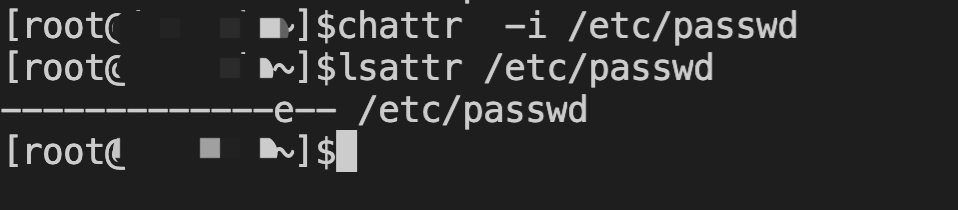
2.1 Run the following command to view the attributes of the /etc/passwd file.
lsattr /etc/passwd
2.2 The /etc/passwd file has the i attribute (which prohibits data modification). This prevents password changes from taking effect. The i attribute needs to be removed from the file.

3. Run the chattr command to modify the attributes of the /etc/shadow or /etc/passwd file.
chattr [+-=] [attributes] file or directory name
Note:
+: Add attributes to a file or directory.
-: Remove certain existing attributes from a file or directory.
=: Set specific attributes for a file or directory.
To solve the instance login issue caused by the failure to make password changes take effect as described above, you can choose to remove the i attribute from /etc/passwd. A sample command is as follows:
chattr -i /etc/passwd

4. Reset the password for the CVM instance.
5. Log in to the instance using the reset password. If you can log in normally, it indicates that the issue has been solved.

Help and Support

Was this page helpful?

Help us improve! Rate your documentation experience in 5 mins.

Feedback