This document describes how to troubleshoot and handle Linux CVM login failures due to high CPU or memory usage.
Possible Cause
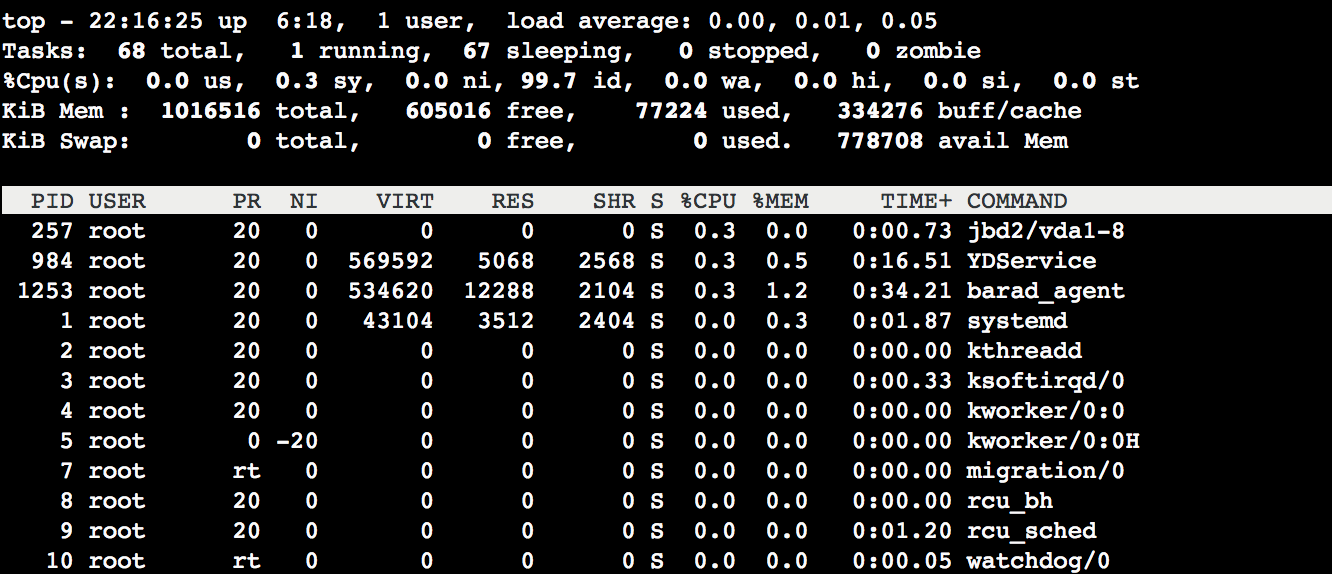
Hardware, system processes, business processes, and trojans may cause high CPU or memory usage, resulting in slow service response or CVM login failure. You can use Cloud Monitor to create an alarm threshold for CPU or memory usage. Then, you will be notified promptly when the configured threshold is exceeded. Top: A monitoring tool on Linux commonly used to obtain the CPU or memory usage by process. The output information of the top command is as shown below:
The top command output consists of two parts. The upper part displays the general usage of CPU and memory resources:
Line 1: The current system time, current number of logged-in users, and system load.
Line 2: The total number of system processes and the numbers of running, hibernating, sleeping, and zombie processes.
Line 3: The current CPU usage.
Line 4: The current memory usage.
Line 5: The current swap space usage.
The lower part displays the resource usage by process:
PID: Process ID.
USER: Process owner.
PR: Process priority. NI is the NICE value. The smaller the NICE value, the higher the priority.
VIRT: Used virtual memory size in KB.
RES: Currently used memory size in KB.
SHR: Used shared memory size in KB.
S: Process state.
%CPU: Percentage of CPU time used by the process within the update time interval.
%MEM: Percentage of memory used by the process within the update time interval.
TIME+: CPU time used by the process, accurate down to 0.01s.
COMMAND: Process name.
Troubleshooting
Logging in to CVM
Select a CVM login method based on your actual needs.
Log in to the Linux CVM instance remotely via third party software.
Note:
If the Linux CVM instance has a high CPU load, the login may fail.
Note:
If the Linux CVM instance has a high CPU load, you can log in to it in the console.
Viewing the resource usage of processes
Run the following command to view the system load. View the %CPU and %MEM columns and identify which processes consume more resources.
Analyzing process
Analyze the processes on the Task Manager page to troubleshoot and solve the problem.
If the problem is caused by a service process, analyze whether the service process can be optimized and accordingly optimize the process or upgrade the CVM configuration. If the problem is caused by a process with an exception, the instance may have a virus. In this case, you can terminate the process or use an antivirus application to kill the virus. When necessary, back up the data and reinstall the operating system.
If the problem is caused by a Tencent Cloud component process, submit a ticket for assistance.
Common Tencent Cloud components include: sap00x: A security component
Barad_agent: A monitoring component
secu-tcs-agent: A security component
Terminating process
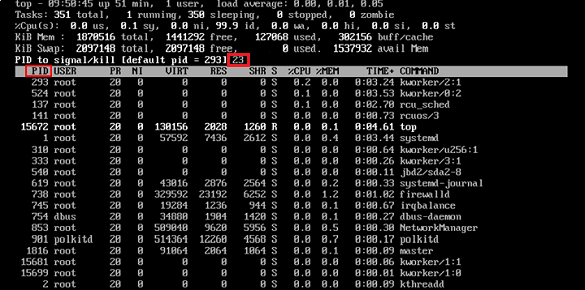
1. Compare the resource consumption of different processes and record the PID of the process that needs to be terminated.
2. Enter k.
3. Enter the PID of the process that needs to be terminated and press the Enter key to terminate it, as shown in the following figure:
Suppose you need to terminate a process whose PID is 23.
Caution:
If kill PID 23 with signal [15]: appears after you press Enter, press Enter again to keep the default settings.
4. If the operation is successful, the message Send PID 23 signal [15/sigterm] will appear. Press Enter to confirm the termination.
Low CPU usage but high load average
Cause
The load average is an indicator of CPU load. The higher the load average, the longer the queue of pending processes is.
After the top command is executed, information similar to the following is returned, indicating that the CPU usage is low but the load average is very high.
Solution
Run the following command to check whether any process is in the D state as shown below:
Note:
The D state refers to the uninterrupted sleep state. A process in this state cannot be terminated nor can it be exited by itself.
If there are many processes in the D state, restore the resources on which the processes depend or restart the operating system.
High CPU usage by kswapd0 process
Cause
Linux manages memory by using the pagination mechanism and sets aside a portion of the disk as virtual memory. kswapd0 is the process responsible for page replacement in the virtual memory management of the Linux system. When system memory becomes insufficient, kswapd0 will frequently replace pages, which will result in high CPU usage.
Solution
1. Run the following command and find the kswapd0 process.
2. Check the state of the kswapd0 process.
If the process is not in the D state and has been running for a long time and consuming too many CPU resources, perform step 3 to check the memory usage. 3. Run commands such as vmstat, free, and ps to check how much memory is used by processes in the system.
4. Based on the memory usage, restart the system or terminate safe but unnecessary processes. If the si and so values are also high, pages are frequently replaced in the system. If the physical memory of the current system can no longer meet your requirements, consider upgrading your system memory.