Issue
When you are trying to remotely log in to a Windows instance, the login fails. Your self-diagnosis suggests that there is an exception on the remote login port 3389, but it was already open in the security groups of the CVM instance. Note:
This document uses Windows Server 2012 as an example. The procedure may vary slightly depending on the operating system version and language.
Troubleshooting the Issue
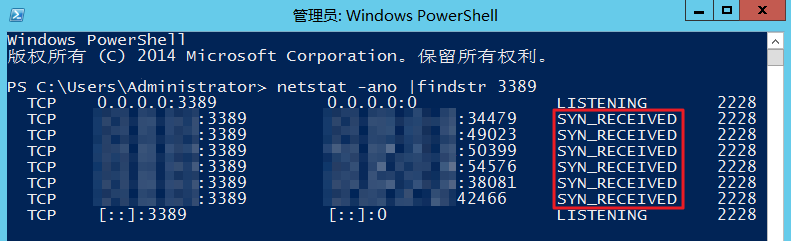
2. Once you log in, click to open the Windows PowerShell window. 3. Run the following command to check the status of the port 3389.
netstat -ano | findstr 3389
If the result similar to the following is returned, the 3389 port is running improperly. Follow the solutions below to solve this issue.
Solutions
The default remote login port 3389 is susceptible to attacks. When the port is attacked, you will be prompted that you are unable to use the remote login due to the port error. To solve this problem, you can change the remote login port of the CVM instance, and create an inbound rule for allowing traffic on the new port in the security group.
Changing the remote login port of the CVM instance
1. In the Windows PowerShell window, enter regedit and press Enter. The Registry Editor window will appear.
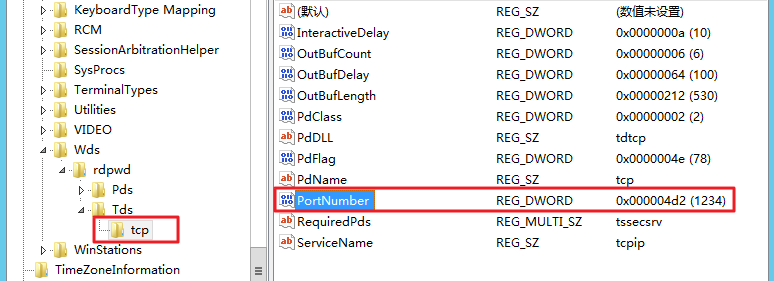
2. In the registry navigation pane on the left, expand the following directories in order: HKEY_LOCAL_MACHINE > SYSTEM > CurrentControlSet > Control > Terminal Server > Wds > rdpwd > Tds > tcp.
3. Find the PortNumber key in tcp.
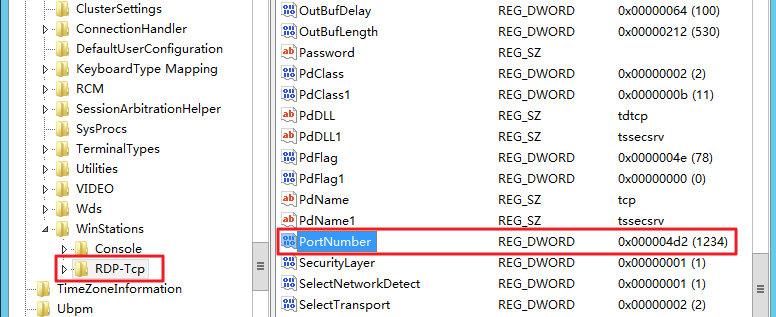
Then, change the value of the PortNumber key (that is, port 3389) to an unoccupied port number within the range of 0 to 65535, as shown in the following figure: 4. In the registry navigation pane on the left, expand the following directories in order: HKEY_LOCAL_MACHINE > SYSTEM > CurrentControlSet > Control > Terminal Server > WinStations > RDP-Tcp.
5. Find the PortNumber key in RDP-Tcp and change its value to that of the PortNumber key in tcp.
6. In the Windows PowerShell window, enter services.msc and press Enter. The Services window will appear.
7. In the Services window, locate and right-click Remote Desktop Services, and then select Restart to restart the remote login service.
Modifying security group rules
2. After modification, restart the instance in the CVM Console, and try to remotely connect to the instance again to check whether the connection is successful. Other Operations