This document describes possible causes of Linux instance login failures and troubleshooting methods, helping you detect, locate and resolve problems.
Troubleshooting the Issue
Tencent Cloud provides a diagnosis tool to help you determine whether the problem is due to common bandwidth, firewall, or security group configurations issues. More than 70% of the problems can be located by this tool. You can locate problems that result in login failures based on the detected causes.
2. Select the target CVM instance as prompted and click Start Detection.
Using TAT to send commands
You can use TAT to send commands to an instance for troubleshooting and problem locating. The directions are as follows:
1. Log in to the CVM console and click the target instance ID in the instance list. 2. On the instance details page, select the Run Commands tab and click Execute command.
3. In the Execute command pop-up window, select a command as needed. Click Execute command and view the result.
For example, enter df -TH and click Execute command to view the result of an instance without logging in to it.
For more information, see TencentCloud Automation Tools. Possible Cause
Common login failure reasons:
Troubleshooting
Logging in via VNC
If you cannot log in to the Linux instance by using Orcaterm or remote login software, you can try log in with VNC for troubleshooting.
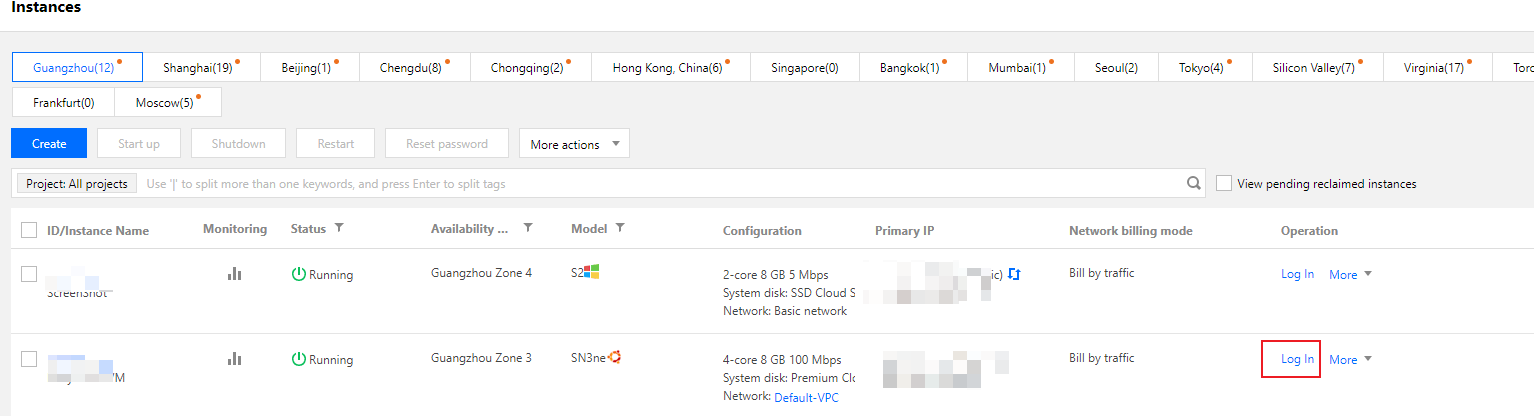
2. On the Instances page, select the target instance and click Log in.
3. In the Standard Login | Linux Instance window that pops up, select Login via VNC.
4. Enter the username and password to login.
Login failure due to SSH issue
Login failure due to password issue
Problem: The login attempt failed because you forgot the password, entered an incorrect password, or failed to reset your password.
Solution: Reset the password for this instance in the CVM console and restart the instance.
Procedure: See Resetting Instance Password for the detailed procedure. High bandwidth utilization
Problem: The self-diagnosis tool shows that bandwidth utilization is too high.
Procedure:
1. Log in to the instance by using VNC login. High instance load
Problem: The self-diagnosis tool or Tencent Cloud Observability Platform shows that server CPU workload is too high, and the system is unable to perform remote connection or access is slow.
Possible cause: Viruses, trojans, third-party antivirus software, application exceptions, driver exceptions, and automatic updates of software on the backend may lead to high CPU utilization, causing CVM login failures or slow access.
Procedure:
1. Log in to the instance by using VNC login. Improper security group rules
Problems: The self-diagnosis tool shows that the security group rule configuration is improper, leading to login failures.
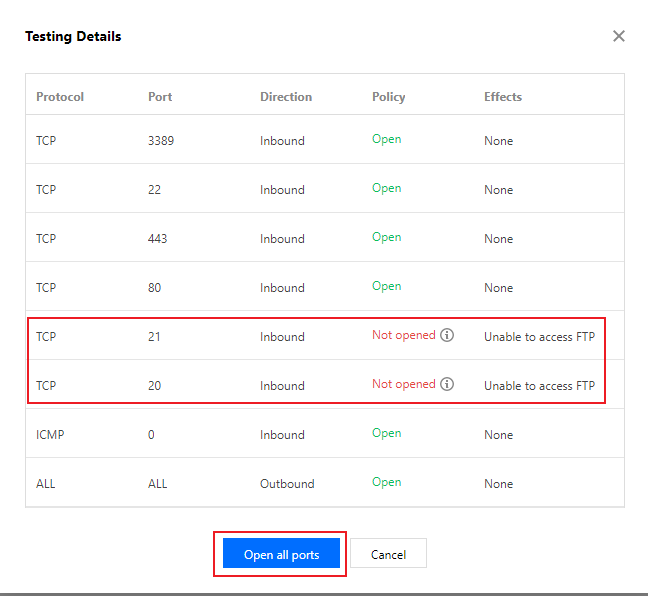
Procedure: Troubleshoot with the security group (port) verification tool.
If the problem is caused by a port issue of the security group, you can use the Open all ports feature to open all ports.
To define a custom rule for the security group, see Adding Security Group Rules. Other Solutions
If you still cannot connect to the Linux instance, save your self-diagnosis results and submit a ticket for assistance.