Overview
Hardware devices of Tencent Cloud CVM instances can be adjusted quickly and flexibly. This document describes the operation methods for configuration upgrade, downgrade, and cross-model adjustment.
Prerequisites
You can adjust the configuration of an instance when it is in shutdown or running status. If the instance is running, the adjustment takes effect after it is forcibly shut down and restarted.
Note:
If the instance has been shut down, you can adjust its configuration directly via the console.
If the instance is running, you can adjust its configuration online and confirm to forcibly shut down the instance. The adjustment takes effect after the instance is restarted.
You can adjust the configurations of instances online in batches. If an instance in the batch operation is running, you need to force the instance to shut down. The adjustment takes effects after the instance is restarted.
Limits and Impacts
Configuration adjustment limits
Only instance whose system and data disks are both CBS cloud disks supports configuration adjustment.
Configuration upgrade:
The number of configuration upgrades is unlimited and the upgrade takes effect immediately.
Configuration downgrade:
Pay-as-you-go instances can be downgraded any number of times at any time.
Adjustment across instance families: configurations can be adjusted between instance families without the need for data migration.
During configuration adjustment, instance specifications that can be adjusted are related to the target specifications available in the current AZ. Pay attention to the following restrictions:
Spot instances do not support cross-model configuration adjustment.
Dedicated instances do not support cross-model configuration adjustment. The adjustment scope is subject to the remaining resources of the dedicated host where the instance is located.
Heterogeneous instances such as GPU and FPGA instances cannot be used as the source or target instance type for configuration adjustment across instance families.
Instances configured with a classic network cannot be adjusted to instances that only support VPC.
If the target instance type does not support the CBS disk type configured for the current instance type, the configuration cannot be adjusted.
If the target instance type does not support the image type configured for the current instance type, the configuration cannot be adjusted.
If the target instance type does not support the ENI or ENI quantity configured for the current instance type, the configuration cannot be adjusted. For more information, see Use Limits. If the target instance type does not support the public network bandwidth cap configured for the current instance type, the configuration cannot be adjusted. For more information, see Public Network Bandwidth Cap. Impacts
The private IP addresses of few instances may change after adjustment. If any private IP address changes, the relevant information will be displayed on the adjustment page. If no such information is displayed, no private IP address has changed.
Directions
Note:
If your business changes, you can adjust the instance configuration.
During configuration upgrade, upgrade your CVM instance accordingly and pay for fees that may be incurred.
During configuration downgrade, confirm the refund detail and forcibly shut down and restart your CVM instance for the new configuration to take effect immediately.
Adjusting the configuration of a single instance
1. Log in to the CVM console and click Instances to view the CVM instance list. 2. Proceed according to the actually used view mode:
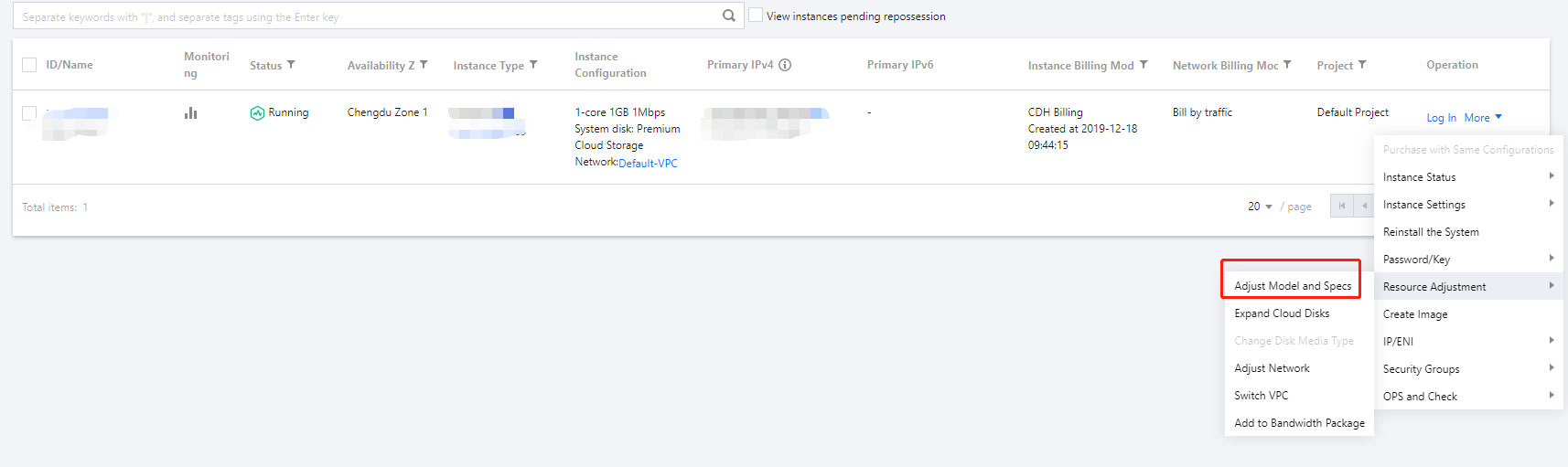
List view: in the row of the target instance, select More > Resource Adjustment > Adjust Model and Specs as shown below:
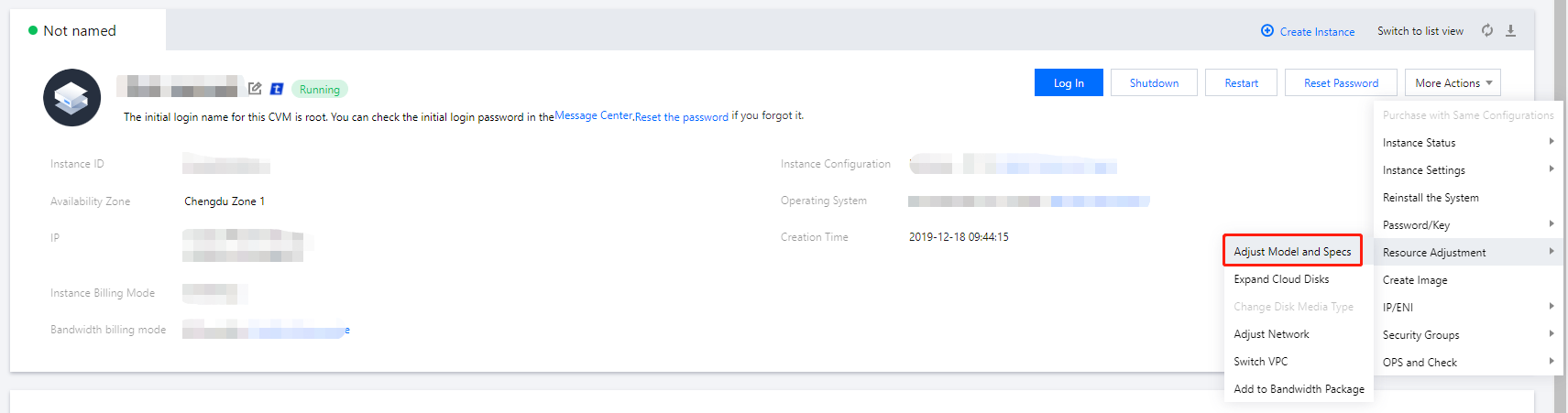
Tab view: on the page of the target instance, select More Actions > Resource Adjustment > Adjust Model and Specs in the top-right corner as shown below:
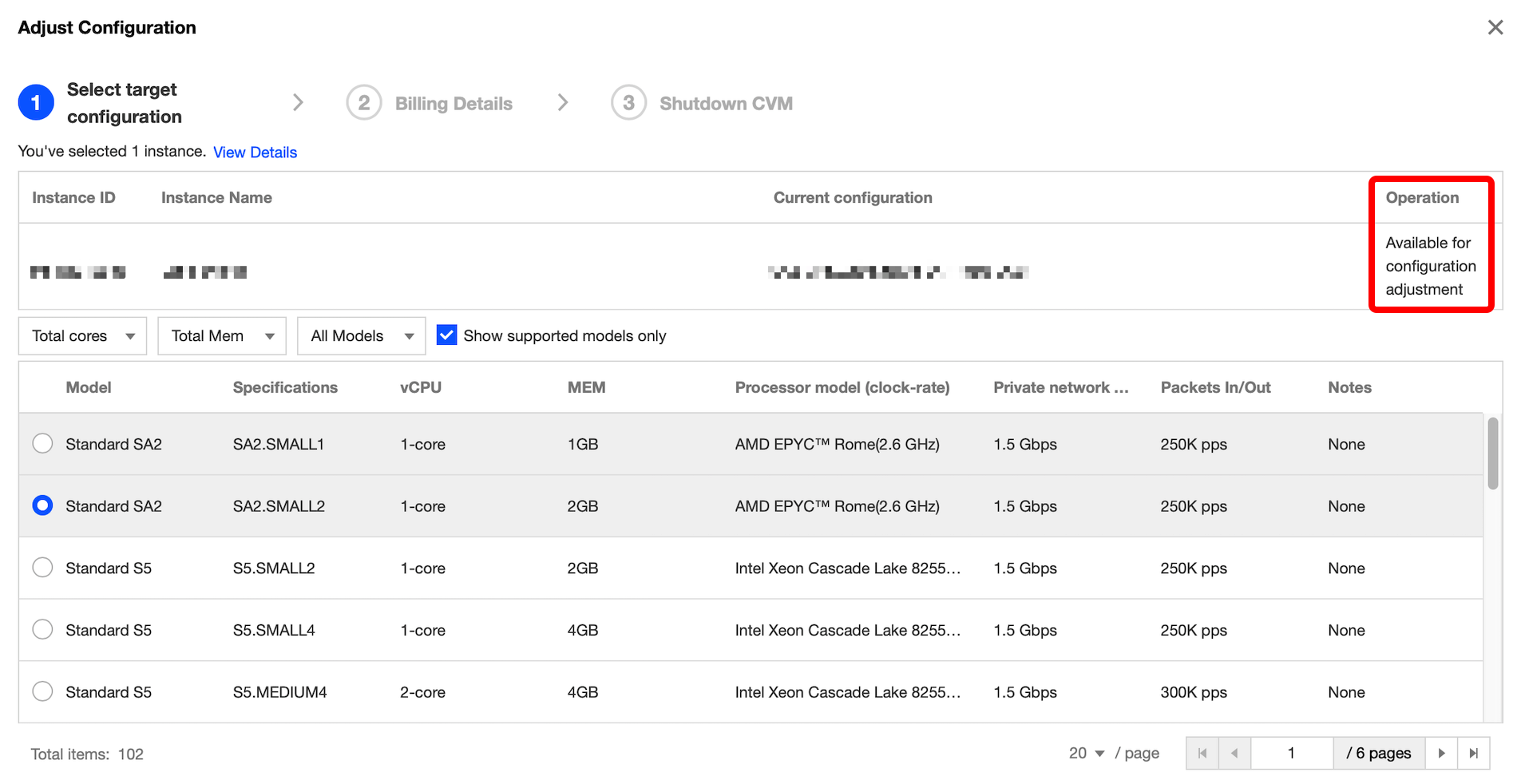
3. In the "Select target configuration" step, confirm the instance status and operation, select the required model and specifications, confirm the performance parameters, and click Next, as shown in the following figure:
4. Based on the instance billing method, confirm the fees and click Next.
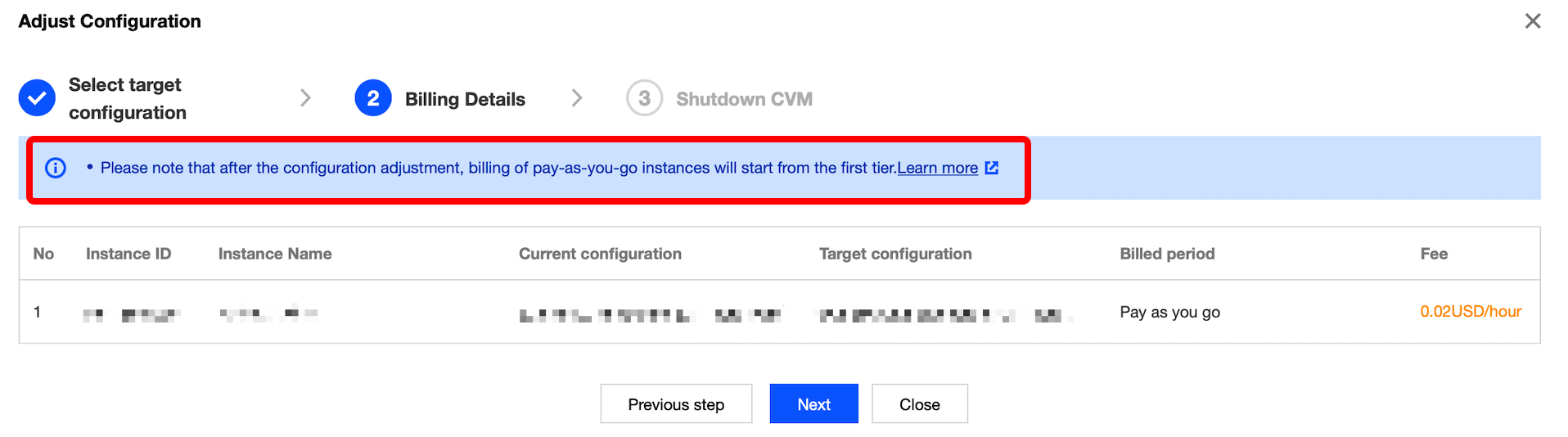
Pay-as-you-go instances: confirm the amount to be frozen for the new instance type. After configuration adjustment, pay-as-you-go instances are charged starting from the tier-1 price. Confirm the billing rules, as shown in the following figure:
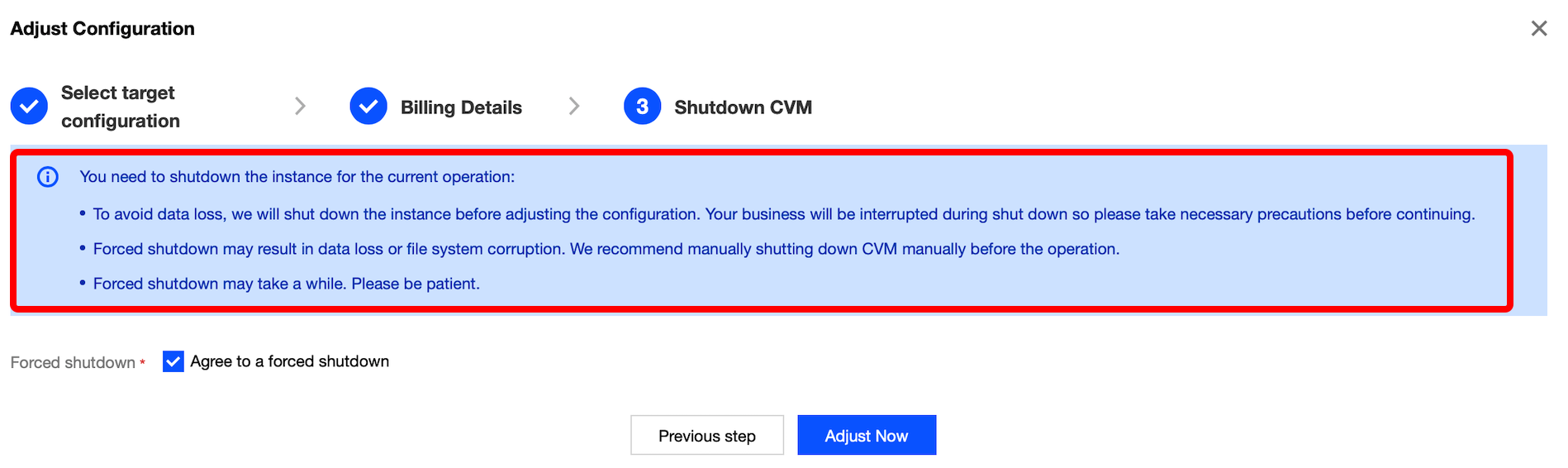
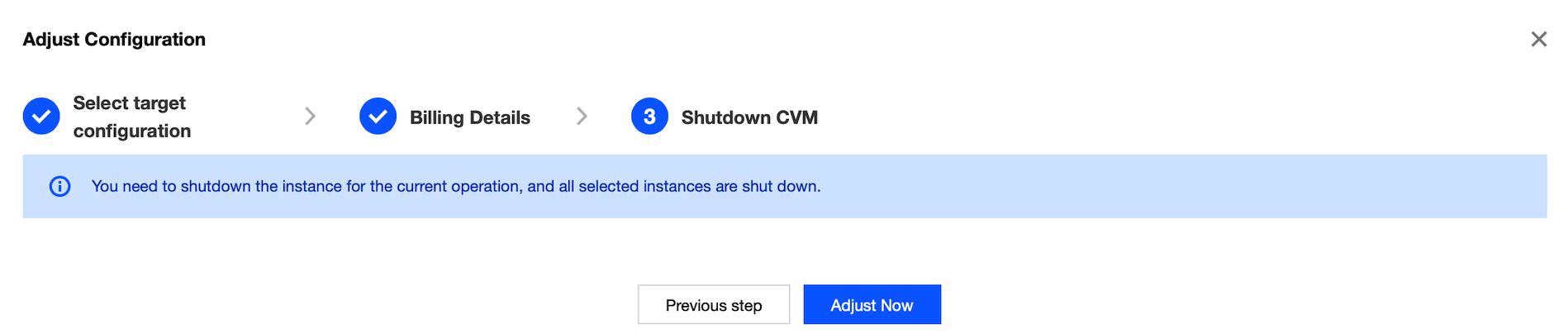
5. In the "Shutdown CVM" step, read the prompt carefully based on the instance running status.
If the current instance is running, read the prompt carefully and select "Agree to a forced shutdown", as shown in the following figure:
If the current instance is shut down, the following prompt will appear:
6. Click Adjust Now to go to the order page and complete the payment.
You can use the ResetInstancesType API to adjust the instance configuration. For more information, see the ResetInstancesType API documentation.