Integrating Data into RocketMQ
Download
Focus Mode
Font Size
Note: The current feature is in grayscale. If you need this feature, contact us by submitting a ticket.
Implementation Principles
TDMQ for MQTT supports message routing and forwarding with TDMQ for RocketMQ: The system forwards MQTT messages to corresponding topics in RocketMQ via the cross-cluster replication capability according to pre-configured routing rules. Similarly, messages from RocketMQ can also be delivered to MQTT and then to devices.
As a distributed message queue, RocketMQ persists and distributes messages for consumption and processing by multiple downstream business services, forming a closed-loop mechanism from IoT terminal state perception to cloud business response. The entire process achieves transparent protocol conversion between MQTT and RocketMQ, as well as reliable message synchronization, ensuring that device status changes reach the backend business system in real time and accurately.
Scenarios
Intelligent Ops and Status Management for EV Charging Stations
Device Connection and Will Message Configuration: When an EV charging station device connects to the cloud server via the MQTT protocol, it pre-configures a will message in its connection request and designates the MQTT topic to which the message is published.
Abnormal Disconnection and Will Triggering: When an EV charging station abnormally disconnects due to sudden power outages, network interruptions, or device failures, the MQTT server immediately publishes the device's preset will message to the designated topic, indicating to the cloud that the device has gone offline abnormally.
Cross-protocol Message Routing: Through message routing rules pre-configured in the TDMQ console, the system automatically and reliably forwards will messages on specified MQTT topics to a specific topic in TDMQ for RocketMQ.
Ops Service Consumption and Status Awareness: The backend cloud maintenance service continuously subscribes to the RocketMQ topic. Once a new will message (that is, failure notification) arrives, the service immediately consumes and parses the message to accurately obtain the faulty device's identity ID, location information, and potential error codes. Upon detecting the device's abnormal status, the service automatically triggers subsequent business processes.
Features and Advantages
High Reliability and Automation: The system reliably batches and sends MQTT messages to RocketMQ to integrate IoT devices with RocketMQ and application systems.
Flexible Topic Mapping: RocketMQ data integration supports flexible mapping of MQTT topics to RocketMQ topics.
Business Scalability: As a message middleware, RocketMQ allows multiple business services to consume device status messages simultaneously, supporting smooth system scaling and flexible business iteration.
Operation Steps
Creating a Cross-Cluster Replication Task
1. Log in to the TDMQ for RocketMQ console and go to the Cross-Cluster Replication page.
2. Click Create Task to create a task.
3. Select the Notification Source and Message Replication Target, then fill in the fields as required:
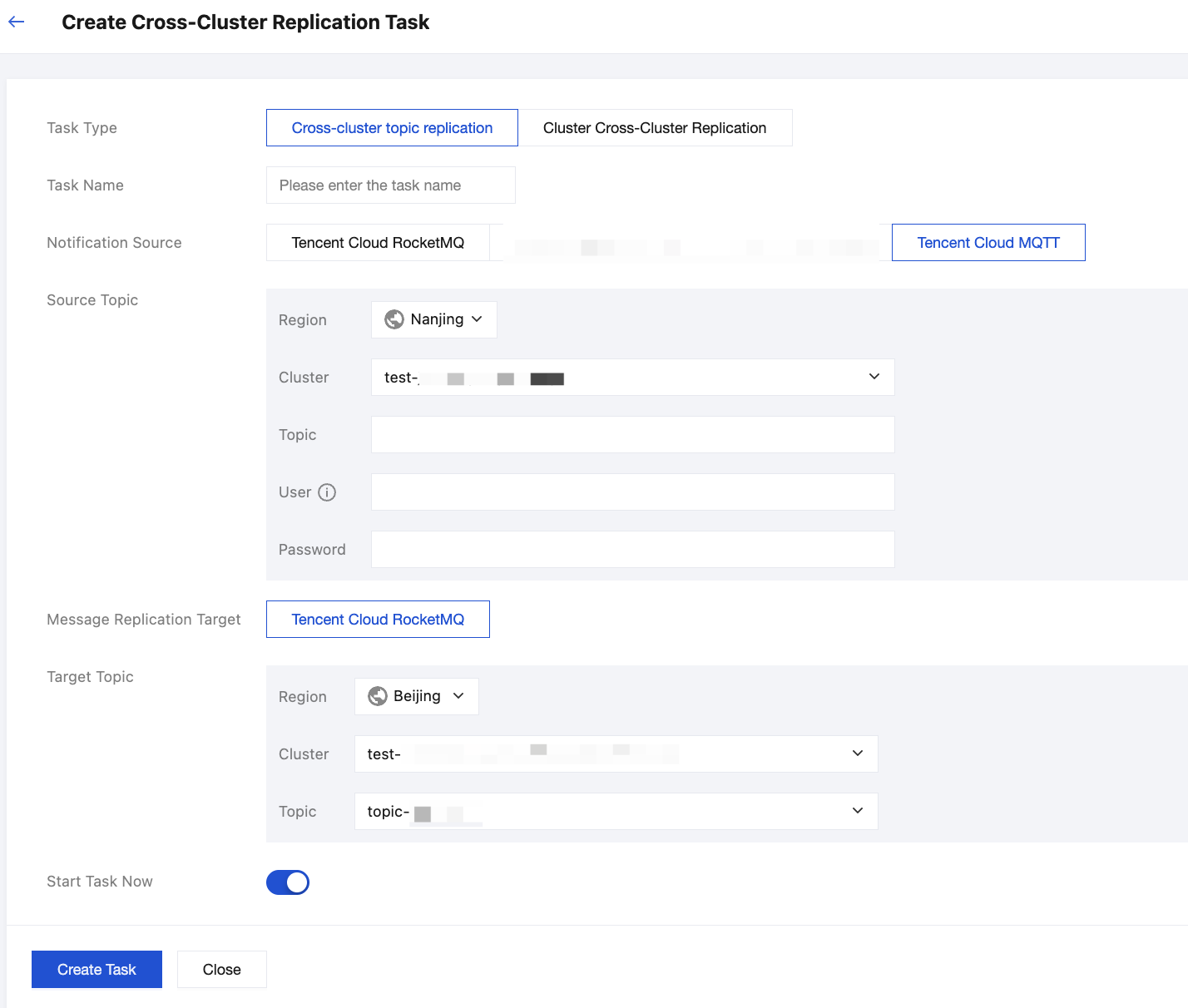
Task Name: contains no more than 200 characters. It can only contain English words, digits, letters, hyphens (-), and underscores (_).
Source Topic: Select the region, cluster, and topic sequentially from the dropdown. If no suitable cluster or topic is available, create a new one on the cluster list page.
Target Topic: Select the region, cluster, and topic sequentially from the dropdown. If no suitable cluster or topic is available, create a new one on the cluster list page.
Start Task Now: If this switch is turned on, replication starts according to the current task configuration after the task is created.
3.1 After you click Create Task, the Task List page will be displayed. The task is created after initialization is complete.
Viewing Task Details
1. After the task is created, you can view the newly added replication task on the Task List page and quickly check its status. Click Start/Pause in the Operation column to start or pause the task.
2. You can click the task name to go to the Task Details page and view the detailed configuration. You cannot modify running tasks. To adjust the replication task configuration, pause the task first, then click Edit in the Operation column. Alternatively, go to the Task Details page and click Edit in the upper-right corner of Basic Information to modify the task details.
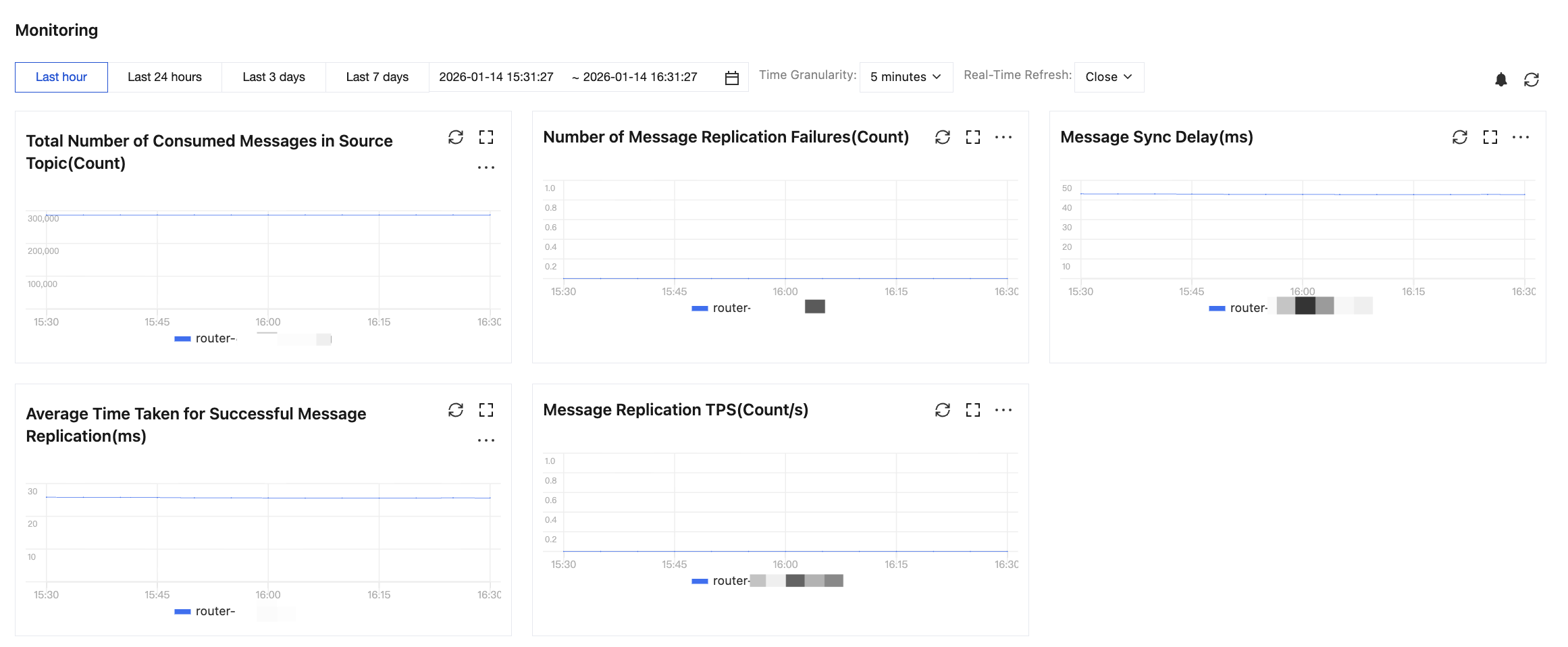
3. In the Monitoring section, you can view real-time metrics of the current message replication task, such as the total number of source messages consumed, the number of failed message replications, and message synchronization latency.
Help and Support
Was this page helpful?
You can also Contact sales or Submit a Ticket for help.
Help us improve! Rate your documentation experience in 5 mins.
Feedback