Overview
When Ops personnel access hosts through the BH, corresponding historical session records will be generated. Administrators can use the session audit feature to check for any non-compliant operations performed by the Ops personnel.
Note
A graphical session refers to a session generated when Ops personnel access a Windows host using the RDP protocol.
Directions
2. In the left sidebar, choose Cloud Audit >Session Records.
3. On the Session Records page, click the Screen recording tab.
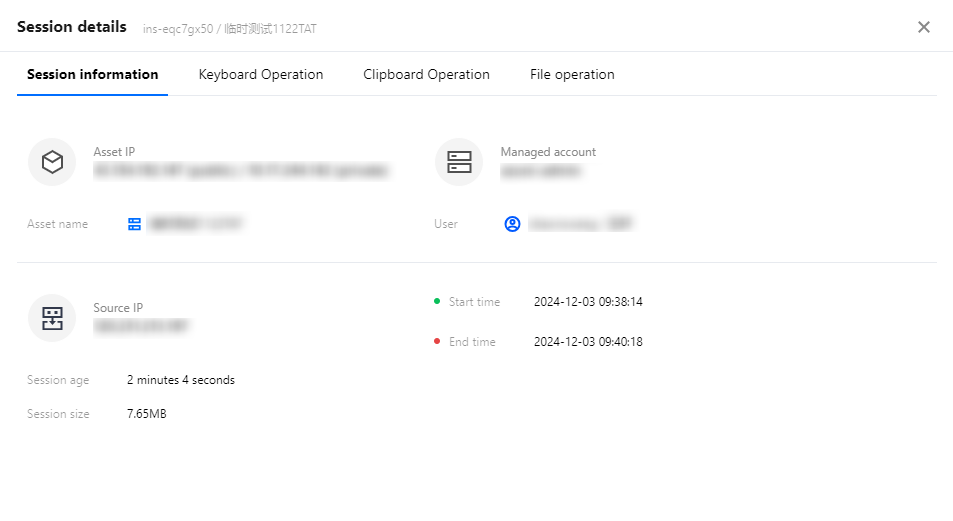
4. On the Screen recording page, click Details on the right side of the corresponding session to open the Session Details page. 5. On the Session details page, you can view the session's basic information, keyboard operations, clipboard operations, and file operation records.
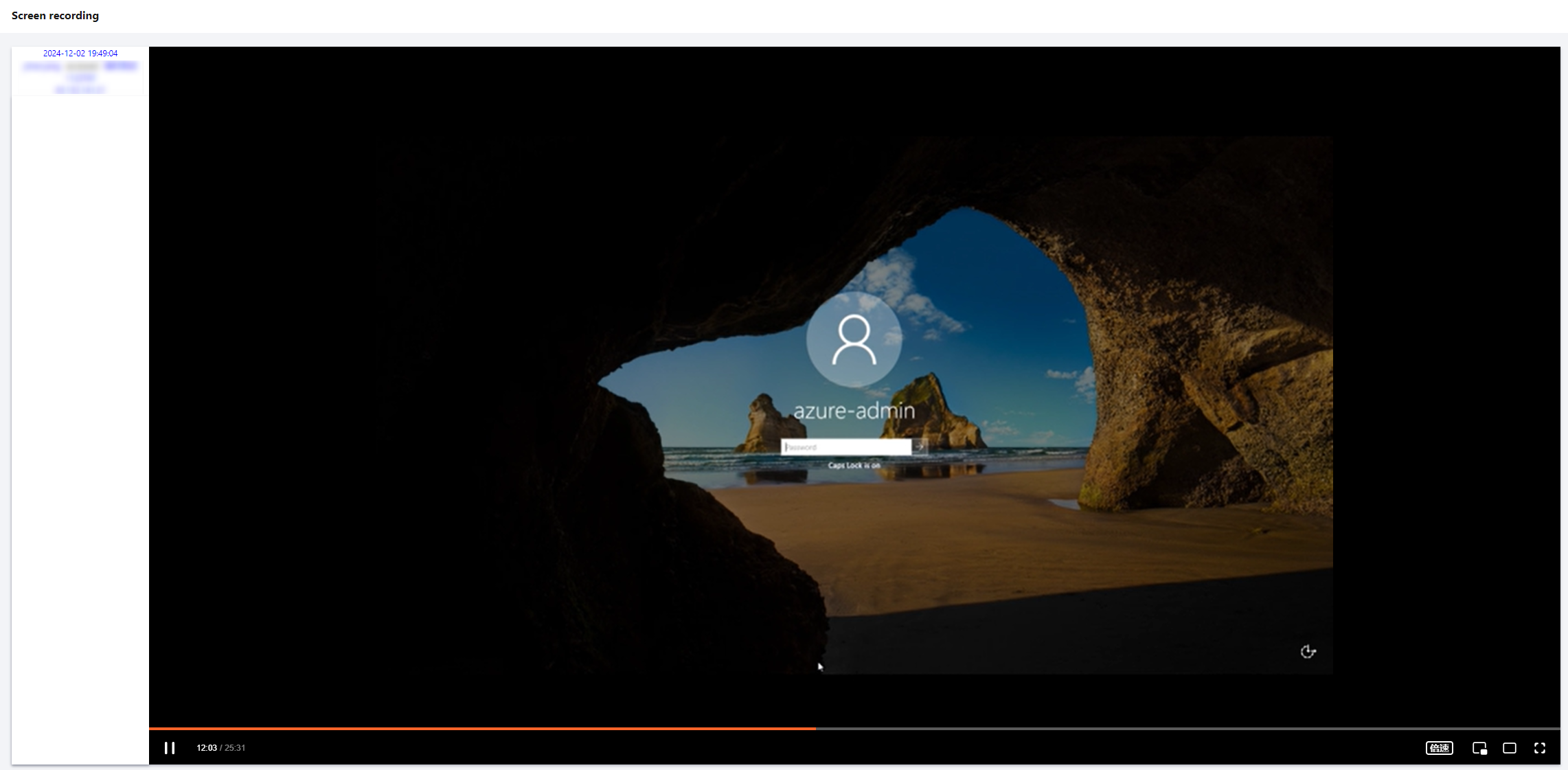
6. On the Graphical Session page, click Replay on the right side of the corresponding session to replay the historical session in a new page, restoring the user's actual operations. 7. On the Historical Session Replay page, you can view the user's operations on the Windows host.
8. You can adjust the playback speed in the lower-left corner of the Historical Session Replay page.