tencent cloud

Real User Monitoring

Product Introduction
Overview
Features
Use Cases
Purchase Guide
Billing Overview
Purchase Methods
Payment Overdue
Getting Started
Operation Guide
Application Connection
Data Overview
Page Performance
Performance Data Analysis
Exception Analysis
Page View
API Monitoring
Static Resource
Custom Speed Test
Custom Event
Application Management
Access Management
Alarm Policy
Connection Guide
Web Use Cases
Mini Program Use Cases
API Documentation
History
Introduction
API Category
Making API Requests
Console APIs
Business System and Project Information APIs
Page Performance APIs
Custom Speed Test APIs
Custom Event APIs
Monitoring APIs
Exception Analysis APIs
Page Visit APIs
Static Resource Monitoring APIs
Log APIs
Page Performance APIs
Data Types
Error Codes
FAQs
Product
Troubleshooting
Usage
Service Protocol
Privacy Policy
Data Processing And Security Agreement
RUM Service Level Agreement
Terminal Performance Monitoring Privacy Policy
Terminal Performance Monitoring Data Processing And Security Agreement

Application Settings

PDF
Focus Mode
Font Size
Last updated: 2024-01-22 19:25:42
This document describes how to use the application management feature. The application settings page is where you can create, delete, and edit connected applications. It also displays the report change trend and total number of reporting requests for each application, helping you avoid unnecessary fees incurred by excessive reporting traffic.

Directions

Note:
You can connect an application as instructed in Application Connection.

Deleting application

1. Log in to the RUM console.
2. On the left sidebar, click Application Management > Application Settings to enter the application management page.
3. Find the target application, click Delete in the Operation column, and click OK in the pop-up window.

Editing application

1. Log in to the RUM console.
2. On the left sidebar, click Application Management > Application Settings to enter the application management page.
3. Click Edit in the Operation column. Then, edit the information and click OK in the pop-up window.

Report statistics

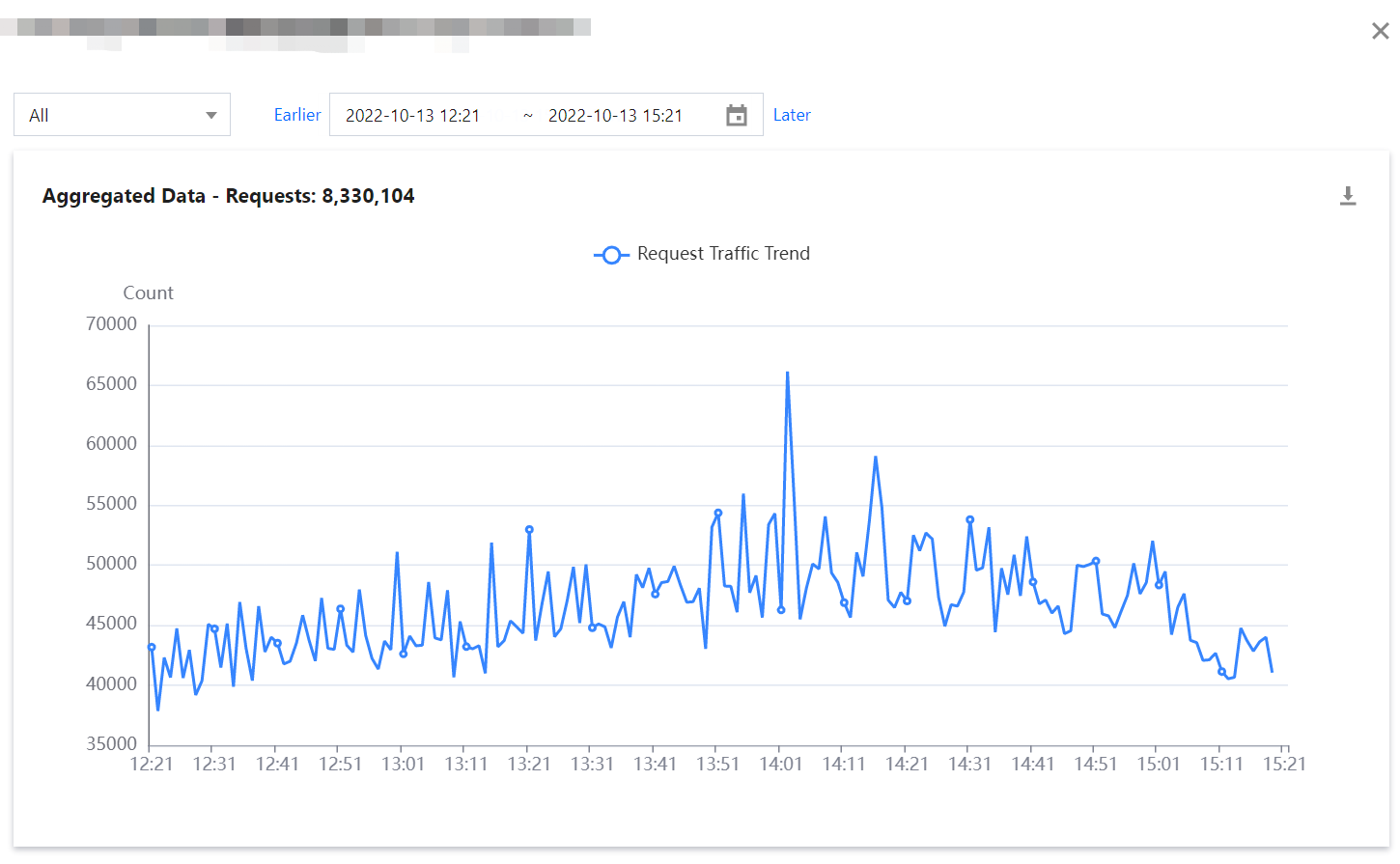
In the application list, you can click Report Statistics in the Operation column to view the report change trend and total number of reporting requests of each application. If a value is high, you can take appropriate measures to avoid unnecessary fees incurred by excessive reporting traffic.


Help and Support

Was this page helpful?

Help us improve! Rate your documentation experience in 5 mins.

Feedback