tencent cloud

Tencent Container Registry

Release Notes and Announcements
Release Notes
Announcements
User Tutorial
Product Introduction
Overview
TCR Service Levels and Capacity Limits
Strengths
Scenarios
Purchase Guide
Billing Overview
Purchase Methods
Notes on Arrears
Getting Started
Quick Start
TCR Individual Getting Started
Operation Guide
Creating an Enterprise Edition Instance
Access Configuration
Manage Image Repository
Image Distribution
Image Security
Image Cleanup
DevOps
OCI Artifacts Management
Operation Guide for TCR Individual
Terminating/Returning Instances
Use Cases
TCR Personal migration
TKE Clusters Use the TCR Addon to Enable Secret-free Pulling of Container Images via Private Network
Synchronizing Images to TCR Enterprise Edition from External Harbor
TKE Serverless Clusters Pull TCR Container Images
Image Data Synchronization and Replication Between Multiple Platforms in Hybrid Cloud
Nearby Access Through Image Synchronization Between Multiple Global Regions
Using Custom Domain Name and CCN to Implement Cross-Region Private Network Access
API Documentation
History
Introduction
API Category
Making API Requests
Instance Management APIs
Namespace APIs
Access Control APIs
Instance Synchronization APIs
Tag Retention APIs
Trigger APIs
Helm Chart APIs
Image Repository APIs
Custom Account APIs
Data Types
Error Codes
FAQs
TCR Individual Edition
TCR Enterprise Edition
Related Agreement
Service Level Agreement
Contact Us
Glossary

Terminating/Returning Instances

PDF
Mode fokus
Ukuran font
Terakhir diperbarui: 2025-12-22 17:33:21

Overview

This document introduces how to terminate or return Enterprise Edition instances in Tencent Container Registry (TCR).

Prerequisites

You have purchased a TCR Enterprise Edition instance, and the current account has the permissions to delete this instance.
Note:
Terminating and returning an instance is a high-risk action. To prevent accidental deletion, you are advised to delete all namespaces and repositories under an instance before deleting it. Otherwise, the instance cannot be deleted successfully.

Directions

Terminating or returning an instance in the TCR console

1. Log in to the TCR console.
2. Click Instance management in the left sidebar to go to the Instance management page.
3. Find the instance and choose More > Terminate/Return on the right side.
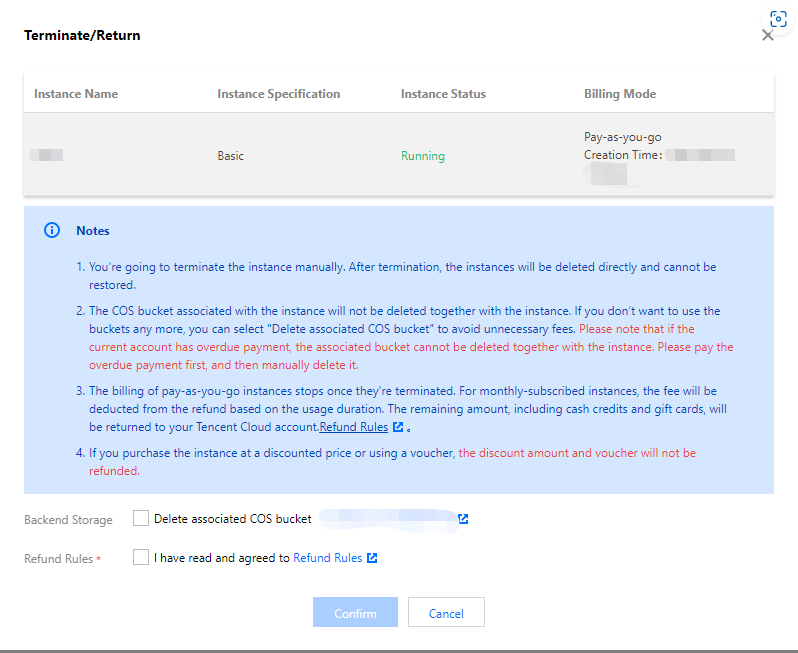
4. In the confirmation pop-up window, select Delete associated COS Bucket based on your needs, as shown in the figure below:


Note:
Please read the notes for terminating and returning the instance carefully. Deleting an instance will completely and irrecoverably erase the user data and relevant configuration stored during the use of the instance.
If you are sure that you no longer need the container images, Helm charts, and other underlying data stored during the use of TCR Enterprise Edition, you can select Delete associated COS Bucket to avoid unnecessary fees.
If the current account has overdue payments, the COS service does not allow you to directly delete the associated COS bucket. In this case, do not select that option. Instead, you need to delete the instance, and then go to the COS console to manage the COS bucket.
The billing of pay-as-you-go instances stops once they are terminated.
5. Select I have read and agreed to Refund Rules and click Confirm to delete the instance. No fees will be charged for this instance after deletion.
Note:
If it takes an unusually long time to delete an instance or the displayed status is Abnormal, please submit a ticket.

Terminating or returning an instance by calling an API

You can also call the DeleteInstance API to delete an instance. For more information, see DeleteInstance.
Bantuan dan Dukungan

Apakah halaman ini membantu?

masukan