tencent cloud

Chat

News and Announcements
Release Notes
Announcements
Product Introduction
Overview
Basic Concepts
Scenarios
Features
Account System
User Profile and Relationship Chain
Message Management
Group Related
Official Account
Audio/Video Call
Use Limits
Purchase Guide
Billing Overview
Pricing
Purchase Instructions
Renewal Guide
Service Suspension Explanation
Refund Policy
Development Guidelines
Demo Zone
Activate Service
Free Demos
Quick Run
Download
SDK and Demo Source Code
Update Log
Chat Interaction (UI Included)
TUIKit Introduction
Getting Started
Full-feature Integration
Single-function Integration
Build with AI
Build Basic Interfaces
More Features
Customizing Appearance
Internationalization
Push Service
Overview
Noun explanation
Activate the Service
Quick Start
Manufacturer Channel
Statistics
Troubleshooting Tool
Client APIs
REST API
Push Callback
Advanced Features
Release Notes
Error Codes
FAQS
Desk
Overview
Quick Start
Integration Guide
Admin Operation Manual
Agent Manual
More Practices
Live Streaming Setup Guide
AI Chatbot
Super Large Entertainment and Collaboration Community
Discord Implementation Guide
How to Integrate Chat into Games
WhatsApp Channel-style Official Account Integration Solution
Send Red Packet
Firewall Restrictions
No UI Integration
Quick Start
SDK Integration
Initialization
Login and Logout
Message
Conversation
Group
Community Topic
User Profile and Relationship Chain
Offline Push
Cloud Search
Local Search
Official Channel Management
Client APIs
JavaScript
Android
iOS & macOS
Swift
Flutter
Electron
Unity
React Native
C APIs
C++
Server APIs
Secure authentication with UserSig
RESTful APIs
Webhooks
Console Guide
New Console Introduction
Creating and Upgrading an Application
Basic Configuration
Feature Configuration
Account Management
Group Management
Official Channel Management
Webhook Configuration
Usage
Viewing Guide for Resource Packages
Real-Time Monitor
Auxiliary Development Tools
Access Management
Advanced Features
FAQs
uni-app FAQs
Purchase
SDK
Account Authentication
User Profile and Relationship Chain
Message
Group
Audio-Video Group
Nickname and Profile Photo
Security Compliance Certification
Service Level Agreement
Security Compliance Certification
Chat Policies
Privacy Policy
Data Privacy and Security Agreement
Migration
Migration Solutions
Migration Solutions Lite
Error Codes
Contact Us

Android(Compose)

PDF
Focus Mode
Font Size
Last updated: 2026-03-03 10:52:42
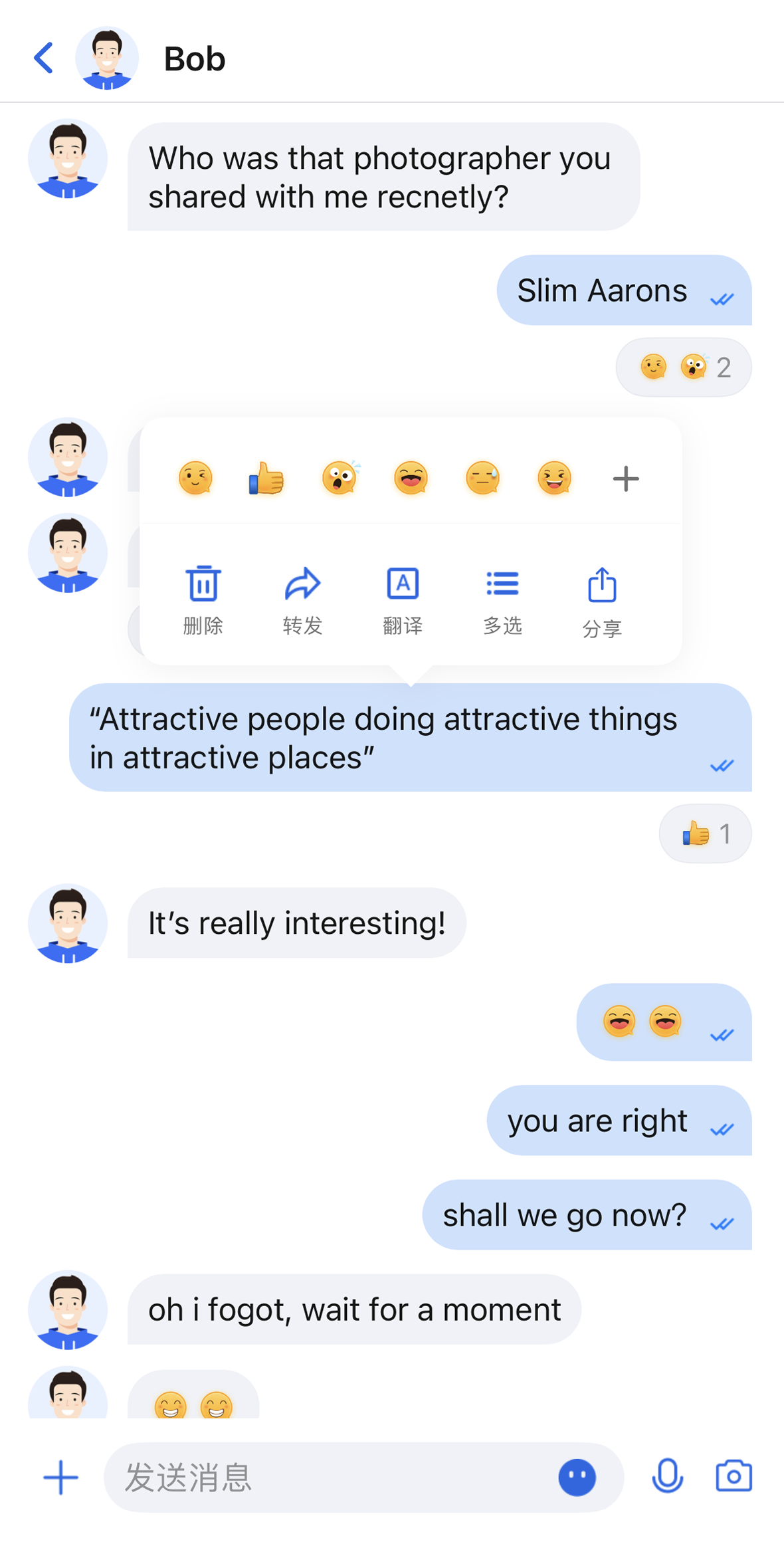
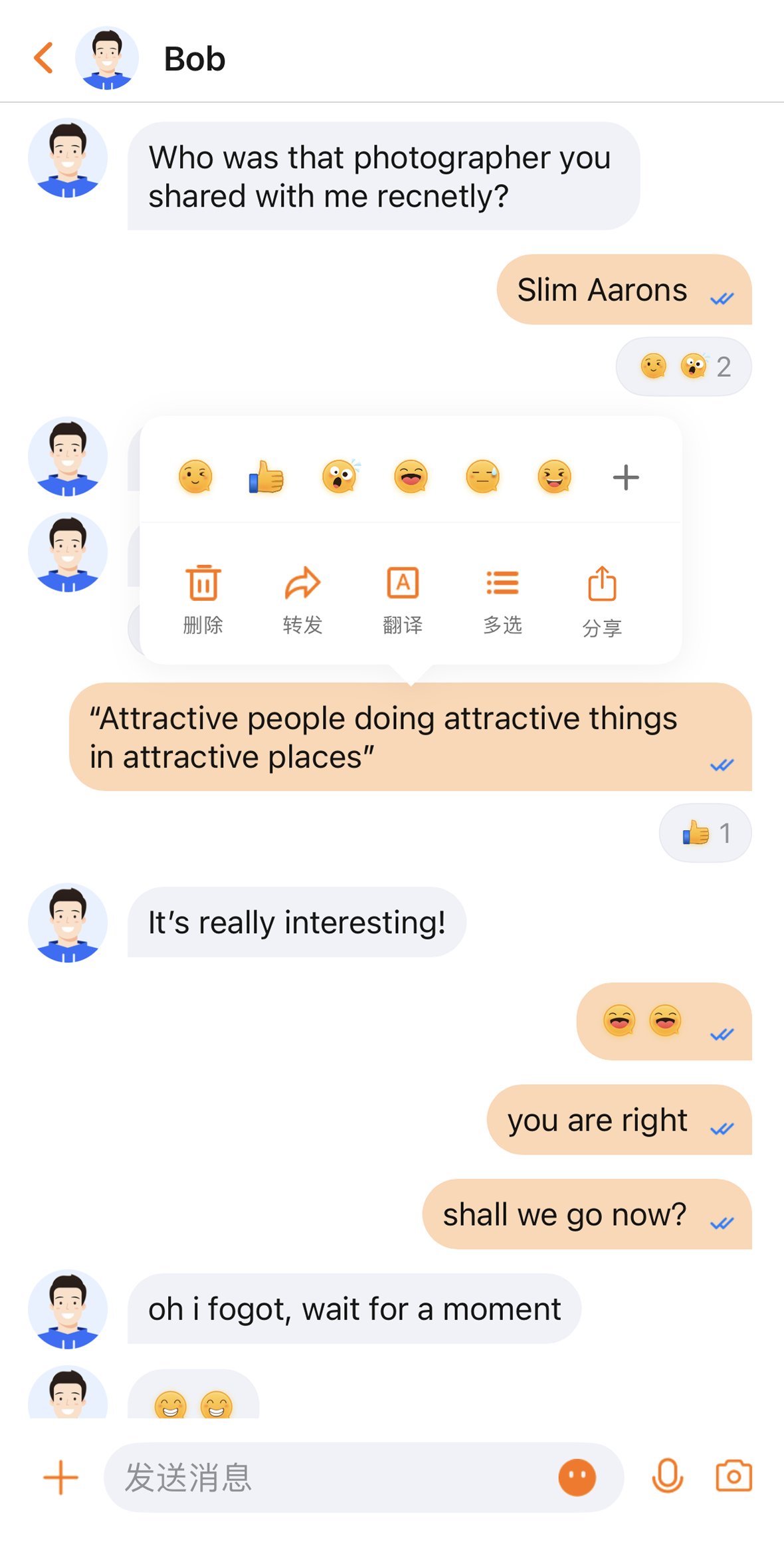
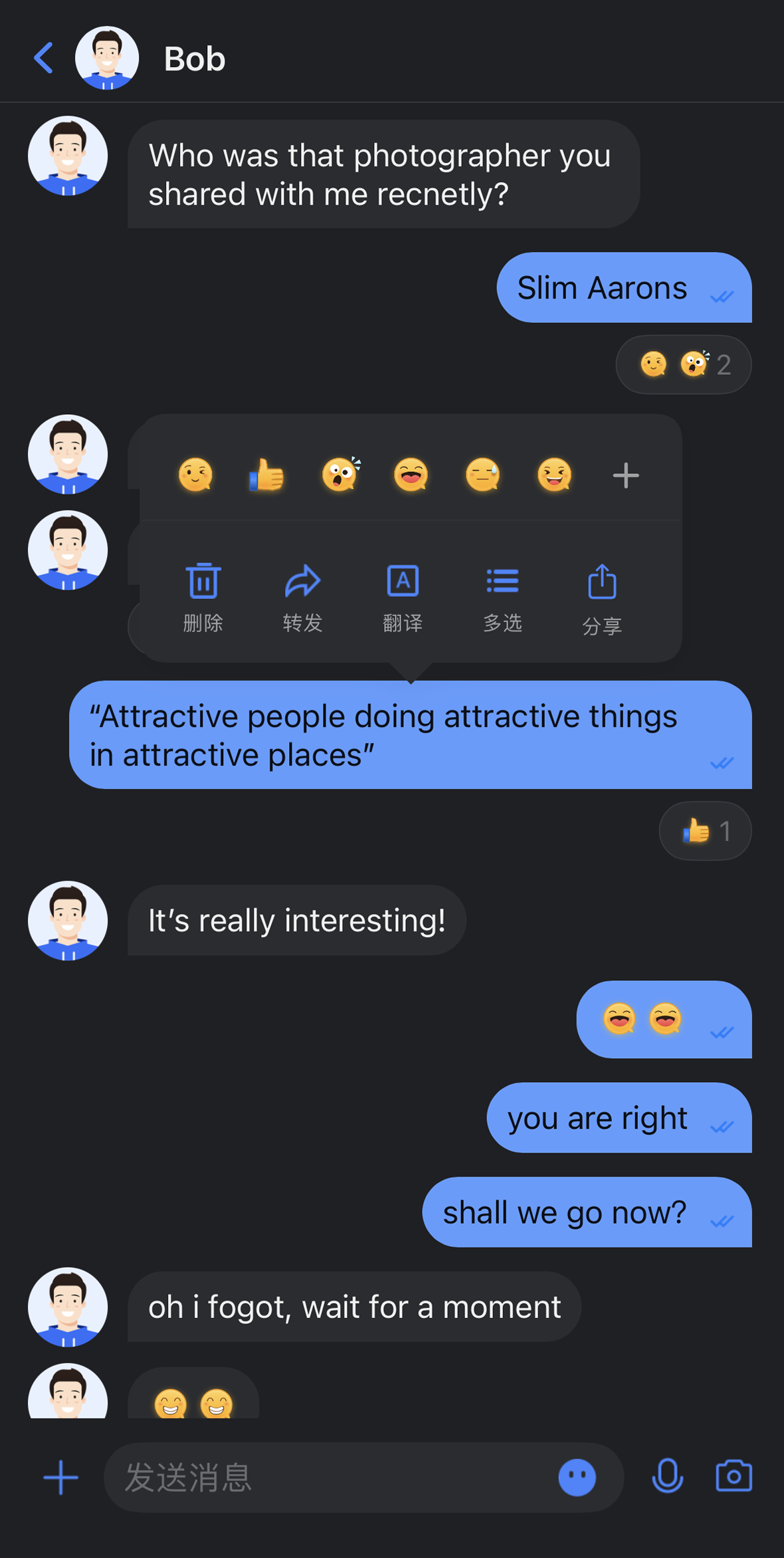
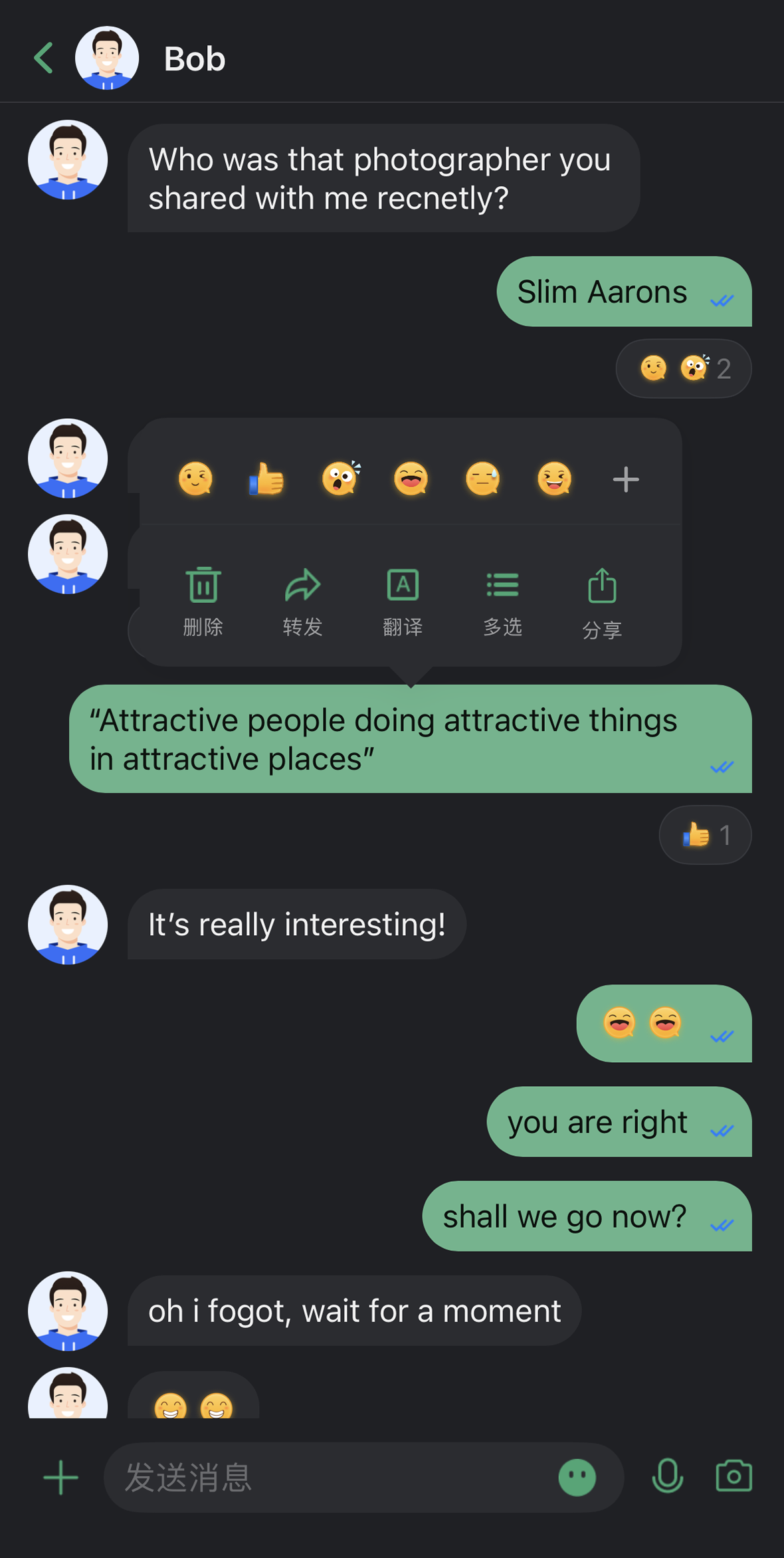
TUIKit Compose offers flexible appearance customization with support for Light, Dark, and System theme modes, along with customizable primary colors. A simple configuration enables theme switching and brand color application throughout your app.
For example, in the message list, you can see how different theme modes and primary colors affect the UI:
Light + Default Color
Light + Orange
Dark + Default Color
Dark + Green Theme


Key Features

Theme Mode
Light Mode: Bright interface for daytime use.
Dark Mode: Dim interface for nighttime use.
Follow System: Automatically matches the system appearance setting.
Primary Color Customization
Preset Theme Colors: Includes standard options like blue, green, red, orange, and more.
Custom Theme Color: Supports any Hex color value.
Intelligent Palette Generation: Automatically creates a palette with 10 color shades.
Quick Reset: Instantly revert to the default theme color.

API Reference

All theme configuration and queries are handled through concise APIs in ThemeState.

Set Theme Mode

Method
Parameter
Return Value
Description
setThemeMode
ThemeMode
Unit
Sets the display mode, automatically saves and refreshes.
ThemeMode.SYSTEM: Follows system appearance.
ThemeMode.LIGHT: Forces light mode.
ThemeMode.DARK: Forces dark mode.

Set Primary Color

Method
Parameter
Return Value
Description
setPrimaryColor
String
Unit
Sets the primary color using a Hex value (e.g., "#1C66E5").
clearPrimaryColor
None
Unit
Resets the primary color to the default blue.
Note:
When you call setThemeMode or setPrimaryColor, your settings are automatically saved to persistent storage. No manual saving is required. The configuration will be loaded automatically the next time the app starts.
Changing theme settings automatically clears the cache to ensure real-time color updates. You do not need to manage the cache manually.
Avoid frequent theme switching in your code (for example, do not call these APIs in a loop).

Query ThemeState Information

You can check the current theme configuration using the following read-only properties:
Property
Type
Description
currentMode
ThemeMode
Current theme mode.
currentPrimaryColor
String?
Current primary color (Hex format).
hasCustomPrimaryColor
Boolean
Indicates if a custom primary color is set.
isDarkMode
Boolean
Indicates if the current mode is dark mode.

Usage

This section explains how to integrate theme and primary color customization into your app, with three approaches ranging from basic to advanced.

Option A: Configure with AppBuilder (Recommended)

AppBuilder is a convenient tool for customizing features and UI, managed through a unified JSON configuration file. It’s ideal for keeping Web and Native apps visually consistent.
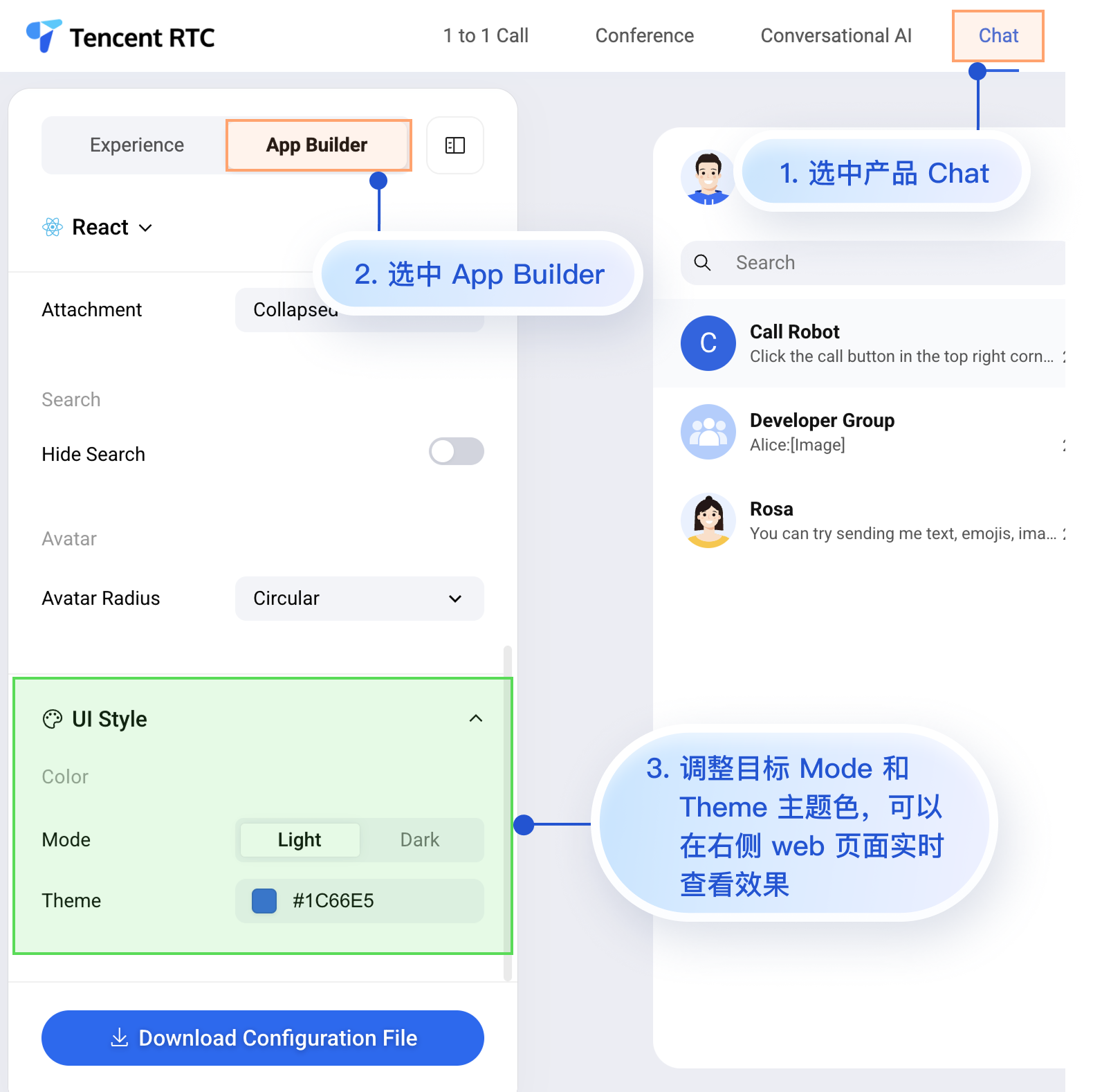
Try AppBuilder in the Chat Web Demo Center. Entry point:


While the Chat Web Demo Center does not currently support real-time preview for mobile, mobile projects do support AppBuilder configuration.
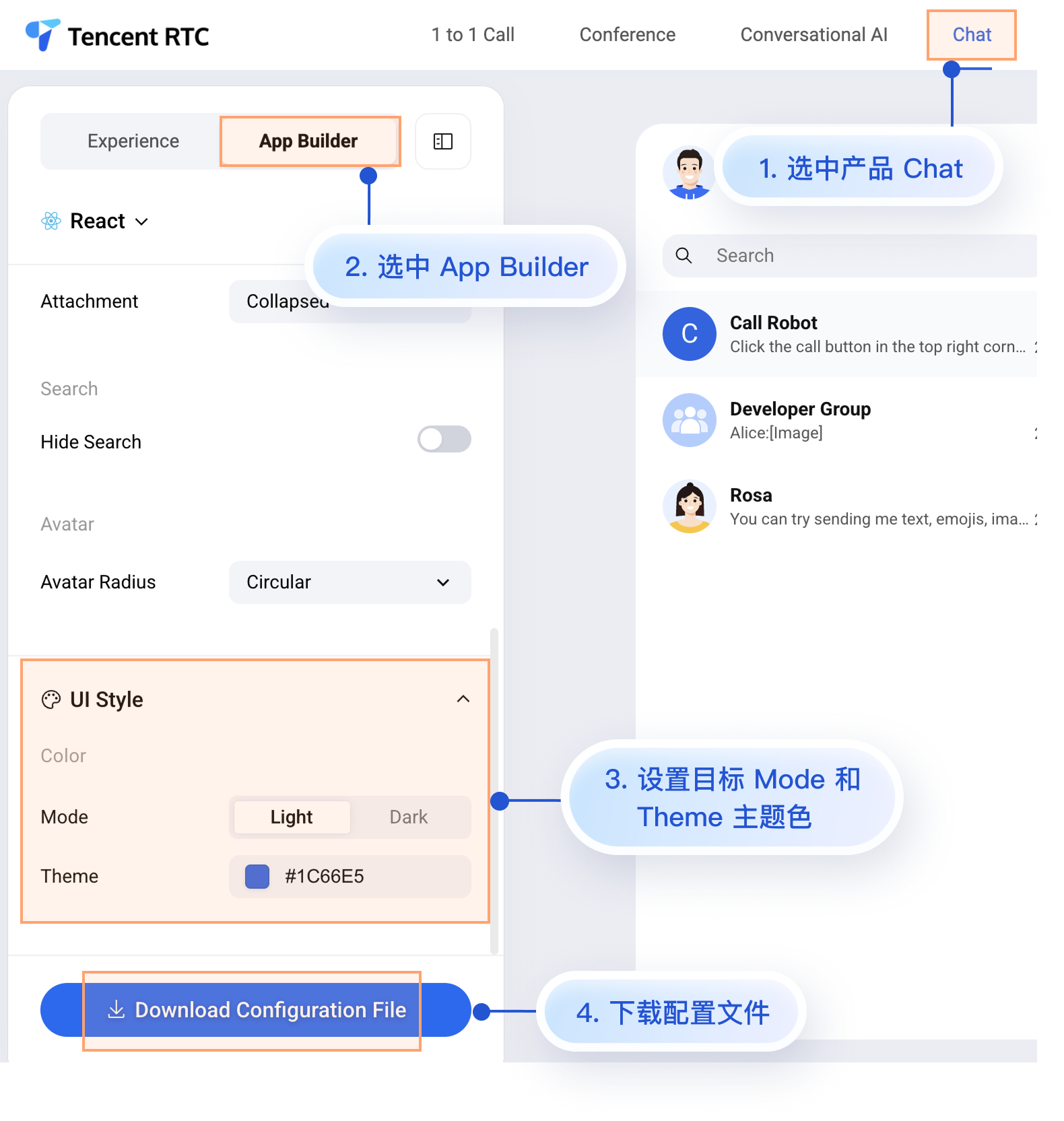
To apply your custom configuration from the Web Demo Center to your mobile project, follow these two steps:
1. Download the configuration file.
2. Add the appConfig.json file to your Android project.

1. Download the Configuration File

Go to the Chat Web Demo Center and download the appConfig.json configuration file. Download path:


The contents of appConfig.json map directly to the configuration options in AppBuilder. Appearance settings are under the theme section:
{
"theme": {
"mode": "light", // Theme mode: light - Light mode, dark - Dark mode, system - Follow system
"primaryColor": "#E65100" // Primary color, hexadecimal color value
},
"messageList": {
"alignment": "two-sided",
"enableReadReceipt": false,
"messageActionList": [
"copy",
"recall",
"quote",
"forward",
"delete"
]
},
"conversationList": {
"enableCreateConversation": true,
"conversationActionList": [
"delete",
"mute",
"pin",
"markUnread"
]
},
"messageInput": {
"hideSendButton": false,
"attachmentPickerMode": "collapsed"
},
"search": {
"hideSearch": false
},
"avatar": {
"shape": "circular"
}
}
Configuration Option Description
Parameter
Type
Optional Values
Description
mode
String
"system", "light", "dark"
Theme mode
primaryColor
String
Hex color value, e.g., "#0ABF77"
Primary color

2. Add the Configuration File to Your Project

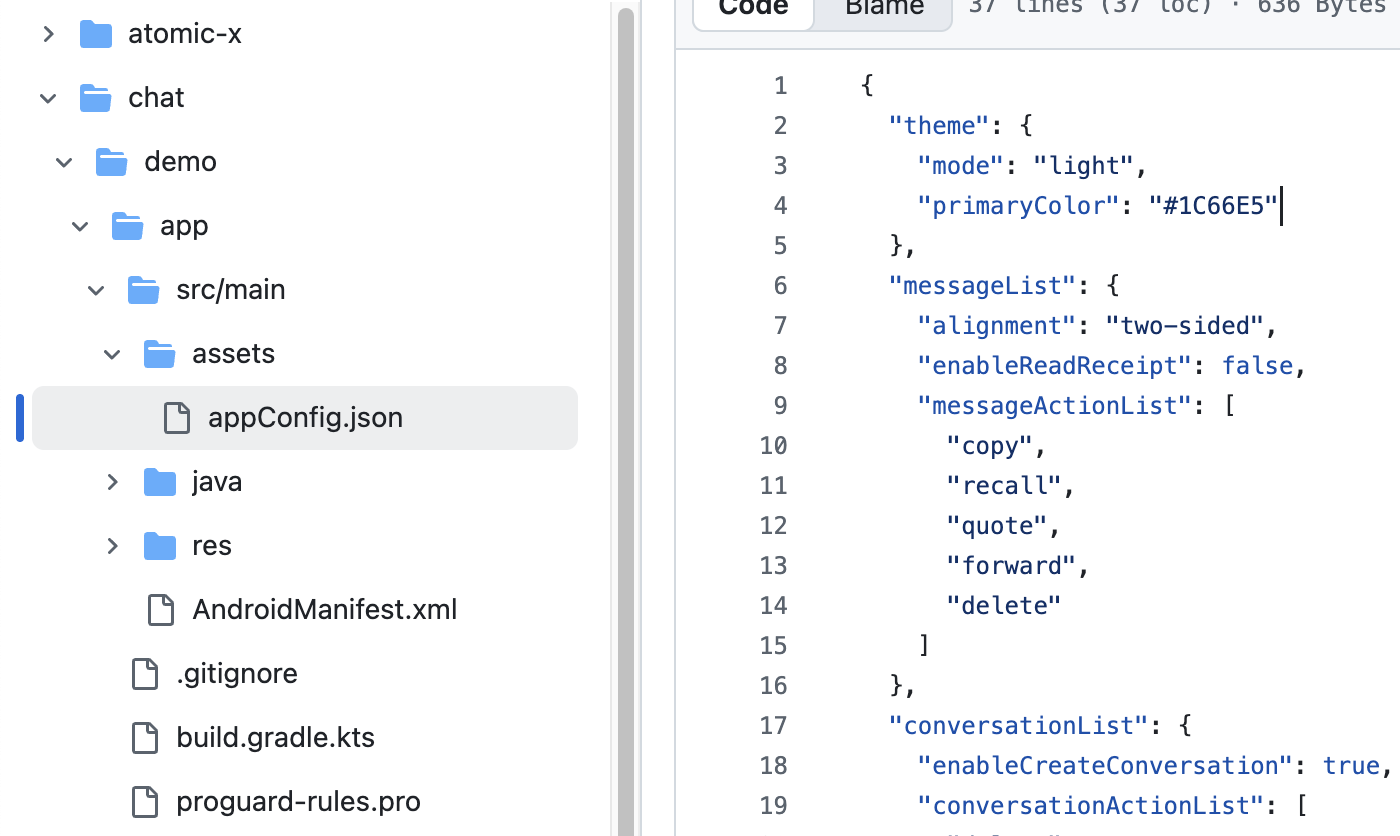
Drag appConfig.json into your project. For example, in the open-source demo TUIKit Android Compose on GitHub, appConfig.json is located in the assets folder under demo/app:

Once you’ve added the file, you don’t need to write any extra code. When you launch the app, TUIKit Compose components will automatically use the theme mode and primary color specified in appConfig.json.

Option B: Set Theme Mode in Code

You can set the theme mode directly using the setThemeMode API. Example:
val themeState = ThemeState.shared
Column {
Button(onClick = {
themeState.setThemeMode(ThemeMode.SYSTEM)
}) { Text(text = "Follow System") }
Button(onClick = {
themeState.setThemeMode(ThemeMode.LIGHT)
}) { Text(text = "Light Mode") }
Button(onClick = {
themeState.setThemeMode(ThemeMode.DARK)
}) { Text(text = "Dark Mode") }
}

Approach 3: Set Primary Color in Code

Set the primary color using the setPrimaryColor API. Just provide a Hex color value, and all TUIKit Compose components will automatically use matching colors from the same palette for UI rendering. No manual color adjustments are needed. Example:
Column {
var text: String by remember { mutableStateOf("#1C66E5") }

fun isValidHexColor(): Boolean {
return text.matches(Regex("^#[0-9A-Fa-f]{6}$"))
}
BasicTextField(
value = text,
onValueChange = { text = it },
modifier = Modifier
.fillMaxWidth()
.padding(16.dp)
)
Button(
enabled = isValidHexColor(),
onClick = {
themeState.setPrimaryColor(text)
}) {
Text("Apply Primary Color")
}
}
Usage Recommendations
For most apps, using the JSON configuration file is recommended. It’s simple, reliable, and ensures cross-platform consistency.
Use colors from themeState.colors throughout your app to maintain a consistent look when switching themes.

FAQs

How do I check if the current mode is dark mode?

if themeState.isDarkMode {
// Currently in dark mode
} else {
// Currently in light mode
}

Can I set transparency?

No. Only 6-digit Hex format (RGB) is supported for the primary color. 8-digit Hex (RGBA) is not supported.

How do I reset to the default theme?

themeState.clearPrimaryColor() // Remove custom primary color
themeState.setThemeMode(ThemeMode.SYSTEM) // Switch to system mode

Where is the theme configuration saved?

Theme settings are stored in the app’s persistent storage. If the app is uninstalled, the configuration is lost and defaults are restored on reinstallation.

How do I get the full current theme configuration?

val config = themeState.currentTheme
print("Mode: ${config.mode}")
print("Primary Color: ${config.primaryColor ?: "Default"}")

Can I set both mode and primary color at the same time?

Yes. Call both methods separately; the system will automatically merge the settings:
themeState.setThemeMode(ThemeMode.DARK)
themeState.setPrimaryColor("#0ABF77")

Help and Support

Was this page helpful?

Help us improve! Rate your documentation experience in 5 mins.

Feedback