Establishing Connection Between IDC and Cloud Resources (Dynamic BGP)
Download
Focus Mode
Font Size
This document introduces how to establish business communication between IDC and cloud resources using the dynamic BGP of VPN.
Business Scenario
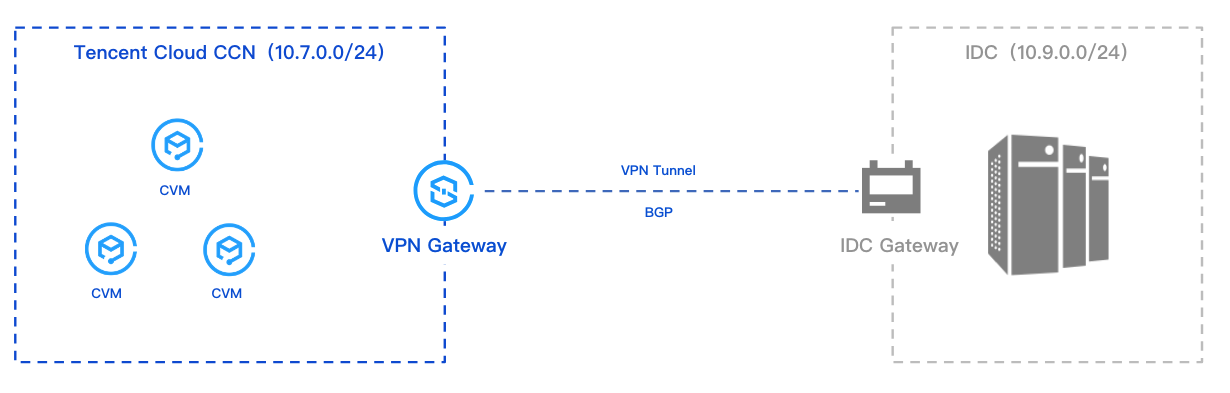
Some business of the users is deployed on the cloud, and VPN is used to connect IDC and cloud networks, and the communication is through BGP.
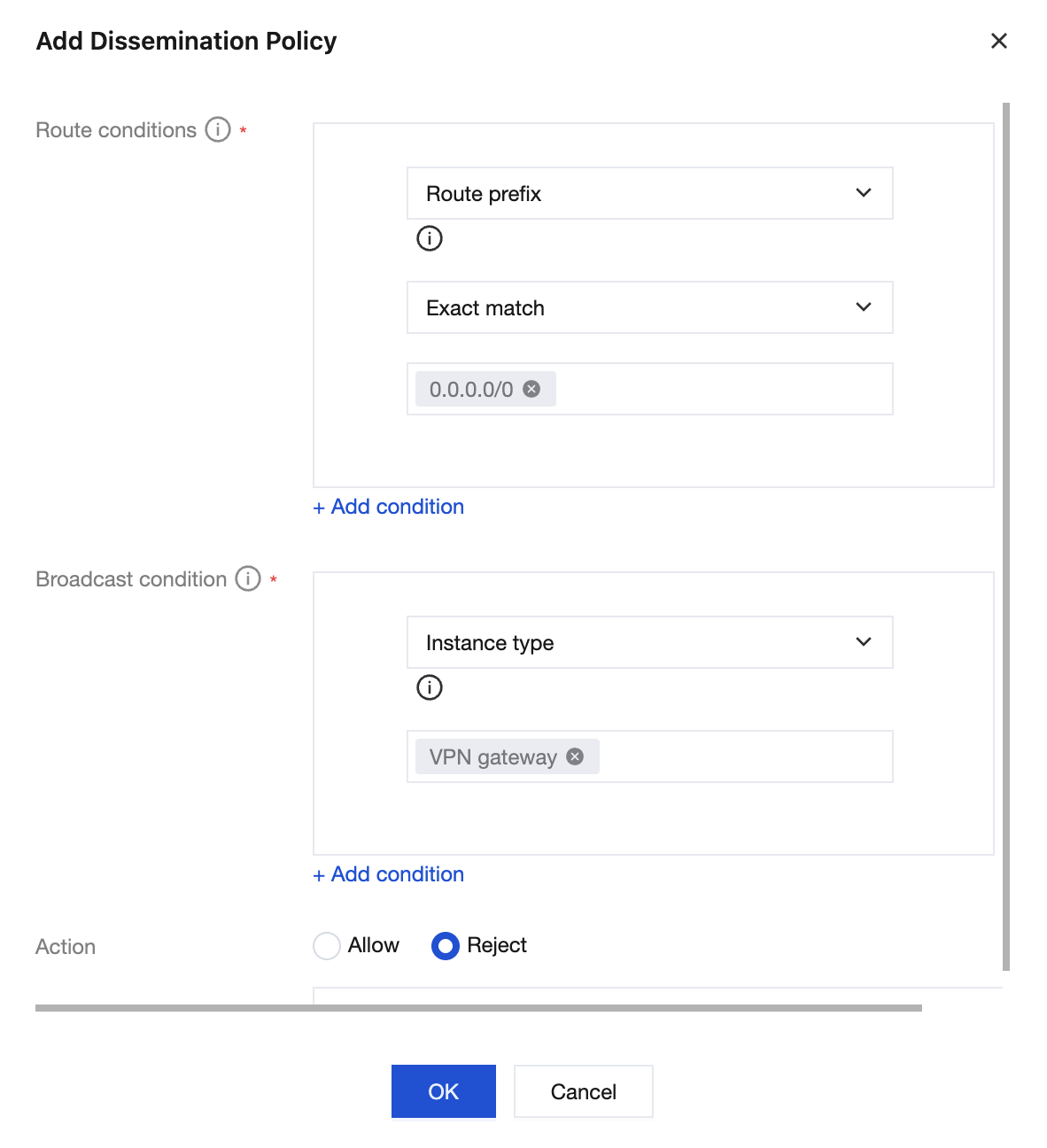
Attention:
When using a CCN VPN, do not propagate the 0.0.0.0 IP address range route from the CCN side.
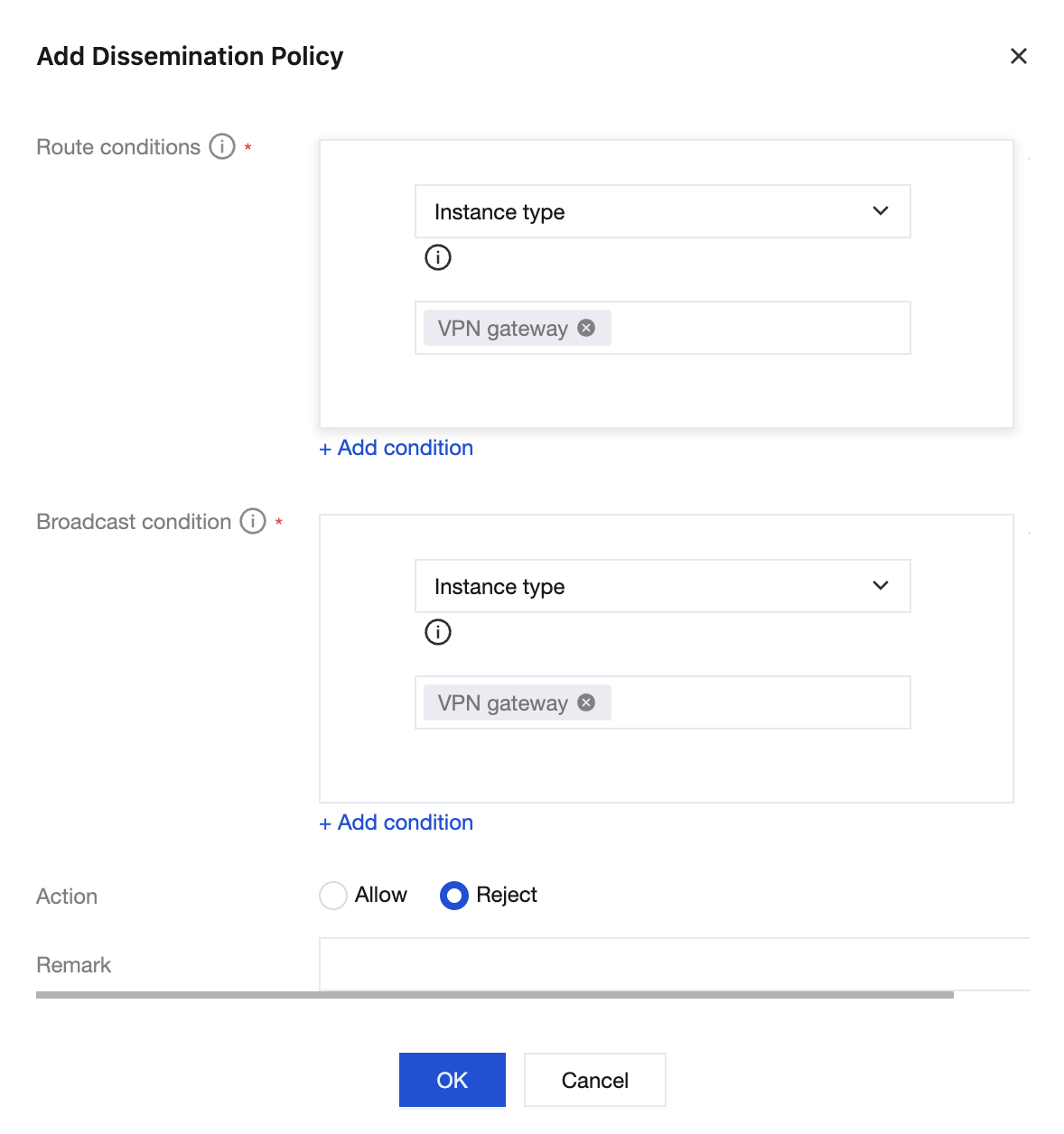
When using dynamic BGP to form an ECMP network, to prevent VPN gateway service impact, you need to disable route propagation between VPN gateways and between VPN gateways and Direct Connect gateways on the CCN side.
Operating Procedures
Operation Steps
This guide only covers the essential configuration steps and parameters during the operation process. See the specific operational documents for details of other parameters.
Step 1: Creating a CCN Instance
You need to create the required Cloud Connect Network instance on the Cloud Connect Network console. For specific operations, see Creating a CCN Instance.
Step 2: Creating a CCN-Based VPN Gateway
1. Log in to the VPN Gateway Console, and on the VPN gateway page, click Create.
2. Configure CCN type gateway parameters on the VPN Purchase Page.
Region: Select Seoul.
Associated Network: Select CCN.
Bandwidth: Select 200 Mbps or higher.
BGP ASN: The default ASN of VPN Gateway on the side of Tencent is 64551, with a permissible range of 1 - 4294967295.
3. On the VPN gateway details page, bind the Cloud Connect Network instance created in Step 1.
Step 3: Creating a Customer Gateway
1. Log in to the Customer Gateway Console, and click Create on the Customer Gateway page on the right side.
2. On the Create Customer Gateway page, configure the public IP address for internet access and the planned ASN on the IDC side. For more details, see Creating Customer Gateway.
Step 4: Creating a BGP-Based VPN Tunnel
1. Log in to the VPN Tunnel Console, click Create on the VPN tunnel page on the right side.
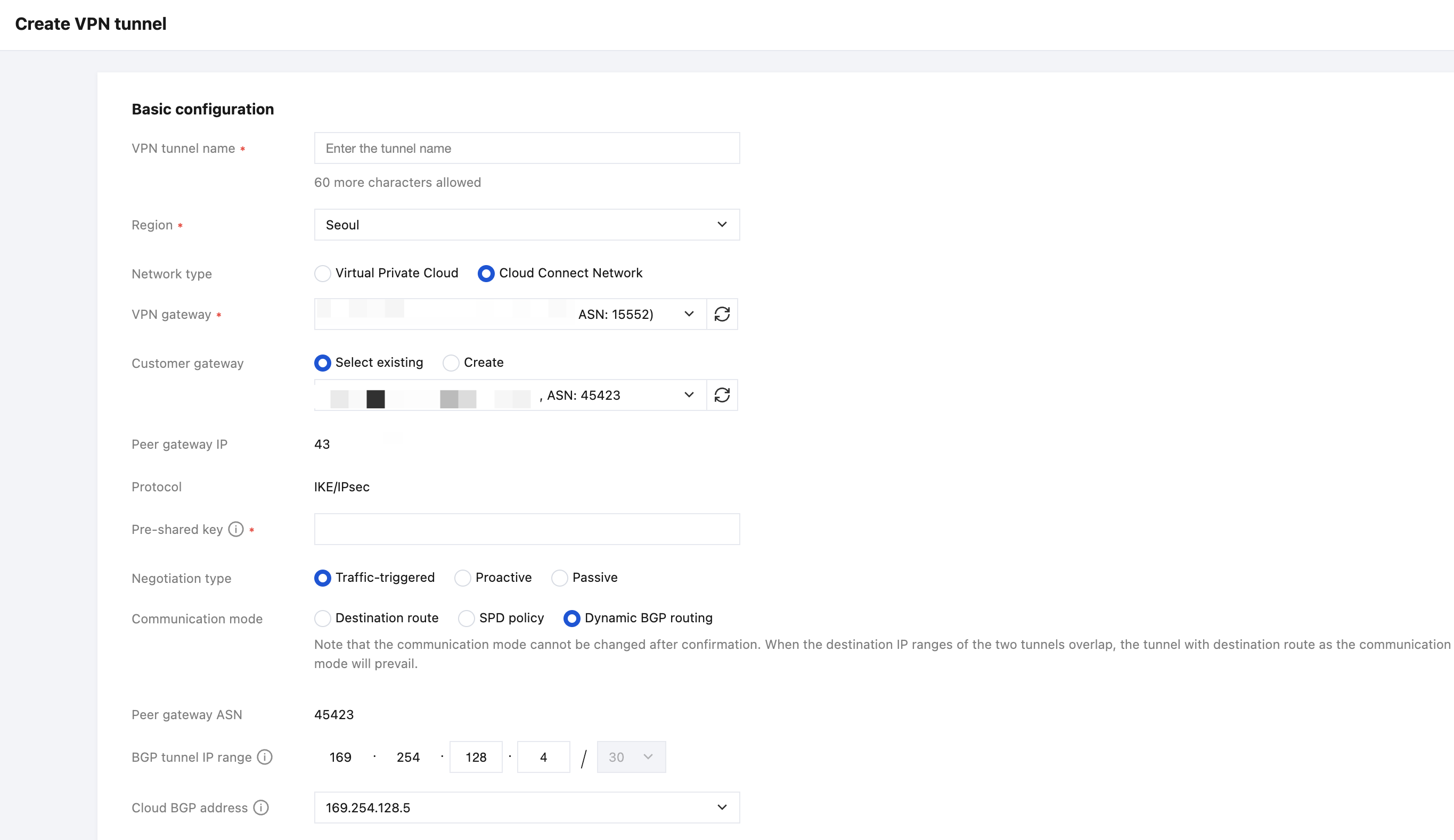
2. On the new VPN tunnel creation page, configure the basic tunnel parameters based on actual conditions, and proceed with further configuration after completion.
Parameter | Description |
Network Type | Select Cloud Connect Network. |
VPN Gateway | Select a Cloud Connect Network type VPN gateway configured with ASN. |
Customer Gateway | Select the customer gateway configured with ASN. |
Communication Mode | Select dynamic BGP routing. |
BGP tunnel IP range | BGP tunnel IP range for intercommunication between the cloud and the user, the IP range must be within the range of 169.254.0.0/16. |
Cloud BGP Address | BGP IP Address for interconnection between the cloud and the user. |
Customer BGP Address | Unmodifiable and automatically assigned user BGP interconnection address. After manual modification of the cloud BGP address is completed, this parameter automatically updates. After manually modifying the cloud BGP address, this parameter is automatically updated. |
Step 5: IDC Local Configuration
After you complete the first 4 steps, the configuration of the cloud-based VPN Gateway and VPN Tunnel is already completed. It is necessary to continue configuring the VPN Tunnel information on the Local Gateway on the IDC side. For details, see Local Gateway Configurations.
Note:
The "local gateway" on the IDC side is the IPsec VPN device on the IDC side. The public IP address of this device is recorded in the created "customer gateway".
Help and Support
Was this page helpful?
You can also Contact sales or Submit a Ticket for help.
Help us improve! Rate your documentation experience in 5 mins.
Feedback