VPN Tunnel Unconnected
다운로드
포커스 모드
폰트 크기
Error description
A VPN connection is used to connect VPC to IDC, but the status of VPN tunnel is Unconnected after the configuration.
Possible causes
An exception in tunnel status usually results from the following factors:
No traffic to activate the tunnel
The VPN gateway public IP is not connected
The security policy is not correctly configured
Inconsistent negotiation parameters and modes
Solutions
1. Log in to a CVM in the VPC and activate the tunnel by using the ping command to test the network connectivity of the private IP of the server on the customer IDC side.
Note:
To log in to the CVM in the VPC, please see Logging in to Linux Instance or Logging in to a Windows Instance.
A successful ping indicates that the tunnel is activated. Check if the status of the VPN tunnel is “Connected”. If so, the problem is solved.
In case of a ping failure, please directly go to Step 2.
2. Log i
n to the VPN device
on the IDC side and use the ping command to test the network connectivity of the VPN gateway public IP on the Tencent Cloud side (suppose the VPN gateway public IP is 139.186.120.129) to see if the ping is successful or not.If it is, please go to Step 4.
If not, please go to Step 3.
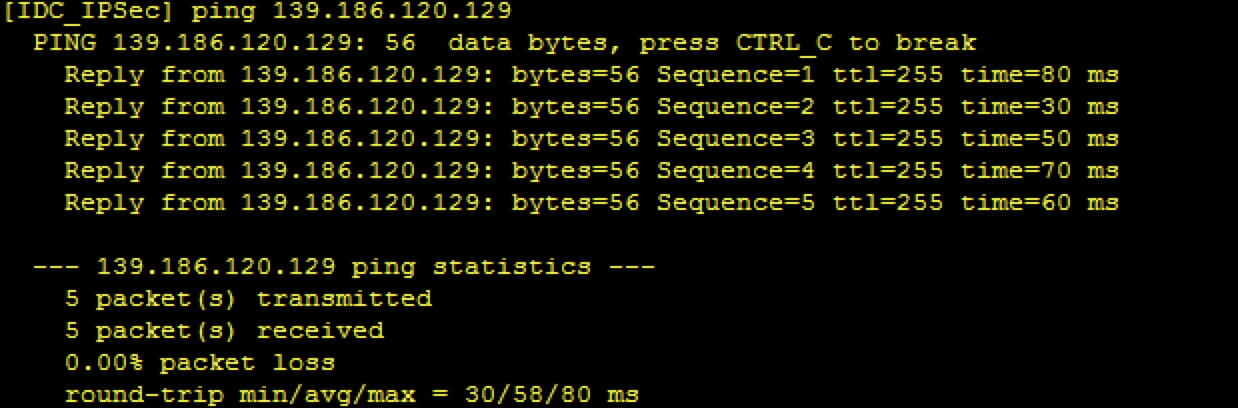
3. Check the
connectio
n status of the public network on the IDC side and see whether it can be connected to the Internet.If it is, please go to Step 4.
If not, please check whether the VPN tunnel is connected after repairing the local network. If it is connected, the problem is solved. If not, please go to Step 4.
4. Check t
he securit
y policy of the VPN device on the IDC side, and whether the public IP address of the VPN gateway on the Tencent Cloud side and the private IP address are open to Internet.display current-configuration configuration security-policy //Take Huawei Firewall as an example here
If it is, please go to Step 5.
If not, please modify the security policy and make the VPN gateway IP on the Tencent Cloud side and the corresponding SPD policy open to Internet. Then, check whether the VPN tunnel is connected. If so, the problem is solved. If not, please go to Step 5.
5. Chec
k whether the ne
gotiation parameters (including IKE and IPsec configurations) and negotiation modes (main/aggressive mode) of the VPN gateway on the Tencent Cloud side and the VPN device in the customer IDC are consistent.Note:
Inconsistency in any parameter can cause the failure to create a VPN tunnel.
The default VPN configuration varies by devices and public cloud service providers.
Go to the VPN tunnel console. Click the instance ID to enter the details page, and check the consistency on the “Advanced Configuration” tab.
Device configuration parameters on the IDC side can be obtained through the following command. Take Huawei Firewall as an example here.
display current-configuration configuration ike profile
display current-configuration configuration ipsec  policy
If they are consistent, please go to Step 6.
If not, please modify corresponding parameters on both sides to ensure the consistency. Then, check whether the VPN tunnel is connected. If so, the problem is solved. If not, please go to Step 6.
6. Collect the troub
leshooting inf
ormation above and submit a ticket or ask the device manufacturer for help.피드백