tencent cloud

SSL Certificates

Release Notes
Announcements
Notice on price adjustment of DigiCert and its affiliated brands'SSL certificates​
Price Change to DigiCert SSL Certificates
TrustAsia Root Certificate Update
Domain Validation Policy Update
SSL Certificate Service Console
Multi-Year SSL Certificate and Automatic Review
Notice on Stopping the Issuance of 2-Year SSL Certificates by CAs Starting from September 1, 2020
Announcement on Stop Using the Symantec SSL Certificate Name After 30 April 2020
Notice on Certificate Revocation Due to Private Key Compromises
Notice on Application Limits for DV SSL Certificates
Notice on Adjustment of Free SSL Certificates Policy
Let's Encrypt Root Certificate Expired on September 30, 2021
Product Introduction
Overview
Introduction to Tencent Cloud SSL Certificates
Strengths
Advantages of HTTPS
Browser Compatibility Test Report
Multi-Year SSL Certificate and Automatic Review Overview
SSL Certificate Security
Purchase Guide
Pricing
SSL Certificate Purchase Process
SSL Certificate Selection
Paid SSL Certificates Renewal
SSL Certificate Renewal Process
SSL Certificate Refund Process
Getting Started
Certificate Application
Information Submission Process for Paid SSL Certificates
Domain Ownership Validation
Domain Validation Method Selection
Automatic DNS Addition
DNS Validation
File Validation
Automatic DNS Validation
Automatic File Validation
Validation Result Troubleshooting Guide
Operation Guide
Domain Ownership Verification
Uploading Certificates
Secured Seal
CSR Management
Certificate Installation
Installing an SSL Certificate on a Tencent Cloud Service
Installation of International Standard Certificates
Selecting an Installation Type for an SSL Certificate
Certificate Management
Instructions on SSL Certificate Auto-Renewal
Certificate Hosting
Uploading (Hosting) an SSL Certificate
Reminding Reviewers to Review an SSL Certificate Application
Revoking an SSL Certificate
Deleting an SSL Certificate
Reissuing an SSL Certificate
Ignoring SSL Certificate Notifications
Customizing SSL Certificate Expiration Notifications
API Documentation
History
Introduction
API Category
Making API Requests
Certificate APIs
Certificate Renewal (Certificate ID Unchanged) APIs
CSR APIs
Data Types
Error Codes
Use Cases
Automatic Solution for Implementing and Issuing Multi-Year Certificates and Binding Resources
Apple ATS Server Configuration
Quickly Applying for a Free SSL Certificate via DNSPod
Enabling Tencent Cloud DDNS and Installing Free Certificates for Synology NAS
Batch Applying for and Downloading Free Certificates Using Python-based API Calls
Profile Management
Adding Organization Profile
Adding Administrator
Adding Domain
Troubleshooting
Domain Validation Failed
Domain Security Review Failed
Website Inaccessible After an SSL Certificate is Deployed
404 Error After the SSL Certificate is Deployed on IIS
“Your Connection is Not Secure” is Displayed After the SSL Certificate is Installed
Message Indicating Parsing Failure Is Displayed When a Certificate Is Uploaded
Automatic DNS Validation Failed for a Domain Hosted with www.west.cn
Host Name Field Cannot Be Edited in IIS Manager When Type Is Set to https
Message Indicating Intermediate Certificates Missing in Chain Is Displayed When a Free SSL Certificate Is Deployed on IIS
FAQs
SSL Certificate Selection
SSL Certificate Application
SSL Certificate Management
SSL Certificate Installation
SSL Certificate Region
SSL Certificate Review
SSL Certificate Taking Effect
SSL Certificate Billing and Purchase
SSL Certificate Validity Period
Related Agreement
SSL Service Level Agreement
Contact Us
Glossary

Certificate Hosting

PDF
Focus Mode
Font Size
Last updated: 2024-08-05 14:04:11

Overview

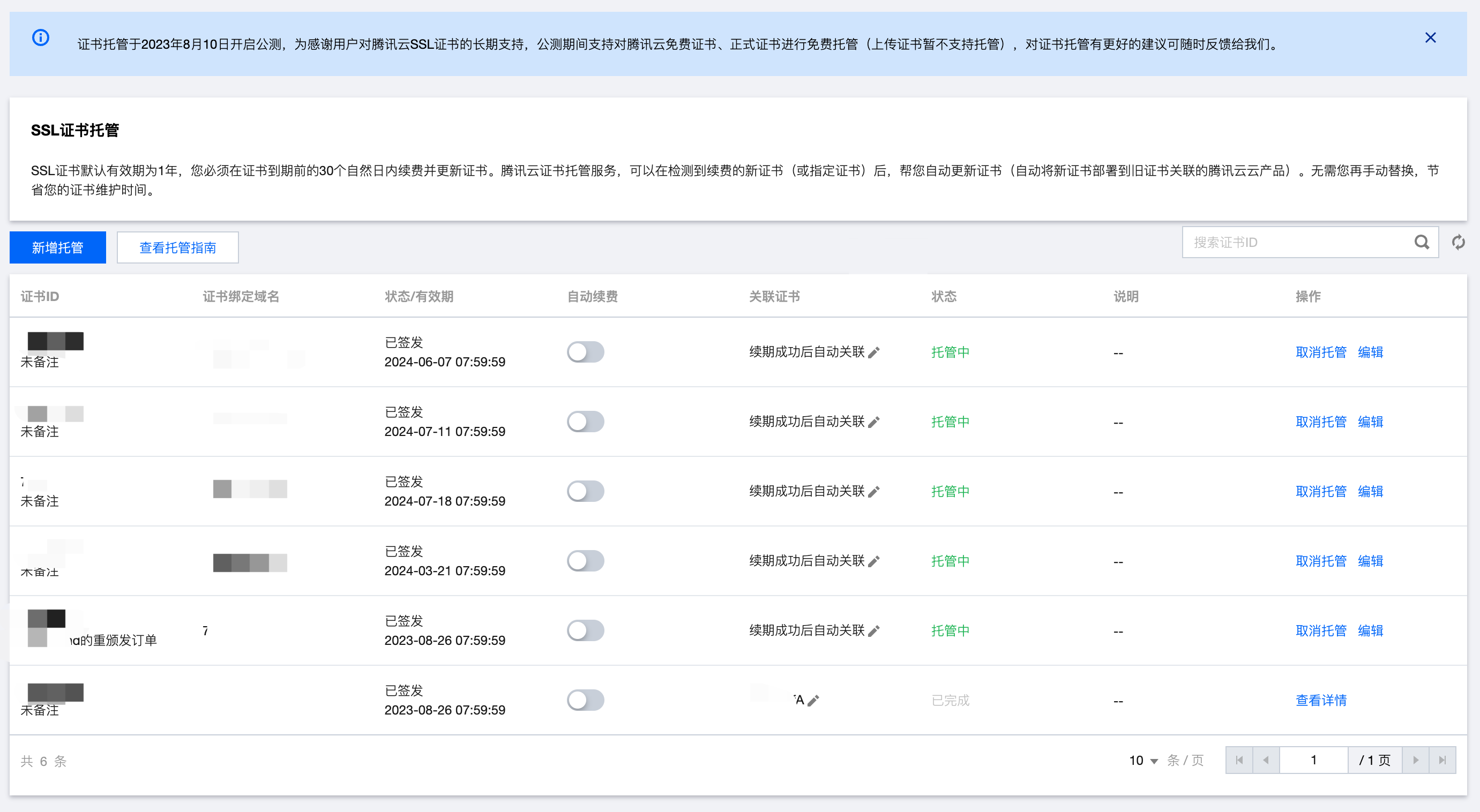
The default validity period for SSL certificates is 1 year. You should renew and update the certificate within 30 calendar days before its expiration. Tencent Cloud certificate hosting service can help you automatically update the certificate (by deploying the new certificate to the Tencent Cloud product associated with the old certificate) after detecting the renewed certificate (or specified certificate). You do not need to update manually and your certificate maintenance time are saved.
Note:
Free certificates applied or official certificates purchased on Tencent Cloud can be hosted.
If the old certificate is not associated with cloud resources, the hosting service is not needed.
If your SSL certificate is only deployed on Tencent Cloud resources, enabling cloud resources hosting will automatically update the new certificate to the cloud resources. If your certificate is deployed on non-Tencent Cloud resources, even if the hosting service is enabled for your SSL certificate, you still need to manually install the new certificate on your web services (to replace the old certificate).

Strengths

Automated SSL certificate management can be achieved by enabling auto-renewal and certificate hosting (OV/EV certificates still require additional organization information verification).
In addition to renewed certificates, any certificate can also be manually specified, and it can be automatically replaced and deployed to cloud resources before the old certificate expires.

Operation Guide

1. Log in to the Tencent Cloud SSL Certificates console and go to the Certificate Hosting page.

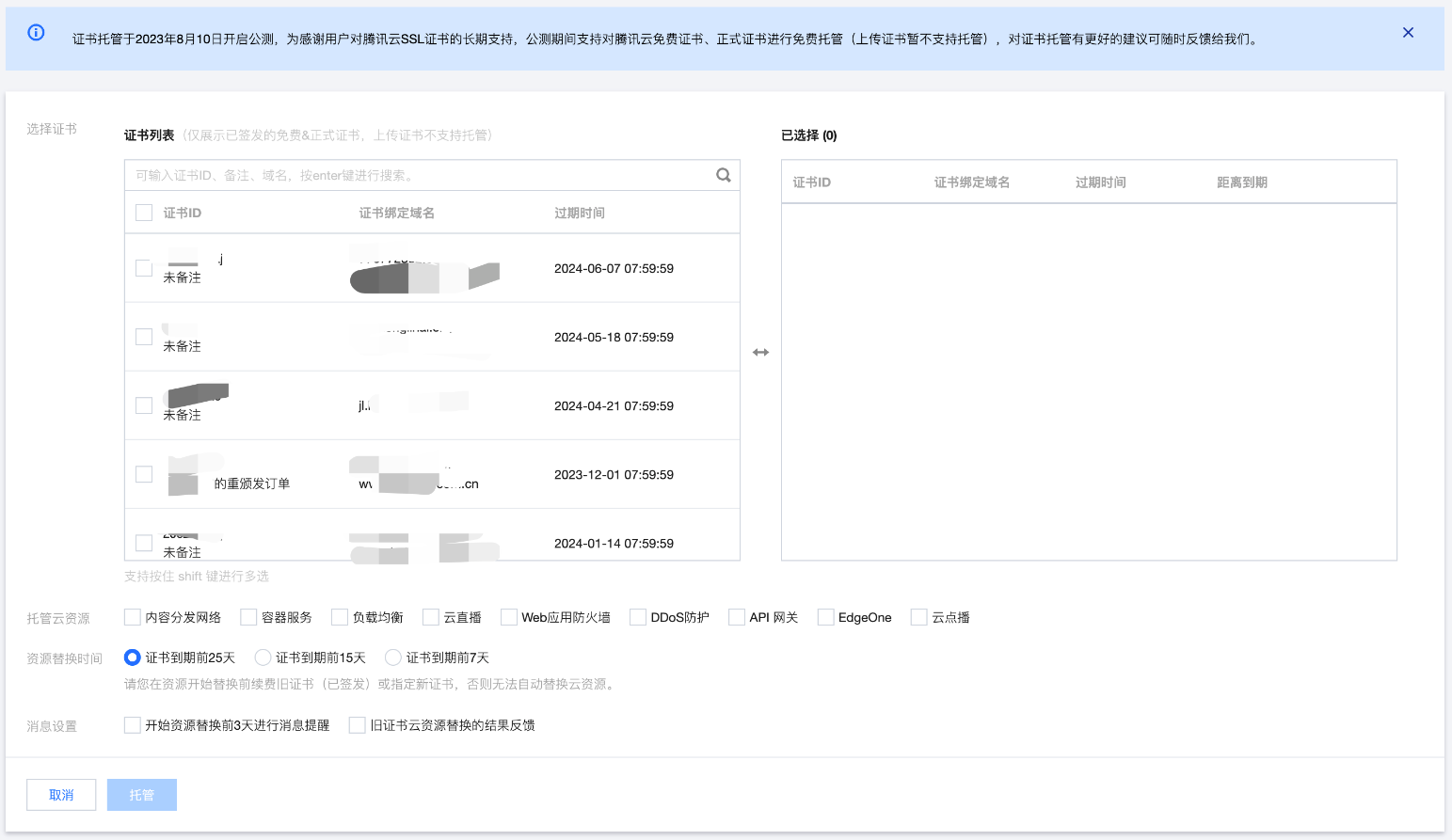
2. Click Add hosting, select the certificate to be hosted, and check the host cloud resources.

Select Certificate: Select the certificate to be hosted.
Host Cloud Resources: Before the old certificate expires, the renewed certificate (or specified certificate) will replace the old certificate on the selected cloud resources. If the old certificate is not associated with any cloud resources, hosting is not needed.
Resource Replacement Time: Set the time for automatic replacement with the new certificate. (Make sure the new certificate is issued before replacement. Otherwise, hosting will fail.) The remaining time before the old certificate expires should be longer than the time before certificate replacement. (For example, if the certificate expires in 7 days, you cannot check the option of 25 days before the certificate expires.)
Message Settings: The message reminder with hosting-related information will be sent through emails, Message Center, and SMS. (It is recommended to enable it. If you have many certificates, you can manually disable the message reminder in the settings.)
3. Select the associated certificate.
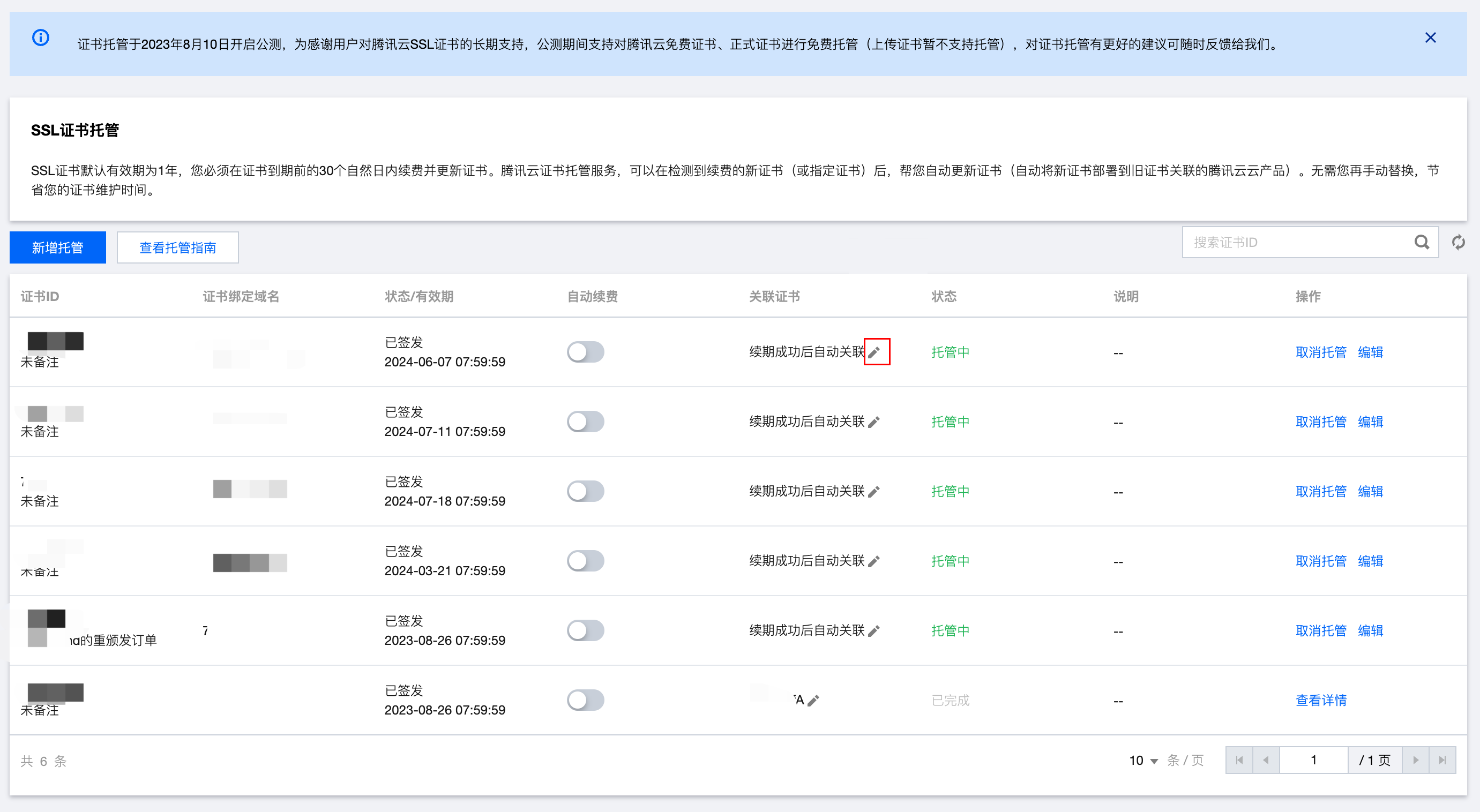
3.1 By default, automatically renewed SSL certificates are selected for hosting. If the new certificate is newly-purchased, you can click

in the Associate certificate column to specify the new certificate.

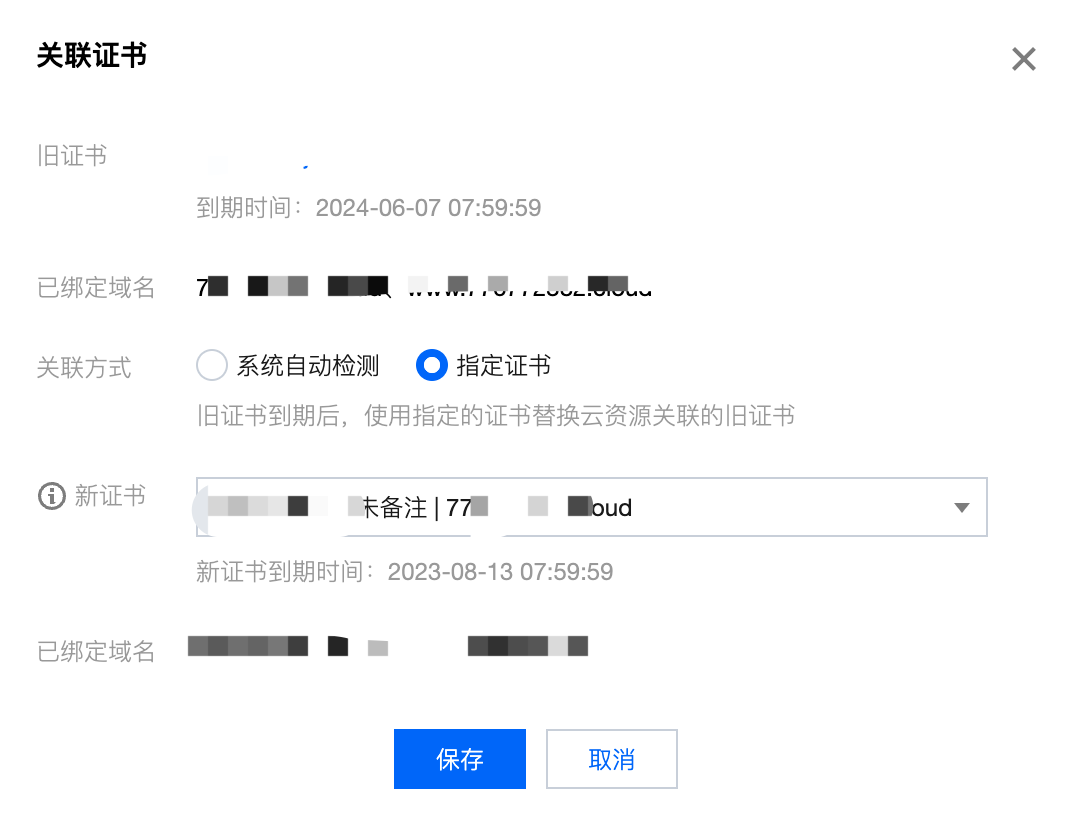
3.2 Select the newly-purchased certificate in the pop-up window, and click Save.
Warning:
Ensure that the specified certificate matches the domain name bound to both the old and new certificates. If they do not match, it may directly affect the business after replacing the cloud resources.


Help and Support

Was this page helpful?

Help us improve! Rate your documentation experience in 5 mins.

Feedback