tencent cloud

Tencent Kubernetes Engine

Release Notes and Announcements
Release Notes
Announcements
Release Notes
Product Introduction
Overview
Strengths
Architecture
Scenarios
Features
Concepts
Native Kubernetes Terms
Common High-Risk Operations
Regions and Availability Zones
Service Regions and Service Providers
Open Source Components
Purchase Guide
Purchase Instructions
Purchase a TKE General Cluster
Purchasing Native Nodes
Purchasing a Super Node
Getting Started
Beginner’s Guide
Quickly Creating a Standard Cluster
Examples
Container Application Deployment Check List
Cluster Configuration
General Cluster Overview
Cluster Management
Network Management
Storage Management
Node Management
GPU Resource Management
Remote Terminals
Application Configuration
Workload Management
Service and Configuration Management
Component and Application Management
Auto Scaling
Container Login Methods
Observability Configuration
Ops Observability
Cost Insights and Optimization
Scheduler Configuration
Scheduling Component Overview
Resource Utilization Optimization Scheduling
Business Priority Assurance Scheduling
QoS Awareness Scheduling
Security and Stability
TKE Security Group Settings
Identity Authentication and Authorization
Application Security
Multi-cluster Management
Planned Upgrade
Backup Center
Cloud Native Service Guide
Cloud Service for etcd
TMP
TKE Serverless Cluster Guide
TKE Registered Cluster Guide
Use Cases
Cluster
Serverless Cluster
Scheduling
Security
Service Deployment
Network
Release
Logs
Monitoring
OPS
Terraform
DevOps
Auto Scaling
Containerization
Microservice
Cost Management
Hybrid Cloud
AI
Troubleshooting
Disk Full
High Workload
Memory Fragmentation
Cluster DNS Troubleshooting
Cluster kube-proxy Troubleshooting
Cluster API Server Inaccessibility Troubleshooting
Service and Ingress Inaccessibility Troubleshooting
Common Service & Ingress Errors and Solutions
Engel Ingres appears in Connechtin Reverside
CLB Ingress Creation Error
Troubleshooting for Pod Network Inaccessibility
Pod Status Exception and Handling
Authorizing Tencent Cloud OPS Team for Troubleshooting
CLB Loopback
API Documentation
History
Introduction
API Category
Making API Requests
Elastic Cluster APIs
Resource Reserved Coupon APIs
Cluster APIs
Third-party Node APIs
Relevant APIs for Addon
Network APIs
Node APIs
Node Pool APIs
TKE Edge Cluster APIs
Cloud Native Monitoring APIs
Scaling group APIs
Super Node APIs
Other APIs
Data Types
Error Codes
TKE API 2022-05-01
FAQs
TKE General Cluster
TKE Serverless Cluster
About OPS
Hidden Danger Handling
About Services
Image Repositories
About Remote Terminals
Event FAQs
Resource Management
Service Agreement
TKE Service Level Agreement
TKE Serverless Service Level Agreement
Contact Us
Glossary
DocumentaçãoTencent Kubernetes EngineUse CasesSecurityImporting SSM Credentials via ExternalSecretOperator

Importing SSM Credentials via ExternalSecretOperator

PDF
Modo Foco
Tamanho da Fonte
Última atualização: 2025-12-22 17:08:33
ExternalSecretOperator assists in uniformly storing and managing key credentials in Tencent Cloud Secrets Manager (SSM), importing them into the cluster in the form of Kubernetes native Secret objects, thereby enabling automatic synchronization of key data. This process facilitates SSM's centralized key storage and lifecycle management of these keys.

Limitations

Use of the ExternalSecrets component requires a Kubernetes version of v1.19 or later.
The operating system image supports an x86 architecture.

Enabling External Key Access Capability

Installing the Add-on

1. Log in to the TKE Console.
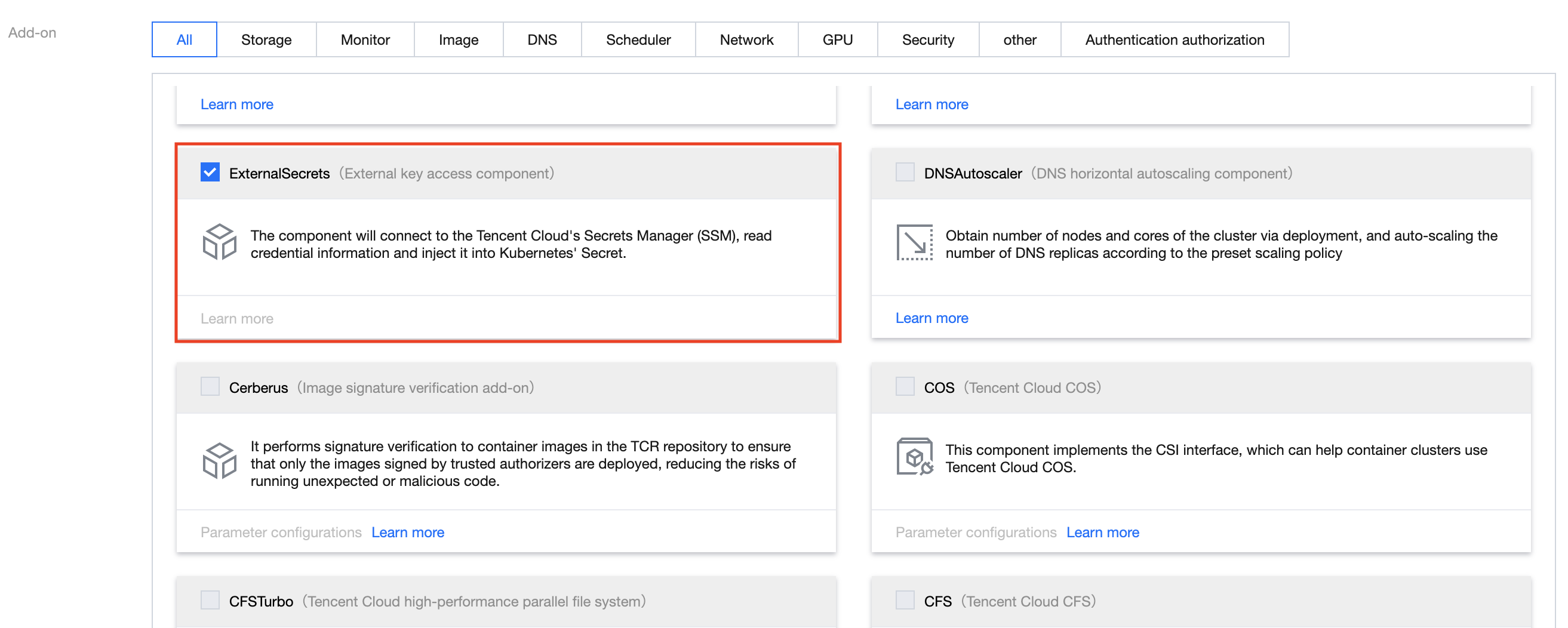
2. Install the ExternalSecrets (external key access component) component for the cluster.
If you have not created a cluster, you can install the ExternalSecrets component during the cluster creation process. For details, see Installing on the cluster creation page.
Should you wish to enable external key access in a created cluster, install the ExternalSecrets component through component management. For details, see Installing on the add-on management page.


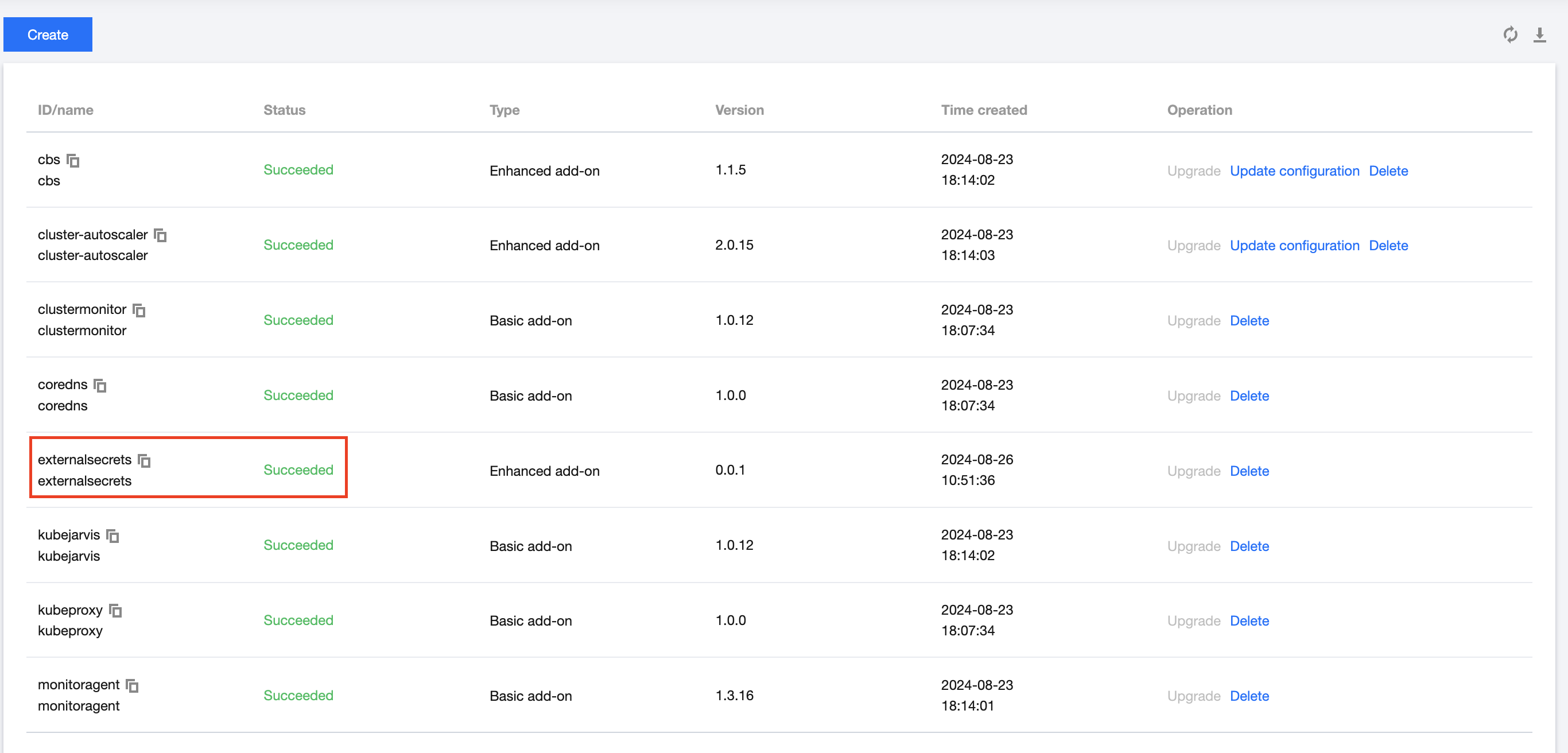
3. Check the component status on the Component Management page. If the component status is Succeeded, it indicates successful deployment of the component.


Use Methods

Method 1: Authorize via AK/SK.

Step 1: Configure authentication information using the AK/SK authorization method

1. Log in to the CAM console and select Policy on the left sidebar.
2. Navigate to the Policy page and click New Custom Policy > Create by Syntax.
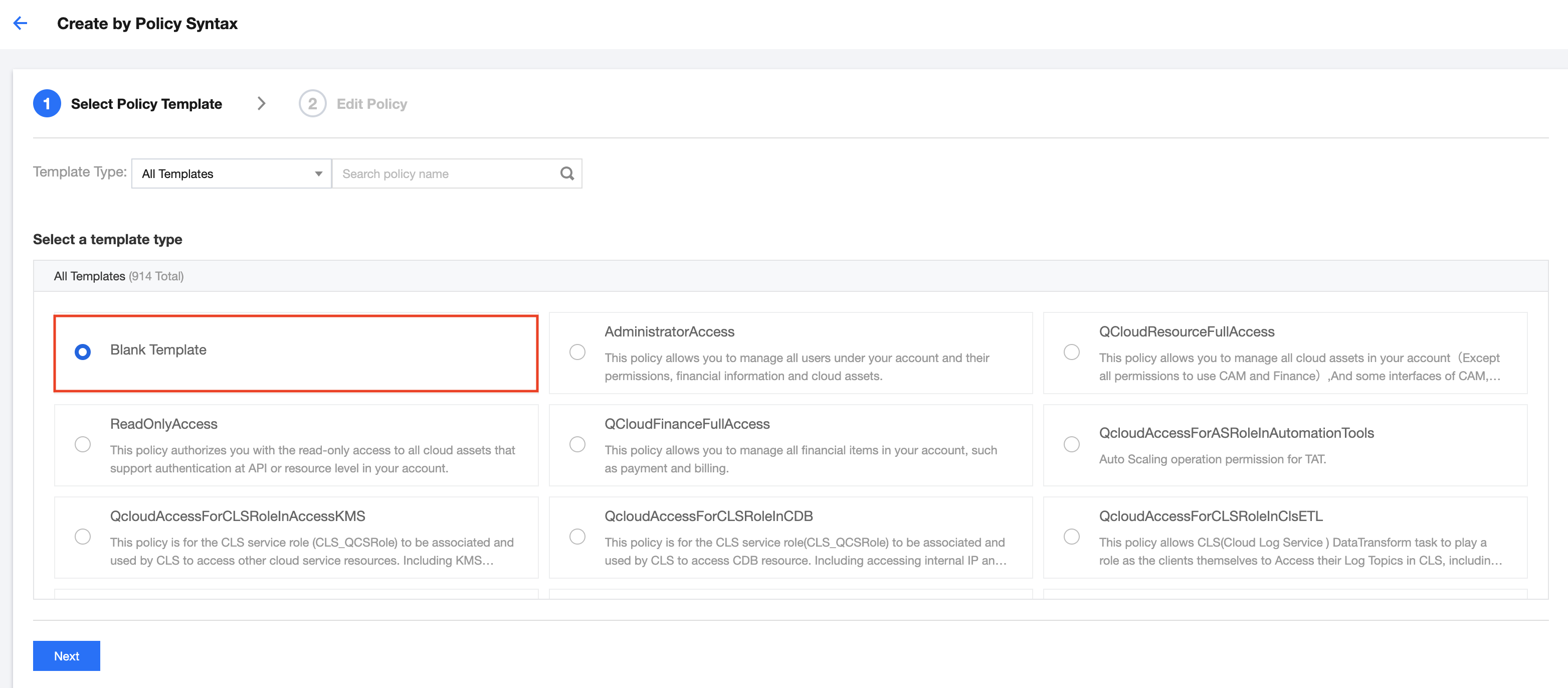
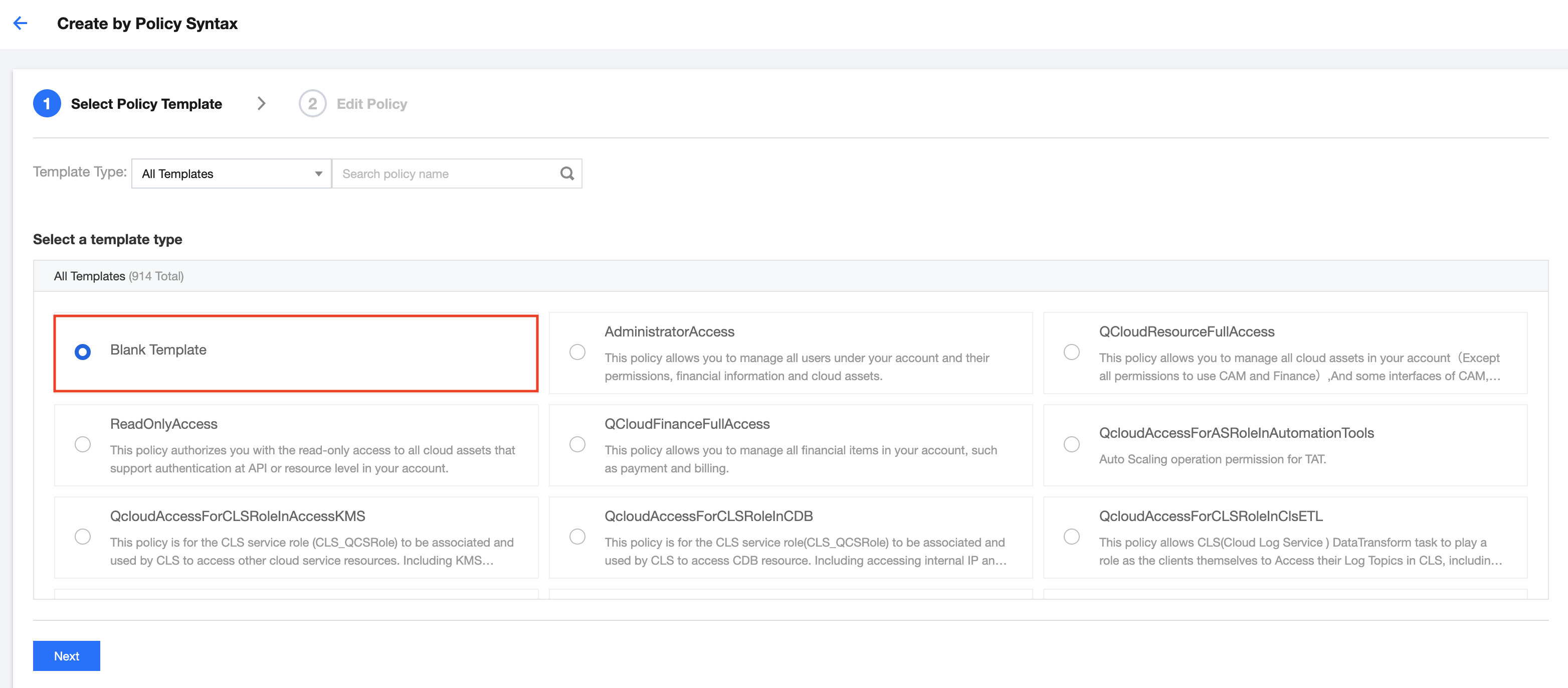
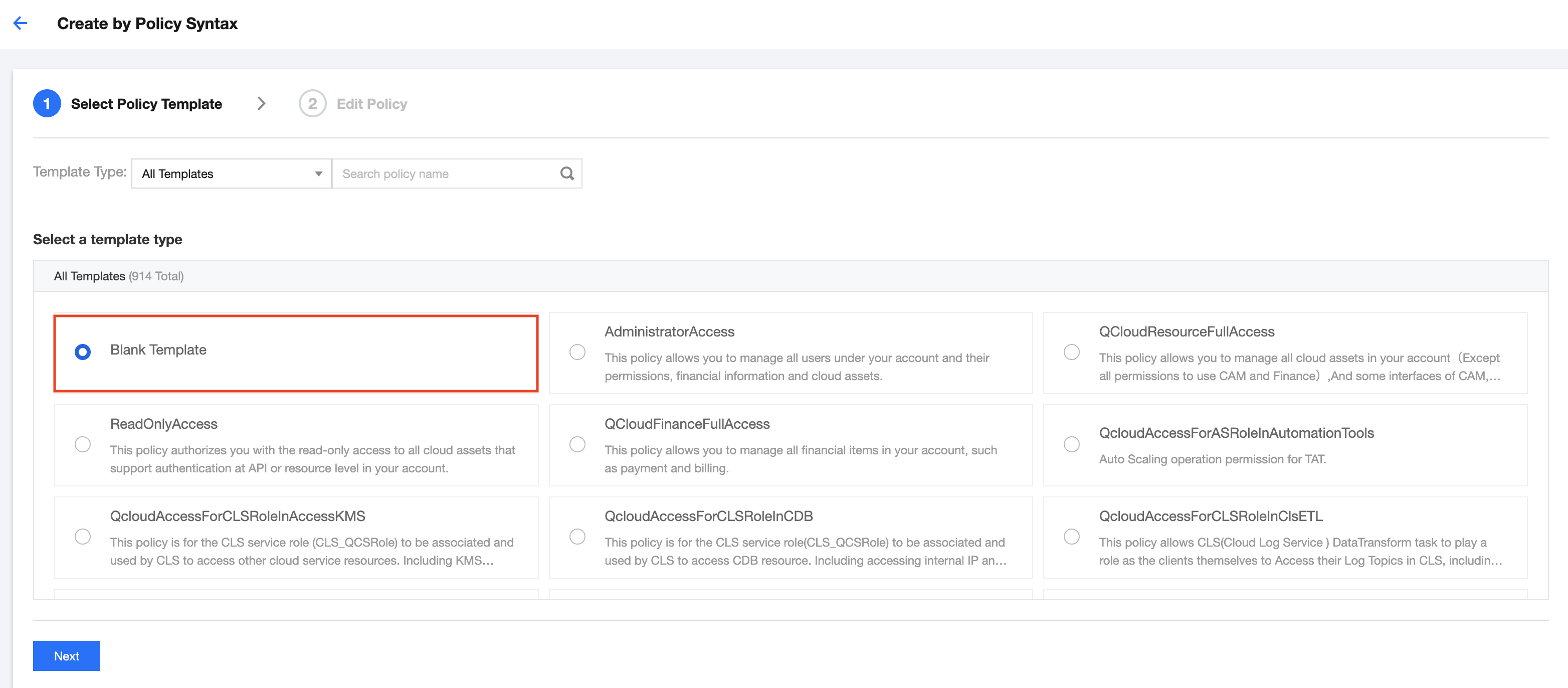
3. On the Create by Policy Syntax page, select Blank Template, as shown in the following figure:


4. Click Next to access the Edit Policy page, where you can add the following content to the policy editing box:
{
"statement": [
{
"action": [
"ssm:GetSecretValue"
],
"effect": "allow",
"resource": [
"qcs::ssm:$region:uin/$uin:secret/creatorUin/$creatorUin/$secretName"
]
}
],
"version": "2.0"
}
5. Click Complete to add the policy.
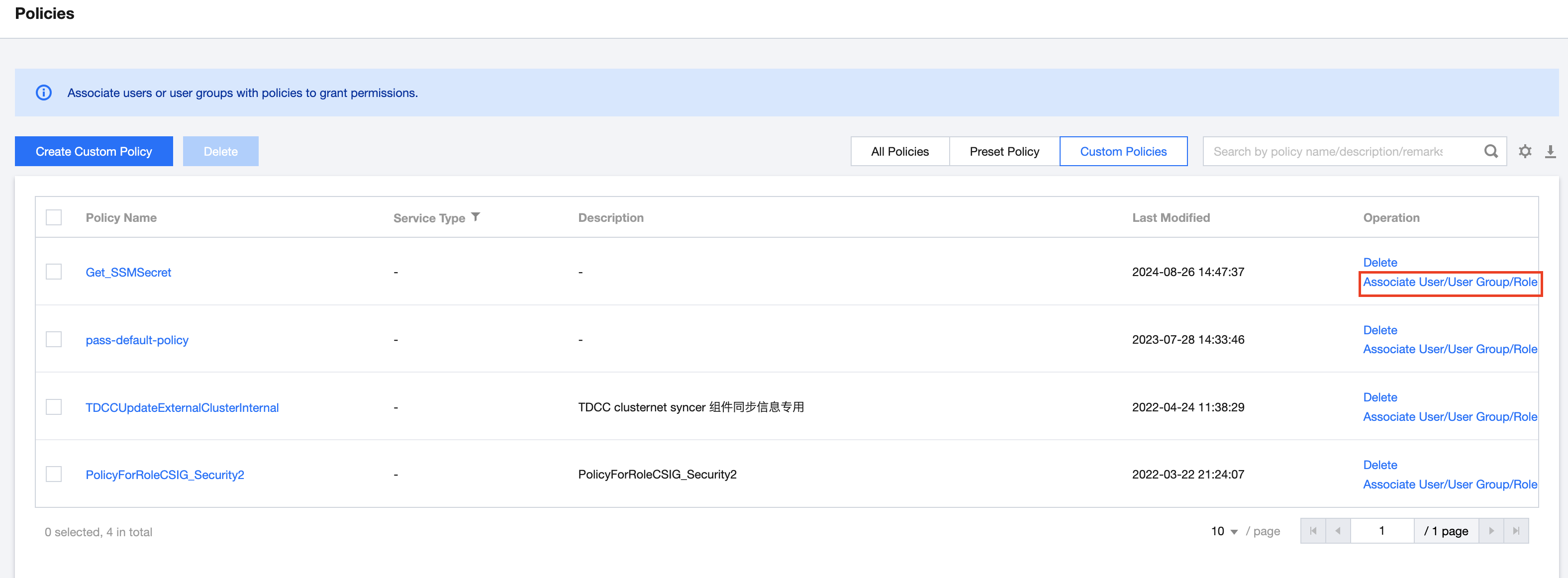
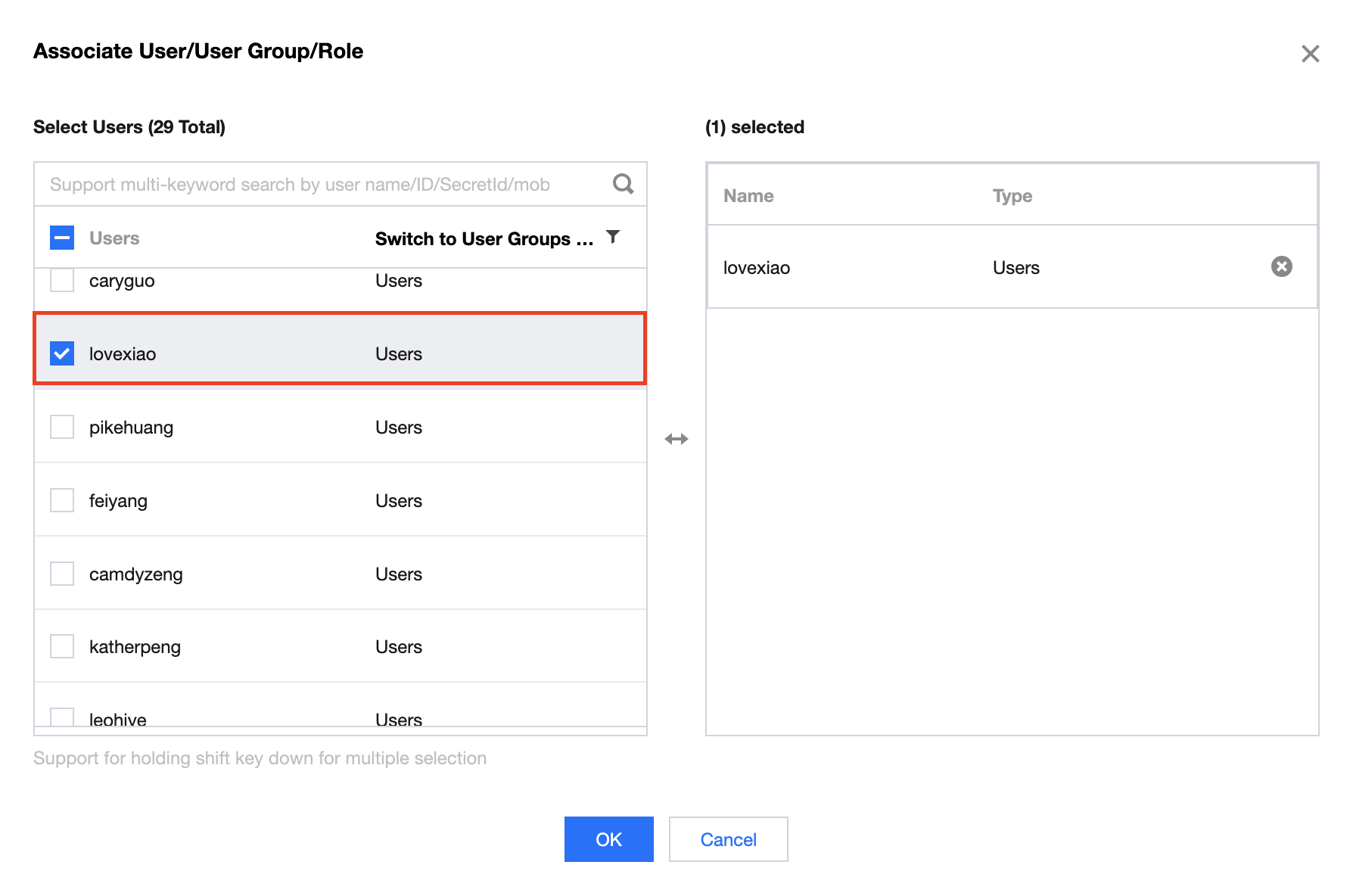
6. On the Policies page, view the created custom policy, then select Custom Policies > Associate User/User Group/Role, as shown below:


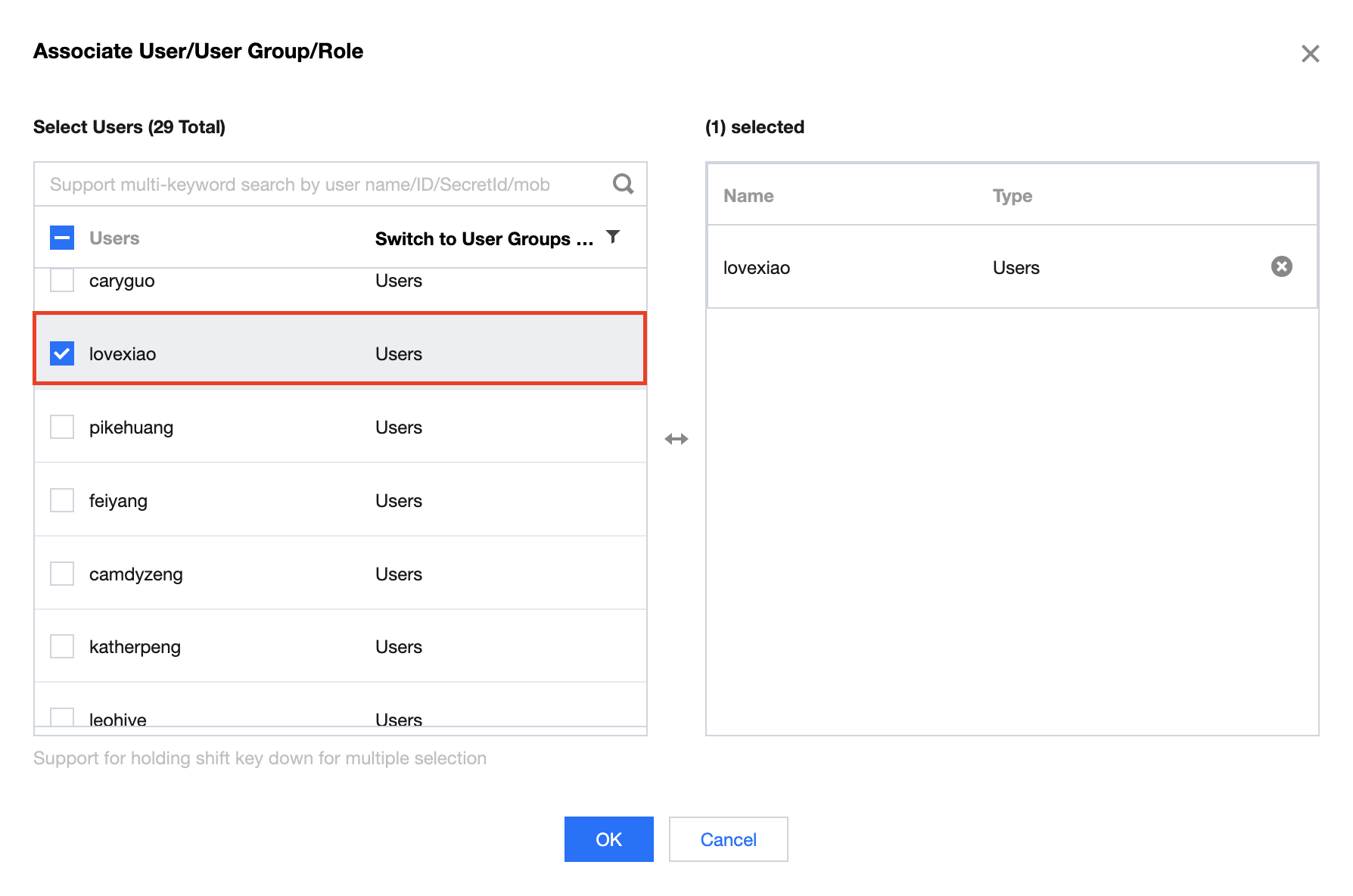
On the Associate User/User Group/Role page, select the user you want to bind, as shown below:


7. Click OK.

Step 2: Instructions for component use

This component involves two types of Custom Resource Definitions (CRDs): SecretStore for storing access credentials, and ExternalSecret for specifying SecretStore and storing the basic information of credentials that need to be synchronized. This achieves separation of permissions and data, enhancing flexibility in usage.
In SSM, you need to add the following credentials:
SecretName: hello-test
SecretData: {"name":"jack","password":"123"}
VersionId: v1
You can refer to Tencent Cloud SSM Documentation for a detailed process of creating credentials.
Note:
The following secret, SecretStore, and ExternalSecret are all located in the default namespace.
1. Create a secret.
You can create a secret by executing the following command:
echo -n 'KEYID' > ./accessKeyId
echo -n 'SECRETKEY' > ./accessKeySecret
kubectl create secret generic tencent-credentials --from-file=./accessKeyId --from-file=./accessKeySecret
Note:
The key can be obtained from CAM.
2. Create a SecretStore.
You can save the following content into a file named my-secretstore.yaml:
apiVersion: external-secrets.io/v1beta1 kind: SecretStore metadata: name: my-secretstore spec: provider: tencent: regionID: ap-guangzhou auth: secretRef: accessKeyIDSecretRef: name: tencent-credentials key: accessKeyId accessKeySecretSecretRef: name: tencent-credentials key: accessKeySecret
3. Create an ExternalSecret.
You can save the following content into a file named my-externalsecret.yaml:
apiVersion: external-secrets.io/v1beta1 kind: ExternalSecret metadata: name: my-externalsecret spec: refreshInterval: 1m secretStoreRef: kind: SecretStore name: my-secretstore target: name: my-secret-key-to-be-created creationPolicy: Owner data: - secretKey: secret-key-to-be-managed remoteRef: key: hello-test version: v1 # option property: password
4. To deploy the sample, run the following command:
kubectl apply -f my-secretstore.yaml kubectl apply -f my-externalsecret.yaml
5. Use the obtained credentials.
You can save the following content into a file named my-pod.yaml:
apiVersion: v1 kind: Pod metadata: name: my-pod spec: containers: - name: my-container image: busybox command: - /bin/sh - -c - 'echo "Secret value: ${SECRET_KEY_TO_BE_MANAGED}"' env: - name: SECRET_KEY_TO_BE_MANAGED valueFrom: secretKeyRef: name: my-secret-key-to-be-created key: secret-key-to-be-managed restartPolicy: Never
Then, deploy the Pod resource by running the following command:
kubectl apply -f my-pod.yaml
Finally, view the obtained credentials by running the following command:
kubectl logs my-pod
You will see the information of the obtained credentials:
# The credential information obtained from ExternalSecret is as follows. Secret value: 123

Method 2: Authorize via AKSK and Role Play

Step 1. Create a policy to obtain SSM credentials

1. Log in to the CAM console and select Policy on the left sidebar.
2. Navigate to the Policy page and click New Custom Policy > Create by Policy Syntax.
3. On the Create by Policy Syntax page, select Blank Template, as shown in the following figure:


4. Click Next to access the Edit Policy page, where you can add the following content to the policy editing box:
{
"statement": [
{
"action": [
"ssm:GetSecretValue"
],
"effect": "allow",
"resource": [
"qcs::ssm:$region:uin/$uin:secret/creatorUin/$creatorUin/$secretName"
]
}
],
"version": "2.0"
}
5. Click Complete to add the policy.

Step 2: Assign the role-play policy to the sub-account

1. Log in to the Tencent Cloud CAM Console, and select Users > User List on the left sidebar.
2. On the User List page, click Create User. For details on the process of creating a new user, refer to Creating a Sub-user.
3. Assign a role-play policy to the created sub-user. For details, refer to Assigning Role-Playing Policy to Sub-account.

Step 3: Assign a policy to the created sub-user for accessing SSM credentials

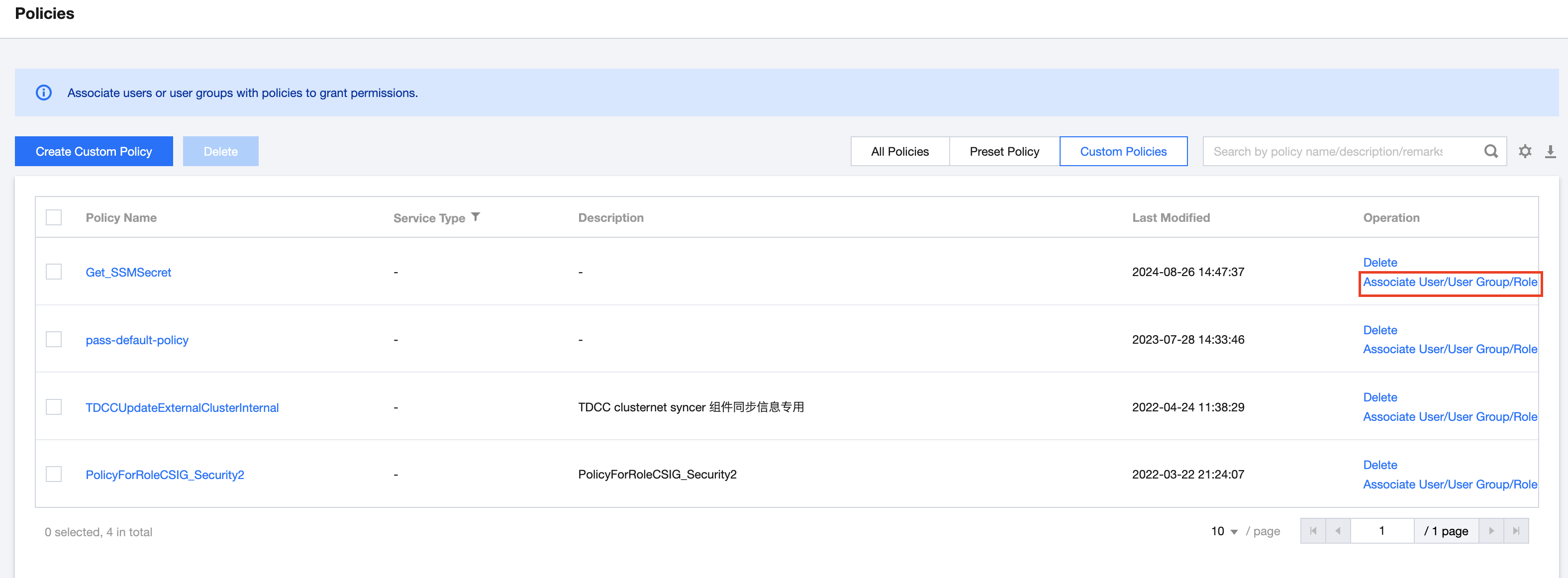
1. On the Policies page, view the created custom policy and select Custom Policies > Associate User/User Group/Role, as shown in the following figure:


2. On the Associate User/User Group/Role page, select the sub-user that needs to be associated, as shown below:


3. Click OK.

Step 4: Instructions for component use

This component involves two types of CRDs: SecretStore for storing access credentials, and ExternalSecret for specifying SecretStore and storing the basic information of credentials that need to be synchronized. This achieves separation of permissions and data, enhancing flexibility in usage.
In SSM, you need to add the following credentials:
SecretName: hello-test
SecretData: {"name":"jack","password":"123"}
VersionId: v1
You can refer to the Tencent Cloud SSM Documentation for a detailed process of creating credentials.
Note:
The following secret, SecretStore, and ExternalSecret are all located in the default namespace.
1. Create a secret.
You can create a secret by executing the following command:
echo -n 'KEYID' > ./accessKeyId
echo -n 'SECRETKEY' > ./accessKeySecret
kubectl create secret generic tencent-credentials --from-file=./accessKeyId --from-file=./accessKeySecret
Note:
The key can be obtained from CAM.
2. Create a SecretStore.
You can save the following content into a file named my-secretstore.yaml:
apiVersion: external-secrets.io/v1beta1 kind: SecretStore metadata: name: secretstore-assumerole spec: provider: tencent: regionID: ap-guangzhou role: "qcs::cam::uin/12345:roleName/test-assume-role" auth: secretRef: accessKeyIDSecretRef: name: tencent-credentials key: accessKeyId accessKeySecretSecretRef: name: tencent-credentials key: accessKeySecret
Note:
The role field is obtained in Step 2.
3. Create an ExternalSecret.
You can save the following content into a file named my-externalsecret.yaml:
apiVersion: external-secrets.io/v1beta1 kind: ExternalSecret metadata: name: external-secret-assumerole spec: refreshInterval: 1m secretStoreRef: kind: SecretStore name: secretstore-assumerole target: name: my-secret-key-to-be-created creationPolicy: Owner data: - secretKey: secret-key-to-be-managed remoteRef: key: hello-test version: v1 property: password
4. To deploy the sample, run the following command:
kubectl apply -f my-secretstore.yaml kubectl apply -f my-externalsecret.yaml
5. Use the obtained credentials.
You can save the following content into a file named my-pod.yaml:
apiVersion: v1 kind: Pod metadata: name: my-pod spec: containers: - name: my-container image: busybox command: - /bin/sh - -c - 'echo "Secret value: ${SECRET_KEY_TO_BE_MANAGED}"' env: - name: SECRET_KEY_TO_BE_MANAGED valueFrom: secretKeyRef: name: my-secret-key-to-be-created key: secret-key-to-be-managed restartPolicy: Never

Then, deploy Pod resources by running the following command:
kubectl apply -f my-pod.yaml
Finally, view the obtained credentials by running the following command:
kubectl logs my-pod
You will see the information of the obtained credentials:
# The credential information obtained from ExternalSecret is as follows. Secret value: 123

Method 3: Authorize via TKE OIDC

Step 1. Enable OIDC resource access control capabilities

1. Log in to the TKE console and select Cluster on the left sidebar.
2. On the Cluster Management page, select the cluster ID to enter the basic information page of the cluster.
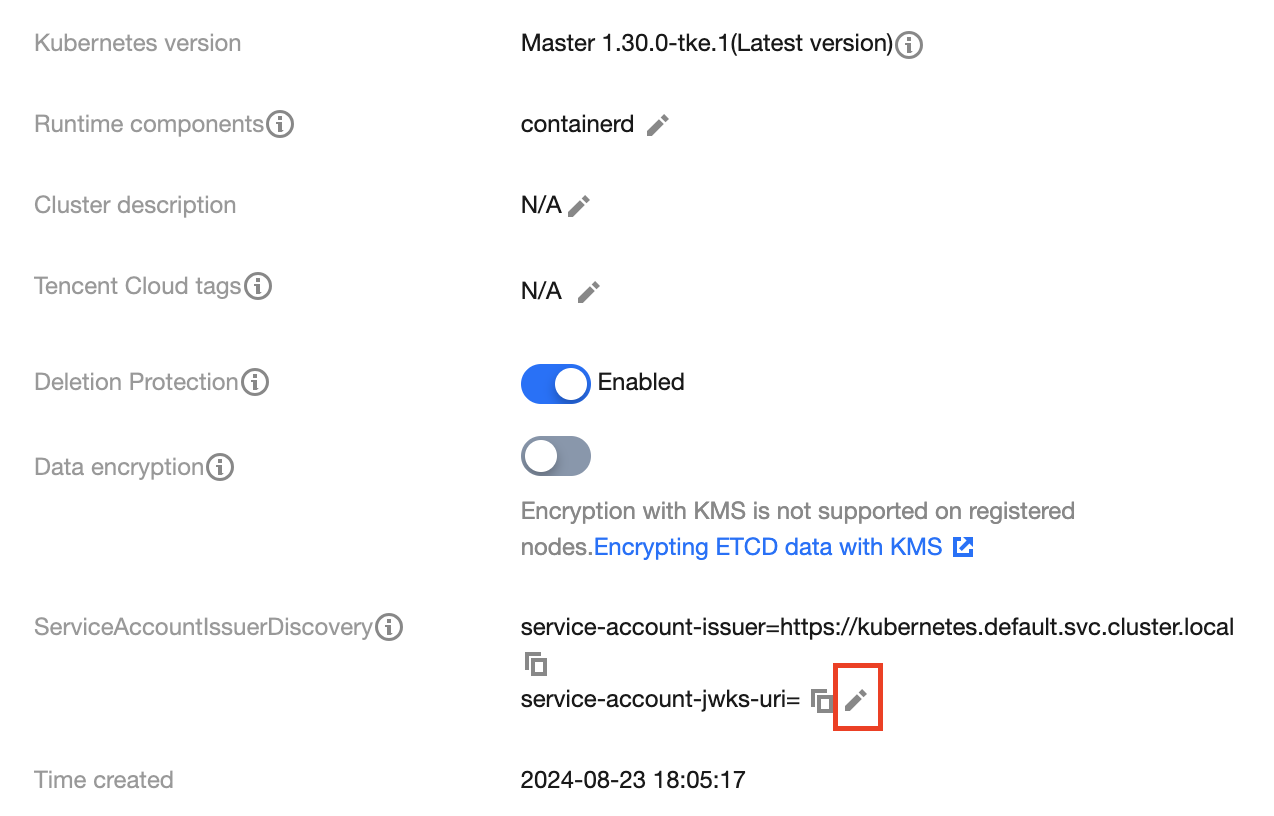
3. In the cluster basic information, click

on the right side of the ServiceAccountIssuerDiscovery, as shown below:


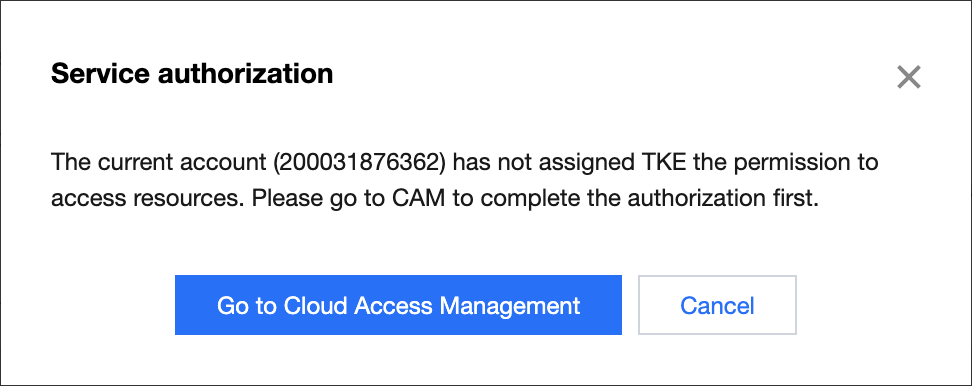
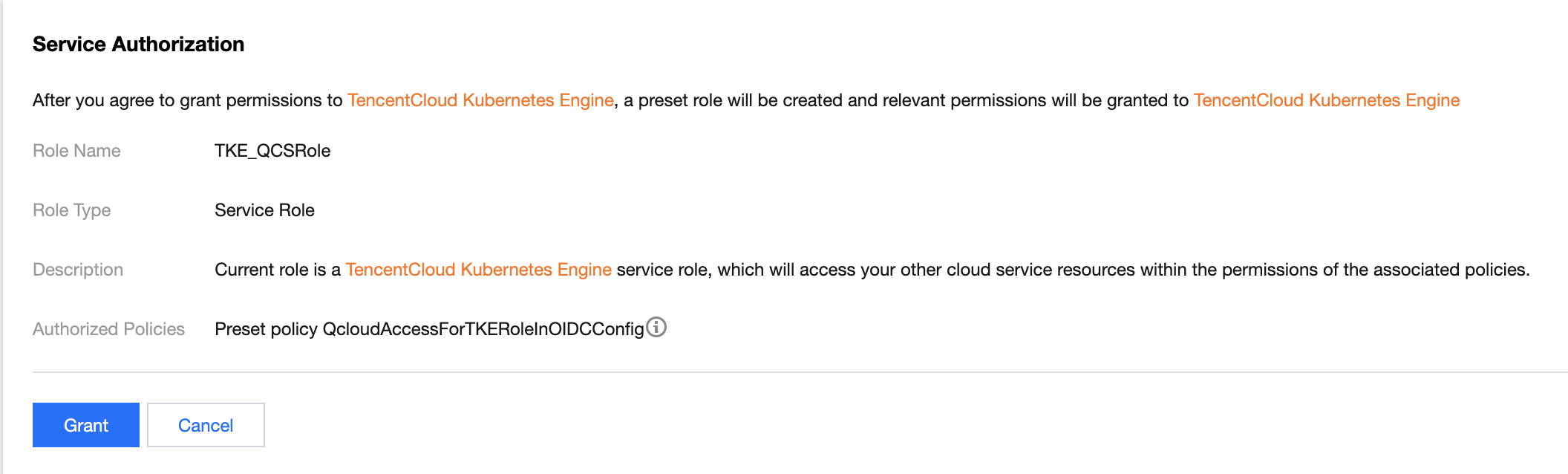
4. Navigate to the Edit ServiceAccountIssuerDiscovery Parameters page. If the system prompts that you cannot modify the relevant parameters, authorize the service first.


On the Role Management page, check the authorization policy QcloudAccessForTKERoleInOIDCConfig, and click Grant.


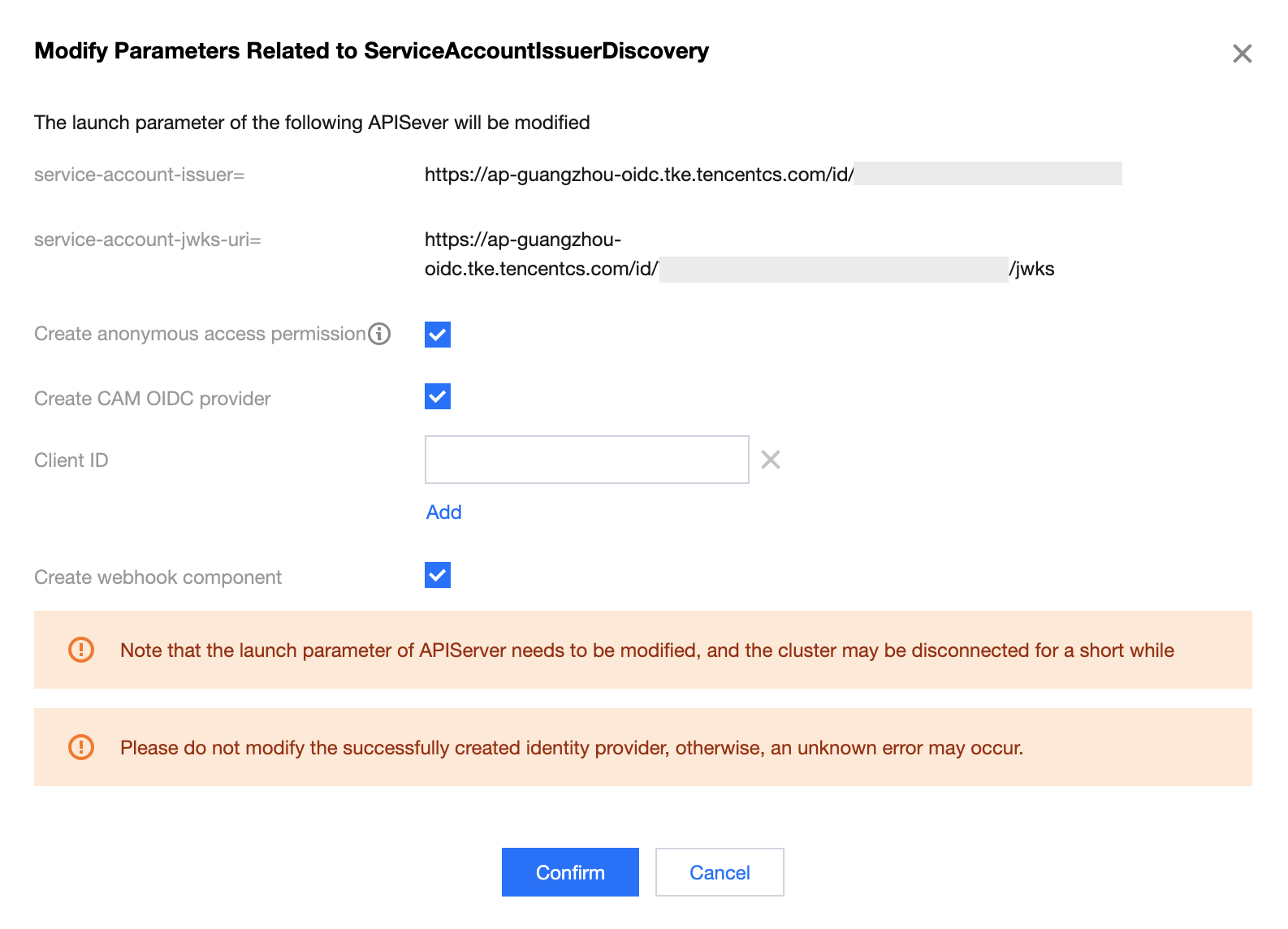
5. Once the authorization is completed, check the options of "Create CAM OIDC provider" and "Create webhook component", fill in the client ID, and click Confirm, as shown below:
Note:
Client ID is an optional parameter. When it is left blank, the default value is "sts.cloud.tencent.com". Here, Create CAM OIDC provider uses the default value.


6. Return to the cluster details page. When the ServiceAccountIssuerDiscovery is again editable, it indicates the end of the current initiation of OIDC resource access control.
Note
The parameters "service-account-issuer" and "service-account-jwks-uri" are not editable and follow default rules.
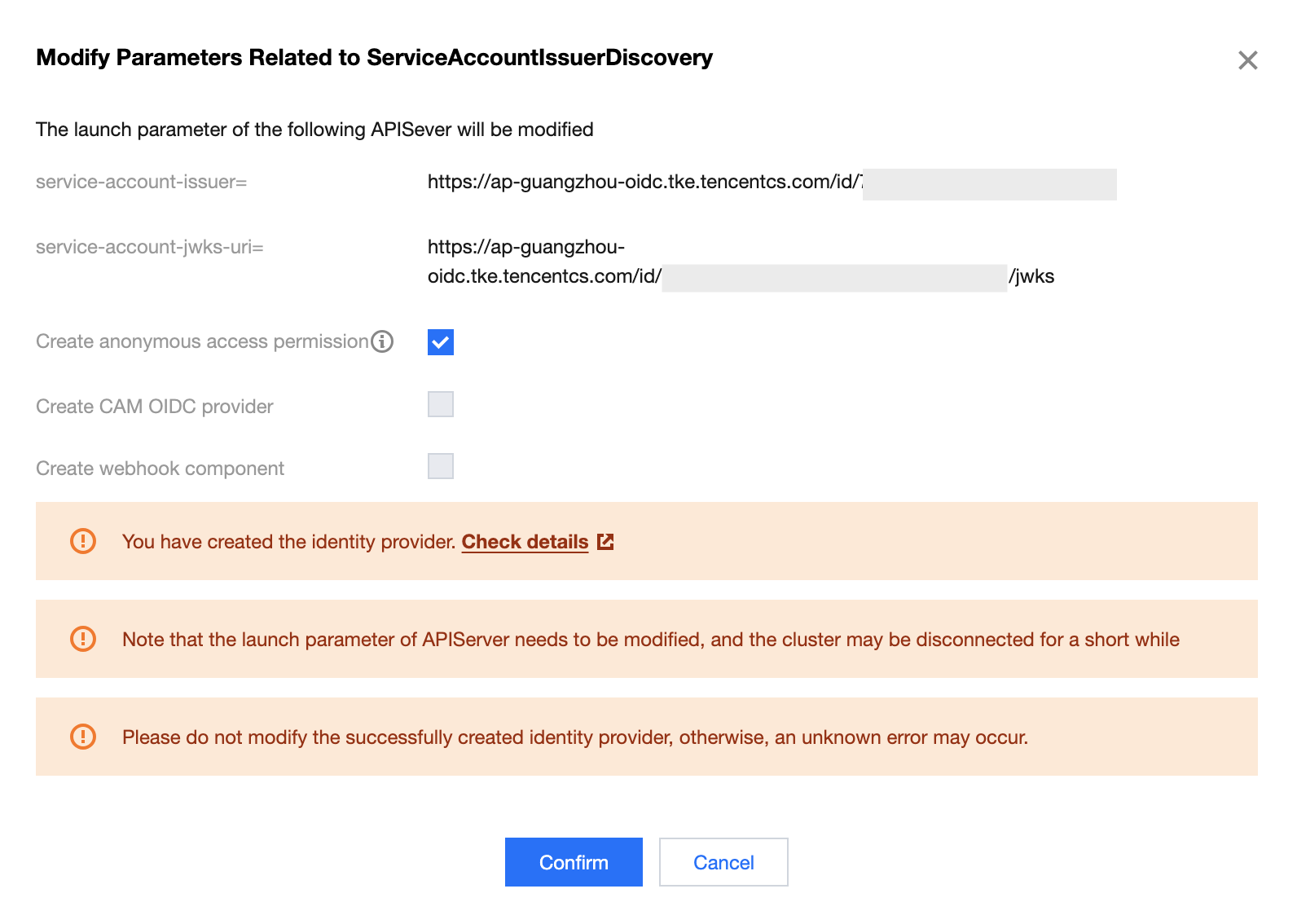
7. Navigate to the Modify ServiceAccountIssuerDiscovery Parameters page. You will see a prompt that 'You have created the identity provider. Check details'. Click Check details, as shown below:


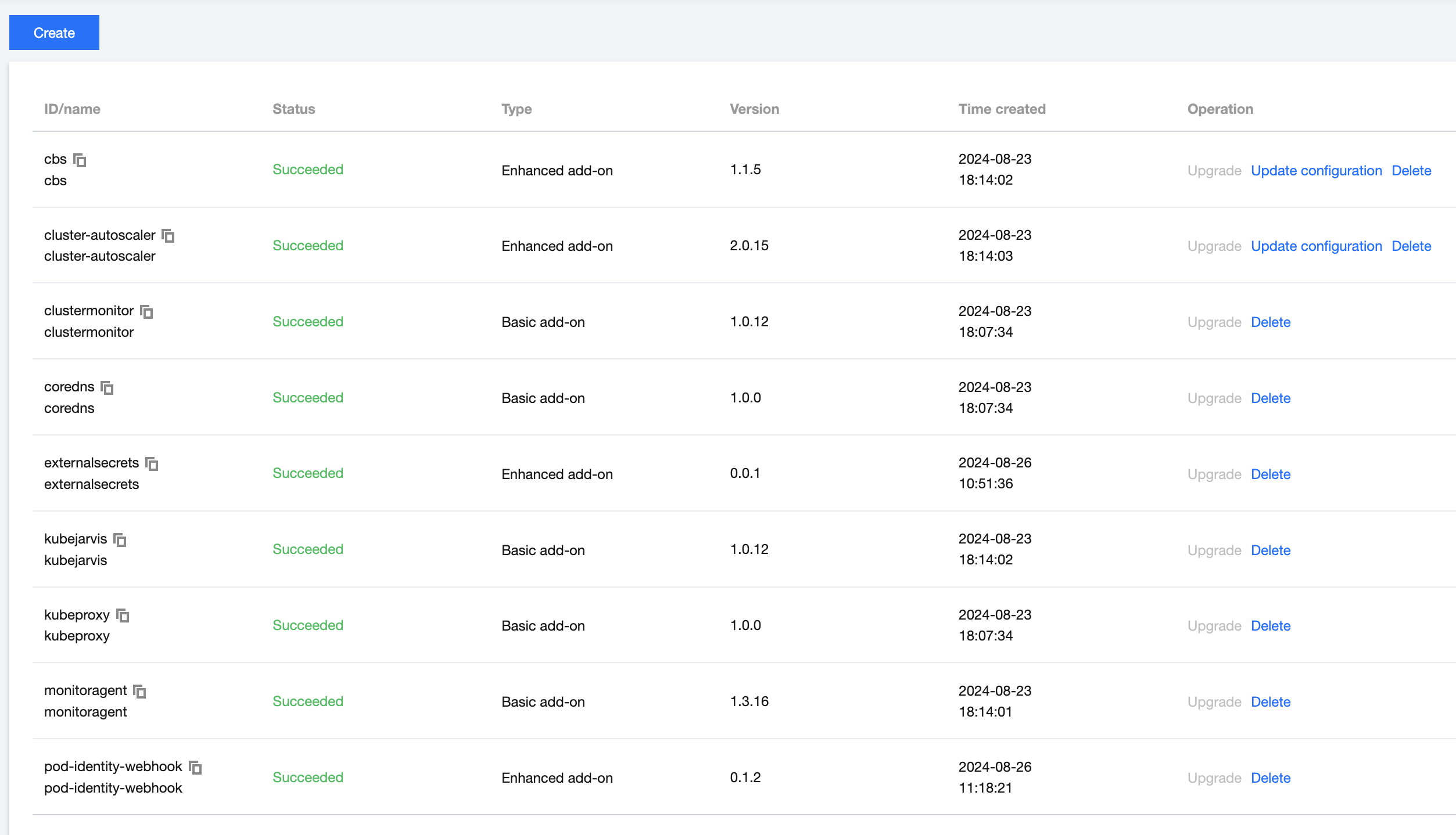
8. In Cluster Info > Component Management, if you find that the status of pod-identity-webhook is Succeeded, it indicates that the component has been successfully installed, as shown below:


Step 2: Create a policy to retrieve SSM credentials

1. Log in to the CAM console and select Policy on the left sidebar.
2. Navigate to the Policy page and click New Custom Policy > Create by Policy Syntax.
3. On the Create by Policy Syntax page, choose Blank Template, as shown below:


4. Click Next to access the Edit Policy page, where you can add the following content to the policy editing box:
{
"statement": [
{
"action": [
"ssm:GetSecretValue"
],
"effect": "allow",
"resource": [
"qcs::ssm:$region:uin/$uin:secret/creatorUin/$creatorUin/$secretName"
]
}
],
"version": "2.0"
}
5. Click Complete to add the policy.

Step 3. Create a new OIDC role

1. Log in to the CAM console and select Roles on the left sidebar.
2. On the Roles page, select New Role > Identity Provider.
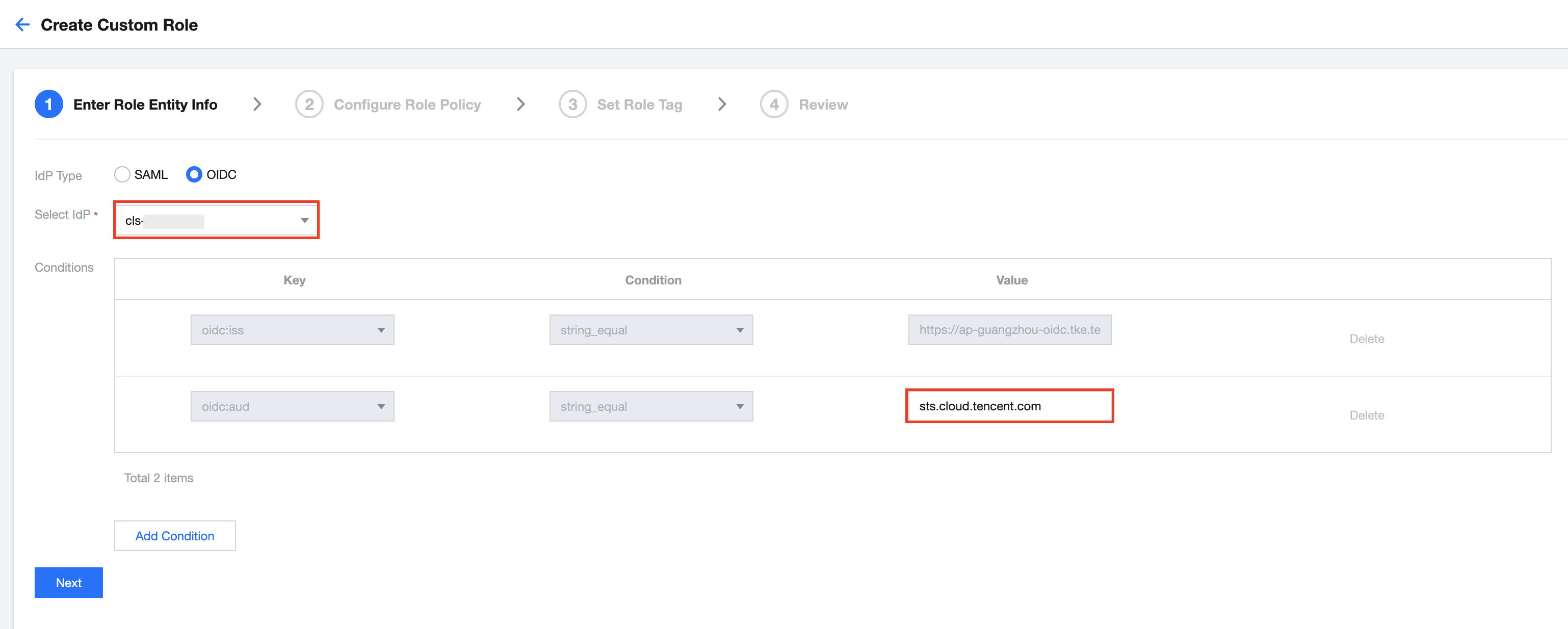
3. On the Create Custom Role page, you can refer to the following information for configuration.


IdP Type: Select OIDC.
Select IdP: Choose the identity provider for which the role is being created this time.
Conditions: Enter the value of oidc:aud.
Note:
The Value identifier for the identity provider is $my_provider_id.
The Value of oidc:aud should be consistent with that of the Client ID for the CAM OIDC provider.
The Value identifier of oidc:aud is $my_pod_audience. When there are multiple Values for oidc:aud, choose any one of them.
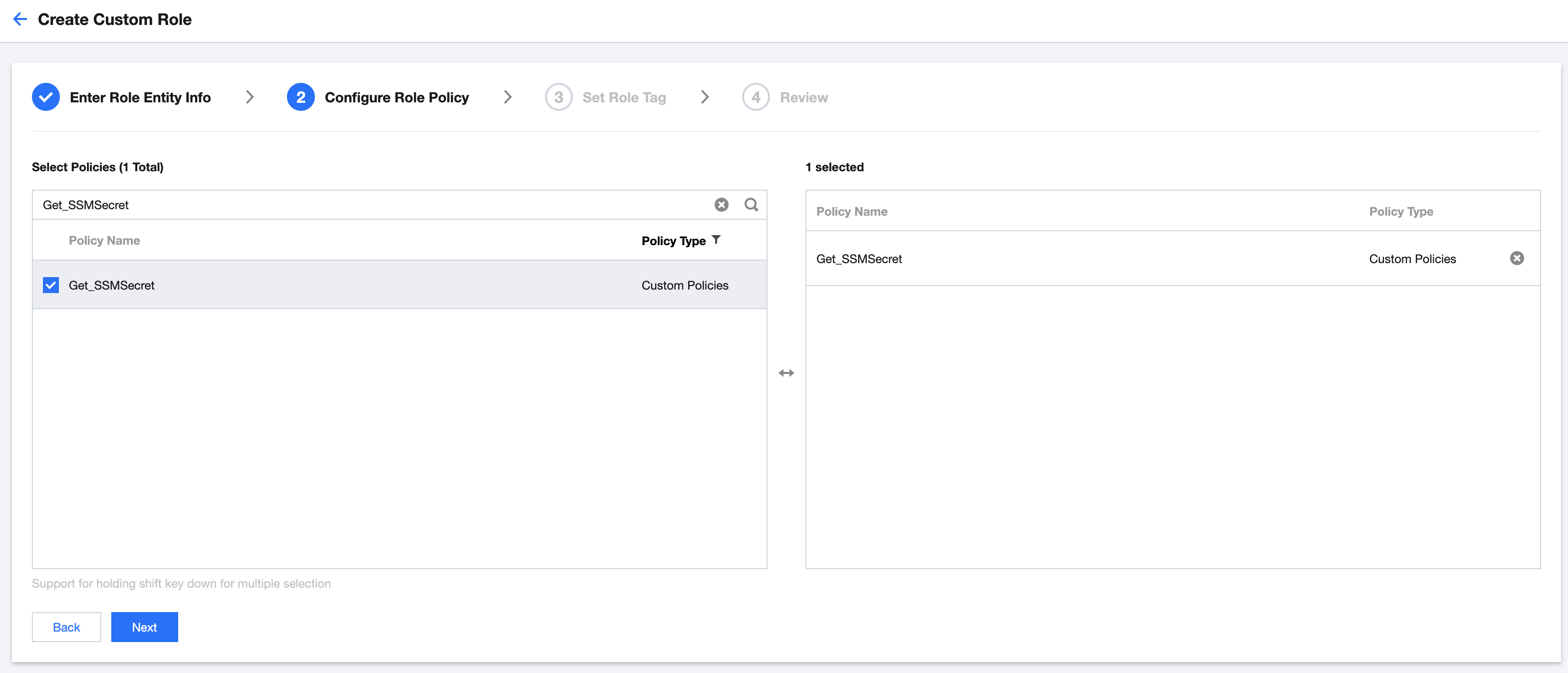
4. Click Next to proceed to the Configure Role Policy page, where you should select the policy for SSM that was created and obtained in Step 2, as shown in the following image:


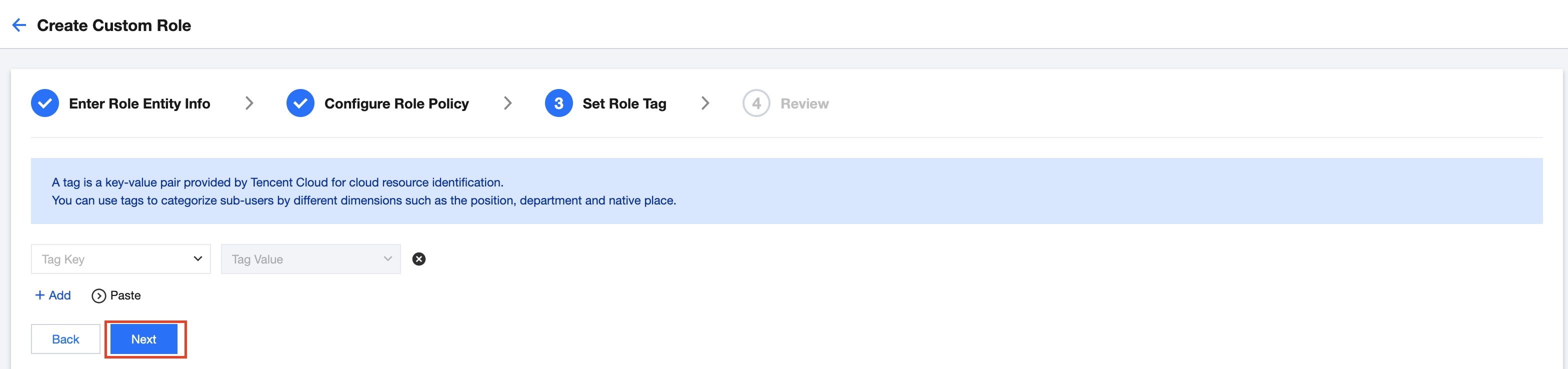
5. Click Next to proceed to the Set Role Tag page. If there is no need to set the tag, directly click Next, as shown below:


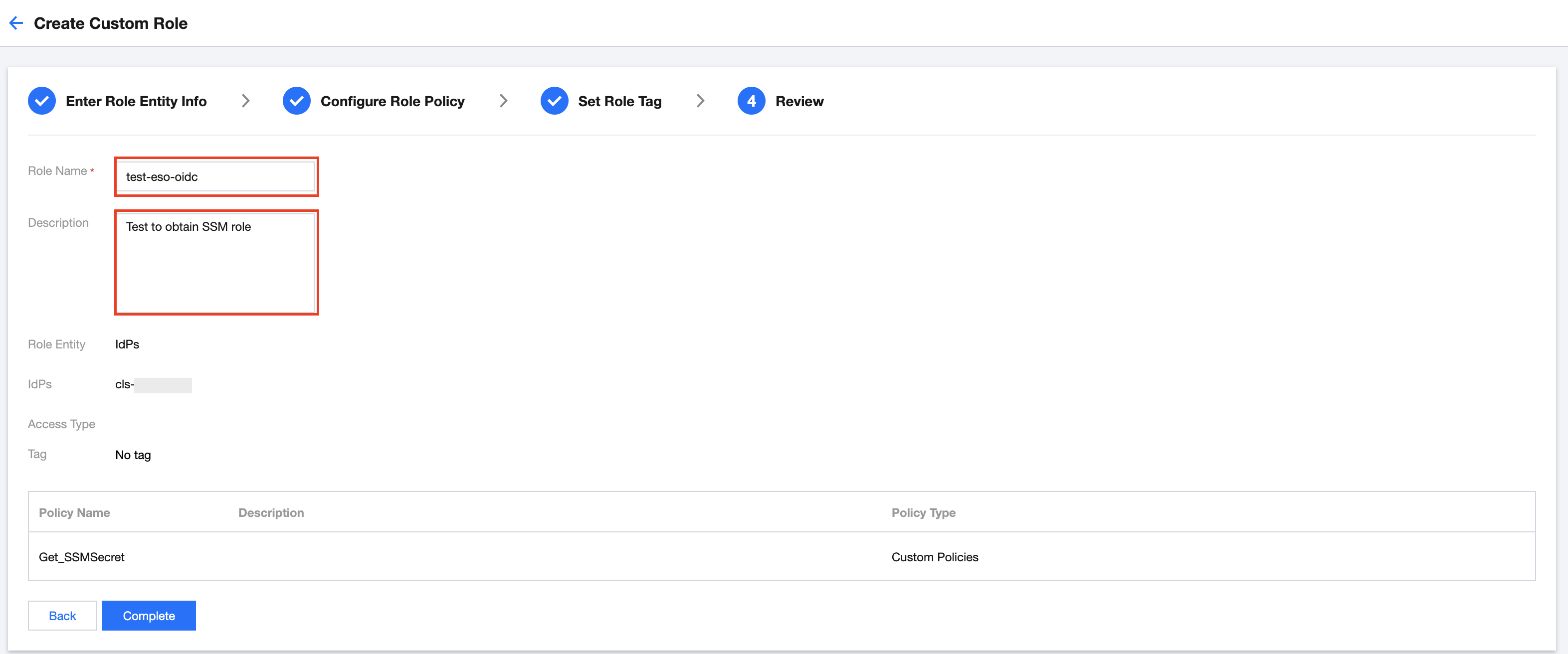
6. Click Next to enter the Review page. Edit the Role Name and Description, as shown below:


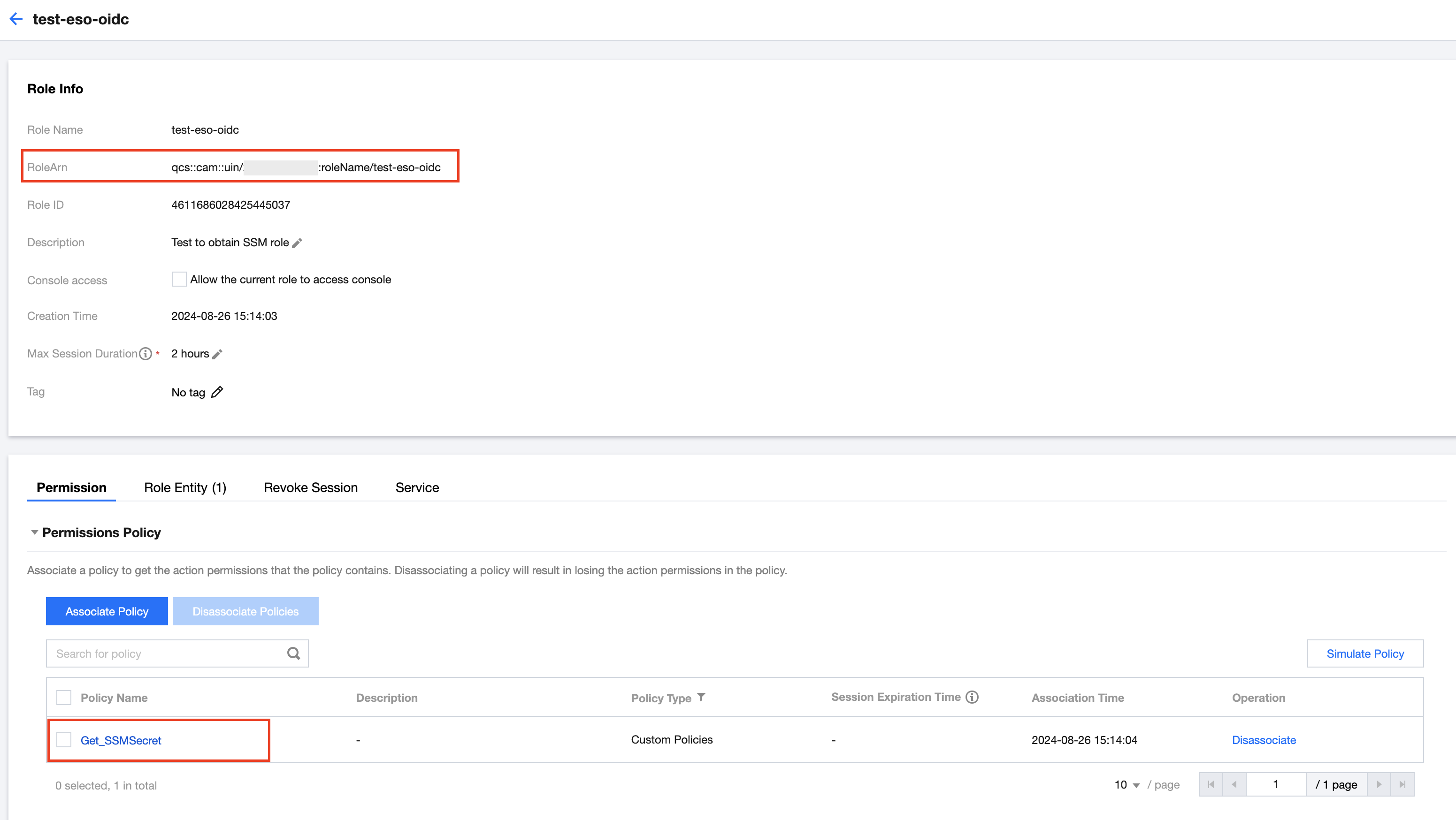
7. Click Complete. On the role details page, you can check RoleArn of the OIDC role and the corresponding permission, as shown below:


Note:
The value identifier of RoleArn is $my_pod_role_arn.

Step 4: Instructions for component use

This component involves two types of CRDs: SecretStore for storing access credentials, and ExternalSecret for specifying SecretStore and storing the basic information of credentials that need to be synchronized. This achieves separation of permissions and data, enhancing flexibility in usage.
In SSM, you need to add the following credentials:
SecretName: hello-test
SecretData: {"name":"jack","password":"123"}
VersionId: v1
You can refer to the Tencent Cloud SSM Documentation for a detailed process of creating credentials.
Note:
The following secret, SecretStore, and ExternalSecret are all located in the default namespace.
1. Create a ServiceAccount.
You can save the information below into a file called my-serviceaccount.yaml:
apiVersion: v1 kind: ServiceAccount metadata: name: my-serviceaccount annotations: tke.cloud.tencent.com/role-arn: $my_pod_role_arn tke.cloud.tencent.com/audience: $my_pod_audience tke.cloud.tencent.com/providerID: $my_provider_id
Note:
Replace $my_pod_role_arn with the value of RoleArn.
Replace $my_pod_audience with the value of oidc:aud.
Replace $my_provider_id with "Identity Provider".
2. Create a SecretStore.
You can save the following content into my-secretstore.yaml:
apiVersion: external-secrets.io/v1beta1 kind: SecretStore metadata: name: secretstore-tkeoidc spec: provider: tencent: regionID: ap-guangzhou auth: serviceAccountRef: name: my-serviceaccount
3. Create an ExternalSecret.
You can save the following content into my-externalsecret.yaml:
apiVersion: external-secrets.io/v1beta1 kind: ExternalSecret metadata: name: external-secret-tkeoidc spec: refreshInterval: 1h secretStoreRef: kind: SecretStore name: secretstore-tkeoidc target: name: my-secret-key-to-be-created creationPolicy: Owner data: - secretKey: secret-key-to-be-managed remoteRef: key: hello-test version: v1 # option property: password
4. To deploy the sample, run the following command:
kubectl apply -f my-serviceaccount.yaml kubectl apply -f my-secretstore.yaml kubectl apply -f my-externalsecret.yaml
5. To check whether the target secret has been successfully created, run the following command:
kubectl get secret my-secret-key-to-be-created -o yaml
Note:
Given that synchronization refresh has not been disabled, you can modify the key content in SSM. Upon reaching the refresh time, the target secret will be synchronized.
Ajuda e Suporte

Esta página foi útil?

comentários