Live Transcoding
Baixar
Modo Foco
Tamanho da Fonte
Overview
Live transcoding (including video and audio transcoding) is the process of converting the original stream pushed from the live streaming site into transcoded streams with different encoding formats, resolutions, and bitrates in the cloud, and then pushing them to viewers to meet playback requirements in various scenarios such as different network environments and terminal devices. This document describes how to create, bind, unbind, modify, and delete transcoding templates in the console.
You can create a transcoding template in two ways:
You can create transcoding templates in the CSS console. For detailed steps, see Creating a Standard Transcoding Template, Creating a TSC Transcoding Template, Creating a Pure Audio Transcoding Template, and Creating a Smart Bitrate Reduction Template.
Create a transcoding template for live streams using an API. For the API parameters and examples, see CreateLiveTranscodeTemplate.
Must-Knows
CSS supports standard transcoding, TSC transcoding, pure audio transcoding, and smart bitrate reduction. Before using these features, see their billing details:
Standard transcoding and pure audio transcoding: standard transcoding resource package and standard transcoding postpaid.
TSC transcoding and smart bitrate reduction: TSC transcoding resource package and TSC transcoding postpaid.
Compared with standard transcoding, TSC transcoding provides higher video quality at lower bitrate. Leveraging technologies including intelligent scene recognition, dynamic encoding, and CTU/line/frame-level bitrate control, TSC transcoding allows you to provide higher-definition streaming services at lower bitrates (50% lower on average). It is widely used for game streaming, showroom streaming, and event streaming.
To ensure accurate online viewer quantity statistics and the expected effect of smart bitrate reduction, players must uniformly pull only the playback URL corresponding to the smart bitrate reduction template. Pulling the original stream or other transcoded streams simultaneously will cause statistical deviations and lead to abnormal policy toggling.
After creating a template, you can bind it with a playback domain name. The binding takes effect in 5-10 minutes.
If you have specified the height and width or short and long sides of the transcoding output, to prevent image distortion, keep the resolution of published streams as close to the values set as possible.
After binding a transcoding template, you can append
_transcoding template name to the StreamName of the corresponding live stream to generate a transcoded stream URL. The suffix of the transcoding template name and the StreamName cannot be the same. For example, if the transcoding template name is hd, the StreamName cannot be test_a1_hd. Otherwise, during playback, the program will identify test_a1 as the StreamName and pull the stream based on the transcoding template hd, causing playback exceptions.On the Live Transcoding page of the console, you can view the domain a template is bound to, as well as finer-granularity bindings performed via APIs. You can also unbind a template here.
You can bind one playback domain name with multiple transcoding templates, or bind one transcoding template with multiple playback domain names.
You can create up to 50 transcoding templates.
After you enable the bitrate limit, transcoding is triggered even if the push parameters (such as encoding format, resolution, and frame rate) are exactly the same as the transcoding parameters.
The transcoding configuration template for live streaming supports the configuration of a face blurring feature, which can achieve the blurring of faces and specific objects. To utilize this feature, you need to submit a ticket to request support. Enabling this service will incur live transcoding fees and Media Processing Service (MPS) intelligent recognition fees.
Creating a Transcoding Template
Creating a standard transcoding template
1. Log in to the CSS console and go to Feature Configuration > Live Transcoding.
2. Click Create Template, select Standard Transcoding as the transcoding type, and configure the settings as described below.
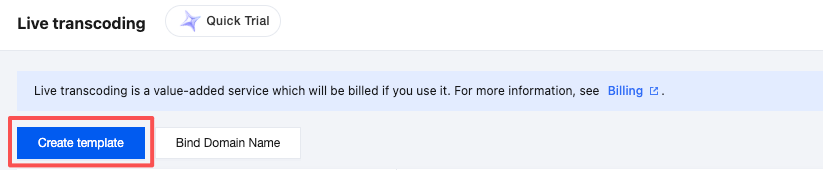
3. Click Save.
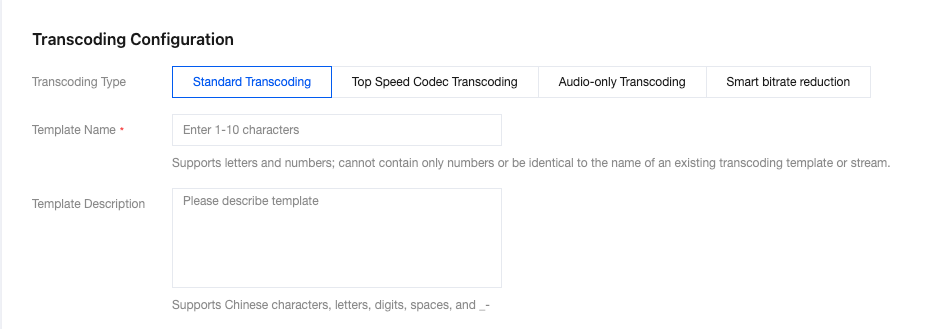
Basic configuration
Configuration Item | Required | Description |
Transcoding type | Yes | Select a transcoding type. The options include Standard Transcoding, Top Speed Codec Transcoding, Audio-only Transcoding, and Smart bitrate reduction. |
Template name | Yes | Please enter 1 to 10 characters. The live transcoding template name. It only supports letters and alphanumeric combinations and does not support pure digits. The template name must not duplicate existing transcoding template names, adaptive bitrate template names, or sub-stream names. |
Template description | No | The live transcoding template description supports only Chinese, English, digits, spaces, underscores, and hyphens. |
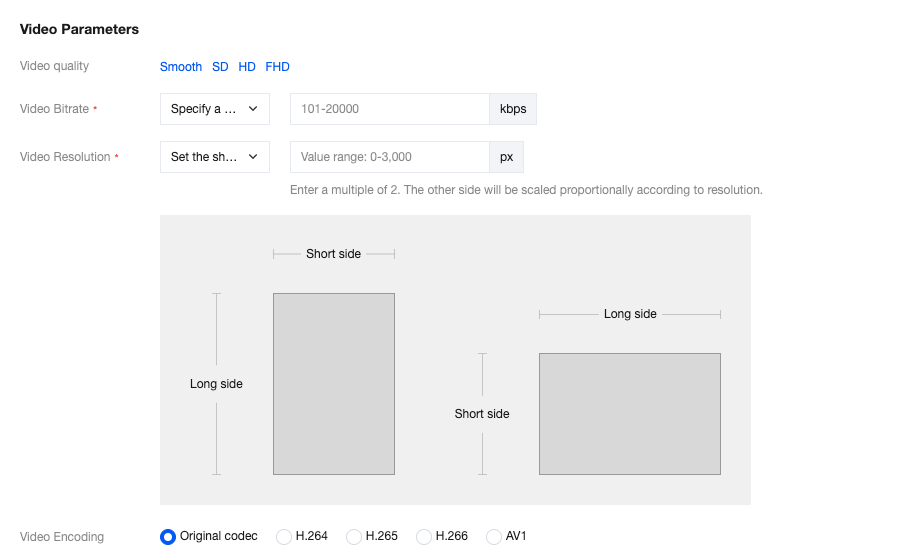
Video parameters
Configuration Item | Required | Description |
Video quality | No | You can choose Smooth, SD, HD, or FHD. After you select a value, the system will automatically enter the recommended video bitrate and height, which can be modified. |
Video bitrate (kbps) | Yes | You can choose to keep the original bitrate, set the video bitrate, or use the default transcoding bitrate. Specify a bitrate. Value range: 101kbps - 8000kbps. Only multiples of 100 are supported. |
Bitrate limit | No | This option is displayed only when Original is selected for Video bitrate. The switch is disabled by default and can be manually enabled. After it is enabled, the upper limit bitrate is restricted to not exceed the specified value: if the source bitrate does not exceed the limit, it is output as the source bitrate; if it exceeds the limit, it is output at the upper limit. After the switch is enabled, you must enter an integer for the upper limit. Value range: [101, 2000], in kbps. Attention: Even if the push parameters (such as encoding format, resolution, and frame rate) are exactly the same as the transcoding parameters, transcoding is triggered after you enable this feature. |
Video resolution (px) | Yes | You can choose to keep the original resolution, set by width and height, or set by long and short sides. The default is set the short side length. The input value is the short side value, which can be switched to width and height settings, and the input value is the height value. Value range: 0-3000. The value must be a multiple of 2. The other side will be auto-scaled. |
Video Encoding | No | The default is the original codec. You can also choose H.264, H.265, H.266, or AV1. |
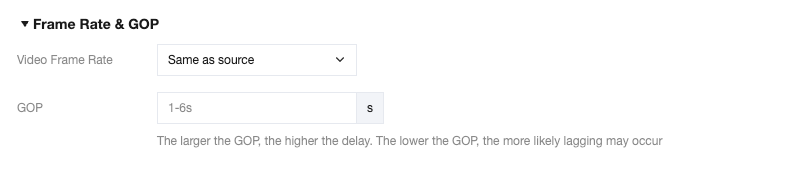
Frame rate & GOP
Configuration Item | Required | Description |
Video frame rate (fps) | No | You can choose to keep the original frame rate, set the video frame rate, and keep the original frame rate by default. Specify a frame rate value range: 1fps - 60fps. |
Keyframe interval (GOP) (Unit: s) | No | The GOP value ranges from 1s to 6s. A larger GOP results in higher latency, while a smaller GOP may cause video stuttering. If not configured, the system default value will be adopted. |
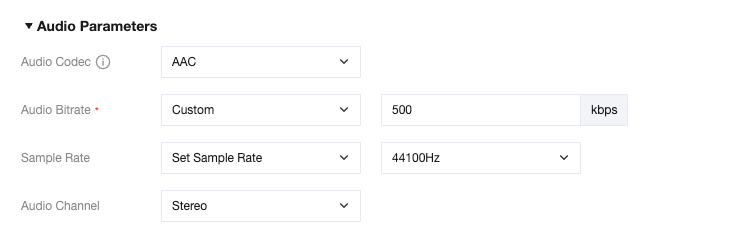
Audio parameters
Configuration Item | Required | Description |
Audio Codec | No | Options include Auto and AAC. The default is Auto. Auto adaptation: The system automatically matches the optimal encoding. When AAC is manually selected, LEB (WebRTC) playback may be abnormal. Sample rate and channel can be configured only when audio coding is set to AAC. When Auto is selected, only audio bitrate can be configured. |
Audio bitrate (kbps) | Yes | You can choose to Original or Custom. The default is to keep the original bitrate. Set audio bitrate value range: 32kbps - 500kbps. |
Sample rate | No | Displayed only when audio coding is set to AAC. You can select Keep Original Sample Rate or Set Sample Rate. The default is Keep Original Sample Rate. After you select Set Sample Rate, the available options include 44100Hz and 48000Hz, with 44100Hz selected by default. |
Audio channel | No | Displayed only when audio coding is set to AAC. Options include Mono and Stereo, with Stereo as the default. |
Advanced configuration
Configuration Item | Required | Description |
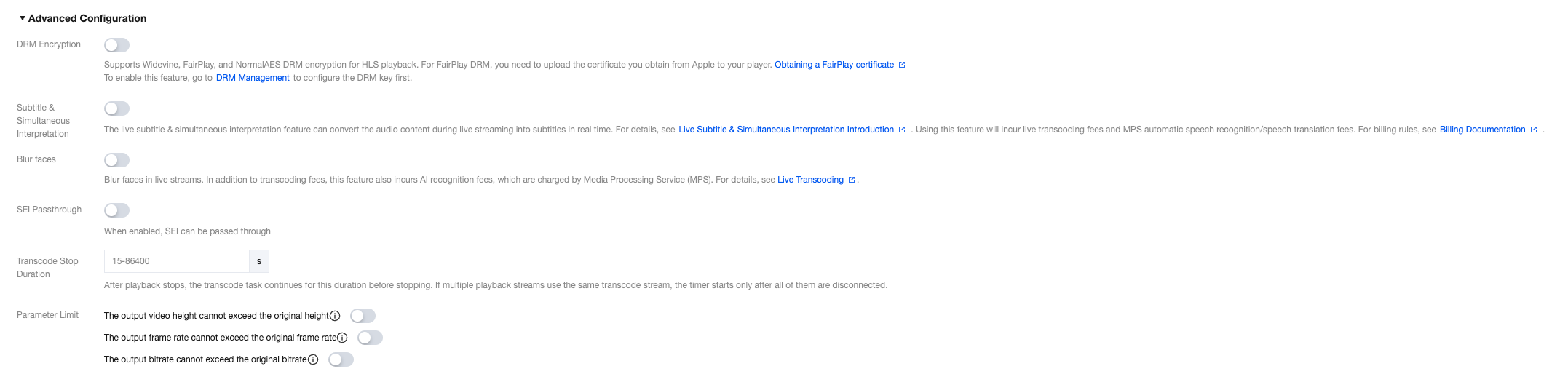
DRM encryption | No | It is disabled by default and can be enabled manually. To enable this feature, go to DRM Management to configure the DRM key. DRM encryption with Widevine, FairPlay, and NormalAES is supported under the HLS playback protocol. For FairPlay, you need to upload the certificate obtained from Apple on the player side. Encryption types: default Widevine, optional Fairplay, and NormalAES. |
Subtitles & simultaneous interpretation | No | The feature is disabled by default and can be manually enabled. To activate this feature, it is necessary to bind a subtitle template. Choose a subtitle template to bind based on your business requirements. Preview and observe the effects of the subtitle template. You can adjust the subtitle template according to business needs at any time. |
Face blurring | No | If necessary, you can submit a ticket to enable this feature and activate Media Processing Service (MPS). The feature is disabled by default and can be manually enabled. You can apply blurring to faces and specific objects. The processing effects are as follows:  Enabling this service will incur live transcoding fees and MPS intelligent recognition fees. |
Pass-through SEI | No | The switch is disabled by default and can be manually enabled. After it is enabled, SEI can be passed through. |
Transcoding stop duration (Unit: s) | No | Integer input box with a value range of [15, 86400] in seconds. After playback is disconnected, the transcoding task continues for the specified duration before stopping. If a transcoded stream has multiple playback sessions, the timer starts only after all sessions are disconnected. |
Parameter limit | No | Contains three switches: The output video height cannot exceed the original height, The output frame rate cannot exceed the original frame rate, and The output bitrate cannot exceed the original bitrate. They are disabled by default and can be manually enabled. After it is enabled, when the original parameters of the input live streaming are lower than the configured output parameters, the live streaming is output based on the original parameters. This prevents low-quality live streaming from being forcibly upscaled, which would affect the actual video quality. |
Creating a TSC transcoding template
1. Log in to the CSS console and select Feature Configuration > Live Transcoding.
2. Click Create Template, select Top Speed Codec Transcoding as the transcoding type, and configure the settings as described below.
3. Click Save.
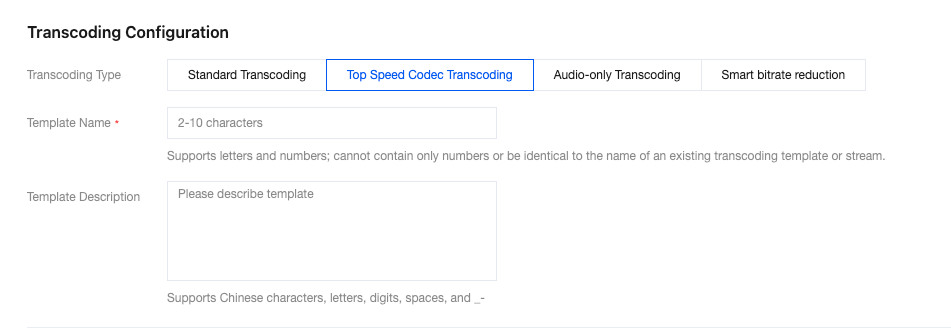
Basic configuration
Configuration Item | Required | Description |
Transcoding type | Yes | Select a transcoding type. The options include standard transcoding, TSC Transcoding, audio-only transcoding, and smart bitrate reduction. |
Template name | Yes | Please enter 2 to 10 characters. The live transcoding template name. It only supports letters and alphanumeric combinations and does not support pure digits. The template name must not duplicate existing transcoding template names, adaptive bitrate template names, or sub-stream names. |
Template description | No | The live transcoding template description supports only Chinese, English, digits, spaces, underscores, and hyphens. |
Video parameters
Configuration Item | Required | Description |
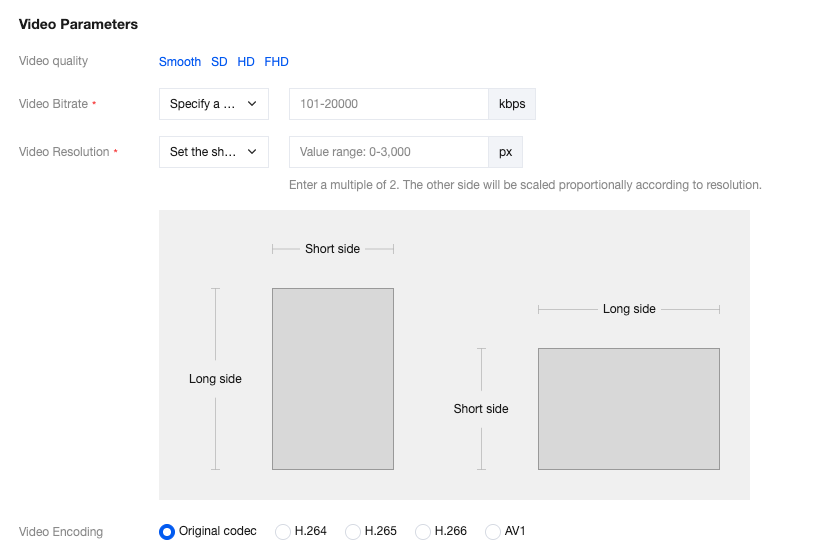
Video quality | No | You can choose Smooth, SD, HD, or FHD. After you select a value, the system will automatically enter the recommended video bitrate and height, which can be modified. |
Video bitrate (Unit: kbps) | Yes | You can choose to keep the original bitrate, set the video bitrate, or use the default transcoding bitrate. Set transcoding bitrate. Value range: 101kbps - 8000kbps. Only multiples of 100 are supported. |
Bitrate limit | No | This option is displayed only when Keep original bitrate is selected for Video bitrate. The switch is disabled by default and can be manually enabled. After it is enabled, the upper limit bitrate is restricted to not exceed the specified value: if the source bitrate does not exceed the limit, it is output as the source bitrate; if it exceeds the limit, it is output at the upper limit. After the switch is enabled, you must enter an integer for the upper limit. Value range: [101, 2000], in kbps. Attention: Even if the push parameters (such as encoding format, resolution, and frame rate) are exactly the same as the transcoding parameters, transcoding is triggered after you enable this feature. |
Video resolution (px) | Yes | You can choose to keep the original resolution, set by width and height, or set by long and short sides. The default is set by long and short sides. The input value is the short side value, which can be switched to width and height settings, and the input value is the height value. Value range: 0-3000. The value must be a multiple of 2. The other side will be auto-scaled. |
Video Encoding | No | The default is the original codec. You can also choose H.264, H.265, H.266, or AV1. |
Frame rate & GOP
Configuration Item | Required | Description |
Video frame rate (fps) | No | You can choose to keep the original frame rate, set the video frame rate, and keep the original frame rate by default. Set video frame rate value range: 1fps - 60fps. |
Keyframe interval (GOP) (Unit: s) | No | The GOP value ranges from 1s to 6s. A larger GOP results in higher latency, while a smaller GOP may cause video stuttering. If not configured, the system default value will be adopted. |

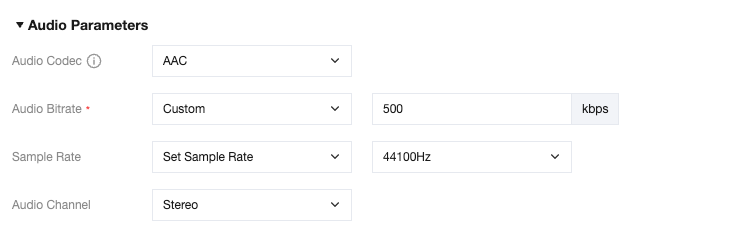
Audio parameters
Configuration Item | Required | Description |
Audio Encoding | No | Options include Auto and AAC. The default is Auto Auto adaptation: The system automatically matches the optimal encoding. When AAC is manually selected, LEB (WebRTC) playback may be abnormal. Sample rate and channel can be configured only when audio coding is set to AAC. When Auto is selected, only audio bitrate can be configured. |
Audio bitrate (kbps) | Yes | You can choose to Original or Custom. The default is to keep the original bitrate. Set audio bitrate value range: 32kbps - 500kbps. |
Sample rate | No | Displayed only when audio coding is set to AAC. You can select Keep original sample rate or Set sample rate. The default is Keep original sample rate. After you select Set sample rate, the available options include 44100Hz and 48000Hz, with 44100Hz selected by default. |
Audio channel | No | Displayed only when audio coding is set to AAC. Options include Mono and Stereo, with Stereo as the default. |
Advanced configuration
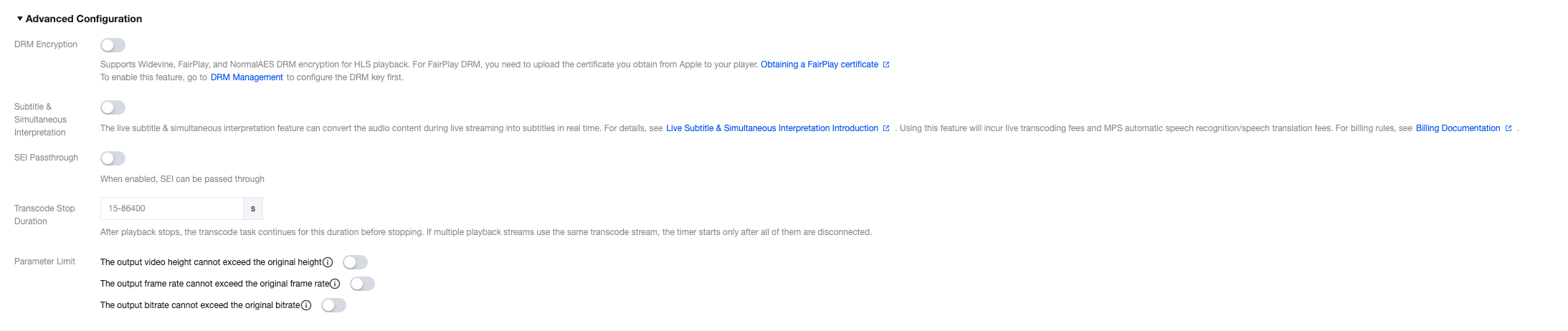
Configuration Item | Required | Description |
DRM encryption | No | It is disabled by default and can be enabled manually. To enable this feature, go to DRM Management to configure the DRM key. DRM encryption with Widevine, FairPlay, and NormalAES is supported under the HLS playback protocol. For FairPlay, you need to upload the certificate obtained from Apple on the player side. Encryption types: default Widevine, optional Fairplay, and NormalAES. |
Subtitles & simultaneous interpretation | No | The feature is disabled by default and can be manually enabled. To activate this feature, it is necessary to bind a subtitle template. Choose a subtitle template to bind based on your business requirements. Preview and observe the effects of the subtitle template. You can adjust the subtitle template according to business needs at any time. |
Pass-through SEI | No | The switch is disabled by default and can be manually enabled. After it is enabled, SEI can be passed through. |
Transcoding stop duration (Unit: s) | No | Integer input box with a value range of [15, 86400] in seconds. After playback is disconnected, the transcoding task continues for the specified duration before stopping. If a transcoded stream has multiple playback sessions, the timer starts only after all sessions are disconnected. |
Parameter limit | No | Contains three switches: The output video height cannot exceed the original height, The output frame rate cannot exceed the original frame rate, and The output bitrate cannot exceed the original bitrate. They are disabled by default and can be manually enabled. After it is enabled, when the original parameters of the input live streaming are lower than the configured output parameters, the live streaming is output based on the original parameters. This prevents low-quality live streaming from being forcibly upscaled, which would affect the actual video quality. |
Creating an Audio-only transcoding template
1. Log in to the CSS console and go to Feature Configuration > Live Transcoding.
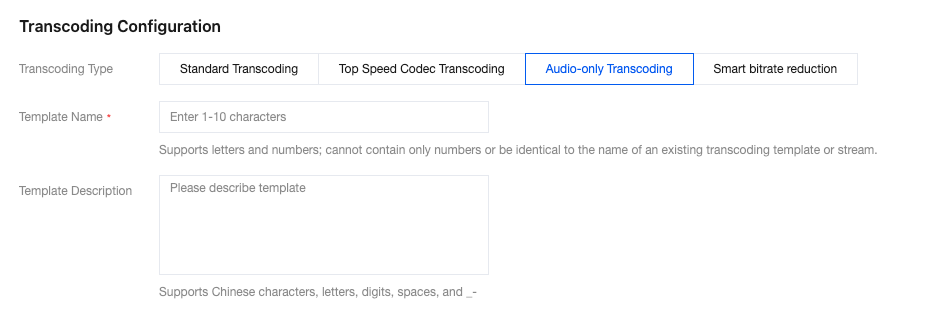
2. Click Create Template, select Audio-only Transcoding as the transcoding type, fill in the configuration items, and then click Save.
Basic configuration
Configuration Item | Required | Description |
Transcoding type | Yes | Select a transcoding type. The options include Standard Transcoding, Top Speed Codec Transcoding, Audio-only Transcoding, and Smart bitrate reduction. |
Template name | Yes | Please enter 1 to 10 characters. The live transcoding template name. It only supports letters and alphanumeric combinations and does not support pure digits. The template name must not duplicate existing transcoding template names, adaptive bitrate template names, or sub-stream names. |
Template description | No | The live transcoding template description supports only Chinese, English, digits, spaces, underscores, and hyphens. |
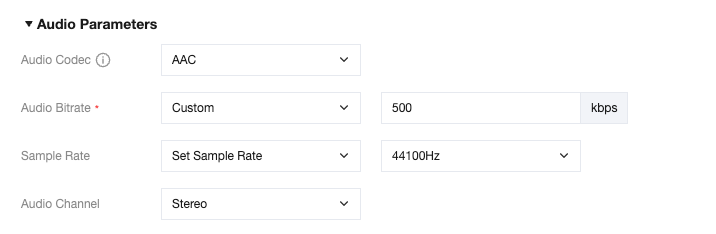
Audio parameters
Configuration Item | Required | Description |
Audio Encoding | No | Options include Auto and AAC. The default is Auto. Auto adaptation: The system automatically matches the optimal encoding. When AAC is manually selected, LEB (WebRTC) playback may be abnormal. Sample rate and channel can be configured only when audio coding is set to AAC. When Auto is selected, only audio bitrate can be configured. |
Audio Bitrate (Unit: Kbps) | Yes | You can choose to keep the original bitrate or set the audio bitrate. The default is to keep the original bitrate. Set audio bitrate value range: 32kbps - 500kbps. |
Sample Rate | No | Displayed only when audio coding is set to AAC. You can select Keep original sample rate or Set sample rate. The default is Keep original sample rate. After you select Set sample rate, the available options include 44100Hz and 48000Hz, with 44100Hz selected by default. |
Audio Channel | No | Displayed only when audio coding is set to AAC. Options include Mono and Stereo, with Stereo as the default. |
Advanced configuration
Configuration Item | Required | Description |
DRM encryption | No | It is disabled by default and can be enabled manually. To enable this feature, go to DRM Management to configure the DRM key. DRM encryption with Widevine, FairPlay, and NormalAES is supported under the HLS playback protocol. For FairPlay, you need to upload the certificate obtained from Apple on the player side. Encryption types: default Widevine, optional Fairplay, and NormalAES. |
Subtitles & simultaneous interpretation | No | The feature is disabled by default and can be manually enabled. To activate this feature, it is necessary to bind a subtitle template. Choose a subtitle template to bind based on your business requirements. Preview and observe the effects of the subtitle template. You can adjust the subtitle template according to business needs at any time. |
Pass-through SEI | No | The switch is disabled by default and can be manually enabled. After it is enabled, SEI can be passed through. |
Transcoding stop duration (Unit: s) | No | Integer input box with a value range of [15, 86400] in seconds. After playback is disconnected, the transcoding task continues for the specified duration before stopping. If a transcoded stream has multiple playback sessions, the timer starts only after all sessions are disconnected. |

Creating a smart bitrate reduction template
1. Log in to the CSS console and go to Feature Configuration > Live Transcoding.
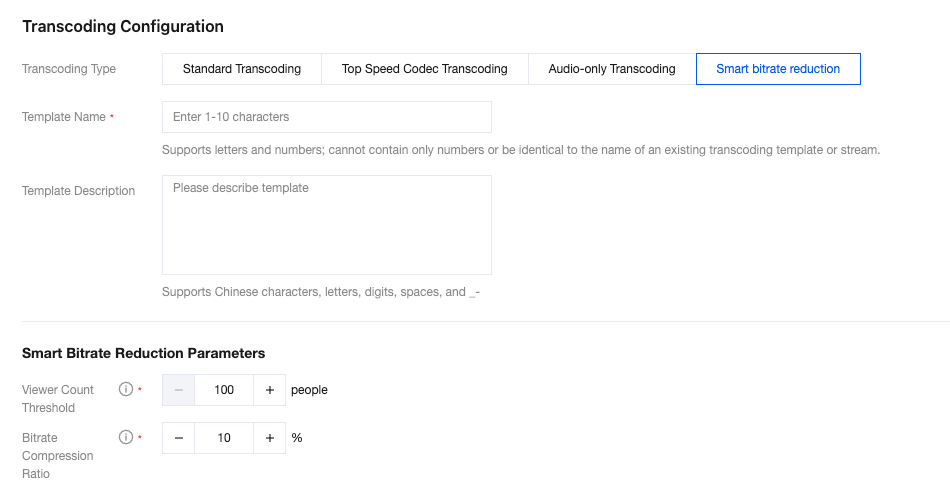
2. Click Create Template, select Intelligent Bitrate Reduction as the transcoding type, and configure the following settings:
Configuration Item | Required | Description |
Transcoding type | Yes | Select a transcoding type. The options include Standard Transcoding, Top Speed Codec Transcoding, Audio-only Transcoding, and Smart bitrate reduction. |
Template name | Yes | Please enter 1-10 characters. The live transcoding template name. It only supports letters and alphanumeric combinations and does not support pure digits. The template name must not duplicate existing transcoding template names, adaptive bitrate template names, or sub-stream names. |
Template description | No | The live transcoding template description supports only Chinese, English, digits, spaces, underscores, and hyphens. |
Participant threshold | Yes | Value range: integer, from 100 to 1,000,000, in persons. Trigger logic: The system monitors the number of online viewers in real time. When the number of viewers exceeds the preset threshold, TSC transcoding is automatically enabled. When the number of viewers falls below the threshold, transcoding is automatically stopped. Transcoding is enabled only when the number of viewers reaches the threshold. This prevents losses that occur when the transcoding cost at low numbers of viewers exceeds the bandwidth cost saved, thereby achieving precise, on-demand cost reduction. Activation delay: Due to data statistics and processing cycles, a delay of approximately 5 minutes is expected for the enabling or disabling of Intelligent Bitrate Reduction. Playback requirement: To ensure accurate online viewer quantity statistics, players must uniformly pull only the playback URL corresponding to the smart bitrate reduction template. Pulling the original stream or other transcoded streams simultaneously will cause statistical deviations and lead to abnormal policy toggling. |
Bitrate compression ratio | Yes | Value range: integer, from 1 to 50, in %. Calculation logic: This refers to the bitrate savings ratio. The calculation formula is: Target output bitrate = Original push bitrate × (1 - Bitrate compression ratio). |
3. Click Save.
Binding a Domain Name
1. Log in to the CSS console and go to Feature Configuration > Live Transcoding.
2. Bind a domain name in either of two ways:
Direct domain binding: Click Bind Domain Name in the upper-left corner.

Bind a domain name after creating a transcoding template: After the transcoding template is created, click Bind Domain Name in the notification box.
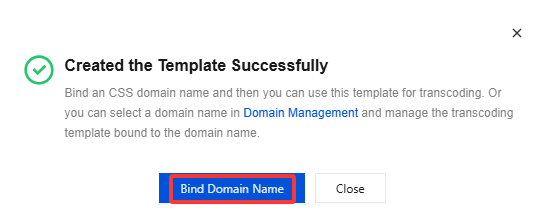
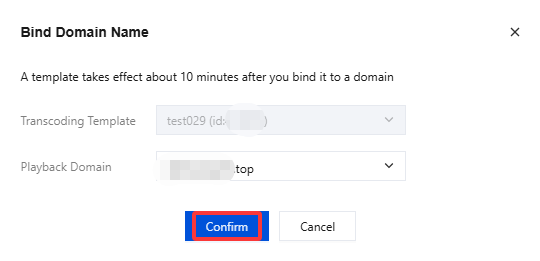
3. Select a transcoding template and a playback domain nameMultiple playback domain names can be bound simultaneously in the domain binding window and then click Confirm.
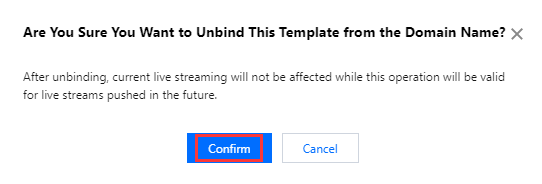
Unbinding a Domain Name
1.
Log
in to the CSS console and go to Feature Configuration > Live Transcoding.2. Select the target template and click Unbind.
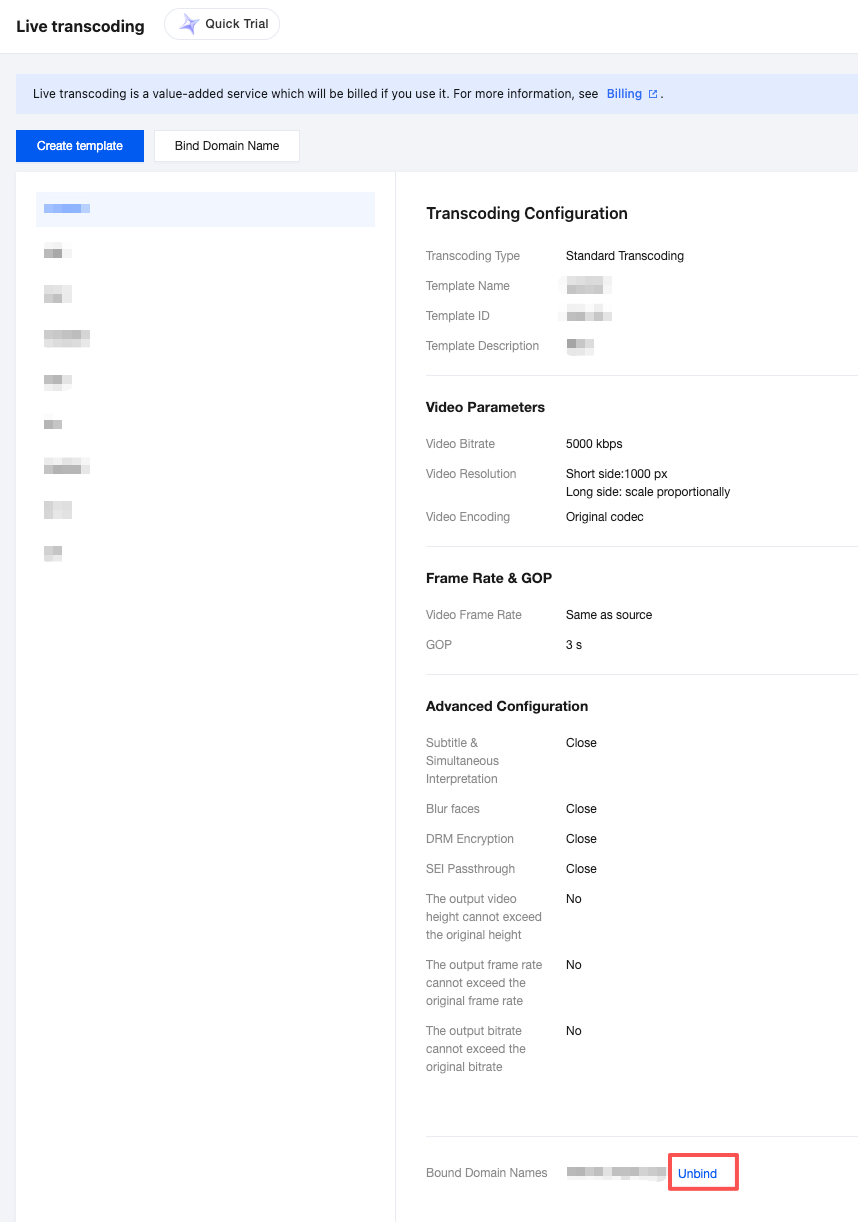
3. In the pop-up window, click Confirm.
Modifying a Template
1. Log in to the CSS console and go to Feature Configuration > Live Transcoding.
2. Select the target transcoding template and click Edit on the right to modify it.
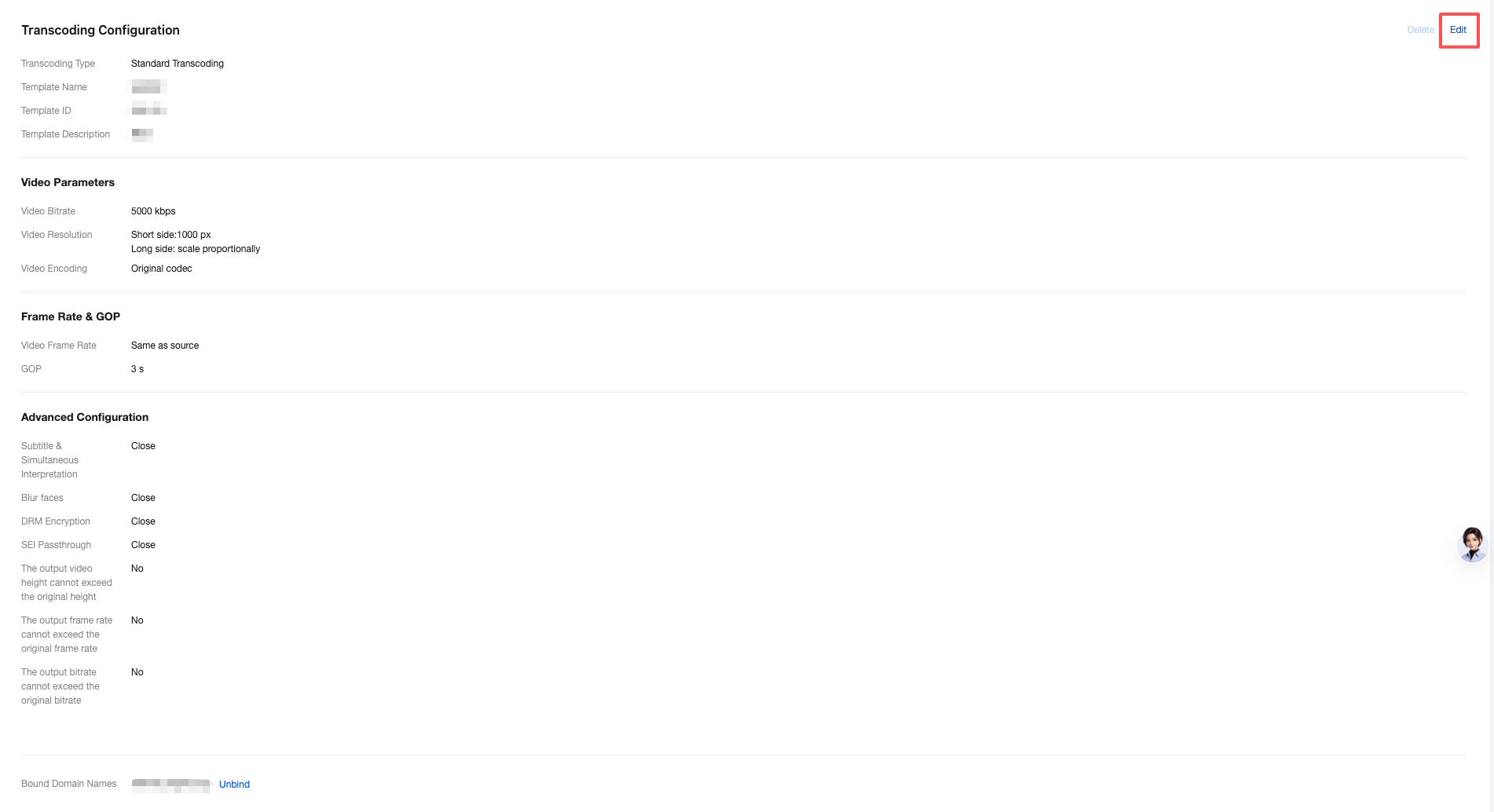
3. After modification, click Save.
Deleting a Template
Note:
If a template has been bound to domains, you need to unbind them before you can delete the template.
You cannot delete a transcoding template that has the Live subtitles feature enabled.
1. Log in to the CSS console and go to Feature Configuration > Live Transcoding.
2. Select the target template (make sure its not bound to a domain), and click Delete.
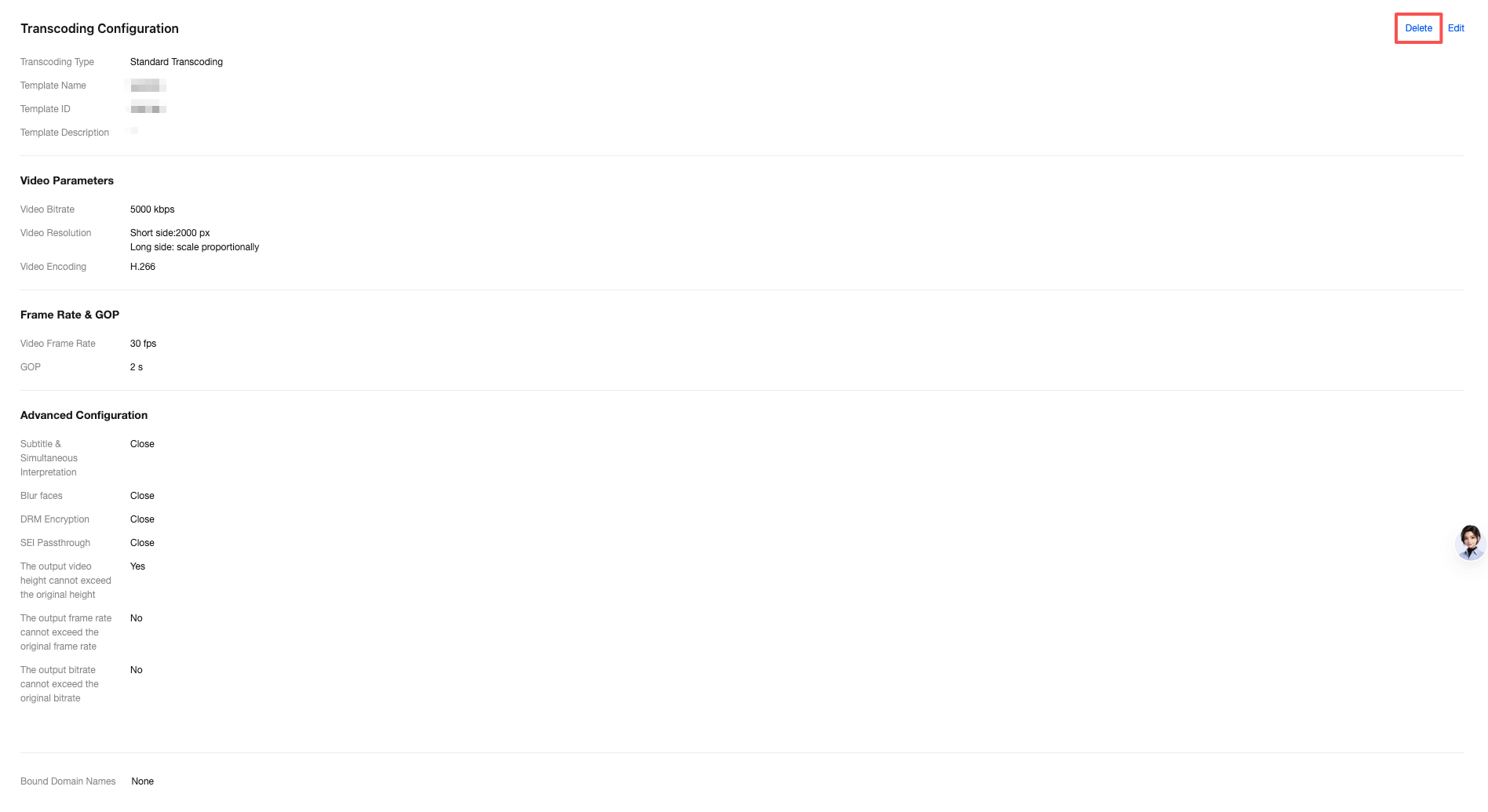
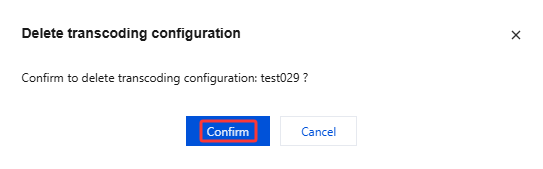
3. In the pop-up window, click Confirm.
More
You can also unbind and bind domains and transcoding templates on the Domain Management page. For details, see Template Configuration.
Ajuda e Suporte
Esta página foi útil?
Você também pode entrar em contato com a Equipe de vendas ou Enviar um tíquete em caso de ajuda.
comentários