Managing Read-Only Instances
Baixar
Modo Foco
Tamanho da Fonte
You can manage read-only instances through the TencentDB for SQL Server console, including creating, viewing, and terminating them.
Note:
Single-node (cloud disk) instances do not support adding read-only instances.
Multi-node (cloud disk) instances can achieve the read-only instance features through the replica node read-only capability.
A read-only instance cannot be purchased or used independently. It must be bound to a primary instance (two-node - original high availability edition/cluster edition) for use.
An RO group containing only one read-only instance presents a single point of failure. Furthermore, such an RO group is not included in the overall availability calculation for the TencentDB for SQL Server service. A single read-only instance does not come with an availability SLA guarantee. To ensure the availability of the RO group, it is recommended to purchase at least two read-only instances within the RO group.
Functional Limitations
A primary instance can create up to five read-only instances.
Read-only instances are not currently supported for Standard Edition instances.
Scaling read-only instances for instances in the financial zone is not currently supported. If you need to scale them, see Publish and Subscribe.
Backup and rollback features are not supported for read-only instances.
Data migration to read-only instances is not supported.
Creating/deleting databases is not supported on read-only instances. If needed, perform these operations on the primary instance.
Read-only instances do not support creating/deleting accounts, granting permissions to accounts, or modifying accounts and passwords. If needed, perform these operations on the primary instance.
Differences Between Read-Only Instance Versions
Read-only instances of different versions have differences. If your business requires read-only instances, we recommend using database instances of version 2017 or later.
For versions earlier than 2017, read-only instances are built using the publish/subscription method, which performs object-level synchronization with a latency of 3 - 5 seconds. To ensure efficient and stable data synchronization, if you plan to use the read-only instance feature, we recommend that you first upgrade your primary instance to version 2017 or later.
For the 2017 Enterprise two-node (formerly HA Edition/Cluster Edition) and later versions, read-only instances are built using the Always on method. The synchronization latency is 1 - 2 seconds, resulting in more efficient and stable data synchronization.
Supported Regions for Read-Only Instances
Region | AZ | Read-only Cluster Edition | Read-only (Local Disk) |
Guangzhou ap-guangzhou | Guangzhou Zone 3 ap-guangzhou-3 | × | ✓ |
| Guangzhou Zone 6 ap-guangzhou-6 | ✓ | × |
| Guangzhou Zone 7 ap-guangzhou-7 | ✓ | × |
Shanghai ap-shanghai | Shanghai Zone 2 ap-shanghai-2 | ✓ | ✓ |
| Shanghai Zone 3 ap-shanghai-3 | × | ✓ |
| Shanghai Zone 4 ap-shanghai-4 | ✓ | ✓ |
| Shanghai Zone 5 ap-shanghai-5 | ✓ | × |
Nanjing ap-nanjing | Nanjing Zone 1 ap-nanjing-1 | ✓ | ✓ |
| Nanjing Zone 2 ap-nanjing-2 | ✓ | ✓ |
Beijing ap-beijing | Beijing Zone 1 ap-beijing-1 | × | ✓ |
| Beijing Zone 3 ap-beijing-3 | ✓ | ✓ |
| Beijing Zone 4 ap-beijing-4 | × | × |
| Beijing Zone 5 ap-beijing-5 | × | ✓ |
| Beijing Zone 6 ap-beijing-6 | ✓ | × |
| Beijing Zone 7 ap-beijing-7 | ✓ | × |
Chengdu ap-chengdu | Chengdu Zone 1 ap-chengdu-1 | ✓ | × |
| Chengdu Zone 2 ap-chengdu-2 | ✓ | × |
Chongqing ap-chongqing | Chongqing Zone 1 ap-chongqing-1 | ✓ | × |
Hong Kong (China) ap-hongkong | Hong Kong (China) Zone 1 ap-hongkong-1 | × | ✓ |
| Hong Kong (China) Zone 2 ap-hongkong-2 | ✓ | ✓ |
| Hong Kong (China) Zone 3 ap-hongkong-3 | ✓ | × |
Region | AZ | Read-only Cluster Edition | Read-only (Local Disk) |
Singapore ap-singapore | Singapore Zone 1 ap-singapore-1 | × | × |
| Singapore Zone 2 ap-singapore-2 | × | × |
| Singapore Zone 3 ap-singapore-3 | ✓ | × |
| Singapore Zone 4 ap-singapore-4 | ✓ | × |
Jakarta ap-jakarta | Jakarta Zone 1 ap-jakarta-1 | ✓ | × |
| Jakarta Zone 2 ap-jakarta-2 | ✓ | × |
Bangkok ap-bangkok | Bangkok Zone 1 ap-bangkok-1 | ✓ | × |
| Bangkok Zone 2 ap-bangkok-2 | ✓ | × |
| Bangkok Zone 3 ap-bangkok-3 | ✓ | × |
Seoul ap-seoul | Seoul Zone 1 ap-seoul-1 | ✓ | × |
| Seoul Zone 2 ap-seoul-2 | ✓ | × |
Tokyo ap-tokyo | Tokyo Zone 1 ap-tokyo-1 | ✓ | × |
| Tokyo Zone 2 ap-tokyo-2 | ✓ | × |
Region | AZ | Read-only Cluster Edition | Read-only (Local Disk) |
Virginia na-ashburn | Virginia Zone 1 na-ashburn-1 | ✓ | × |
| Virginia Zone 2 na-ashburn-2 | ✓ | × |
Frankfurt eu-frankfurt | Frankfurt Zone 1 eu-frankfurt-1 | ✓ | × |
| Frankfurt Zone 2 eu-frankfurt-2 | ✓ | × |
Silicon Valley na-siliconvalley | Silicon Valley Zone 1 na-siliconvalley-1 | ✓ | × |
| Silicon Valley Zone 2 na-siliconvalley-2 | ✓ | × |
São Paulo sa-saopaulo | São Paulo Zone 1 sa-saopaulo-1 | ✓ | × |
Read-Only Instance Details Page
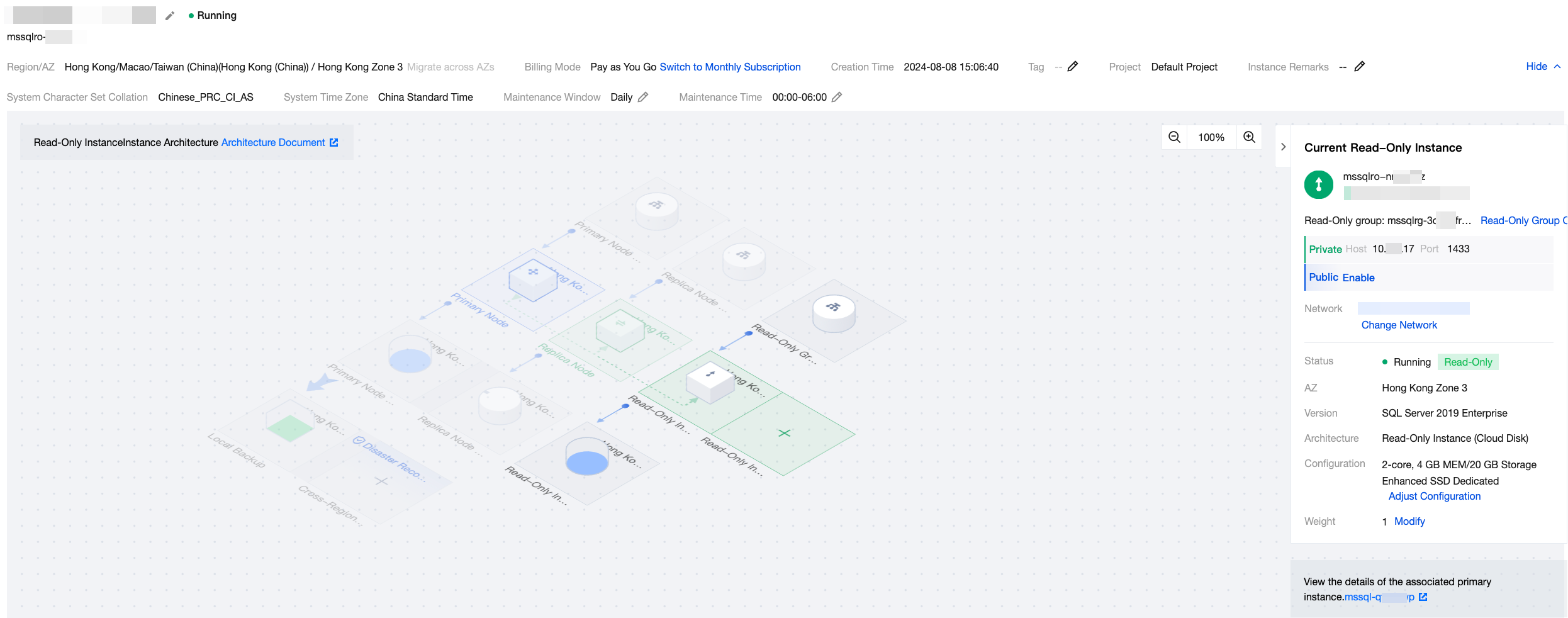
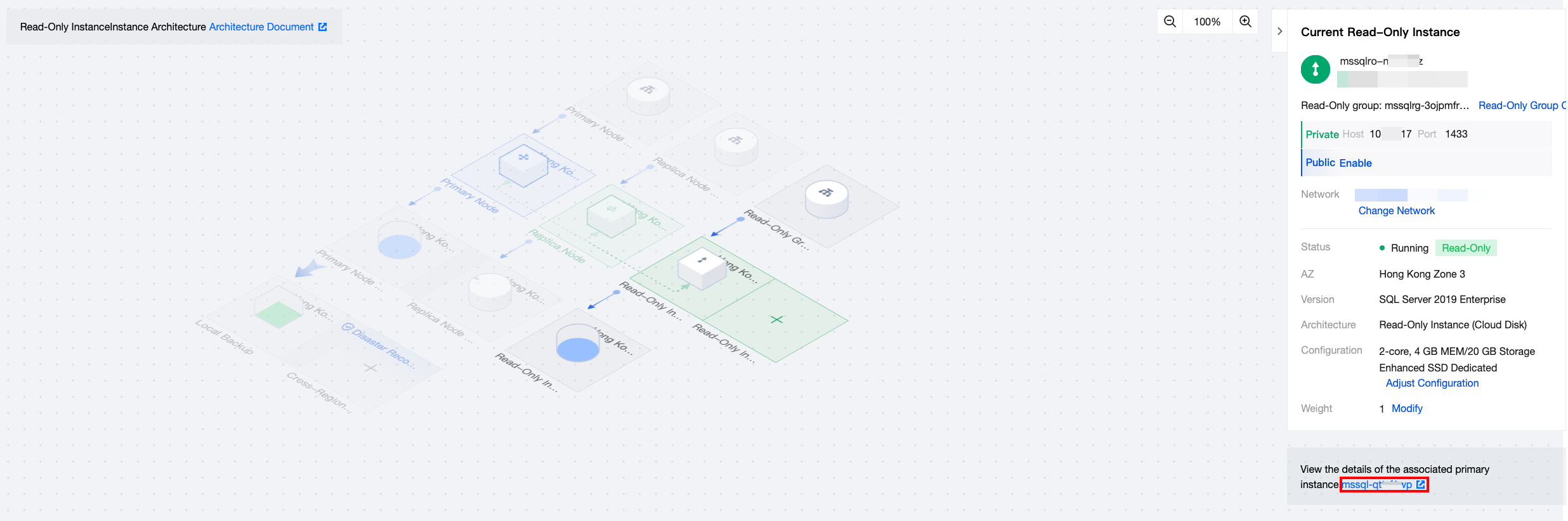
The details page of a read-only instance is shown in the following figure:
Feature Area | Figure | Feature | Description |
Topology (architecture diagram) | 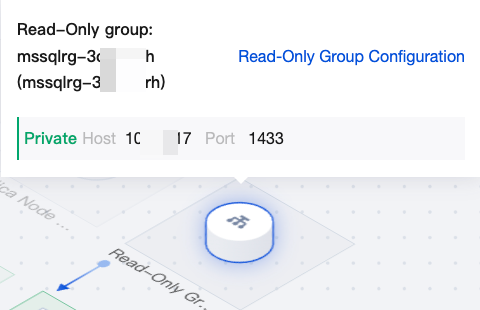 | Read-only group address | Hover over the read-only group address in the topology to query the address and configure the read-only group quickly. For details, see Read-Only Instance RO Group. |
| 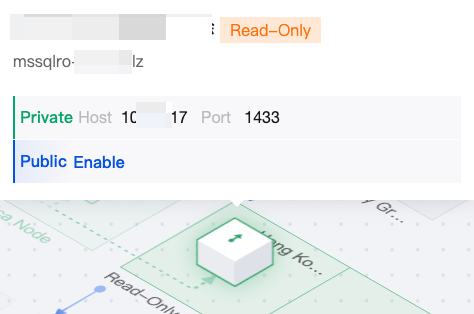 | Read-only instances | Hover over the read-only instance in the topology to quickly query its private network address and public network address. Click the "+" on the read-only instance in the topology to create a new read-only instance. |
| 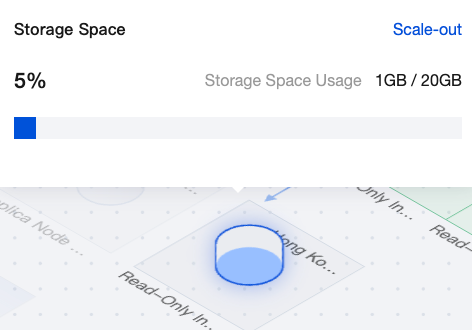 | Read-only instance storage | Hover over the read-only instance storage in the topology to view its storage usage. Click Scale Out to go to the configuration adjustment page. |
|  | Topology view scale | Adjust the display scale of the topology. |
| - | Grayed-out areas in the topology | The grayed-out area in the topology represents the deployment architecture of the primary instance to which this read-only instance belongs. Clicking on the grayed-out area is not supported. |
Instance information (right side) |  | Showing/Hiding instance information | Show/Hide the instance information panel. |
| 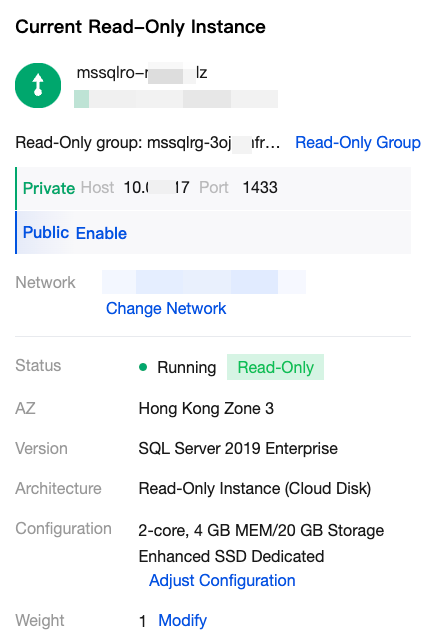 | Current read-only instance | Under the current read-only instance on the right, you can view its private network address, public network address, associated network, instance status, AZ, version, architecture, configuration, and weight. Available operations include: read-only group configuration, changing network, enabling public network access, and configuration adjustment. |
| 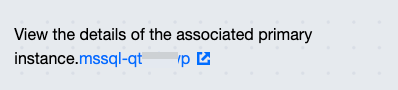 | Viewing details of the associated primary instance. | After viewing the associated primary instance details on the right, click the primary instance ID to go to the details page of the primary instance to which this read-only instance belongs. |
Read-only instance creation
1. Log in to the SQL Server console. In the instance list, click Instance ID or Manage in the Operation column to go to the details page.
2. On the instance details page, click the "+" in the read-only instance area of the topology diagram, or select the Read-Only Instance page and click New to go to the purchase page.
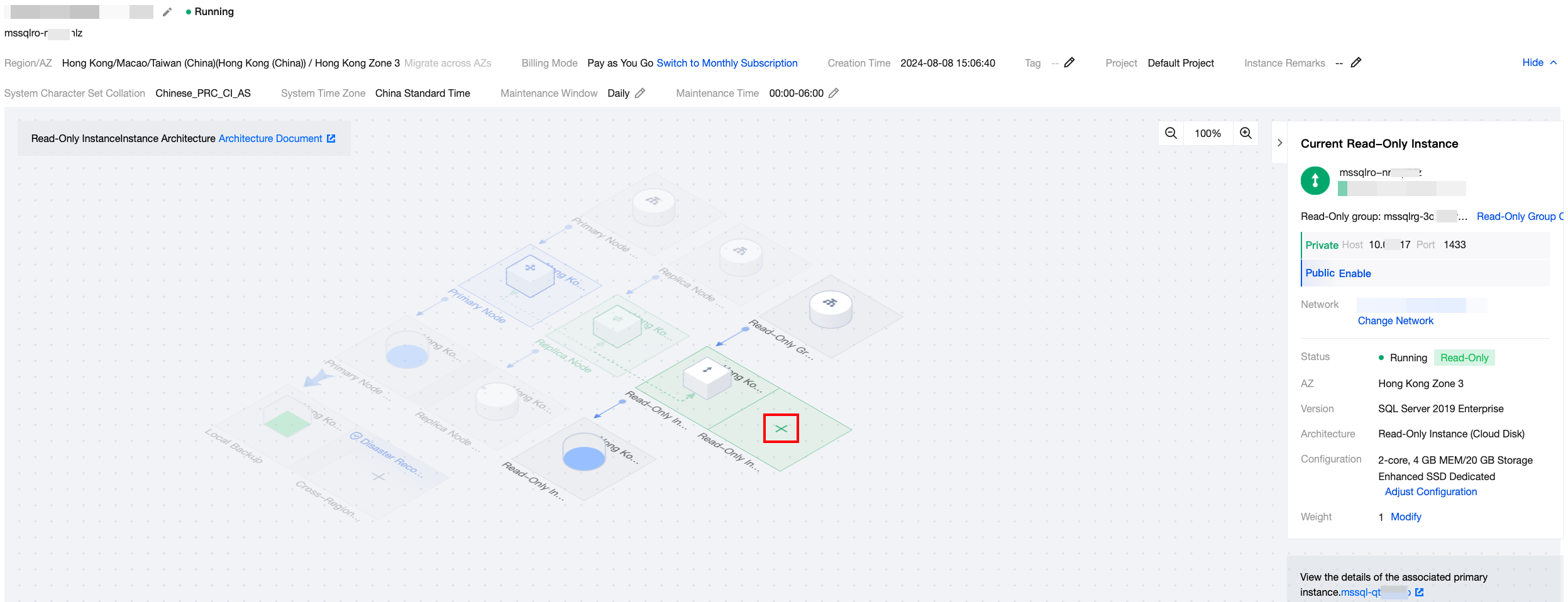
3. Go to the purchase page, select the corresponding configuration for the read-only instance, and then click Buy Now to purchase the read-only instance after confirming the information.
Note:
To align the expiration time of read-only instances with that of the primary instance, you can set a unified expiration date in the Renewal Management Console. For detailed steps, see Unified Expiration Date.
Viewing Read-Only Instances
1. Log in to the SQL Server console. In the instance list, instances with an "R" Tag are read-only instances. You can click the Instance ID or Manage in the Operations column to go to the details page and view the details of the read-only instance.
2. On the right side of the instance details page, within Instance Information, you can view the primary instance bound to it. Click Instance ID to jump to the details page of the primary instance. Alternatively, you can go to the details page of the read-only instance through the topology diagram of the primary instance.
Note:
Some feature limitations on the Instance Details page of a read-only instance cannot be modified, as they are synchronized from its primary instance configuration. If you need to change them, modify them on the Instance Details page of the primary instance.
Terminating a Read-Only Instance
The termination process for read-only instances is the same as that for primary instances. For details, see Terminate an Instance.
Related APIs
API | Description |
This API is used to add read-only replica instances. | |
The API is used to add read-only replica instances (cloud disk). | |
This API is used to query the details of a read-only group. | |
This API is used to query the list of read-only groups. | |
This API is used to query the read-only group to which a read-only replica instance belongs by using the instance ID. | |
This API is used to modify the details of a read-only group. | |
This API is used to query the automatic weight assignment result of a read-only group. The BalanceReadOnlyGroup API performs routing weight assignment according to the automatic weight assignment result. | |
This API is used to balance the routing weight of each read-only instance according to predefined weights. | |
This API is used to reclaim resources of read-only groups immediately. The resources, such as vip, occupied by the read-only group will be released immediately and cannot be recovered. |
Ajuda e Suporte
Esta página foi útil?
Você também pode entrar em contato com a Equipe de vendas ou Enviar um tíquete em caso de ajuda.
comentários