tencent cloud

Virtual Private Cloud

Notas de versão e anúncios
Notas de versão
Announcements
Introdução do produto
Visão geral
Vantagens
Casos de uso
Conceitos
Limite de cota
Início rápido
Planejamento de rede
Conexões do VPC
Criação de uma VPC IPv4
Guia de operação
Topologia de rede
Virtual Private Cloud (VPC)
Sub-redes
Tabelas de rotas
IP elástico
HAVIPs
Pacote de largura de banda
Conexão de rede
Gerenciamento de segurança
Ferramentas de diagnóstico
Monitoramento e alarmes
Tutoriais Práticas
Migração da rede clássica para o VPC
Configuração de um CVM de gateway público
Criação de cluster principal/secundário de alta disponibilidade usando HAVIP + Keepalived
Comunicação principal/secundária de nuvem híbrida (DC e VPN)
Comunicação principal/secundária de nuvem híbrida (CCN e VPN)
Perguntas frequentes
Geral
Conexão
Segurança
Fale conosco
Glossário
DocumentaçãoVirtual Private Cloud

Binding an ENI

Modo Foco
Tamanho da Fonte
Última atualização: 2026-03-30 10:25:56
This document describes how to bind a secondary Elastic Network Interface (ENI) to a Cloud Virtual Machine (CVM).
Note:
A security group needs to be separately configured for a secondary ENI based on business requirements. If no security groups are bound, the ENI has no access restrictions by default. It is recommended that you bind a security group.
If the image type of your CVM is CentOS 8.0, CentOS 7.8, CentOS 7.6, CentOS 7.5, CentOS 7.4, or CentOS 7.2, you can directly refer to the section "Tool Configuration" in Configuring an ENI for a Linux CVM to first install the tool and bind an ENI. The ENI information is automatically configured in the CVM's ENI file, and the routing policy is also automatically delivered.
If your CVM uses other image types, please refer to this document to bind an ENI to your CVM and refer to the section "Manual Configuration" in Configuring an ENI for a Linux CVM or refer to Configuring an ENI for a Windows CVM to configure the ENI.

Operation Steps

1. Log in to the ENI console.
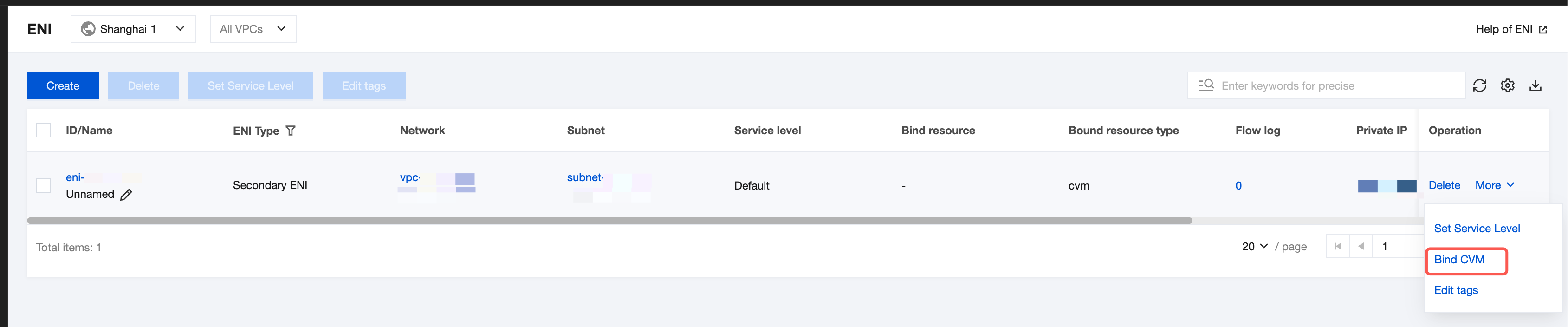
2. On the ENI list page, find the row of the ENI to be bound and configured, and choose More > Bind CVM in the Operation column.


Note:
You can also click the ENI ID to go to the details page and click Bind CVM to perform the operation. These methods have the same effect.
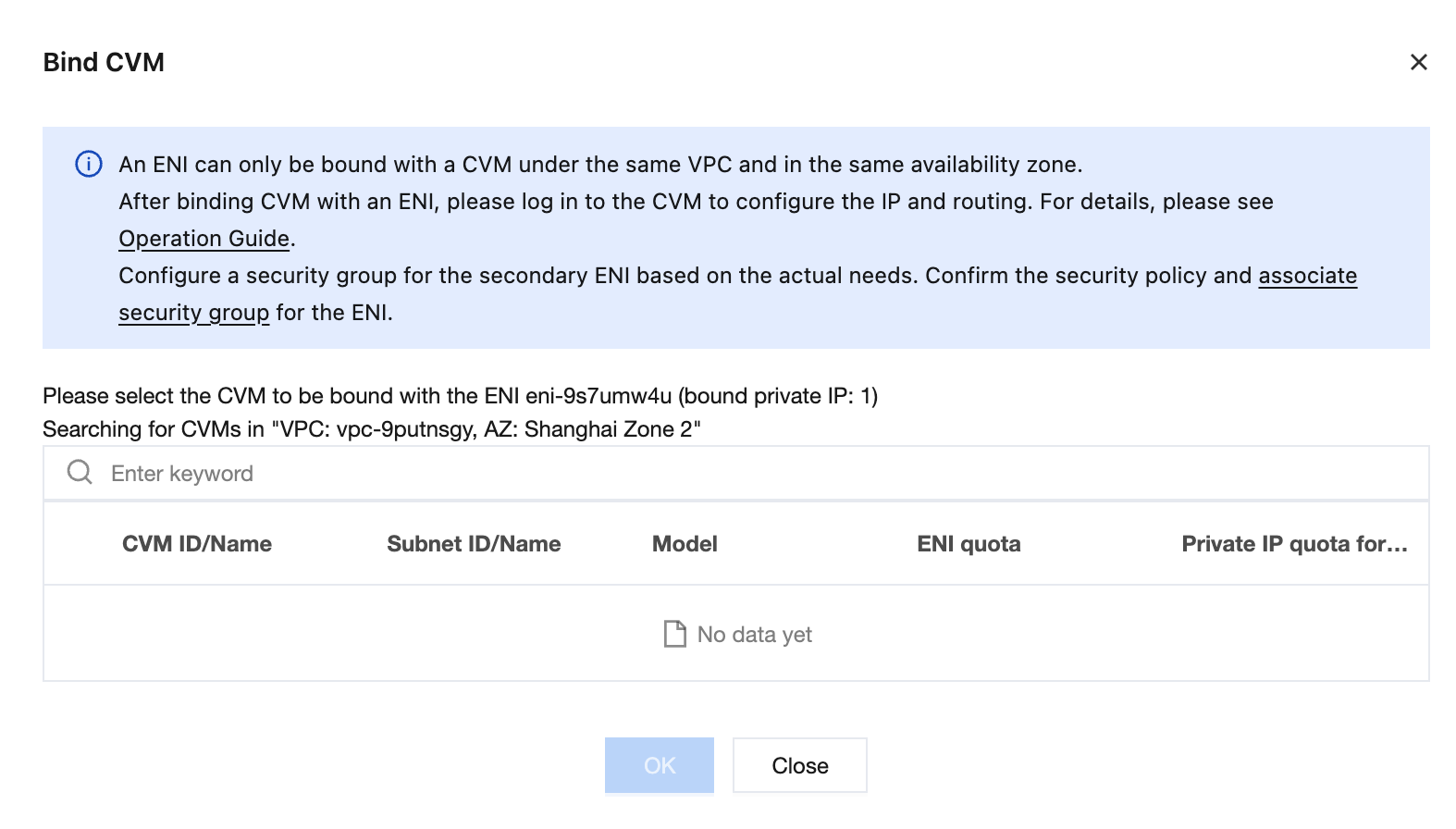
An ENI can only be bound to the CVMs in the same availability zone (AZ) as the ENI. For more information about instance type limits, see Use Limits.
3. In the Bind CVM dialog box, select the required CVM, and click OK to complete the binding operation.

Ajuda e Suporte

Esta página foi útil?

comentários