tencent cloud

Cloud Virtual Machine

Dinâmicas e anúncios
Dinâmica do produto
Dinâmica de atualização de imagem pública
Anúncio do produto
Introdução do produto
Visão geral da Cloud Virtual Machine
Vantagens do produto
Conceitos básicos
Regiões e zonas
Tutorial
Service Regions and Service Providers
Cobrança do produto
Visão geral de cobrança
Modo de cobrança
Item de cobrança
Converter modo de cobrança
Aquisição de instâncias
Descrição de cobrança de ajustes de configuração
Descrição de cobrança em atraso
Guia de início rápido
Comprar instância Linux personalizada
Comprar instância Windows personalizada
Guia do usuário
Visão geral do guia de operação
Visão geral dos limites de uso
Instância
Instância spot
Instância reservada
Imagem
Armazenamento
Backup e recuperação
Rede
Segurança
Senhas/chaves secretas
Gerenciamento de operação e manutenção
Migrar o servidor
Migração online
Consultoria de migração
Solução de falhas
Falhas relacionados ao login em instâncias Windows
Falhas relacionados ao login em instâncias Linux
Outras falhas relacionadas ao login em instâncias
Falha na execução de instância
Falha de memória em instâncias Linux
Falha de rede
Tutorial prático
Recomendações de seleção da CVM
Configurar o ambiente
Configurar o site
Configurar o aplicativo
Configurar a página visual
Carregar arquivos locais para a CVM
Teste de desempenho de rede
Outros tutoriais práticos
Segurança e conformidade
Gerenciamento de acesso
Rede
Perguntas frequentes
Regiões e zonas
Sobre o faturamento
Instância
Armazenamento
Imagem
Migração de servidor
Rede
Segurança
Operação/manutenção e monitoramento
Gerenciamento de acesso
Serviço NTP
Cenário de aplicação
Agreements
CVM Service Level Agreements
Red Hat Enterprise Linux Image Service Agreement
Public IP Service Level Agreement
Glossário
DocumentaçãoCloud Virtual Machine

Windows Password Resetting or Change Failure

Modo Foco
Tamanho da Fonte
Última atualização: 2024-01-06 17:32:18
This document describe how to troubleshoot failed or invalid password resets for a Windows Server 2012 CVM.

Problem

After the CVM password is reset, the system prompts The system is busy, and your instance password failed to be reset (7617d94c).
After the CVM password is reset, the new password does not take effect, and the login password remains the old one.

Cause

Possible causes are:
The cloudbase-init component in the CVM is damaged, modified, disabled, or not started.
The cloudbase-init component for password reset is blocked by the third-party security program (e.g., 360 Total Security or Huorong Security) installed on the CVM.

Troubleshooting

Try the following according to the failure reason.

Checking the cloudbase-init service

2. On the desktop, right-click

and choose Run. Enter services.msc in the Run dialog box, and press Enter to open the Services window.
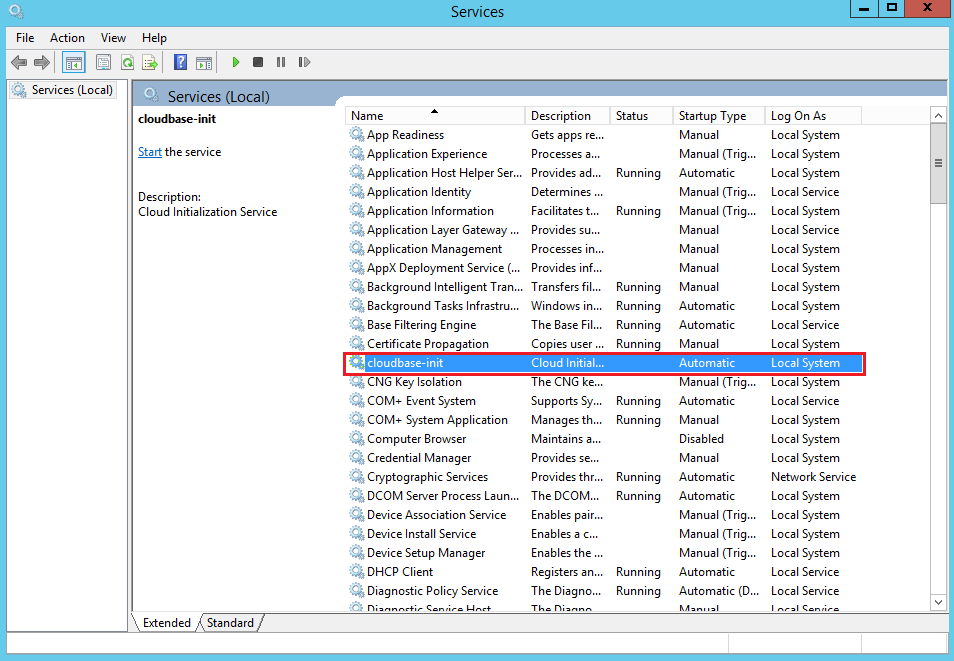
3. Check whether the cloudbase-init service exists, as shown in the following figure:


If yes, proceed to the next step.
If no, reinstall the cloudbase-init service. For more information, see Installing Cloudbase-Init on Windows.
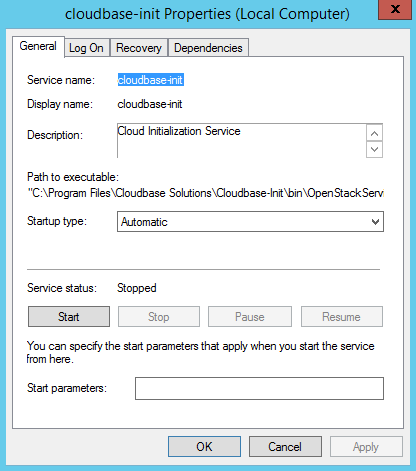
4. Double-click the cloudbase-init service to open the cloudbase-init properties dialog box, as shown in the following figure:


5. Select the General tab and check whether the cloudbase-init startup type is Automatic.
If yes, proceed to the next step.
If no, set the cloudbase-init startup type to Automatic.
6. Switch to the Log On tab and check whether Local System account is selected for the cloudbase-init service.
If yes, proceed to the next step.
If no, select Local System account for the cloudbase-init service.
7. Switch to the General tab, click Start in Service status to manually enable the cloudbase-init service, and check whether an error occurs.
If no, proceed to the next step.
8. On the desktop, right-click

and choose Run. Enter regedit in the Run dialog box, and press Enter to open the Registry Editor window.
9. In the registry navigation pane on the left, expand the following hierarchies in order: HKEY_LOCAL_MACHINE > SOFTWARE > Cloudbase Solutions > Cloudbase-Init.
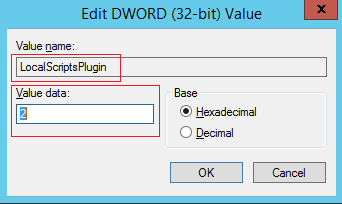
10. Locate all "LocalScriptsPlugin" registry keys under ins-xxx and check whether the LocalScriptsPlugin value is 2.


If yes, proceed to the next step.
If no, set the LocalScriptsPlugin value to 2.
11. On the desktop, click

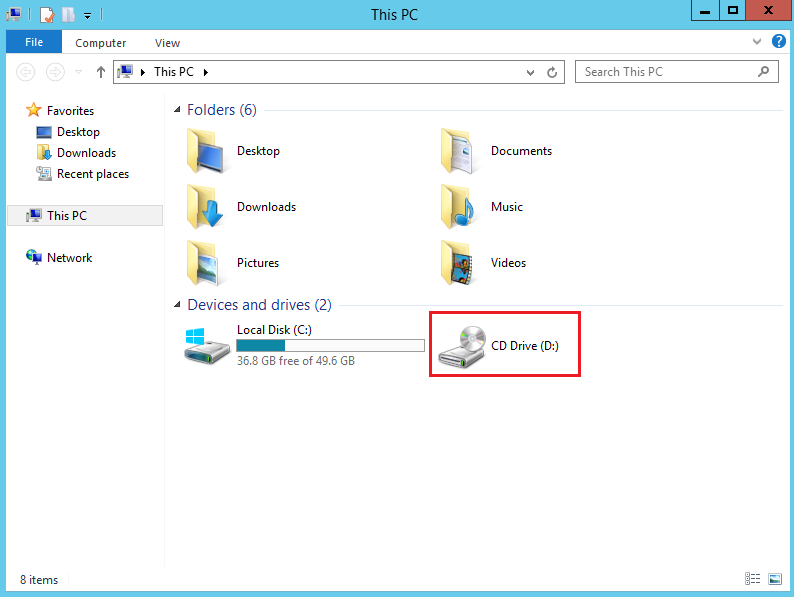
and choose This PC. Check whether the CD drive is loaded under Devices and drives, as shown in the following figure:

If no, start the CD-ROM drive in Device Manager.

Checking the security program installed on the CVM

Scan for CVM vulnerabilities using the installed security program and check whether cloudbase-init components are blocked.
If the CVM has vulnerabilities, fix them.
If core components are blocked, unblock them.
Check and configure the cloudbase-init components as instructed below.
2. Restore and set the cloudbase-init components according to the actually installed third-party security program.

Ajuda e Suporte

Esta página foi útil?

comentários