Switching the Billing Mode
Baixar
Modo Foco
Tamanho da Fonte
Scenarios
TDMQ for MQTT supports converting hourly billing to yearly/monthly subscription billing for your convenience. For differences between billing modes, see Billing Overview. You can select an appropriate billing mode based on your actual business needs.
Prerequisites
Only clusters in the Running status support switching the billing mode. Clusters in the Delivering, Adjusting configurations, Isolated, or Abnormal status do not support switching the billing mode.
Conversion Rule
Bills
A new order will be generated after the hourly billing mode is changed to the yearly/monthly subscription mode. The yearly/monthly subscription mode takes effect immediately after the order is paid.
Assume that a user converts the billing mode to yearly/monthly subscription at 15:50:15 on 2025/06/28 and pays for one month of cluster fees. After the order is paid, the yearly/monthly subscription cluster takes effect immediately. You can view the newly generated bill details on the Billing Center > Detailed Bills page.
Limits on Switching
Currently, only conversion from hourly billing to yearly/monthly subscription billing is supported.
Clusters whose billing mode has been converted from hourly billing to yearly/monthly subscription do not support no-reason refunds within five days.
After the billing mode is switched successfully, the cluster will be billed by the new billing mode immediately. The start time of the new billing period for the cluster is the time at which the conversion is successful.
Operation Steps
1. Log in to the TDMQ for MQTT Console.
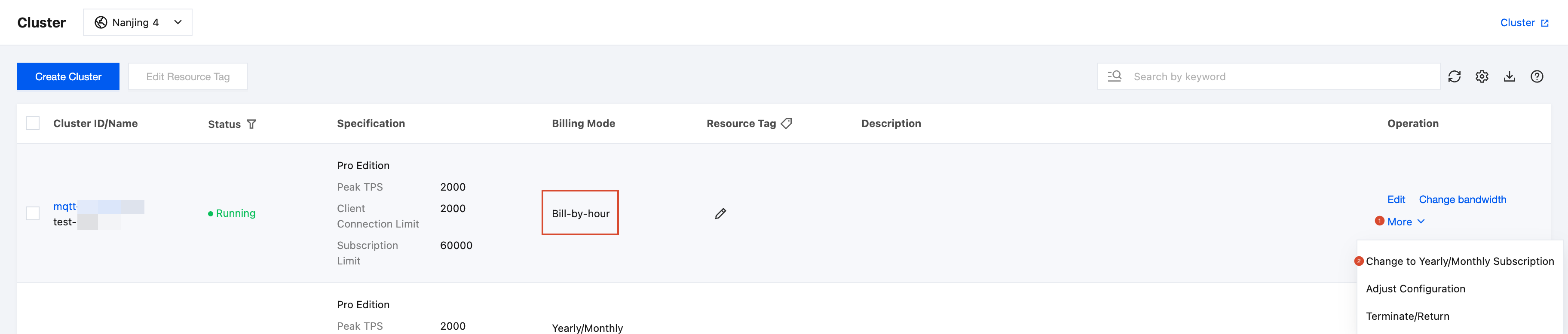
2. In the left sidebar, click Cluster Management. Then, in the target cluster's operation column, click More > Switch to Yearly/Monthly Subscription.
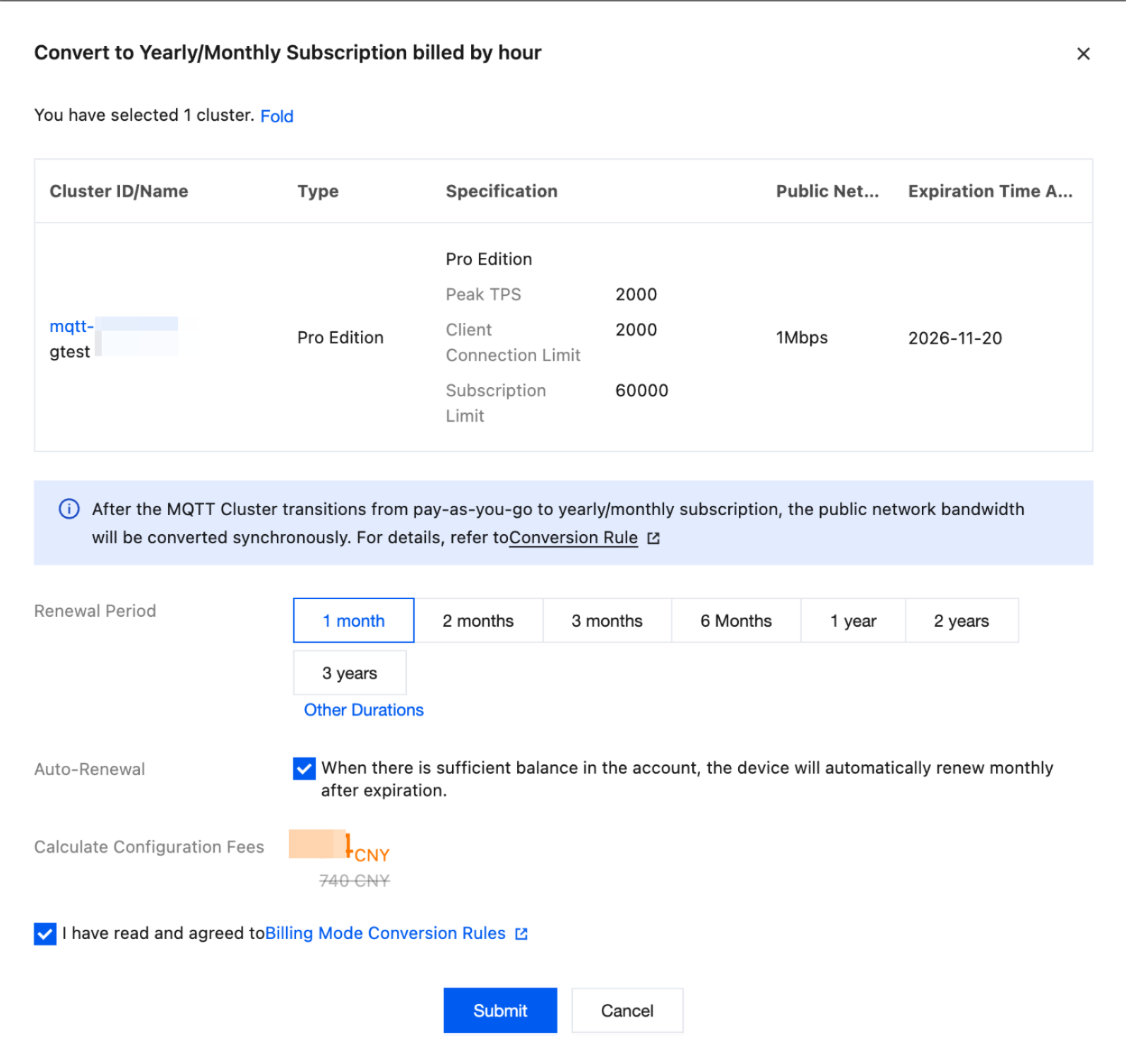
3. In the pop-up window for switching from hourly billing to yearly/monthly subscription, set the renewal duration and whether to enable auto-renewal based on your actual needs.
4. Select the checkbox to confirm that you have read and agree to the billing mode conversion rules, and click Confirm.
5. Complete the payment as prompted on the page to complete the conversion.
Ajuda e Suporte
Esta página foi útil?
Você também pode entrar em contato com a Equipe de vendas ou Enviar um tíquete em caso de ajuda.
comentários