"One-device-one-certificate" is a special case of two-way authentication. Each client (each device) uses a self-issued CA certificate and different client certificates (device certificates) issued by the CA certificate for authentication.
The TDMQ for MQTT Pro Edition Cluster and Platinum Edition Cluster additionally supports the "One-device-one-certificate" feature. You can freely register and manage device CA certificates and client certificates (device certificates) in the product console. Before devices leave the factory, burning a unique device certificate into each device significantly reduces the impact radius of leakage of a single device certificate.
2. In the left sidebar, choose Resource Management > Cluster. After selecting an appropriate region, click the ID of the cluster for which you want to configure the certificate to go to the cluster basic information page.
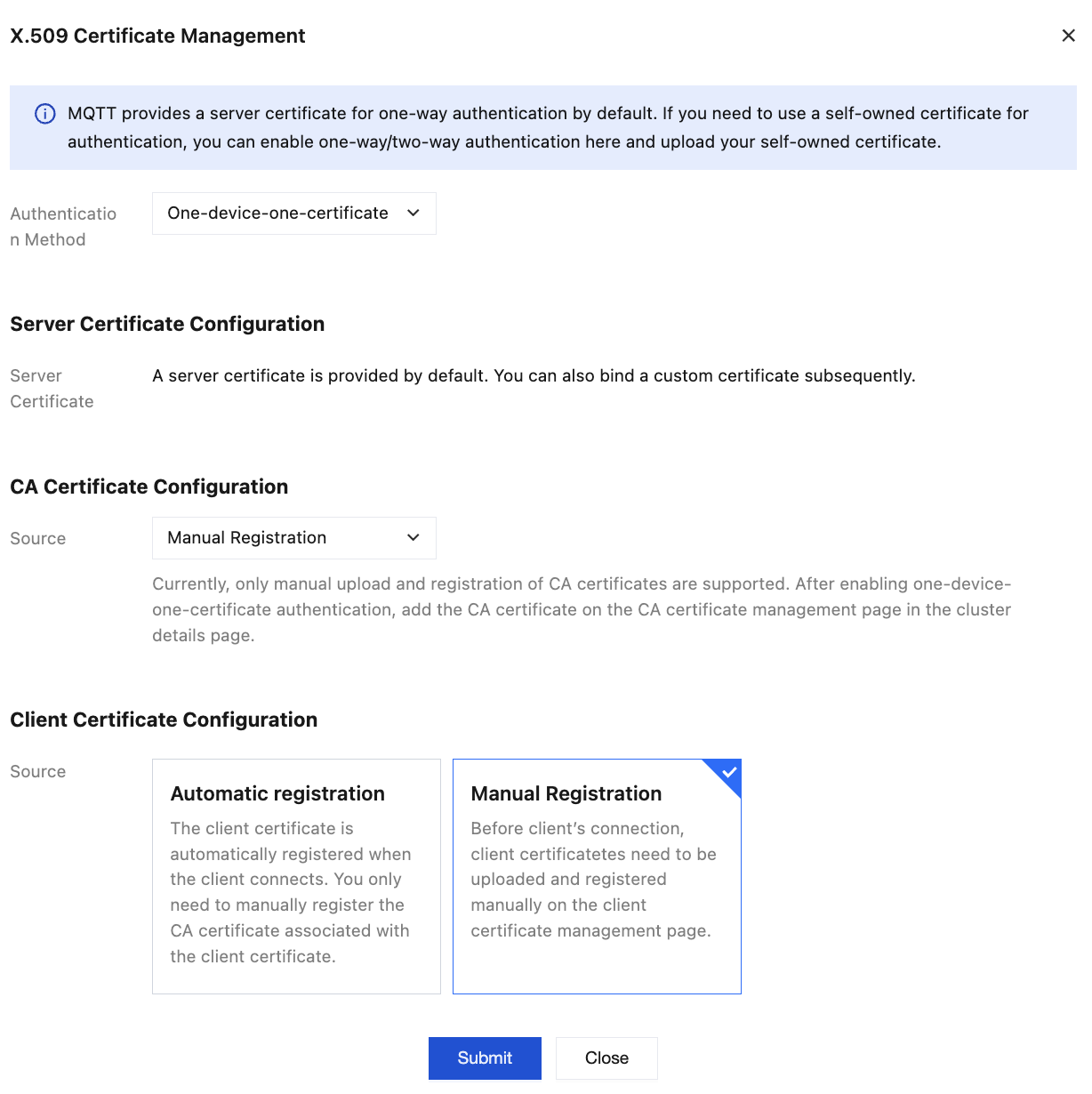
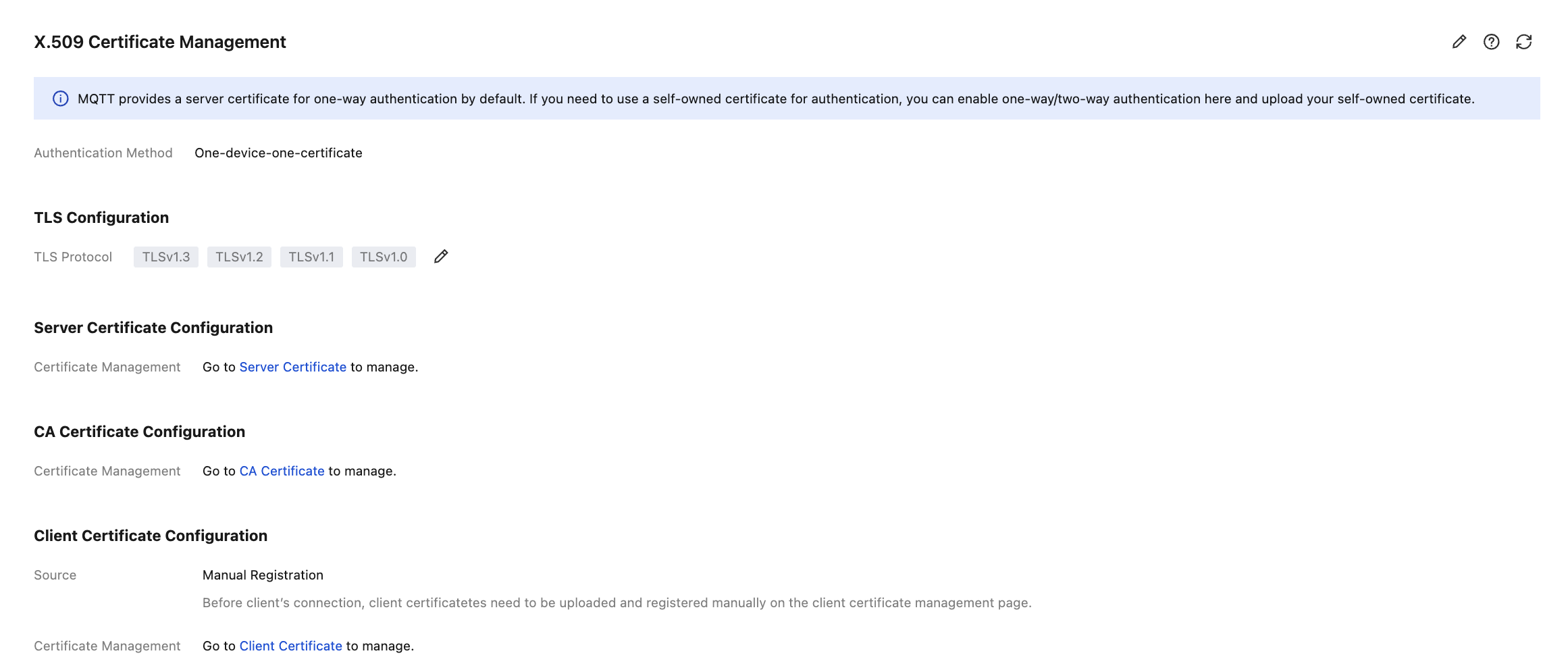
3. On the Authentication page, go to the X.509 Certificate Management tab. Click the edit icon
on the right and complete the certificate configuration in the pop-up window.
Authentication Method: Select the "one-device-one-certificate" option.
Server Certificate Configuration: You can use the default server certificate provided by MQTT, or you can bind a custom certificate later.
CA Certificate Configuration: Currently, only manual upload and registration of CA certificates are supported. After you enable one-device-one-certificate authentication, add CA certificates on the CA Certificate Management page in the cluster details.
Client Certificate Configuration: Supports two methods: Automatic registration and Manual Registration.
Automatic registration: The client automatically registers its client certificate upon connection. You only need to manually register the CA certificate associated with the client certificate.
Manual Registration: Before connecting, the client must manually upload and register its client certificate on the client certificate management page. For the operation steps, see Step 4: Configure Client Certificate.
4. Click Submit to complete the authentication method configuration.
Configuring a Certificate
After selecting the authentication method, you need to configure the related certificate. Details and reference documentation are as follows:
Certificate Type
Description
Reference Documentation
Server certificate
Used for client-to-server authentication. You can use the default server certificate provided by MQTT or bind a custom certificate.
If some devices or SDKs in your cluster fail to connect because they only support specific TLS versions and cannot complete the handshake with the server configured by default, you can use the TLS Configuration feature to adjust the range of TLS protocol versions supported by the server. This allows both communication parties to negotiate a mutually acceptable protocol version, thereby resolving compatibility issues caused by version mismatches, ensuring all components can successfully establish secure connections, and guaranteeing cluster communication stability.
Note:
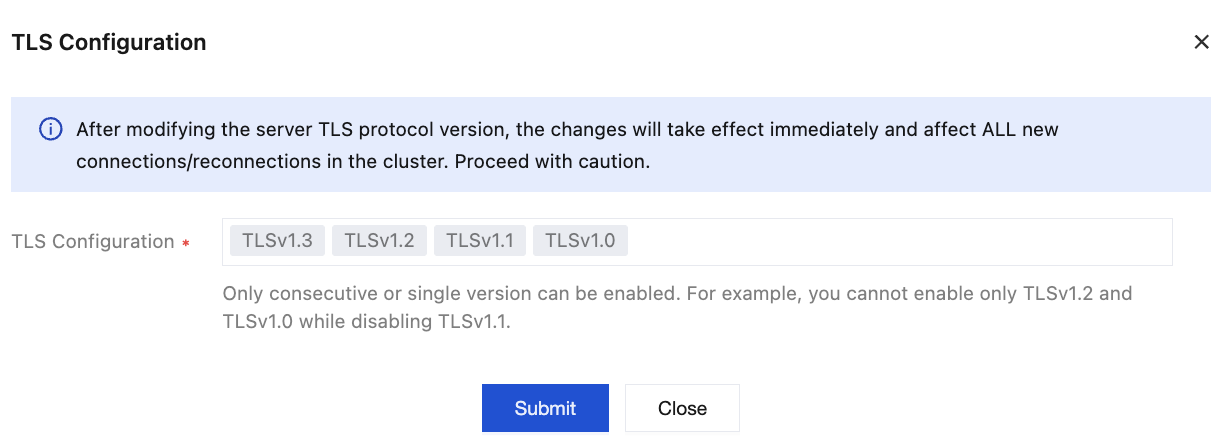
Upon modification, the TLS protocol version supported by the server takes effect immediately and affects all newly connected/reconnected clients under the cluster. Please exercise caution.
The server supports all versions from TLS 1.0 to TLS 1.3 by default. If modification is required, refer to the following configuration steps:
1. Go to Cluster > Authentication. On the secondary tab, choose X.509 Certificate Management. Then, click the edit icon
on the right side of TLS Configuration.
2. In the pop-up window, select the supported TLS version range. Since the TLS protocol only supports enabling consecutive versions or a single version, the configuration modification method is as follows:
To enable consecutive versions (such as TLS 1.1 and TLS 1.2): First select one version as the "Minimum Version", then select another version as the "Maximum Version", and click Submit to submit the configuration.
To enable only a single version (such as TLS 1.2 only): Double-click the version, then click Submit to submit the configuration.