IDSEC provides 50 free emails to each tenant by default. If the free quota is exceeded, the platform suspends sending emails to the tenant. This affects SMS OTP testing in the console, SMS OTP authentication source login on the portal, and MFA secondary authentication. To ensure normal business operations, an administrator must configure email templates to ensure the platform sends emails normally.
Configuring Email Template
1. Log in to the IDSEC console, and click Personalization Setting > Template Setting > Email Templates in the left sidebar.
2. On the Email Templates page, click Edit in the upper-right corner of the page.
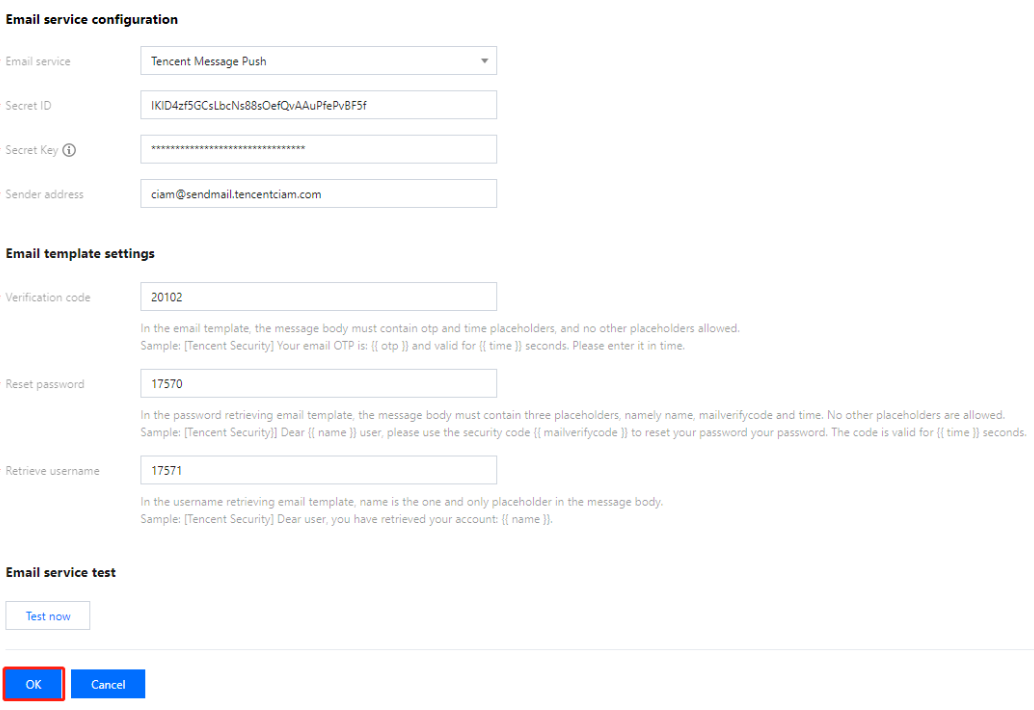
3. On the Edit page, configure the parameters for Email service configuration and Email template settings respectively, and then click OK.
Note:
Parameters for different email service configurations vary. Currently, the platform only supports Tencent SES, and support for configuring other email services will be added later. The following are the required parameters for configuring Tencent Cloud Email Service.
Email Service Configuration
Email template configuration supports different email gateways. When you select a supported email service, the page dynamically loads the configuration information required for that service.
Obtaining the SecretId and SecretKey
1. Log in to the CAM console, and click Users > User List in the left sidebar.
2. On the User List page, select the required sub-account, click User Name, and go to the User Details page.
3. On the User Details page, click API Keys, select the required key, and click
to obtain the SecretId of that sub-account. Click Show, and after identity verification succeeds, you can obtain the SecretKey of that sub-account.
Obtaining Sender Addresses
1. Log in to the SES console, and click Email Configuration > Sending Domains in the left sidebar.
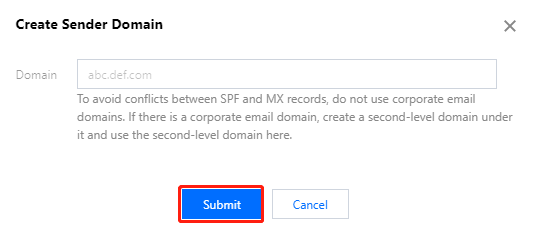
2. On the Sending Domains page, click Create Sender Domain, enter a domain name, which will be used to create sending addresses, and then click Submit. For detailed configuration, see Sending Domains.
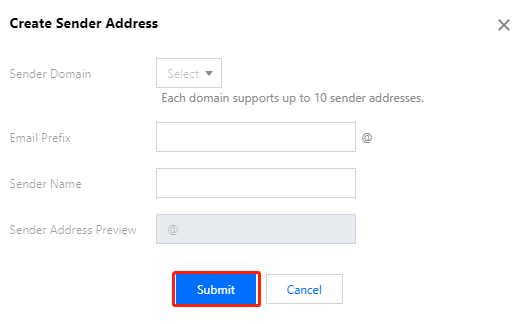
3. On the Sending Addresses page, click Create, configure the relevant parameters, and then click Submit to complete the creation of a new sending address. This address will be used as the sender address for emails sent by IDSEC.
4.
Email Template Configuration
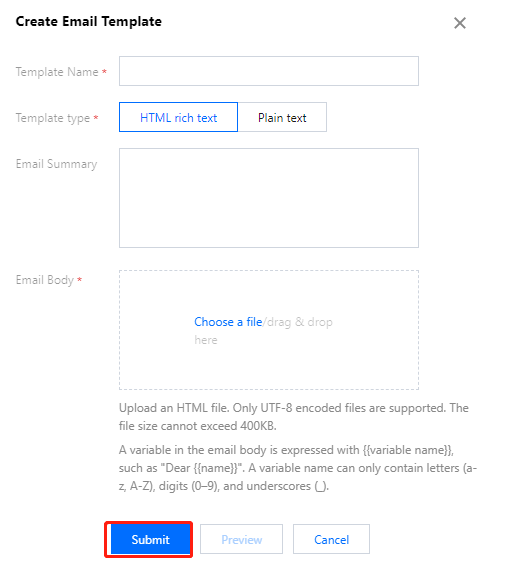
1. On the Email Templates page, click Create, configure the relevant parameters, and then click Submit. The template can then be used to invoke the SES service.
Parameter description:
Parameter Name
Parameter Description
Parameter template
Template Name
Custom name.
-
Template Type
Select based on actual requirements.
HTML rich text: supports more styles and can present rich content.
Plain text: supports text only.
-
Email Summary
Custom summary.
-
Email Body
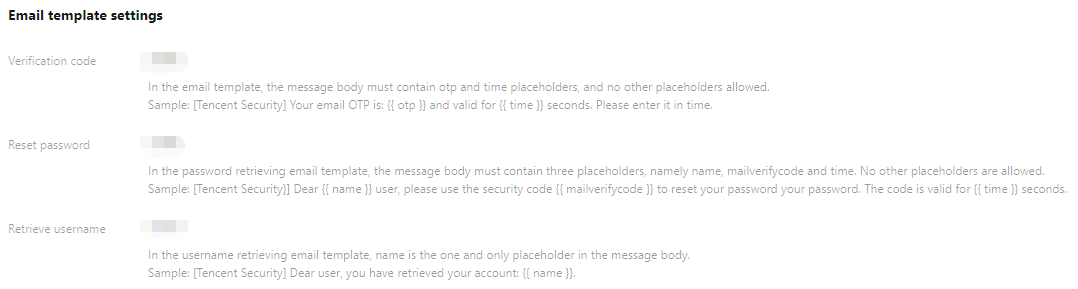
Verification code: when applying for a verification code email template, the email body must and can only contain the two placeholders, otp and time.
[Tencent Security] Your email OTP is: {{ otp }}, valid for {{ time }} seconds. Please enter it as soon as possible to avoid expiration.
Password recovery: when applying for a password recovery email template, the email body must and can only contain the three placeholders, name, mailverifycode, and time.
[Tencent Security] Dear user {{ name }}, Hello: You have initiated a password recovery through the "Forgot Password" feature. The Captcha for this password recovery is: {{ mailverifycode }}, valid for {{ time }} seconds. Please enter it as soon as possible to avoid expiration.
Username recovery: when applying for a username recovery email template, the email body must and can only contain the placeholder, name.
[Tencent Security] Dear user, Hello: You have retrieved your username through the "Forgot Username" feature. Your username is: {{ name }}.
2. On the Email template settings page, you can view the newly created template. Copy the email template ID.
3. In the IDSEC email template configuration, you need to enter the approved sending template IDs for Verification code, Reset password, and Retrieve username.
img
Testing Email Service
1. After entering the email template configuration information and before saving the email template configuration, you can click Test now to test the email template configuration.
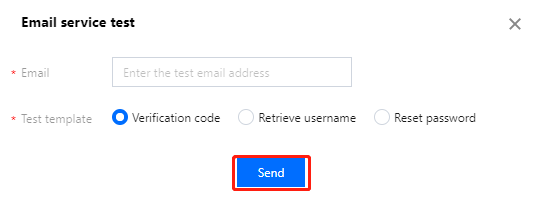
2. In the email service test box, enter a valid email address to be tested, select a test template, and click Send to verify the configuration correctness.