Registered Clusters Management
Baixar
Modo Foco
Tamanho da Fonte
Overview
TDCC supports managing various types of distributed infrastructure through the Registering Clusters feature, including clusters on Tencent Cloud, third-party vendor clusters, in-house data center clusters, edge clusters, and more, providing a consistent management and access experience.
Directions
Viewing Registered Clusters
1. Log in to the TDCC Console, and go to the Distributed Infrastructure > Cluster page.
2. On the page that appears, all registered clusters are listed. You can click a cluster name to enter the TKE cluster management page.
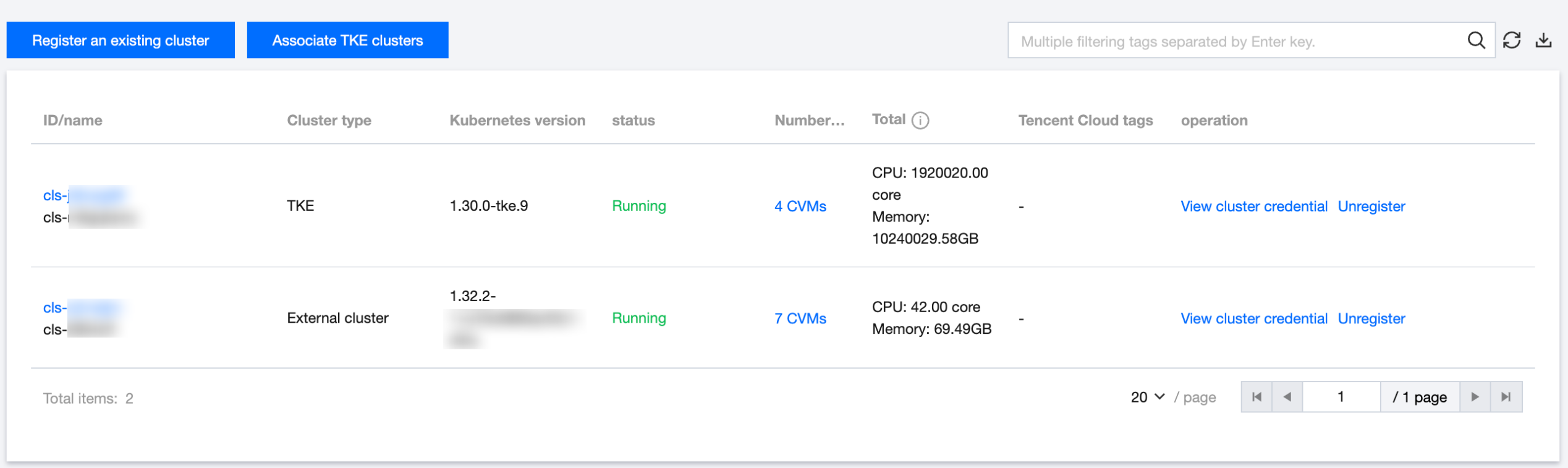
ID/Name: Displays the ID and name of the registered cluster. Clicking the name allows you to jump to the cluster management page to view detailed information about the cluster.
Cluster Type: Shows whether the registered cluster is a third-party cluster or a TKEanywhere cluster.
Kubernetes Versions: The Kubernetes version of the registered cluster.
Status: Displays the registration/running status information of the cluster.
Number of Nodes: The number of nodes included in the registered cluster.
Total Configuration: Displays the total CPU and memory resources available in the cluster.
Tencent Cloud tags: The cloud tags added on the cluster.
Operations: Supported operations for the registered cluster, including viewing the registration command for clusters to be registered, viewing credentials of registered clusters, unbinding registered clusters, and more.
Creating Registered Clusters
1. Log in to the TDCC Console, and go to the Distributed Infrastructure > Cluster page.
2. Click Registering Clusters and fill in the corresponding configuration on the pop-up page. For details, see Creating Registration Cluster.
3. Click the Complete button to view the generated registration command. Follow the prompts to complete the cluster registration. For detailed steps, see Creating Registered Clusters.
Connecting to Registered Clusters
Support for connecting to and accessing the registered cluster. For details, see Connect to Registered Clusters.
Deleting Registered Clusters
Ajuda e Suporte
Esta página foi útil?
Você também pode entrar em contato com a Equipe de vendas ou Enviar um tíquete em caso de ajuda.
comentários