Data Import and Export
Download
Modo Foco
Tamanho da Fonte
The SQL window supports data import and export.
Impact Description
Import Impact Description
Description and influences of write locks in import tasks.
When importing CSV or Excel files, the system automatically applies a write lock on the target table. During the import process, no other threads can perform read or write operations on the table. Write lock SQL statements:
Before import:
LOCK TABLES table_test WRITEAfter import (whether succeeded or failed):
UNLOCK TABLESWrite locks apply to both InnoDB and MyISAM storage engines.
If the database instance experiences high load during the import process, the task may fail or become unresponsive.
Export Impact Description
Description and impact of read locks in export tasks.
When exporting data in SQL format using the table export scheme, it is recommended to enable table locking to ensure data consistency.
If you export SQL files using custom SQL queries, the system automatically applies a read lock on the target table. Whether a read lock is applied depends on the specific table structure and SQL query.
If you export data in CSV or Excel format, the system does not explicitly apply a read lock by default. Whether a read lock is applied depends on the table structure and SQL query.
During export, other threads cannot perform write operations on the locked table.
Read lock SQL statements:
Before export:
LOCK TABLES table_test READAfter export (success or failure):
UNLOCK TABLESRead locks apply to both InnoDB and MyISAM storage engines.
Exporting large datasets may lead to increased I/O usage on the instance. To optimize performance, consider scaling up the instance or reducing other database operations during the export process.
Use Limits
If a TDSQL-C for MySQL read-only analysis instance contains unsupported data types, the data export task will fail. For unsupported data types, see Compatibility Notes.
Data export from TDSQL-C for MySQL read-only analysis instances involves data type conversion, such as converting the BIT data type to BIGINT and the SET data type to String. For detailed data type conversion rules, see Compatibility Notes.
SQL statements exported from a TDSQL-C for MySQL read-only analysis instance cannot be directly imported into a TDSQL-C for MySQL primary instance or a TencentDB for MySQL instance.
TDSQL-C for MySQL read-only analysis instances do not support data import.
For SQL and CSV files, the maximum size is 3 GB. For Excel files, the maximum size is 10 MB. Only the .xlsx format is supported; other formats may have compatibility issues.
A primary account or sub-account can run up to 7 concurrent import/export tasks in Executing or To be execution status. Large tasks (files over 500 MB) are limited to 2 concurrent import/export tasks in Executing or To be execution status.
Prerequisites
Data Import
1. In the upper-right corner of the page, select Import/Export > Data Importing.
2. In the dialog box that appears, configure the parameters and click OK.
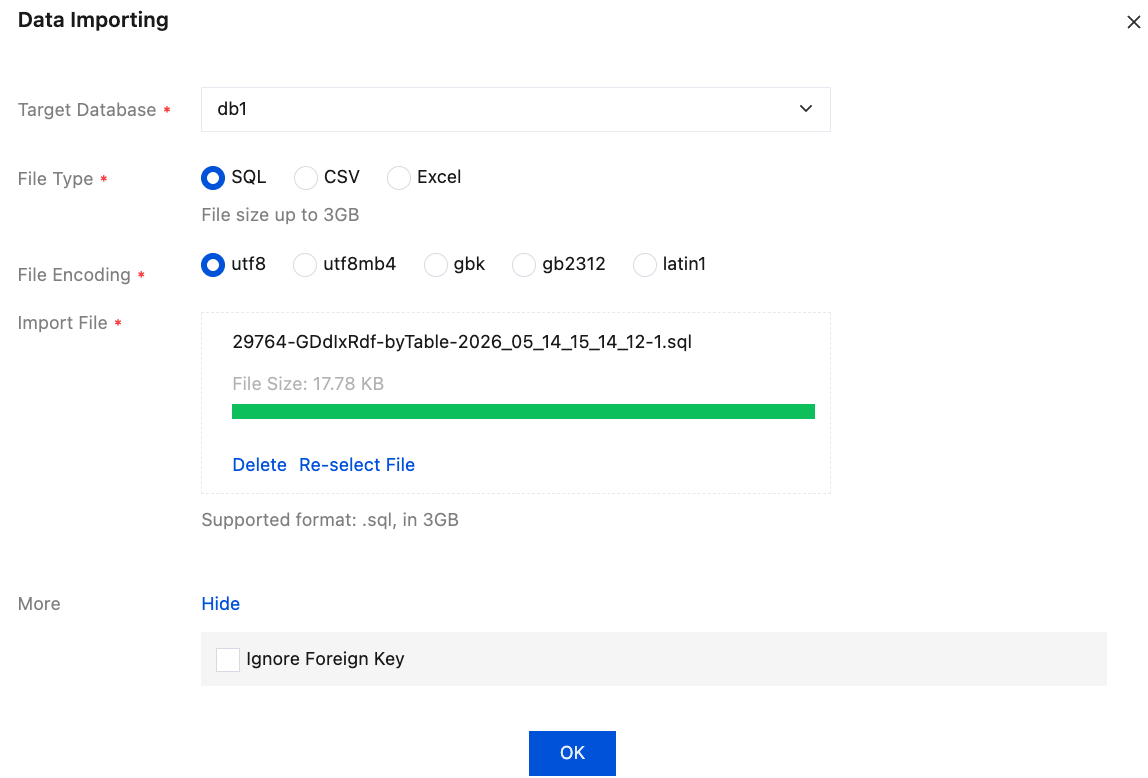
The parameters are described in the following table.
Parameter | Description |
Target Database | Supports selecting the database to be executed. |
File Type | Supported file types: SQL, CSV, and Excel. SQL: After selecting the SQL file type, choose the import file accordingly. More: Click to Display, and select whether to ignore foreign keys. CSV and Excel: After selecting CSV or Excel, configure the following additional parameters: Import Table: Select the table to which the data will be imported. Lock Table: Select whether to lock the table. To ensure consistency of the exported data, you are advised to enable table locking (read lock). Column Name: Specify whether the import file contains column names. Import Method: Choose between Insert or Replace. Separator: Any string can be used as a delimiter except double quotes (") and the Tab key. The default is a comma (,). Applicable to CSV files only. The delimiter takes effect when reading the data, splitting each row into different fields. For example, if a row contains "ad","po","vb", and the delimiter is a comma, the row will be split into three fields, each corresponding to a column name. These values are used as insert values when generating SQL statements. |
File Encoding | Select the file encoding format, including utf8, gbk, gb2312, and latin1. |
Import File | Click Click to Upload to upload a local file, or drag and drop the file to the designated area. Only .sql and .csv files within 3 GB and .xlsx files within 10 MB are allowed. |
When the task status changes to Executed Successfully, the data has been imported successfully.
Data Export
1. In the upper-right corner of the page, select Import/Export > Data Exporting.
2. In the dialog box that appears, select parameters such as the target database, file type, and export content, and then click OK.
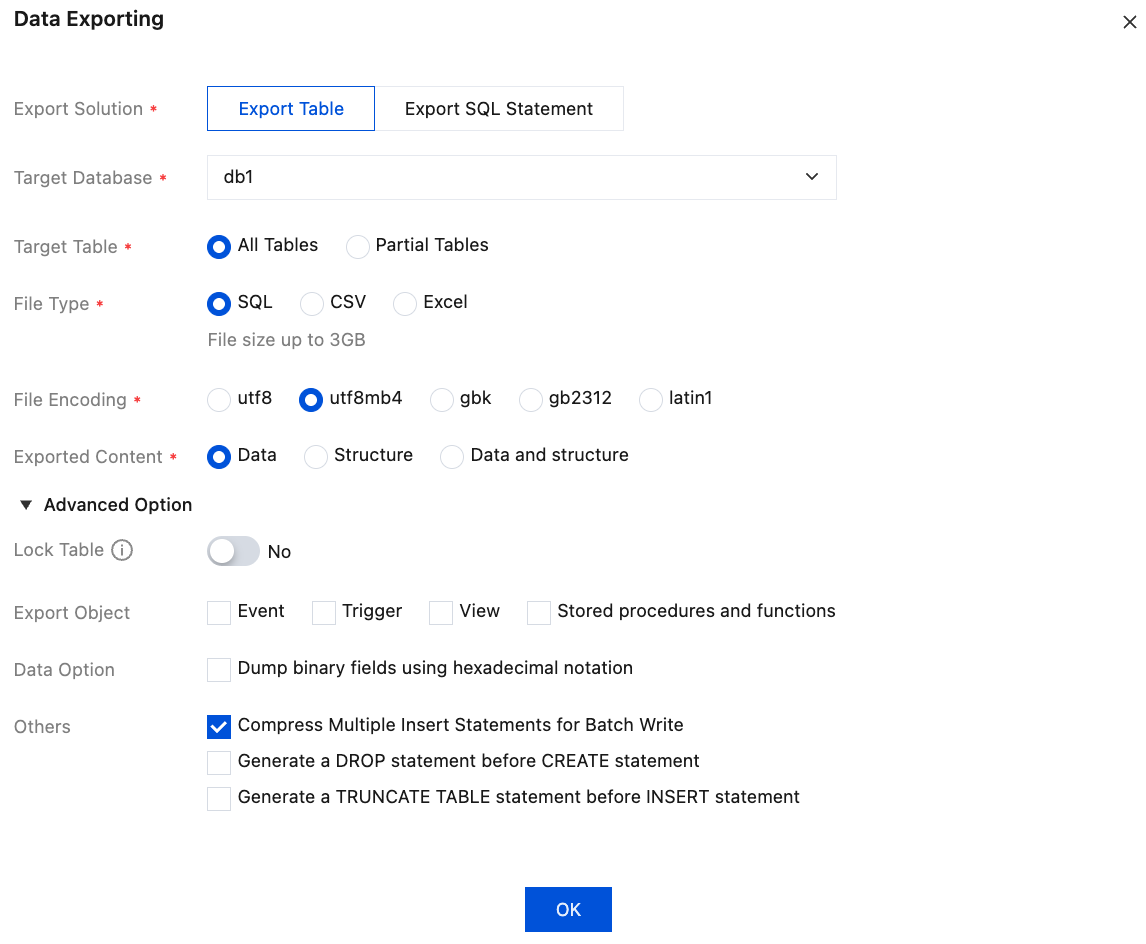
The parameters are described in the following table.
Parameter | Description |
Export Solution | Select the export method: Export Table: Export by table. Export SQL Statement: Export the query results based on a custom SQL statement. Note: When Export SQL Statement is selected, JOIN, subquery, and other complex SQL statements are not supported for export. Reference syntax: select * from ruirui_test where id > 5 order by id desc limit 30; |
Target Database | Select the database to be exported. |
Target Table | Select the export scope (only displayed under the Export Table solution): All Tables: Export all tables in the selected database. Partial Tables: Customize the tables to be exported. |
File Type | Select the export file format: SQL, CSV, or Excel. The file size must not exceed 3 GB. |
File Encoding | Select the file encoding format, including utf8, utf8mb4, gbk, gb2312, and latin1. |
Exported Content | Only displayed when SQL file type and Export Table solution are selected: Data: Export table data only. Structure: Export table structure only. Data and structure: Export both table structure and data. |
Export Execute SQL | Only displayed under the Export SQL Statement solution. Enter the SQL statement to be executed for exporting the results. |
Advanced Option | Click to expand and configure the following advanced parameters (only displayed when Export Table solution and SQL file type are selected). |
Lock Table | Specify whether to lock the table during export. Disabled by default (table is not locked). Caution: Locking the table ensures data consistency during the export process, but you need to be aware that read locks will be applied to the tables to be exported. Write operations will be blocked until the locks are released. |
Export Object | Select the database objects to be exported, including Event, Trigger, View, and Stored procedures and functions. |
Data Option | When selected, dump binary fields using hexadecimal notation during export. |
Others | Configure additional export options: Compress Multiple Insert Statements for Batch Write: Merge multiple INSERT statements to improve write efficiency. Generate a DROP statement before CREATE statement: Add a corresponding DROP statement before each CREATE statement. Generate a TRUNCATE TABLE statement before INSERT statement: Add a TRUNCATE TABLE statement before each INSERT statement. Note: When Generate a DROP statement before CREATE statement is enabled, the differences between regular tables and views are as follows: Regular table: A DROP TABLE statement is added before the CREATE statement (if the table exists). Example: DROP TABLE IF EXISTS xxx;View: A statement to delete the view is added before the CREATE VIEW statement. Example: DROP VIEW IF EXISTS xxx;When Generate a TRUNCATE TABLE statement before INSERT statement is enabled, all existing data in the target table will be cleared before the INSERT operation is performed to insert the new data. The cleared data cannot be restored, so use this option with caution. |
3. When the task status changes to Executed Successfully, click Download in the Operation column.
4. In the dialog box that appears, download the file.
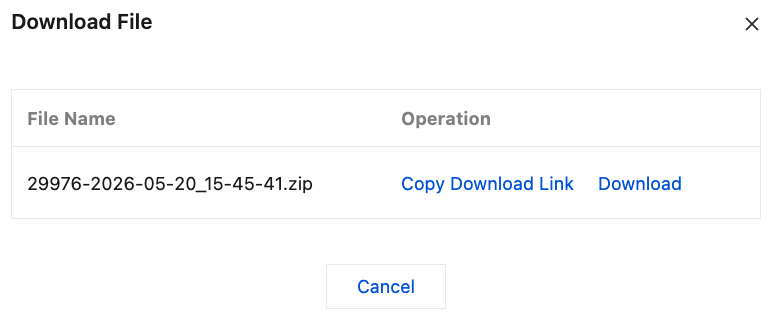
Click Copy Download Link, paste the link into a new browser tab, and download the file in .zip format.
Click Download to directly download the file in .zip format.
Related Documentation
During the execution of an import/export task, if you want to terminate the task, click Terminate Task in the Operation column.
Ajuda e Suporte
Esta página foi útil?
Você também pode entrar em contato com a Equipe de vendas ou Enviar um tíquete em caso de ajuda.
comentários