Programmable Objects Management
Download
Modo Foco
Tamanho da Fonte
Programmable objects include views, stored procedures, functions, triggers, and events. Supported operations include execution, edit, and deletion of programmable objects.
Prerequisites
Creating a View
1. In the left database and table panel, hover over the database name and select Operation > Create View.
2. On the right Create a New View page, enter the name and definer, select check option, algorithm, and security, enter the SQL statement, and then click Submit.
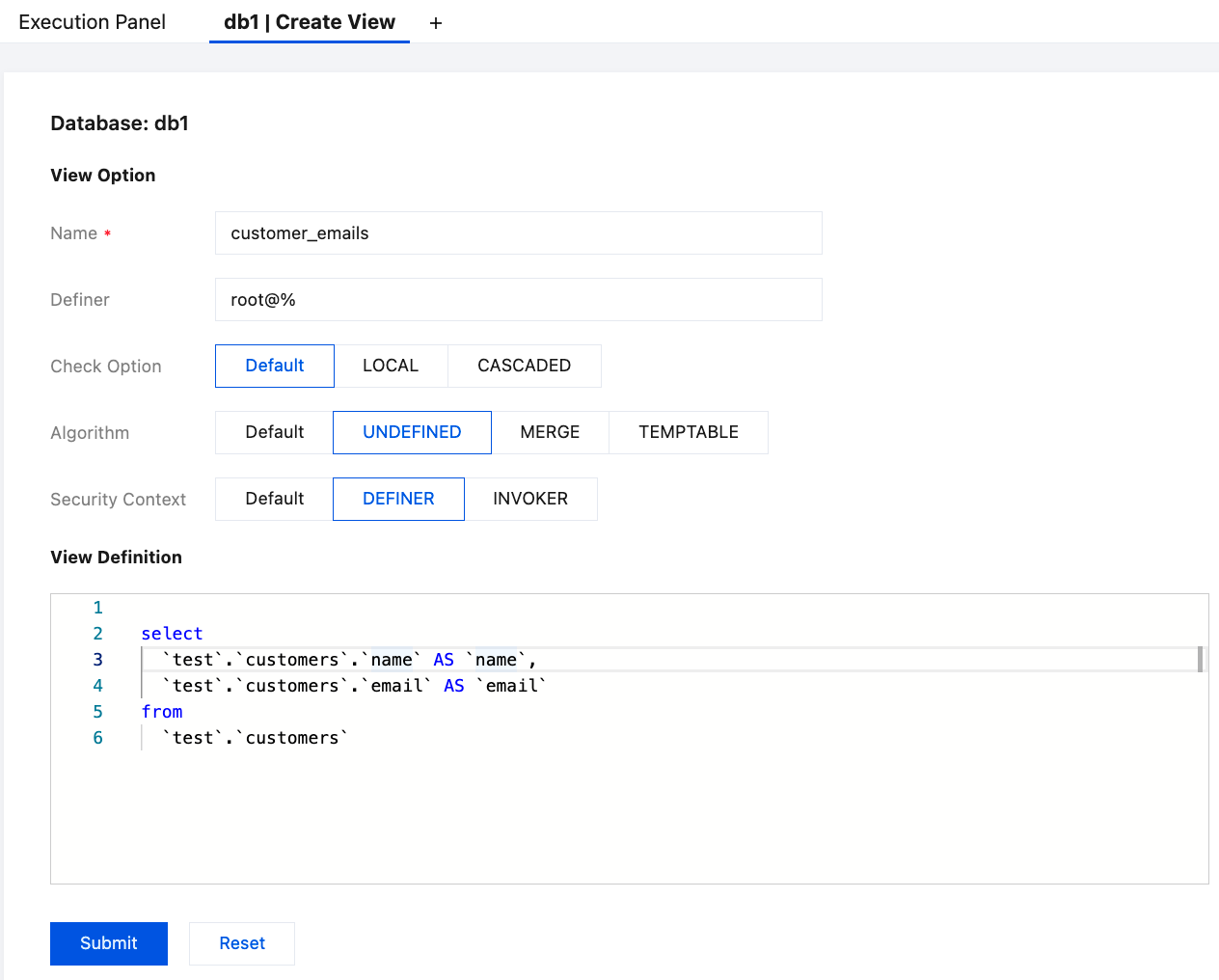
3. In the pop-up dialog box, verify that the SQL statement is correct, and then click OK.
The created view will be displayed under the corresponding database in the left database and table panel.
View SQL Operations
Editing a View
1. In the left database and table panel, hover over the view name and select Operation > Edit View.
2. On the right Edit View page, edit the view options and view definition, and then click Submit.
3. In the pop-up dialog box, verify that the SQL statement is correct, and then click OK.
Deleting a View
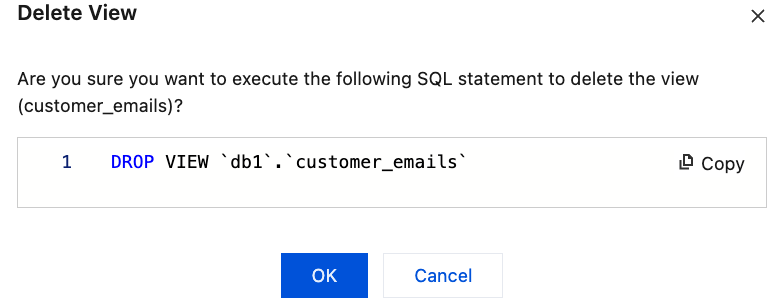
1. In the left database and table panel, hover over the view name and select Operation > Delete View.
2. In the pop-up dialog box, click OK.
Creating a Stored Procedure
1. In the left database and table panel, hover over the database name and select Operation > Create Stored Procedure.
2. On the right create stored procedure page, enter the name, select the check option and data access, and then click Next.
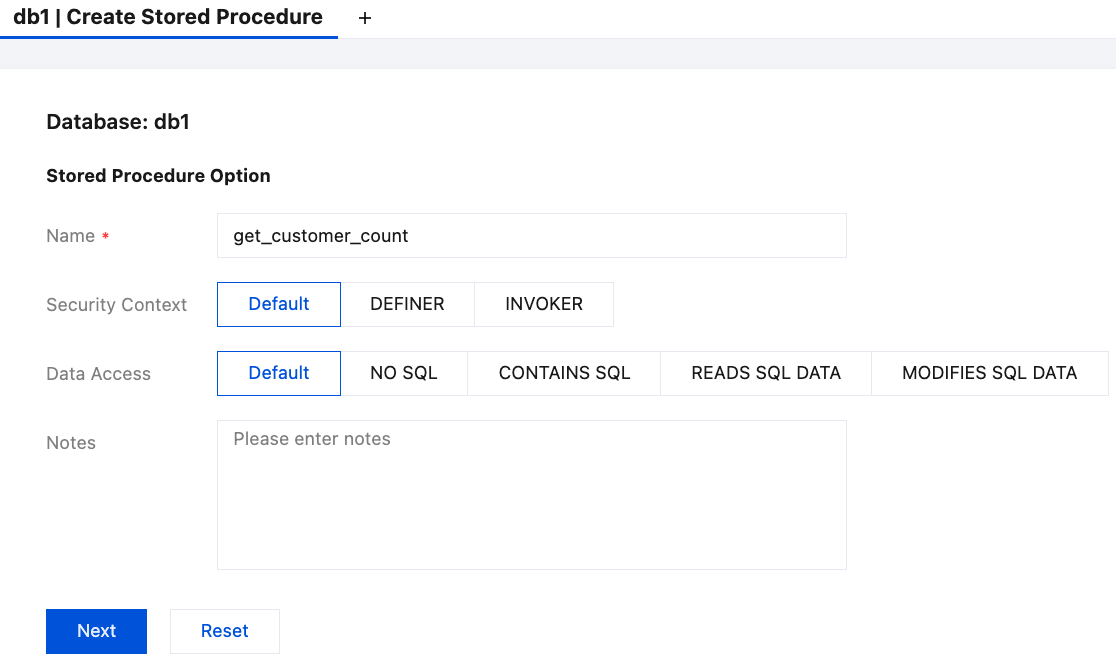
3. Define the stored procedure and click OK.
Note:
The stored procedure definition template varies based on the selected data access type. Refer to the actual interface display.
The created stored procedure will be displayed under the corresponding database in the left database and table panel.
Executing a Stored Procedure
1. In the left database and table panel, hover over the stored procedure name, and then select Operation > Execute Stored Procedure.
2. In the pop-up dialog box, click Execute to view the execution results.
Note:
If parameters are defined, the parameter values should be entered before executing the stored procedure.
Editing a Stored Procedure
1. In the left database and table panel, hover over the stored procedure name, and then select Operation > Edit Stored Procedure.
2. On the right Edit Stored Procedure page, edit the stored procedure definition and click Submit.
Deleting a Stored Procedure
1. In the left database and table panel, hover over the stored procedure name, and then select Operation > Delete Stored Procedure.
2. In the pop-up dialog box, click OK.
Creating a Function
1. In the left database and table panel, hover over the database name and select Operation > Create Function.
2. On the right New Function page, enter the function name, select the return type, return length, determinism, security, and data access, and then click Next.
3. Define the function and click Submit.
Note:
The function definition template varies based on the selected data access type. Refer to the actual interface display.
The created function will be displayed under the corresponding database in the left database and table panel.
Executing a Function
1. In the left database and table panel, hover over the function name and select Operation > Execute Function.
2. In the pop-up dialog box, enter the parameter values, and click Execute to view the execution results.
Editing a Function
1. In the left database and table panel, hover over the function name and select Operation > Edit Function.
2. On the right Edit Function page, edit the function definition, and then click Submit.
Deleting a Function
1. In the left database and table panel, hover over the function name and select Operation > Delete Function.
2. In the pop-up dialog box, click OK.
Creating an Event
1. In the left database and table panel, hover over the database name and select Operation > Create Event.
2. On the right Create an Event page, enter the event name, select the schedule type, whether to preserve the event after completion, and event status, enter the event statement, and then click Submit.
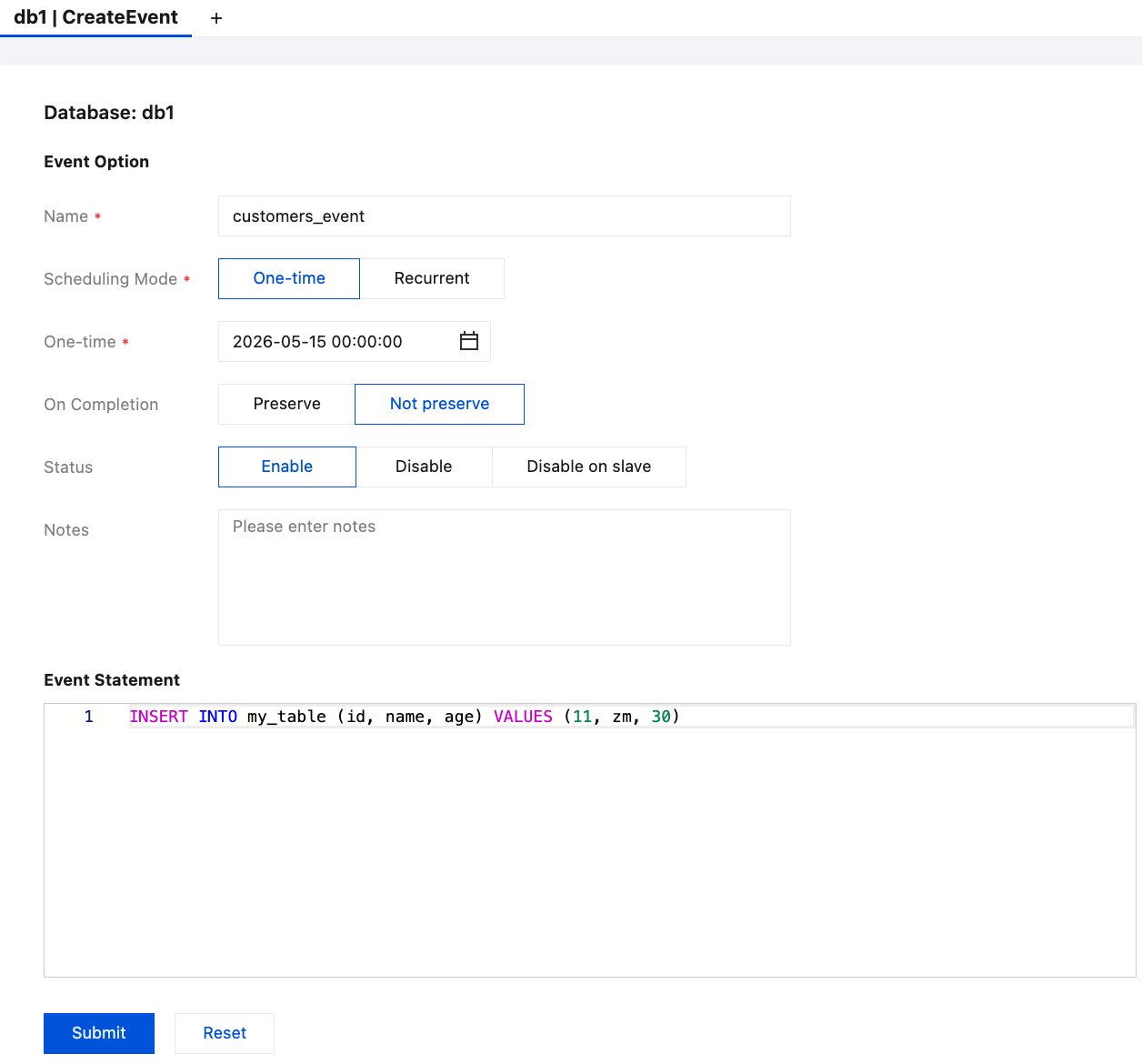
3. In the pop-up dialog box, verify that the SQL statement is correct, and then click OK.
The created event will be displayed under the corresponding database in the left database and table panel.
Editing an Event
1. In the left database and table panel, hover over the event name and select Operation > Edit Event.
2. On the Edit Event page, edit the event options and event statement, and then click Submit.
3. In the pop-up dialog box, verify that the SQL statement is correct, and then click OK.
Deleting an Event
1. In the left database and table panel, hover over the event name and select Operation > Delete Event.
2. In the pop-up dialog box, click OK.
Creating a Trigger
1. In the left database and table panel, hover over the database name and select Operation > Create Trigger.
2. On the right Create Trigger page, enter the trigger name, select the trigger timing, event, and target table, enter the trigger statement, and then click Submit.
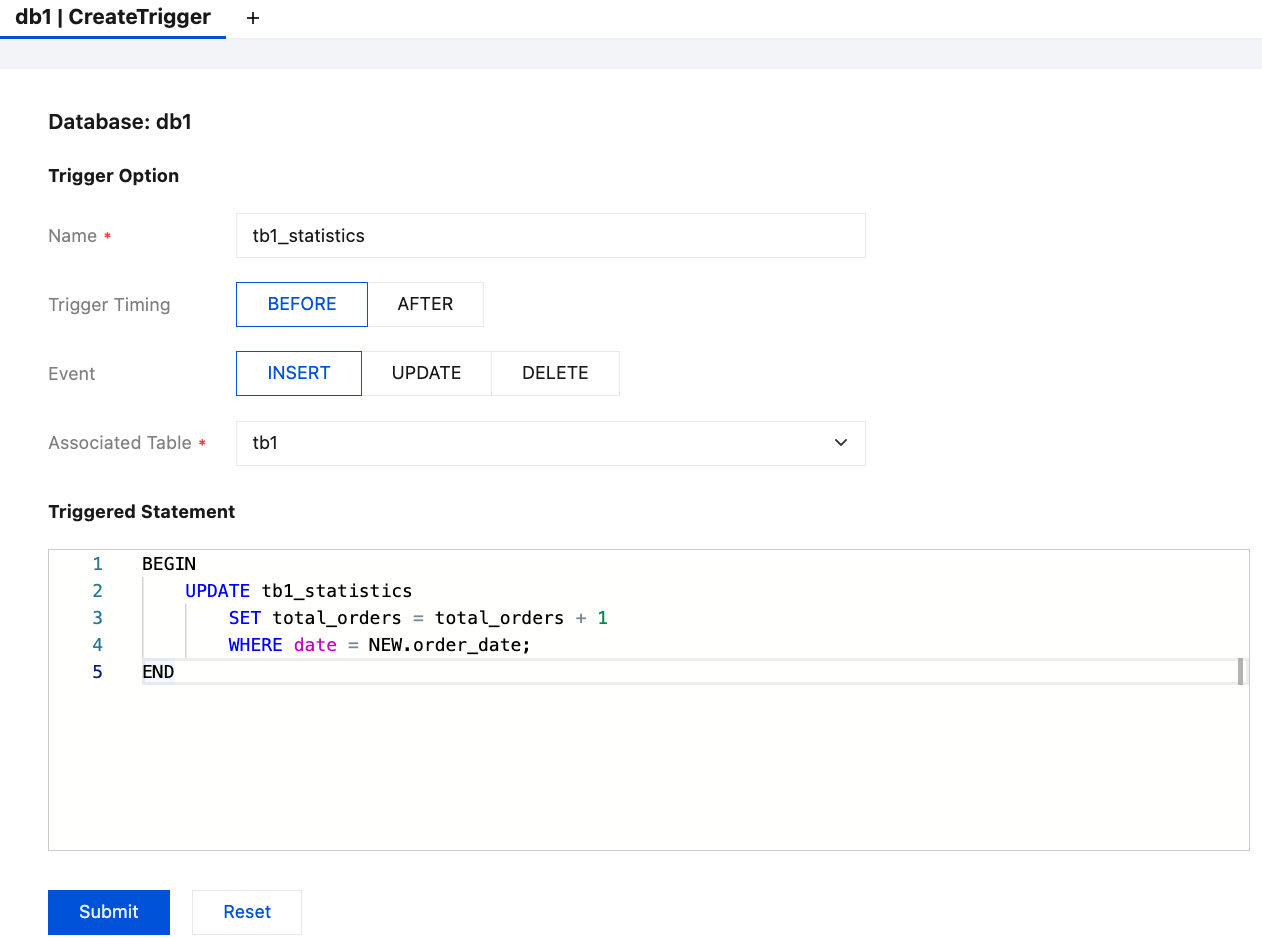
3. In the pop-up dialog box, verify that the SQL statement is correct, and then click OK.
The created trigger will be displayed under the corresponding database in the left database and table panel.
Editing a Trigger
1. In the left database and table panel, hover over the trigger name and select Operation > Create Trigger.
2. On the Edit Trigger page, edit the trigger options and trigger statement, and then click Submit.
3. In the pop-up dialog box, verify that the SQL statement is correct, and then click OK.
Deleting a Trigger
1. In the left database and table panel, hover over the trigger name and select Operation > Delete Trigger.
2. In the pop-up dialog box, click OK.
Ajuda e Suporte
Esta página foi útil?
Você também pode entrar em contato com a Equipe de vendas ou Enviar um tíquete em caso de ajuda.
comentários