Identity Management and Google Workspace Single Sign-On Example
Baixar
Modo Foco
Tamanho da Fonte
Última atualização: 2026-07-17 14:50:59
Traduzido por IA
This document offers examples of Google Workspace and Identity Management single sign-on (SSO login).
Preparations
Before configuring SSO login, you need to complete user creation: create a same-name user in Identity Management. Upon creation, the username in Identity Management must be consistent with that in Google Workspace. For detailed operations, please refer to User Management.
Attention:
Google Workspace does not support synchronizing users to Identity Management through SCIM.
2. In the left sidebar, choose User Management > Settings.
3. In the SSO login area, click
, then click to enable in the popup window to enable SSO login.
Step 2: Copy the Service Provider (SP) Info
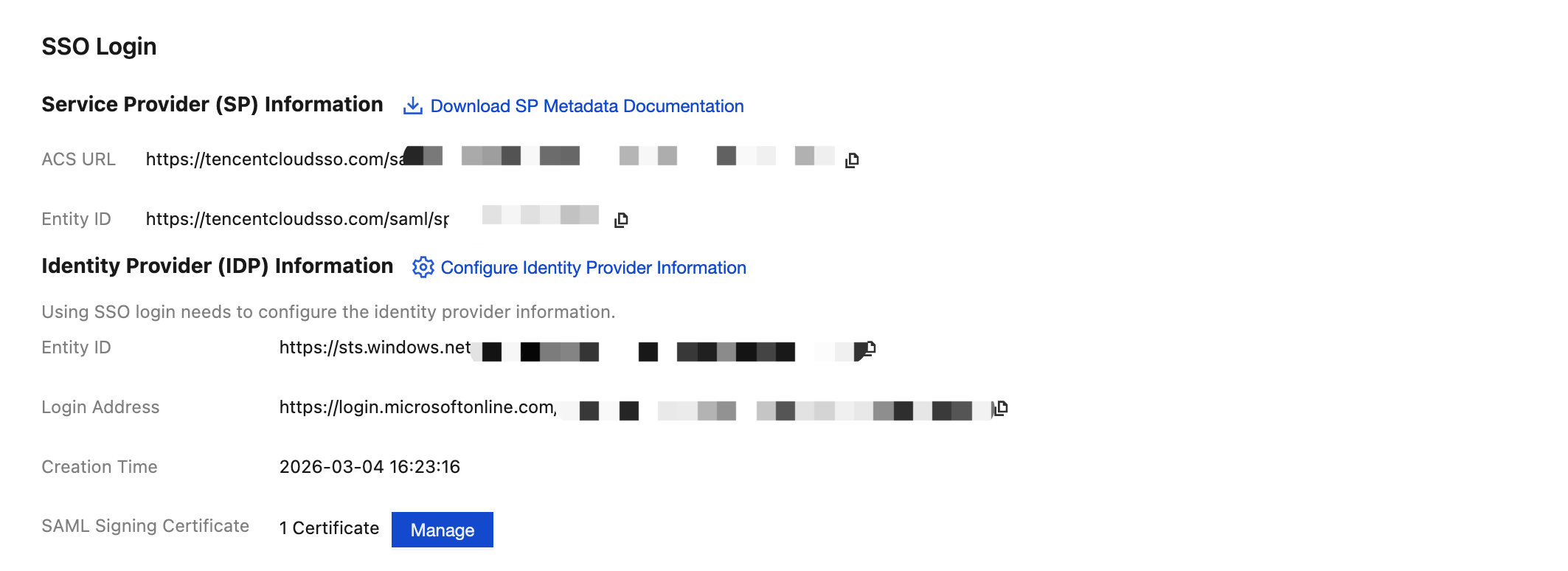
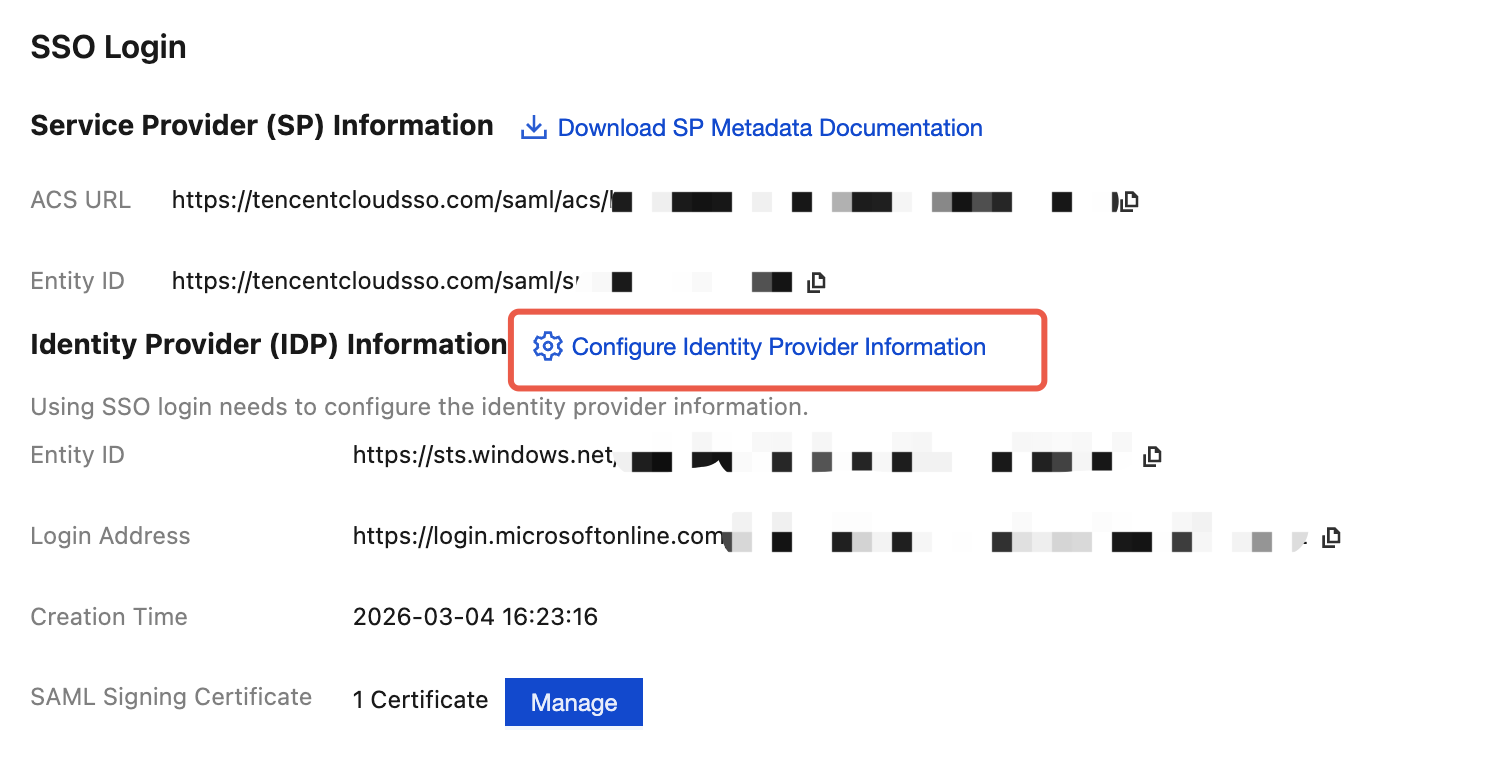
In the Service Provider (SP) Info section, view and copy the ACS URL and Entity ID, and use them directly for manual configuration of the external IdP.
Configuring Google Workspace
Step 1: Set Up Single Sign-On in Google Workspace
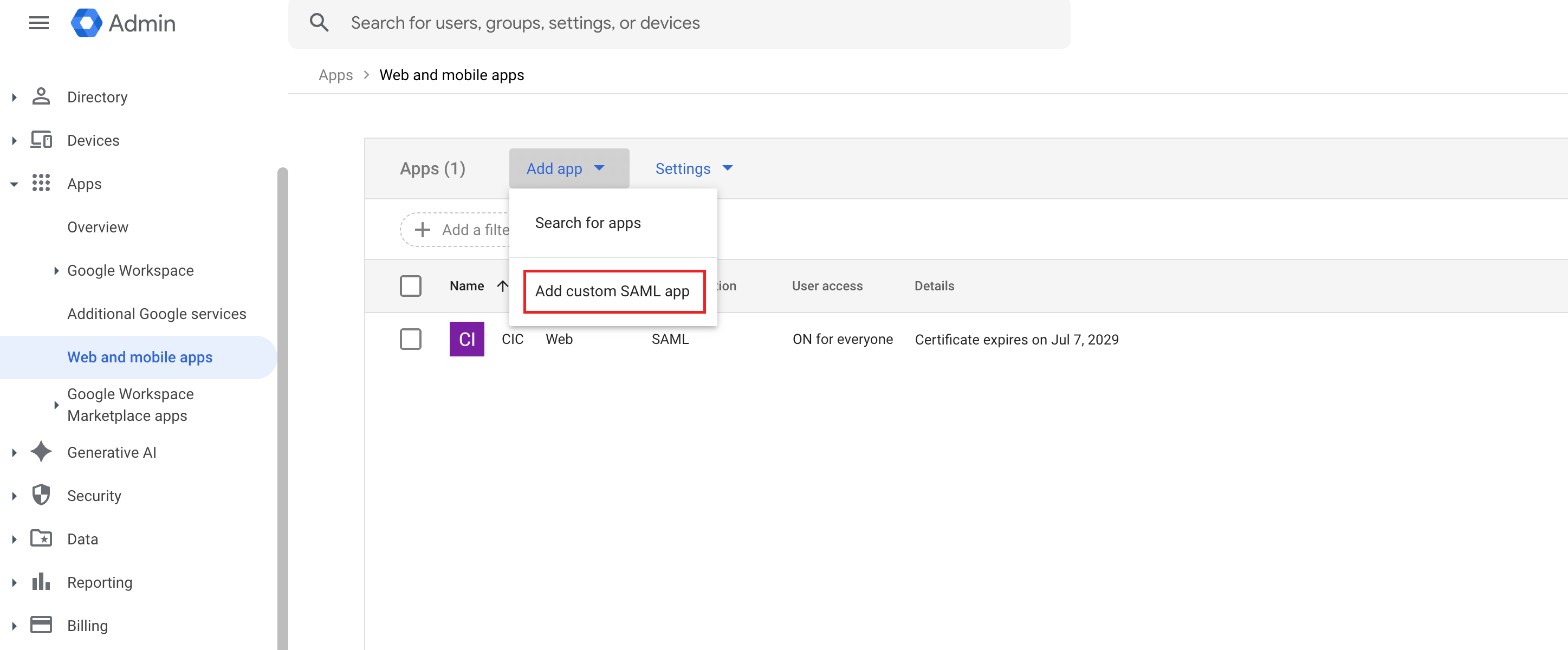
1. The admin enters Google Workspace, in the left sidebar, select Apps > Web and mobile apps, click Add app on the page, and select Add custom SAML app.
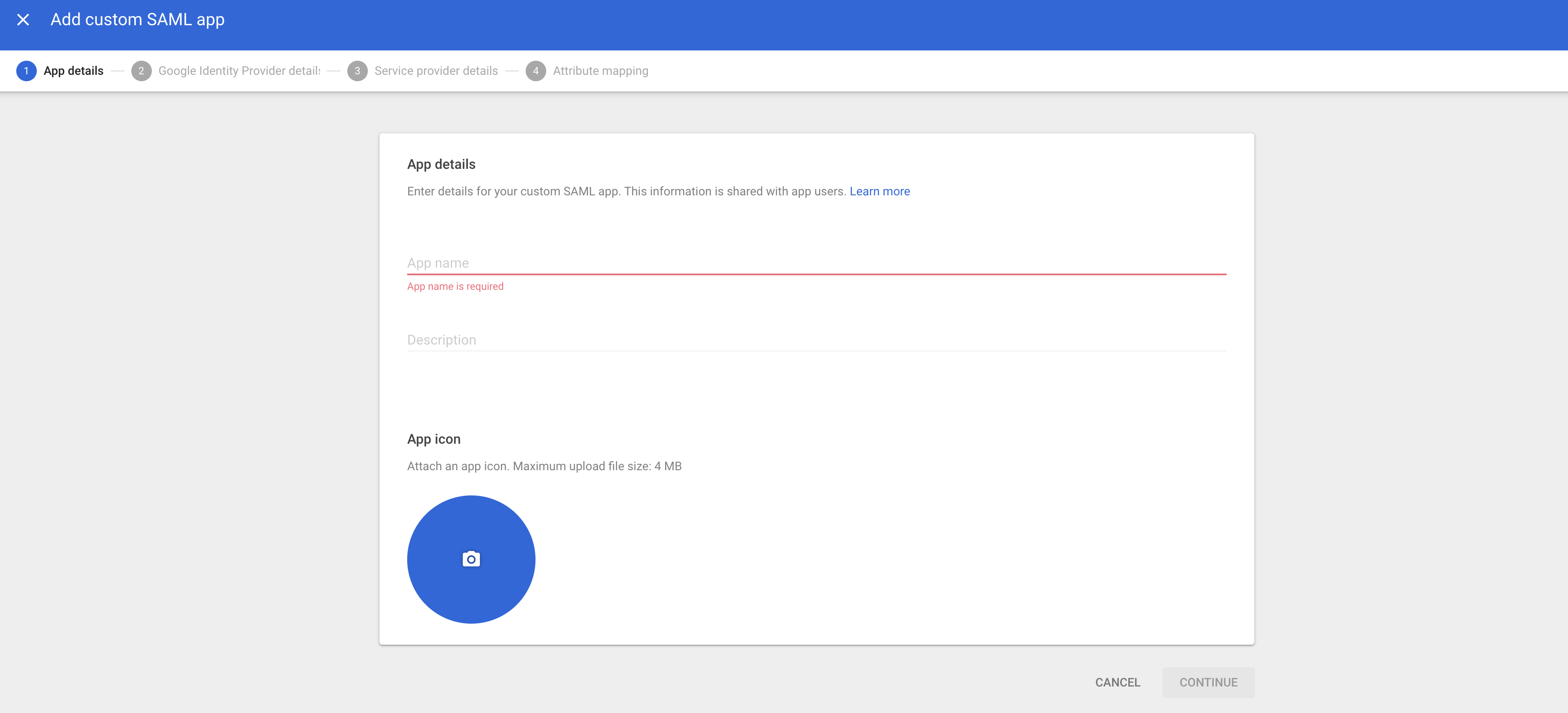
2. Configure App name, then click CONTINUE.
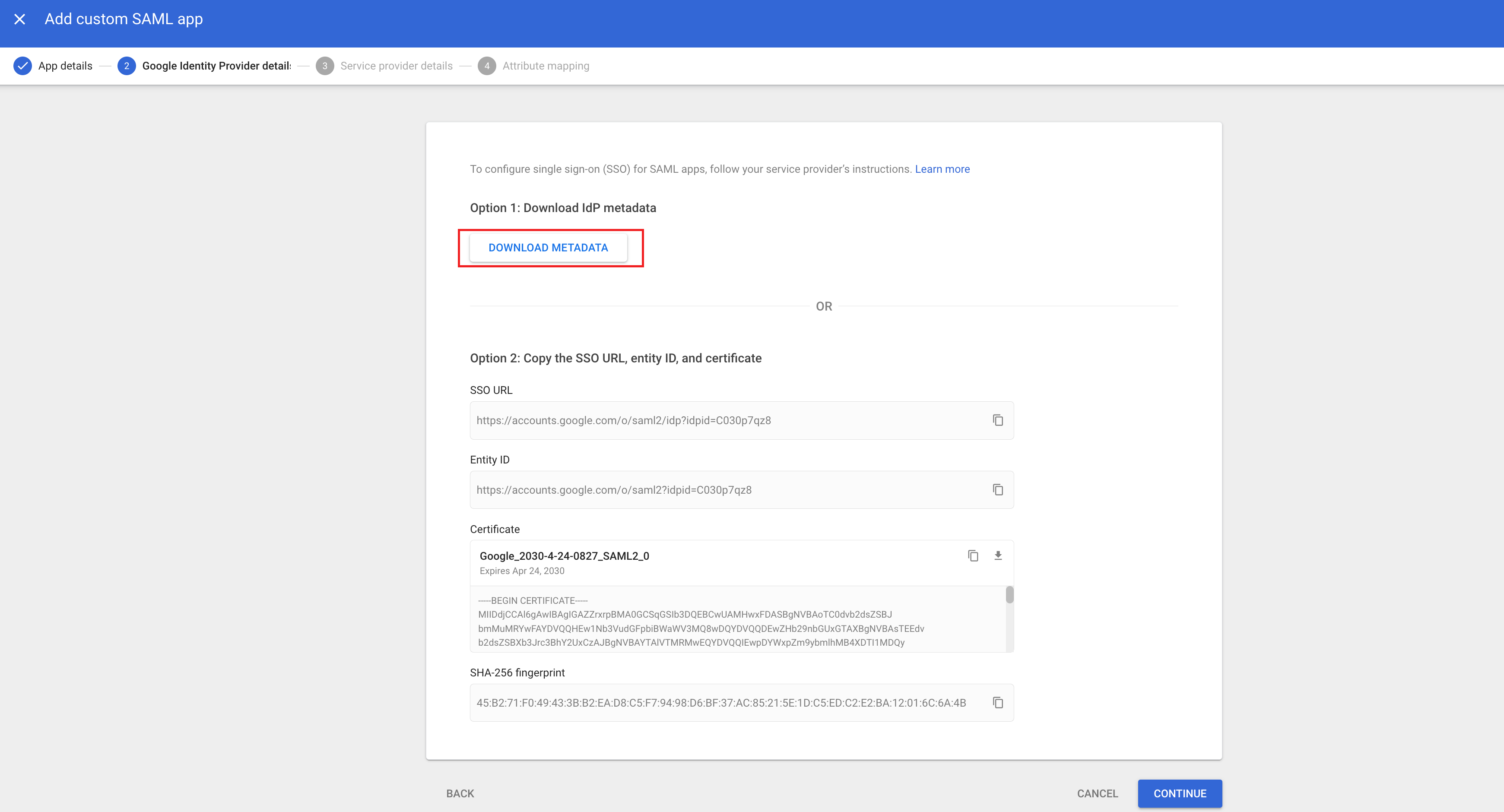
3. Click DOWNLOAD METADATA to download the metadata XML document, then click CONTINUE.
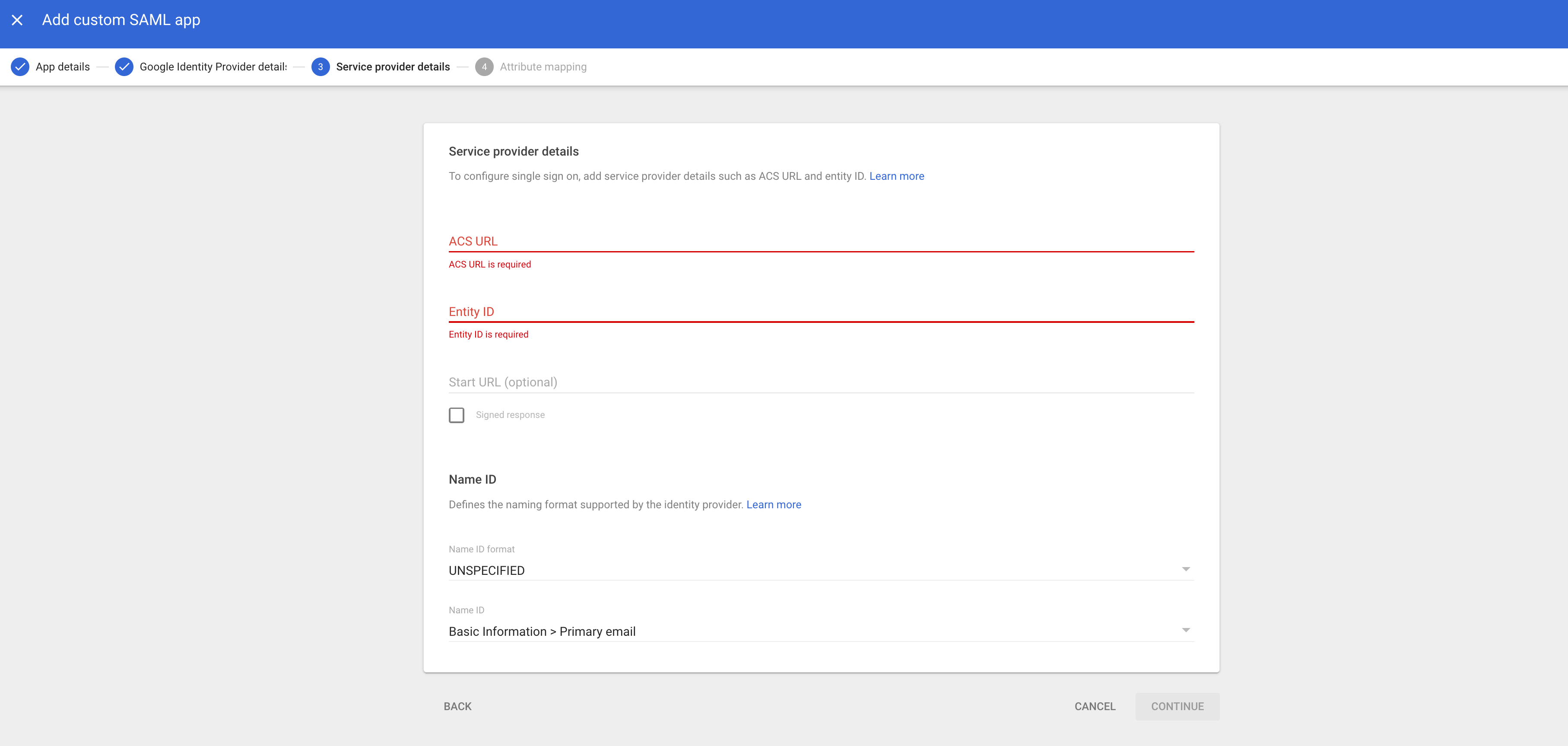
4. At ACS URL, fill in the ACS URL obtained from the Identity Management in step 2. At Entity ID, fill in the Entity ID obtained from the Identity Management, then click CONTINUE.
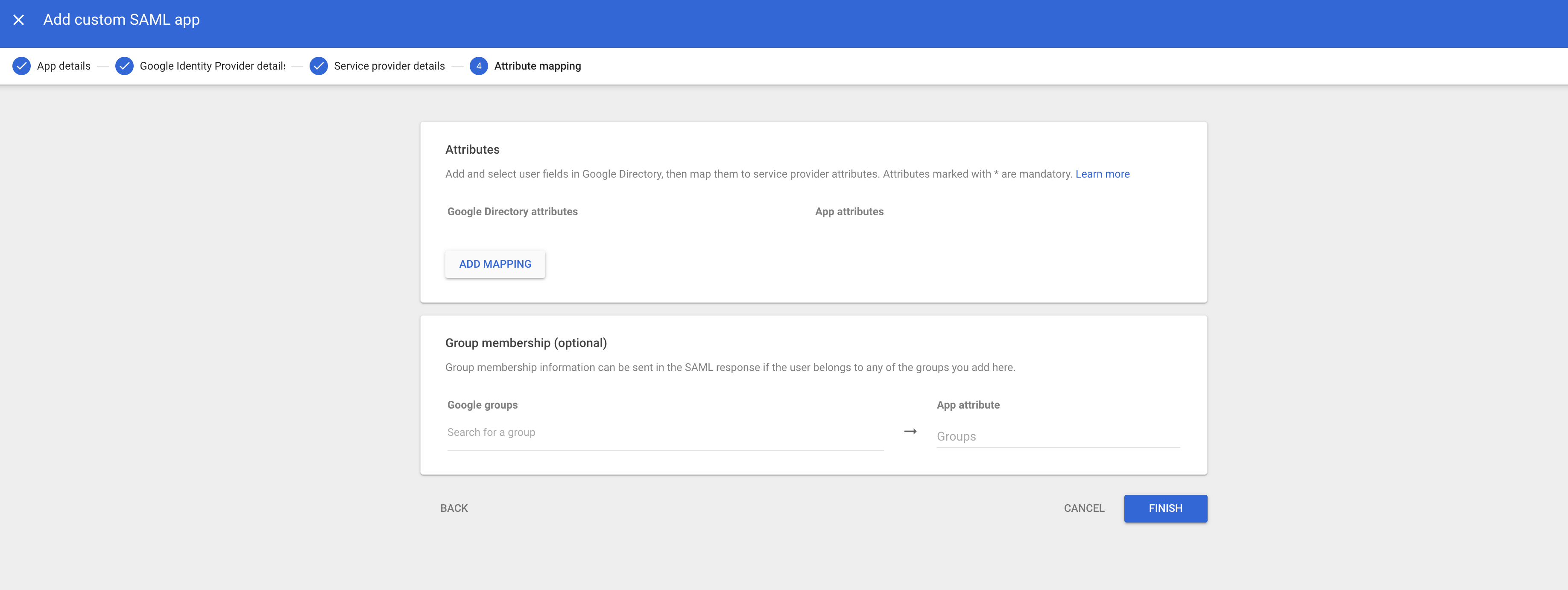
5. Click FINISH to complete the creation.
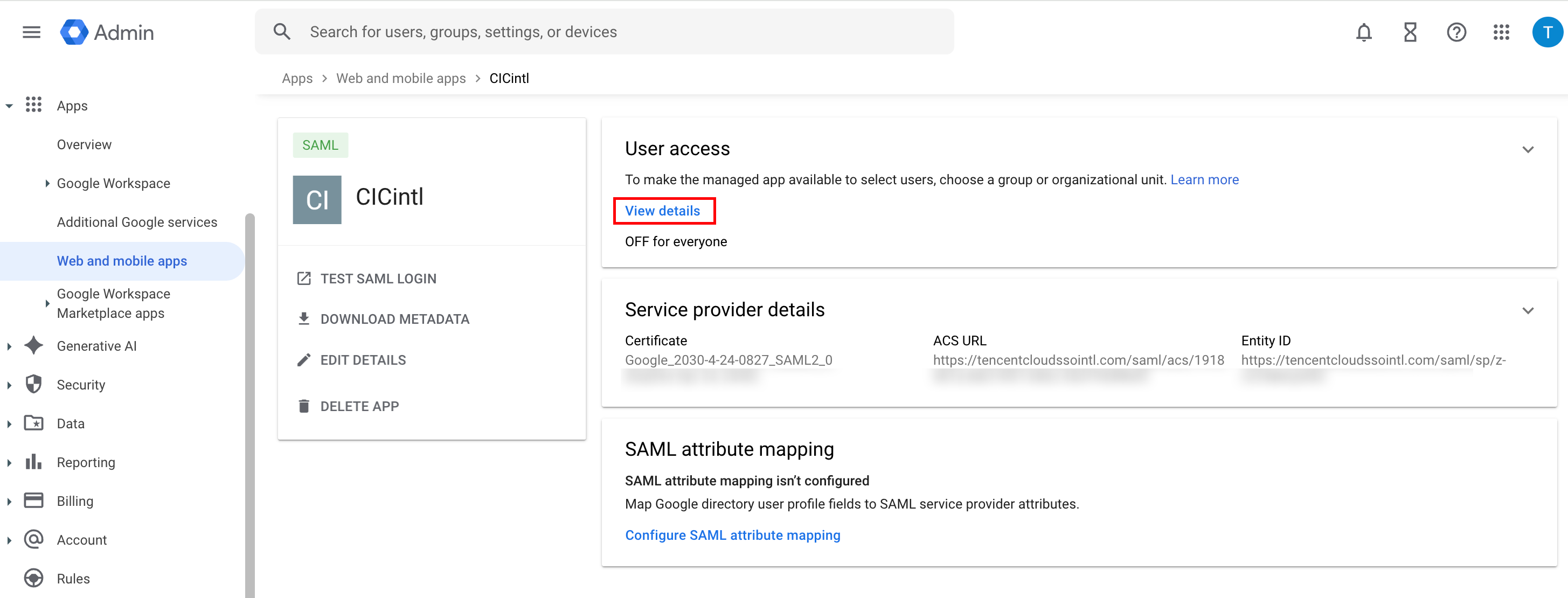
6. Click User access module View details.
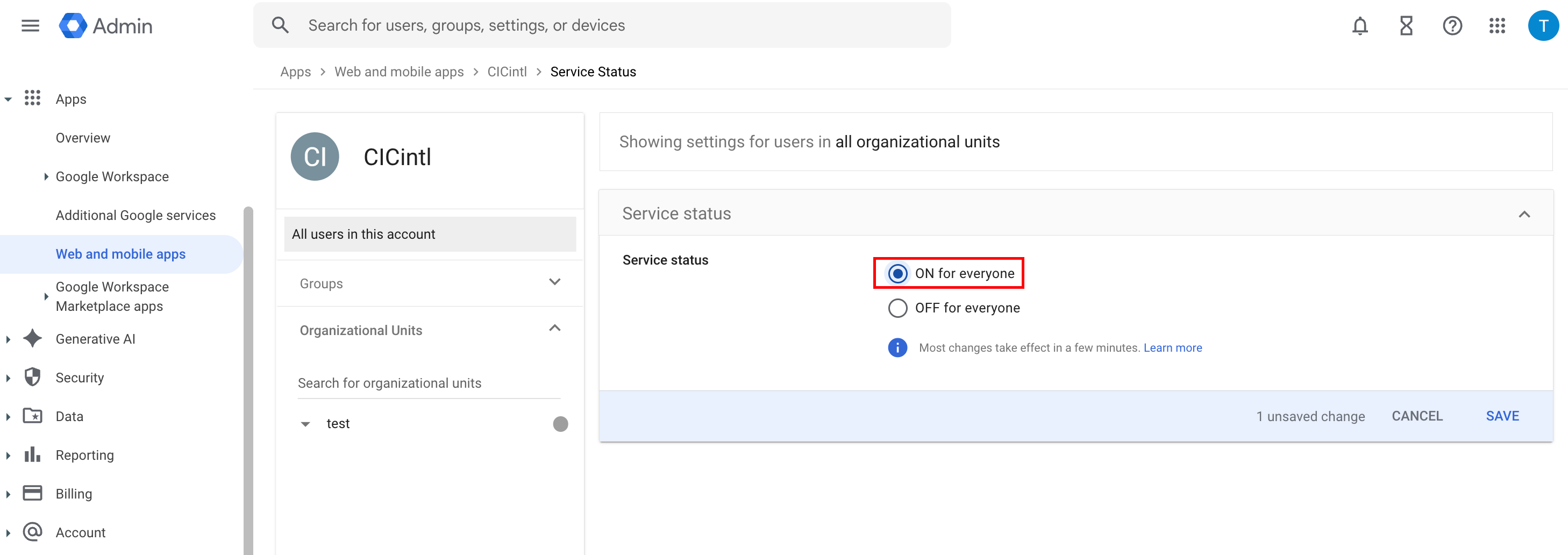
7. In the Service status module, select ON for everyone, then click SAVE.
Step 2: Upload Federation Metadata XML in Identity Management
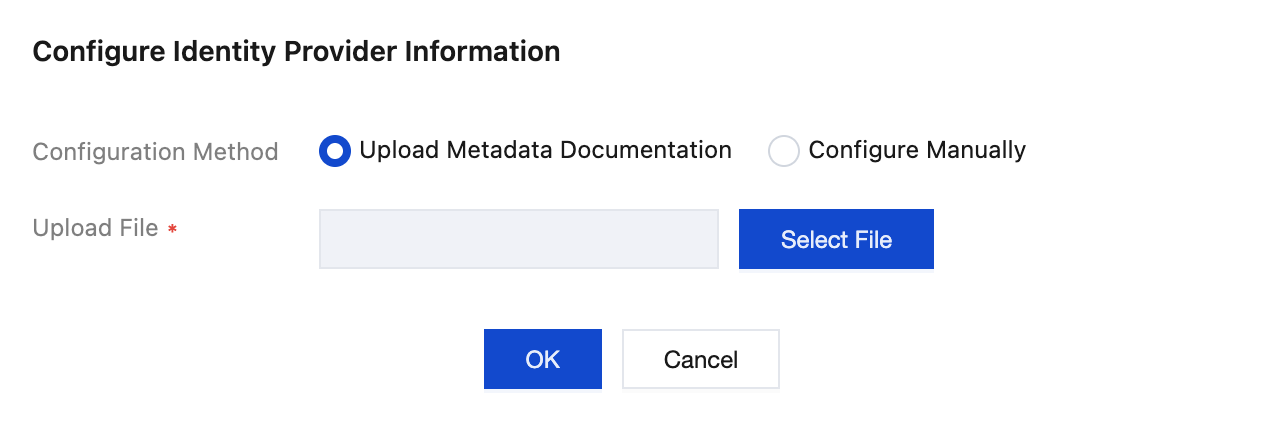
1. In the Organization Account Management > Identity Management >Settings>SSO LoginIdentity Provider (IDP) Information section, click Configure Identity Provider Information.
2. Click Select File to upload the Federation Metadata XML document downloaded from Google Workspace.
Result Verification
After completing the SSO login configuration, you can initiate SSO login from Tencent Cloud.
Premise: In the Identity Management, it is necessary to create a user with the same name as in the Google Workspace application. Enter Tencent Cloud Organization > Identity Management >User page creation.
Login Process:
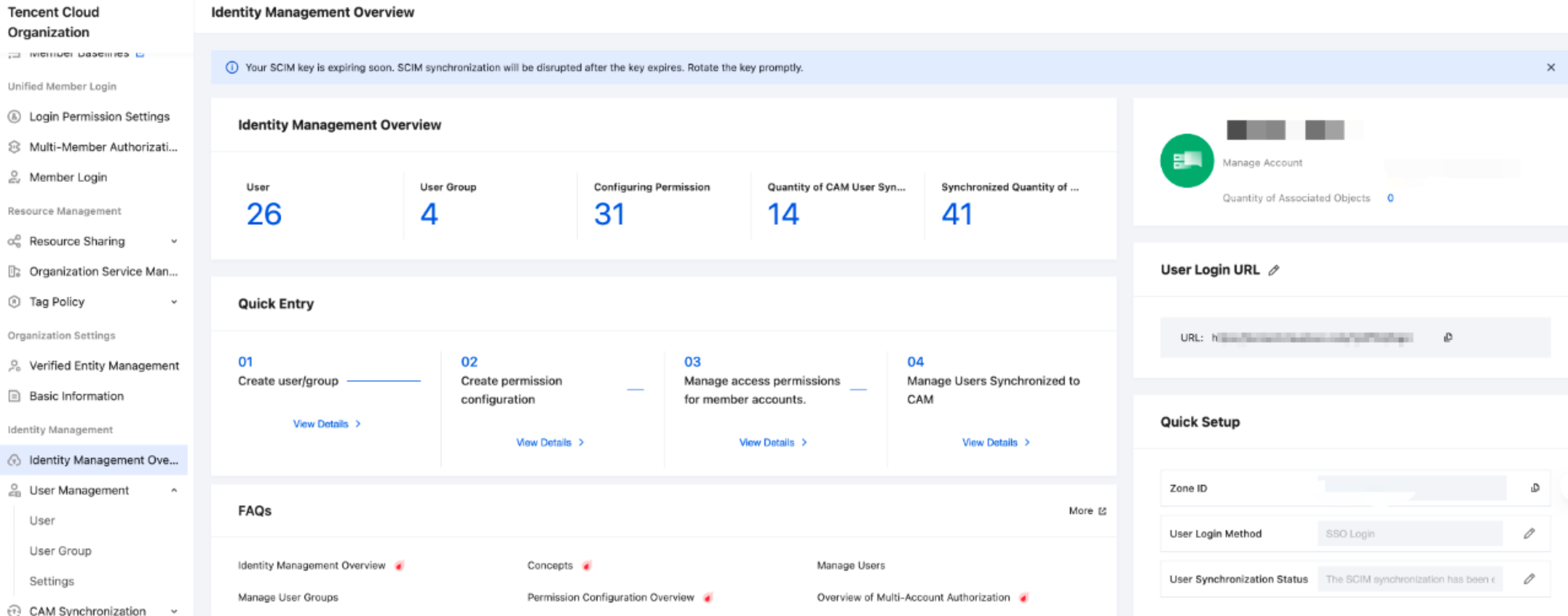
1. The Identity Management administrator enters Organization Account Management > Identity Management > Identity Management Overview page on the right to view and copy the User Login URL.
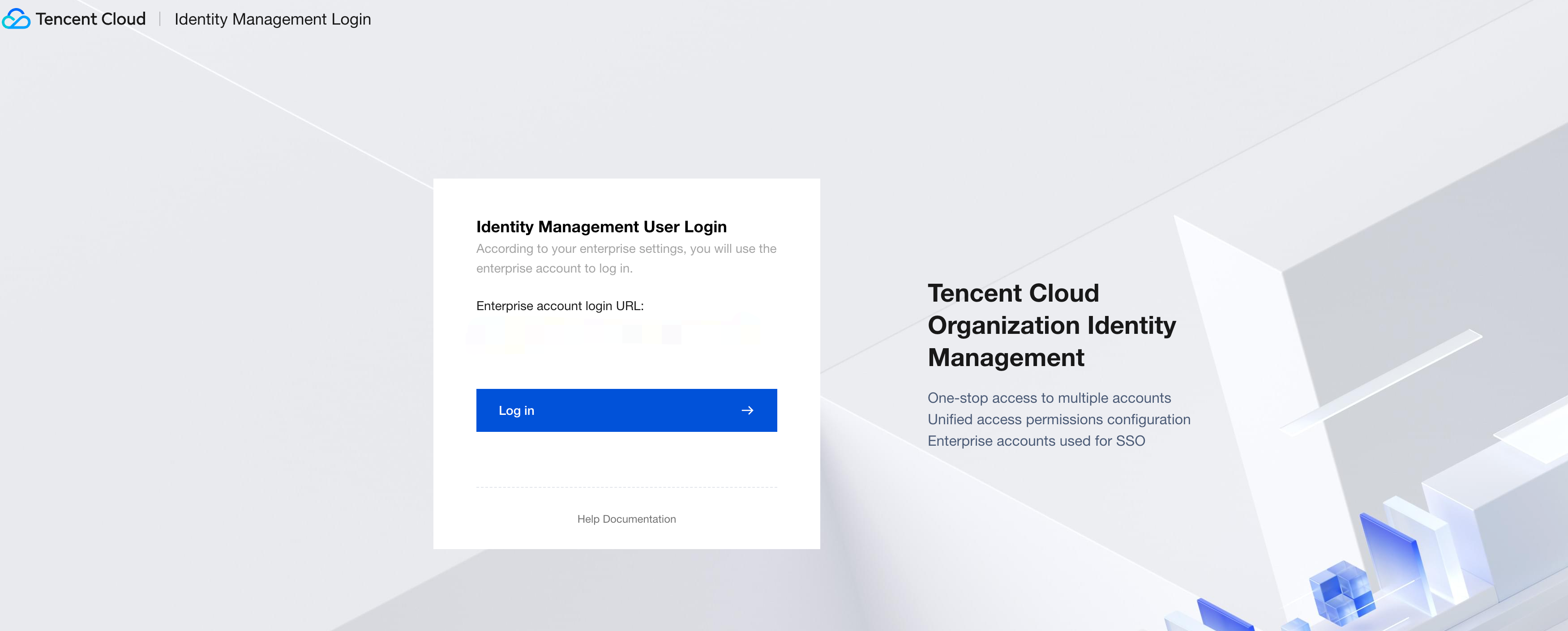
2. Click to access the User Login URL, then click Login.
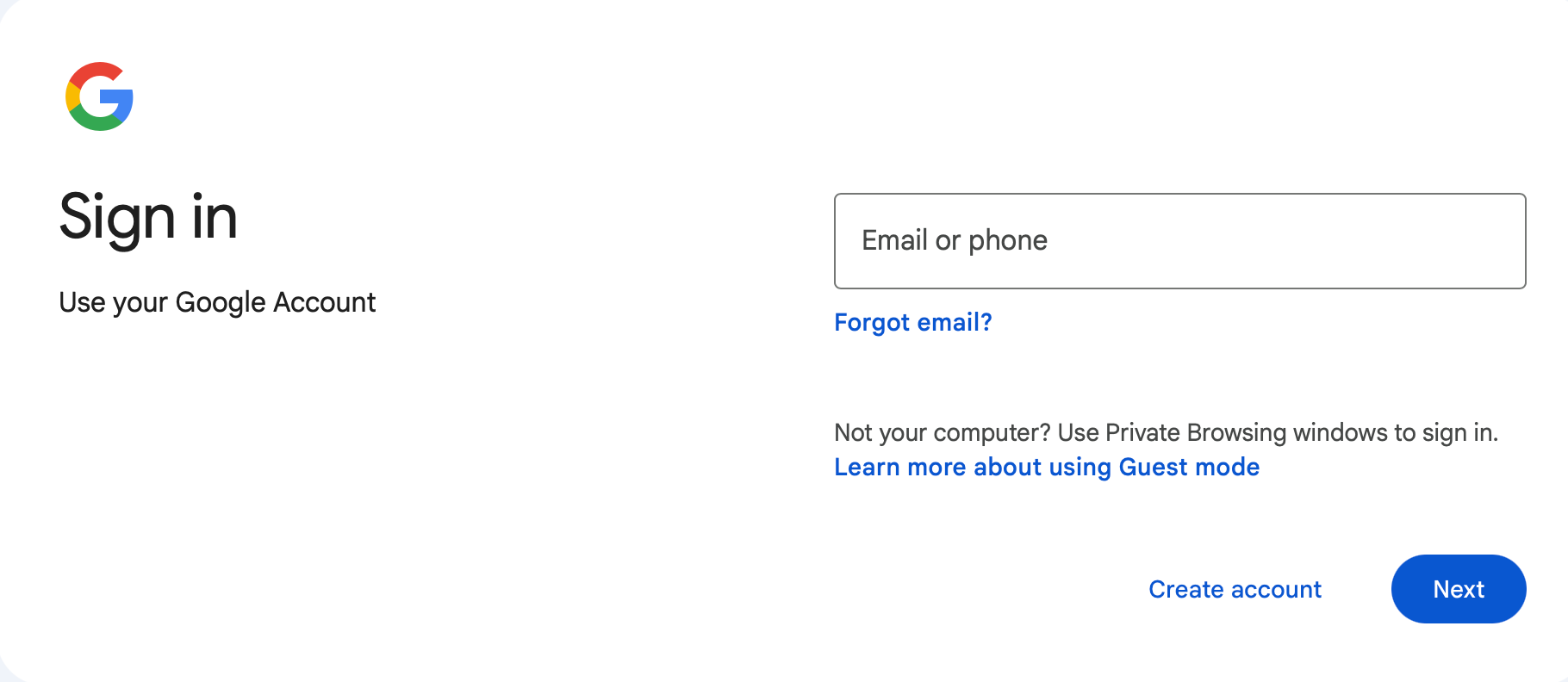
3. Redirect to the Google Login page, select an account, then enter the password to sign in.
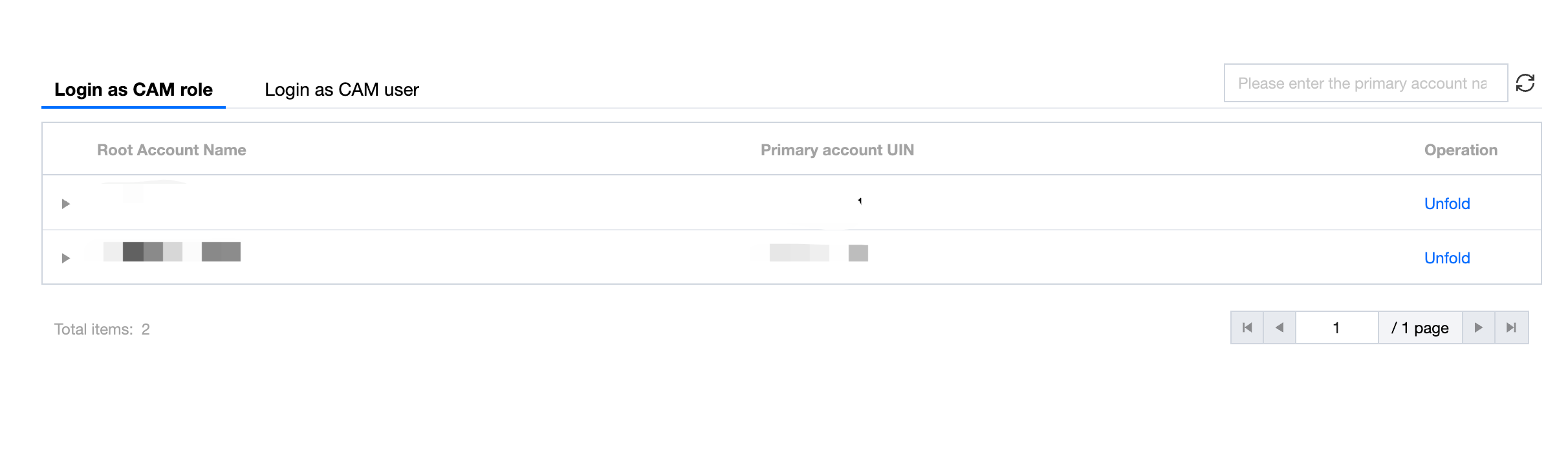
4. Login successful, enter the Identity Management account list page.