High Cluster Disk Utilization and read_only Status
다운로드
포커스 모드
폰트 크기
마지막 업데이트 시간: 2024-11-29 22:14:22
Problem Description
When the disk utilization exceeds 85% or reaches 100%, the ES cluster or Kibana cannot provide services normally, and the following problems may occur:
When an index request is made, an error similar to {[FORBIDDEN/12/index read-only/allow delete(api)];","type":"cluster_block_exception"} is returned.
1. When an operation is performed on the cluster, an error similar to [FORBIDDEN/13/cluster read-only / allow delete (api)] is returned.
2. The cluster is in the red status. In severe cases, the node may not join the cluster (which can be viewed through the GET _cat/allocation?v command), and there are unassigned shards (which can be viewed through the GET _cat/allocation?v command).
3. The node monitoring page in the ES console shows that the disk utilization of cluster nodes has reached or approached 100%.
Troubleshooting
The above problems are caused by high disk utilization. The disk utilization of data nodes has the following three thresholds. Exceeding them may affect Elasticsearch or Kibana services.
When the cluster disk utilization exceeds 85%, new shards cannot be assigned.
When the cluster disk utilization exceeds 90%, Elasticsearch will try to migrate the shards on the corresponding node to other data nodes with lower disk utilization.
When the cluster disk utilization exceeds 95%, the system will forcibly set the read_only_allow_delete attribute for each index on the corresponding node in the Elasticsearch cluster. At this time, the node cannot write data to any index; instead, it can only read and delete the corresponding indexes.
Solutions
Clearing expired cluster data
1. You can access Kibana > Dev Tools to delete expired indexes to free up disk space in the following steps:
Warning:
Data cannot be recovered after deletion; therefore, please do so with caution. You can also choose to keep the data, but you need to expand the disk space.
Step 1. Enable batch operation for cluster indexes.
PUT _cluster/settings
{
"persistent":{
"action.destructive_requires_name":"false"
}
}
Step 2. Delete data, such as DELETE NginxLog-12*.
DELETE index-name-*
2. After performing the above step, if the version of your ES is below 7.5.1, you also need to run the following commands in Dev Tools on the Kibana page:
Disable the read-only status of the index by running the following command:
PUT _all/_settings
{
"index.blocks.read_only_allow_delete": null
}
Disable the read-only status of the cluster by running the following command:
PUT _cluster/settings
{
"persistent":{
"cluster.blocks.read_only_allow_delete": null
}
}
3. Check whether the cluster index is still in the read_only status and whether the index can be written to.
4. If the cluster is still in the red status, run the following command to check whether there are unassigned shards in the cluster.
GET /_cluster/allocation/explain
5. After the distribution of the shards is completed, check the cluster status. If the cluster status is still red, please submit a ticket for assistance.
6. In order to avoid high disk utilization from affecting Elasticsearch services, we recommend you enable disk utilization monitoring alarms, check the alarm messages in time, and take precautionary measures. For more information, please see Suggestions for Configuring Monitors and Alarms.
Expanding cloud disk space
If you don't want to clean cluster data, you can also expand the disk space on the Cluster Configuration page in the ES console in the following steps:
1. In the cluster list, click the ID/Name of the instance to be configured to enter the instance details page. Then, click Adjust Configuration on the Basic Configuration tab.
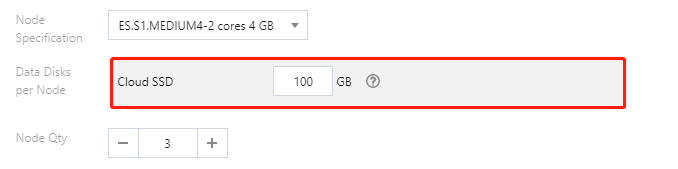
2. On the Adjust Configuration page, select the desired disk space for Single-node Data Disk and click Next to submit the task.
3. If the version of your ES is below 7.5.1, you also need to run the following commands in Dev Tools on the Kibana page:
Disable the read-only status of the index by running the following command:
PUT _all/_settings
{
"index.blocks.read_only_allow_delete": null
}
Disable the read-only status of the cluster by running the following command: