제품 업데이트
Tencent Cloud 오디오/비디오 단말 SDK 재생 업그레이드 및 권한 부여 인증 추가
TRTC 월간 구독 패키지 출시 관련 안내
TUILiveKit. Use this guide to quickly integrate our pre-built live list page into your project, or to deeply customize the page’s style, layout, and features to fit your requirements.
// Example: YourLiveListViewController represents your live list waterfall view controllerclass YourLiveListViewController: UIViewController {// 1. Declare liveListView as a member variableprivate let liveListView = LiveListView(style: .doubleColumn)public override func viewDidLoad() {super.viewDidLoad()// 2. Add liveListView to the viewview.addSubview(liveListView)liveListView.snp.makeConstraints { make inmake.edges.equalToSuperview()}// 3. Set the item click delegate for the listliveListView.itemClickDelegate = self}}
OnItemClickListener callback. Implement OnItemClickListener in your live list waterfall view to handle user clicks and navigate to the audience watch page in onItemClick. For details on implementing the audience watch page, see Audience Watching.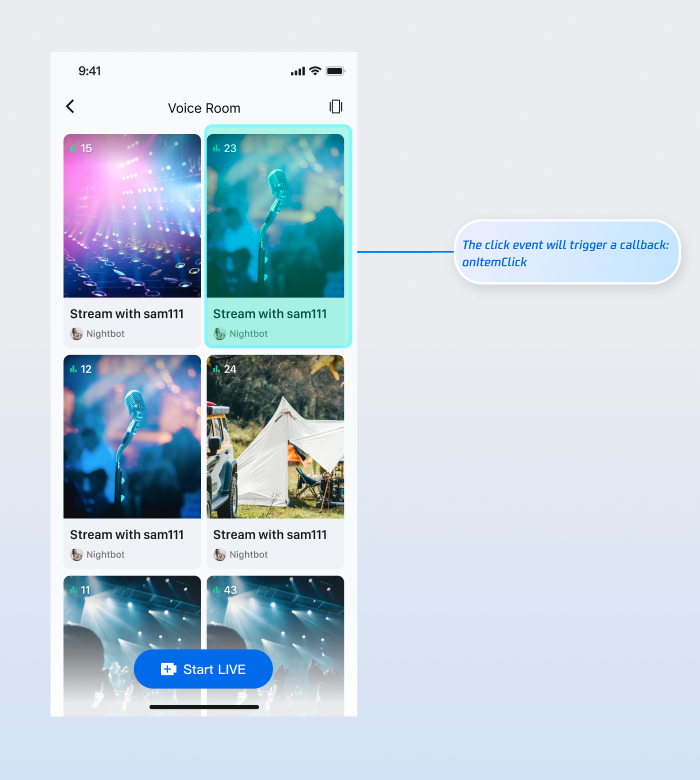
extension YourLiveListViewController: OnItemClickDelegate {func onItemClick(liveInfo: LiveInfo, frame: CGRect) {// 1. Instantiate your audience watch view controllerlet audienceVC = YourAudienceViewController(roomId: liveInfo.roomId)audienceVC.modalPresentationStyle = .fullScreen// 2. Present the audience watch view controllerpresent(audienceVC, animated: false)}}
TUILiveKit provides flexible APIs for customizing the live list waterfall component. You can customize the data source and the appearance of list items to fit your business needs.LiveListDataSource interface to supply your own data instead of using the component’s default data.// Example: YourLiveListViewController represents your live list waterfall view controllerclass YourLiveListViewController: UIViewController {private let liveListView: LiveListView = LiveListView(style: .doubleColumn)public override func viewDidLoad() {super.viewDidLoad()view.addSubview(liveListView)liveListView.snp.makeConstraints { make inmake.edges.equalToSuperview()}liveListView.itemClickDelegate = self// 1. Set the custom data source delegateliveListView.dataSource = self}}// 2. Implement the custom data source delegate: LiveListDataSourceextension YourLiveListViewController: LiveListDataSource {public func fetchLiveList(cursor: String, onSuccess: @escaping LiveListBlock, onError: @escaping TUIErrorBlock) {// 3. Connect to your backend and return data to the UI component in the following formatvar liveInfoList: [LiveInfo] = []var liveInfo = LiveInfo()liveInfo.roomId = "live_123456"liveInfo.name = "live_123456"liveInfoList.append(liveInfo)let cursor = "aabbccdd"onSuccess(cursor, liveInfoList)}}
LiveListViewAdapter interface.// Example: YourLiveListViewController represents your live list waterfall view controllerclass YourLiveListViewController: UIViewController {private let liveListView: LiveListView = LiveListView(style: .doubleColumn)public override func viewDidLoad() {super.viewDidLoad()view.addSubview(liveListView)liveListView.snp.makeConstraints { make inmake.edges.equalToSuperview()}liveListView.itemClickDelegate = selfliveListView.dataSource = self// 1. Set the custom widget adapterliveListView.adapter = self}}// 2. Implement the custom widget adapterextension YourLiveListViewController: LiveListViewAdapter {public func createLiveInfoView(info: LiveInfo) -> UIView {// Custom widget viewreturn YourCustomView(liveInfo: info)}public func updateLiveInfoView(view: UIView, info: LiveInfo) {if let infoView = view as? YourCustomView {// Update the data bound to the widget viewinfoView.updateView(liveInfo: info)}}}
Feature | Description | Integration Guide |
Host Live Streaming | Implements the complete process for a host to start a voice chat room live, including pre-live setup and in-session interactions. | |
Audience Viewing | Enables audience participation after joining the host’s voice chat room, including joining the mic, sending and receiving bullet comments, and more. |
LiveListDataSource interface. Pay special attention to the following:fetchLiveList method is being called.callback.onSuccess or callback.onFailure after fetching data, regardless of the result.피드백