1. Log in to the SCF console and click Function Service on the left sidebar.
2. Select the region where to create a function at the top of the page and click Create to enter the function creation process.
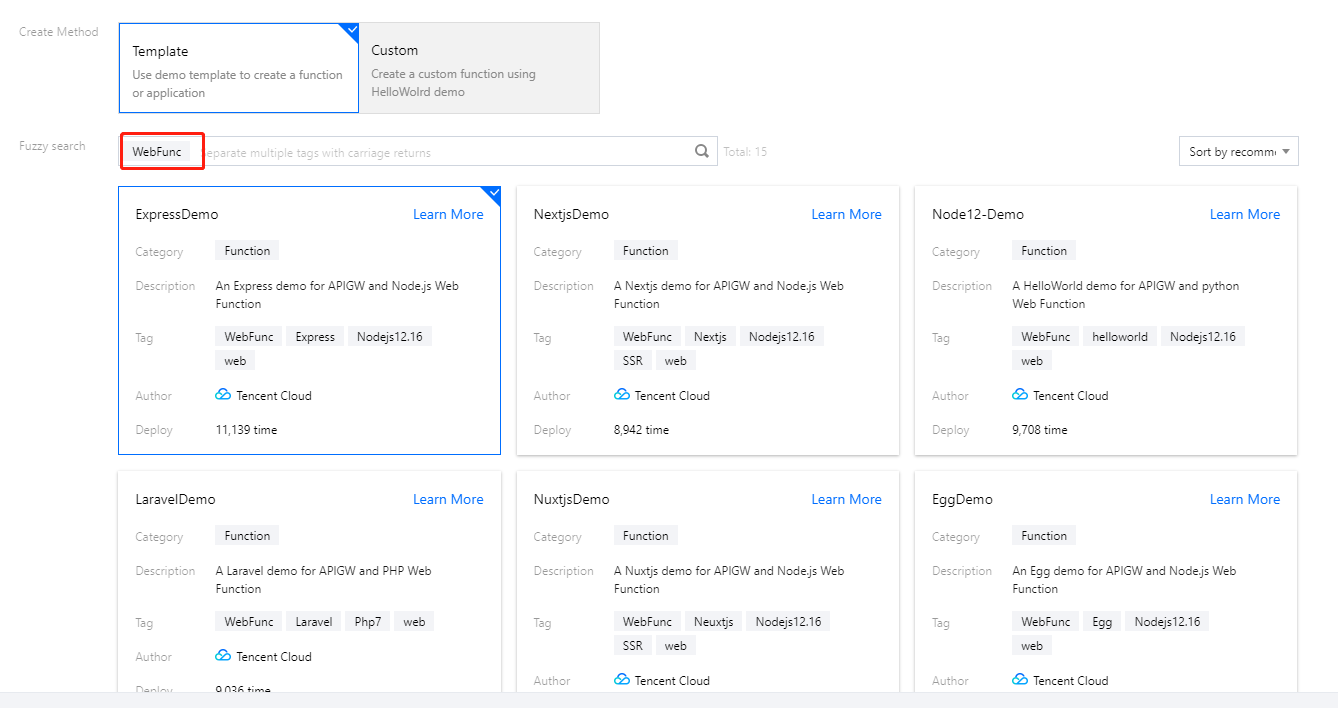
3. Select Template for Creation Method, enter WebFunc in the search box to filter all web function templates, select the one you want to use, and click Next as shown below:
4. On the Configuration page, you can view and modify the specific configuration information of the template project.
5. Click Complete.
After creating the web function, you can view its basic information on the Function Management page and access it at the access path URL generated by API Gateway.
Creating custom function
1. Log in to the SCF console and click Function Service on the left sidebar.
2. Select the region where to create a function at the top of the page and click Create to enter the function creation process.
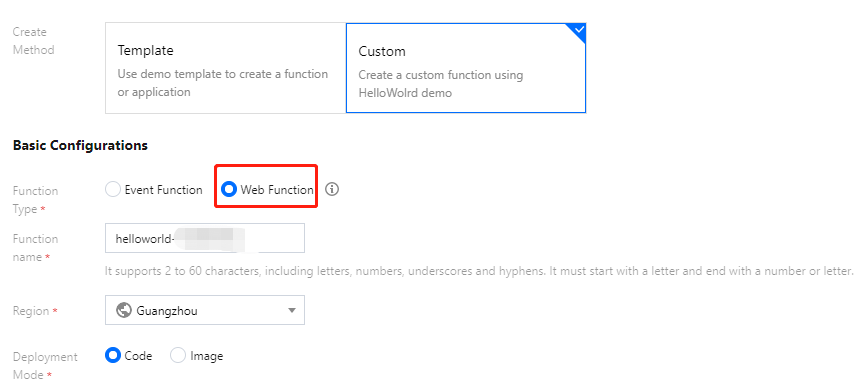
3. Select Custom Creation for Creation Method and enter the basic function information as shown below:
Function Type: select Web function.
Function Name: enter the name of your function.
Region: enter your function deployment region.
Deployment Method: select Code deployment.
Runtime Environment: select Nodejs 12.16 since Node.js is used as an example here.
4. In Advanced Configuration, view other required configuration items.
Namespace: the default namespace is used by default. You can select another namespace for deployment.
Bootstrap Command: for web functions, you must configure the scf_bootstrap bootstrap file for your project to ensure that the web server can be started properly in the function environment. You can select the default framework template provided by SCF or use a custom template to write your own start command. For more information, please see Bootstrap File Description.
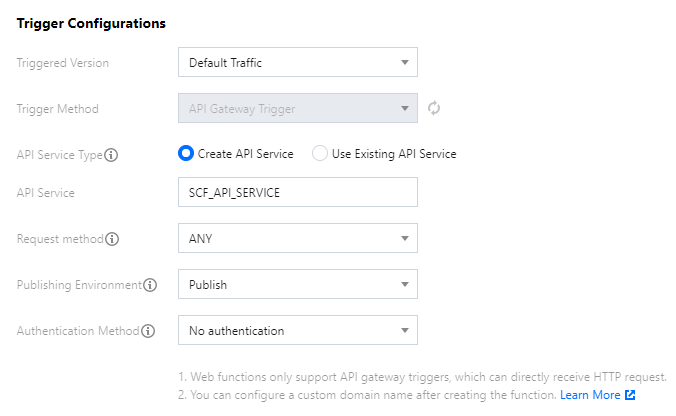
5. In Trigger Configuration, only API Gateway trigger is supported currently, and a trigger will be created automatically based on the default configuration.
6. Click Complete.
After creating the web function, you can view its basic information on the Function Management page and access it at the access path URL generated by API Gateway.
Cloud test
Method 1
Method 2
Method 3
You can open the access path URL in a browser, and if it can be accessed normally, the function is successfully created.
You can concatenate the specified HTTP request for testing on the function code page through the test capability and check whether the function is successfully deployed through the HTTP response.
Note:
The console invokes and tests the function by using the gateway API. If the test fails, the API will automatically execute the retry logic for up to 4 retries. Therefore, you will see multiple execution logs for one failed request.
You can use other HTTP testing tools such as CURL and Postman to test the web function you have successfully created.
Viewing log
For web functions, the returned body information of each request will not be automatically reported to the log. You can customize the reporting in the code through statements such as console.log() or print() in your programming language.
For PHP, as all inputs are automatically used as the body, you need to run the following command to output the log to stdout and complete log reporting:
<?php
$stdout=fopen("php://stderr","w");
fwrite($stdout,"123\\n");
?>
On the details page of a created function, select Log Query to view its detailed logs. For more information, please see Viewing Execution Logs.
View monitoring data
On the details page of a created function, select Monitoring Information to view metrics such as function invocations and execution duration. For more information, please see Monitoring Metric Descriptions.
Note:
The minimal granularity of monitoring statistics collection is 1 minute. You need to wait for 1 minute before you can view the current monitoring record.
Common Error Codes and Solutions
Common errors are divided into two types: user errors and platform errors.
User errors: the execution failure is caused by improper user operations; for example, the sent request does not meet the standard, the commands in the bootstrap file are incorrect, the correct port is not listened on, or the internal business code is incorrectly written. The returned error code is 4xx.
Platform errors: the execution failure is caused by internal errors of the SCF platform. The returned error code is 500.
The table below describes the possible scenarios of request errors and function errors, so that you can quickly troubleshoot problems. For more information on error codes, please see Function Status Code.
2xx status codes
Status Code
Return Message
Description
200
Success
The function is executed successfully. If you see this return code, but the returned information does not meet your expectations, check whether your code logic is correct.
4xx status codes
Status Code
Return Message
Description
404
InvalidSubnetID
The subnet ID is invalid. Check whether the network configuration of the function is correct and whether the subnet ID is valid.
405
ContainerStateExitedByUser
The container process exits normally. Check whether your bootstrap file is correctly written.
406
RequestTooLarge
The request body size is too large. The upper limit for sync request events is 6 MB.
410
The HTTP response body exceeds the size limit.
The size of function response body exceeds the upper limit of 6 MB. Adjust it and try again.
430
User code exception caught
A user code execution error occurs. Based on the error log on the console, check the error stack of the code and see whether the code can be executed properly.
433
TimeLimitReached
The function execution times out. Check whether a large number of time-consuming operations exists in the service code or adjust the timeout period on the Function Configuration page.
439
User process exit when running
The user process exits accidentally. Based on the error message, find out the cause and fix the function code.
446
PortBindingFailed
No listening port is specified. Check whether your business code listens on port 9000.
499
kRequestCanceled
The user manually interrupts the request.
5xx status codes
Status Code
Return Message
Description
500
InternalError
An internal error occurs. Try again later. If the problem persists, submit a ticket.
Notes on local debugging
When debugging in a local container, in order to ensure consistency with the standard container environment in the cloud, you need to pay attention to the limits of readable and writable files in the local environment. The local container startup command is as follows: