SCF was fully connected to CLS starting from January 29, 2021. After then, the invocation logs of newly created functions will be delivered to CLS by default, and logs can be output in real time. If your function was created before January 29, 2021, but you need to search for and deliver logs, please refer to this document to use this feature.
Overview
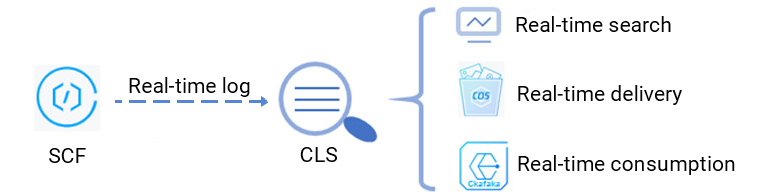
When SCF is used for function computation, a large number of function execution logs will be generated. If you need to persistently store, deliver, or consume logs and monitor and set alarms on log content, you can deliver logs to the Tencent Cloud CLS, as shown below:
Prerequisites
Before using the SCF real-time log service, you need to activate CLS first.
Directions
Creating logset and log topic
Log in to the CLS console and create a logset and log topic. This document uses the creation of the SCF-test logset and log topic in Guangzhou as an example, as shown below:
Note:
For the logset region, please select the region where the SCF service is located. Cross-region log push is not supported currently.
Configuring CLS
1. Log in to the SCF console and select Function Service on the left sidebar.
2. Select the SCF region and namespace at the top of the page and click the function name in the list for which to collect logs in real time.
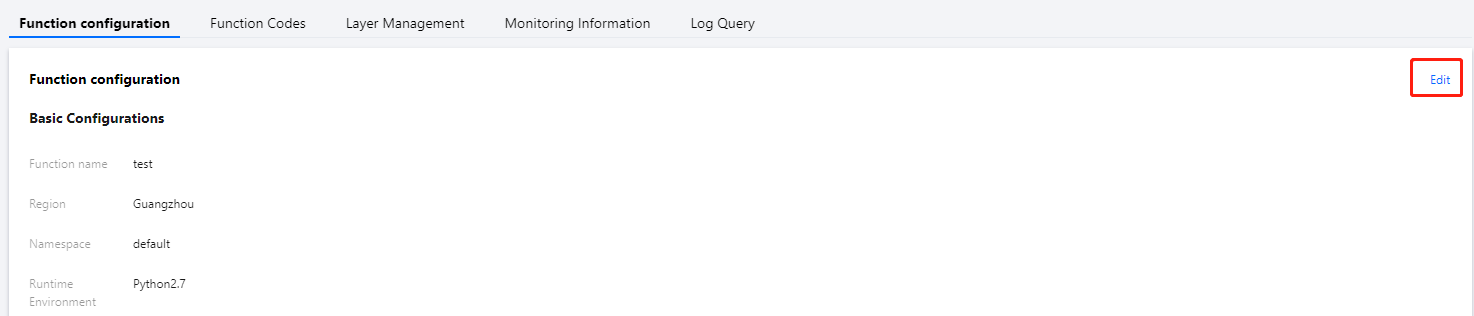
3. On the Function Configuration page, click Edit in the top-right corner as shown below:
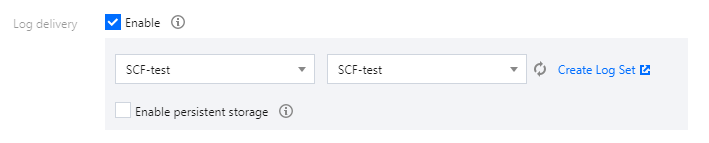
4. In Log delivery, click Enable and select the logset and log topic already created for this function. This document uses SCF-test as an example, as shown below:
5. Click Save to connect to the CLS platform.
Enabling index
Note:
Log search depends on the index configuration of the log topic. After the function is associated with the log topic, SCF will automatically complete the index configuration for the log topic. If the index is exceptional and logs cannot be pulled properly, please adjust the index configuration in the following steps:
1. Log in to the CLS console, and select Logset on the left sidebar.
2. Click the ID of a created logset to enter the Basic Info page.
3. Select Manage on the right of the log topic row to enter the Basic Info page of the log topic.
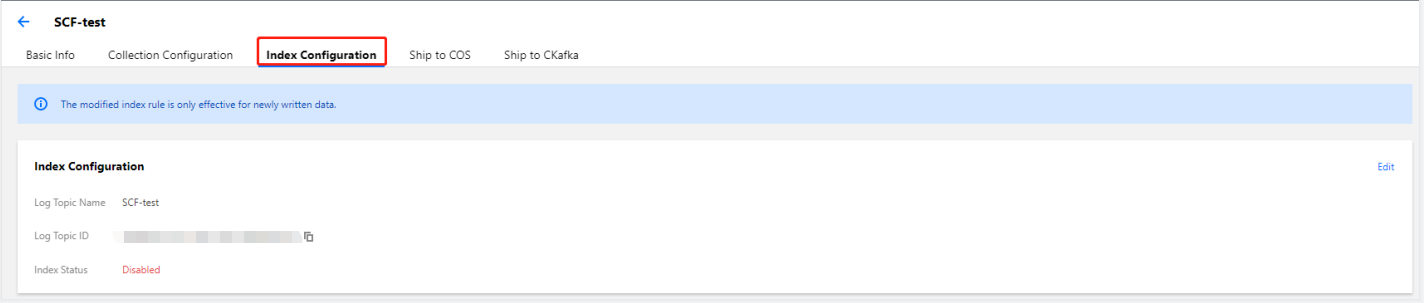
4. On the Basic Info page of the log topic, click Index Configuration as shown below:
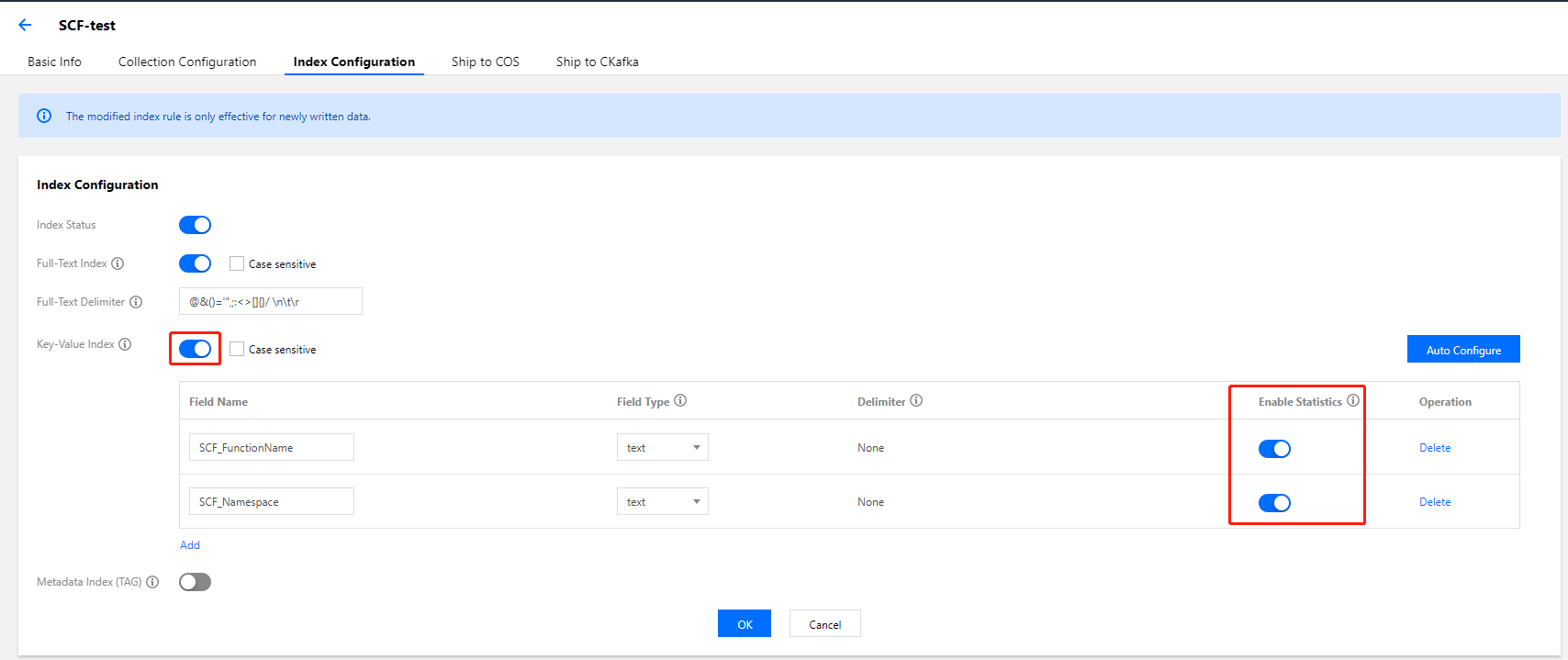
5. Click Edit in the top-right corner, enable Key-Value Index, and add Field Name and Field Type according to the following table.
Note:
For functions configured with CLS, to ensure the display effect of the logs in the SCF console, please toggle on Enable Statistics for the field in key-value index configuration, as shown below:
Field Name
Field Type
Description
SCF_FunctionName
text
Function name
SCF_Namespace
text
Function namespace
SCF_StartTime
long
Invocation start time
SCF_LogTime
long
Log generation time
SCF_RequestId
text
Request ID
SCF_Duration
long
Function execution duration
SCF_Alias
text
Alias
SCF_Qualifier
text
Version
SCF_MemUsage
double
Function runtime memory
SCF_Level
text
Log4J log level. Default value: INFO
SCF_Message
text
Log content
SCF_Type
text
Log type. Platform: platform log, Custom: user log
For more features, such as real-time log search, log shipping and consumption, see the CLS documents, and log in to the CLS console to use them.
Real-time search sample
Note:
Before using the real-time search feature, please make sure that your SCF log service has been connected to the CLS platform and the index has been enabled for the log topic to be searched.
1. Log in to the CLS console, and select Log Search on the left sidebar.
2. On the Search and Analysis page, select the desired log topic and time and enter the search syntax in the input box. This document uses START as an example.
The search syntax supports keyword search, fuzzy search, range search, and other search methods. For more information, please see Legacy CLS Search Syntax.
3. Click Search and Analysis to view real-time log information.