Upgrade Guide for Data Subscription from 1.0 to 2.0
다운로드
포커스 모드
폰트 크기
Overview
You can smoothly upgrade existing data subscription tasks to Data Subscription 2.0 through the productized upgrade process provided in the console while they are still running on 1.0 (formerly Kafka Edition). After the upgrade, you will get a dedicated CKafka instance, stronger resource isolation, and more comprehensive observability, with pricing remaining consistent before and after the upgrade.
Background Information
Data Subscription 2.0 has been comprehensively upgraded at the architectural level, switching from a region-shared self-built Kafka cluster to a dedicated CKafka instance for each user, which completely eliminates the "neighbor effect". During the upgrade, the system automatically creates a 2.0 shadow task that runs in parallel with the 1.0 task, ensuring data continuity through GTID checkpoint mapping and supporting fine-grained switchover and rollback at the consumer group level.
Implementation Mechanism
The upgrade process consists of four stages, and the system automatically manages the transition between stages:
Phase | Description |
Create shadow task. | The system creates a shadow subscription task with the same configuration as 1.0 on 2.0 CKafka and automatically synchronizes the source database table structure. |
Data catch-up | The shadow task starts to catch up with the consumption progress of 1.0, and the catch-up status is measured by the number of GTID gap transactions. |
Upgrade and switchover | Switch by consumer group. Each consumer group needs to complete four steps: synchronizing checkpoints, modifying configurations, restarting services, and confirming consumption. |
Complete upgrade. | The system asynchronously performs cleanup operations: releasing 1.0 task resources and deleting the test consumer group. |
Data catch-up criteria: When the GTID transaction gap between the 2.0 shadow task and the source database is less than 5, the system determines that the data has caught up and allows entering the upgrade switchover phase.
Consumer group switchover status: Each consumer group manages its switchover progress independently, with a status of
pending (not switched) or upgraded (switchover completed). The upgrade completion operation can be triggered only when all business consumer groups (excluding test consumer groups) are in the upgraded state.Note
The upgrade switchover window is 3 days. Complete the switchover for all consumer groups within this window as soon as possible. If the migration is not completed within the window, the system will automatically release the legacy task.
During the upgrade, topics, consumer group names (group.id), usernames, and passwords all remain unchanged. You only need to modify the
bootstrap.servers access point address.After the upgrade is completed, you will no longer be able to return to the upgrade page to perform switchover/rollback operations. After the 1.0 task is released, the corresponding instance will be reclaimed.
If the consumer is deployed in containers, use a rolling restart when restarting the consumer service to avoid business interruption.
By default, the new 2.0 subscription instance can only be accessed by CVMs within the same VPC. To access it across VPCs, you need to additionally configure CCN.
Prerequisites
You already have a running subscription task in Data Subscription 1.0 (formerly Kafka Edition).
The VPC and subnet information of the consumer has been confirmed.
A CVM instance has been prepared in the above VPC for consumer testing and verification during the upgrade switchover.
Operation Steps
Step 1: Initiating the Upgrade
1. Log in to the DTS console and select Data Subscription in the left sidebar.
2. In the data subscription list, find the 1.0 (formerly Kafka Edition) subscription task that needs to be upgraded, and click Upgrade to 2.0 in the Subscription ID/Name column.

Step 2: Creating a Shadow Task
1. On the Create a shadow task page, the left side displays the subscription information of the current 1.0 edition (formerly Kafka Edition), including the subscription ID, Kafka access point, and Topic, while the right side displays the subscription information of the new 2.0 edition.
2. In the Network Settings section on the right, select the VPC and subnet where the consumer resides, and click Generate a shadow task.
Note:
By default, the new 2.0 subscription instance can only be accessed by CVMs within the same VPC. To access it across VPCs, you need to additionally configure the CCN service.
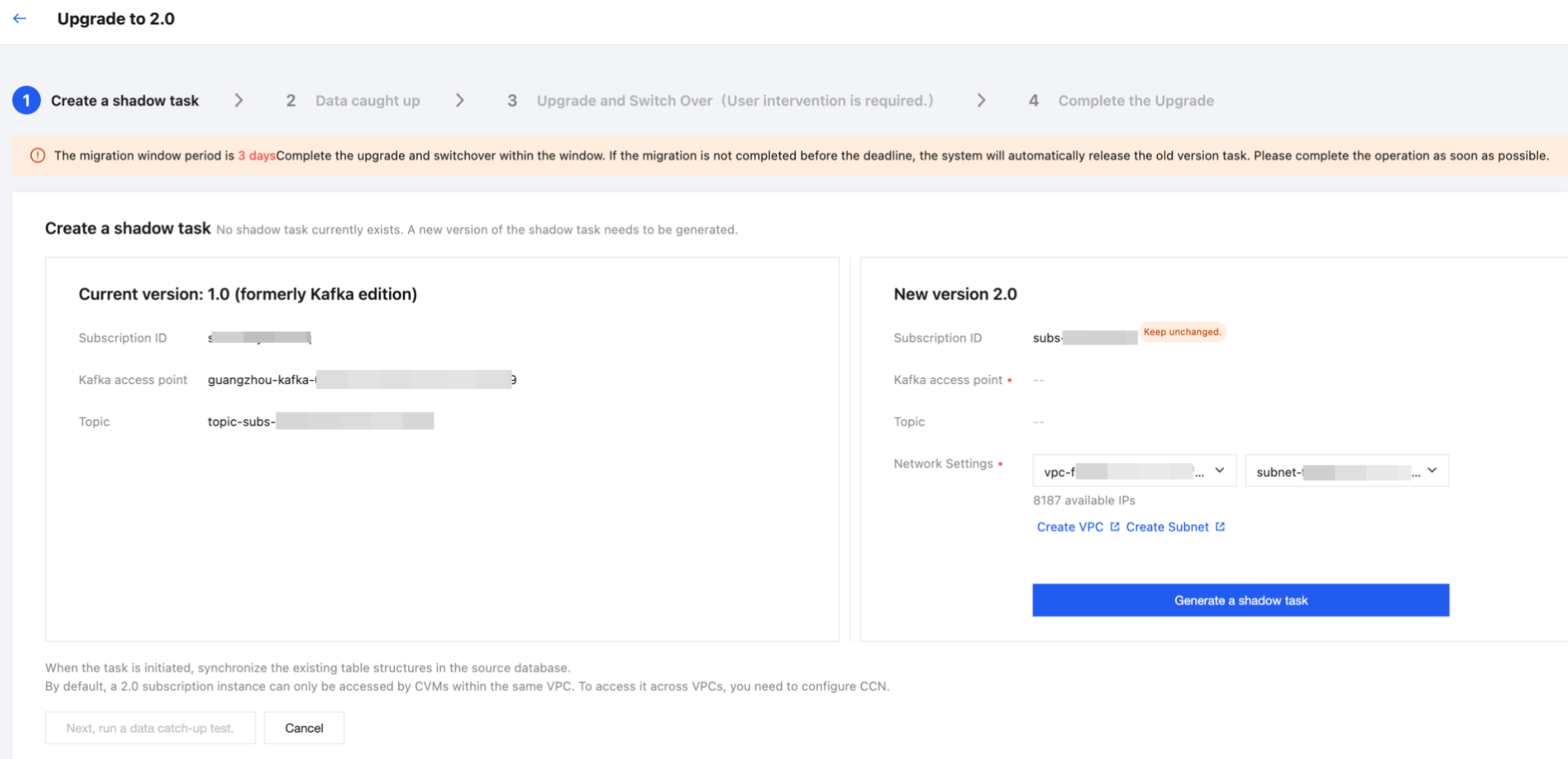
3. The system starts creating a 2.0 shadow task and performing data synchronization. After the shadow task is created successfully, click Next, run a data catch-up test.
4. In the pop-up dialog box, click Confirm.
Step 3: Data catch up
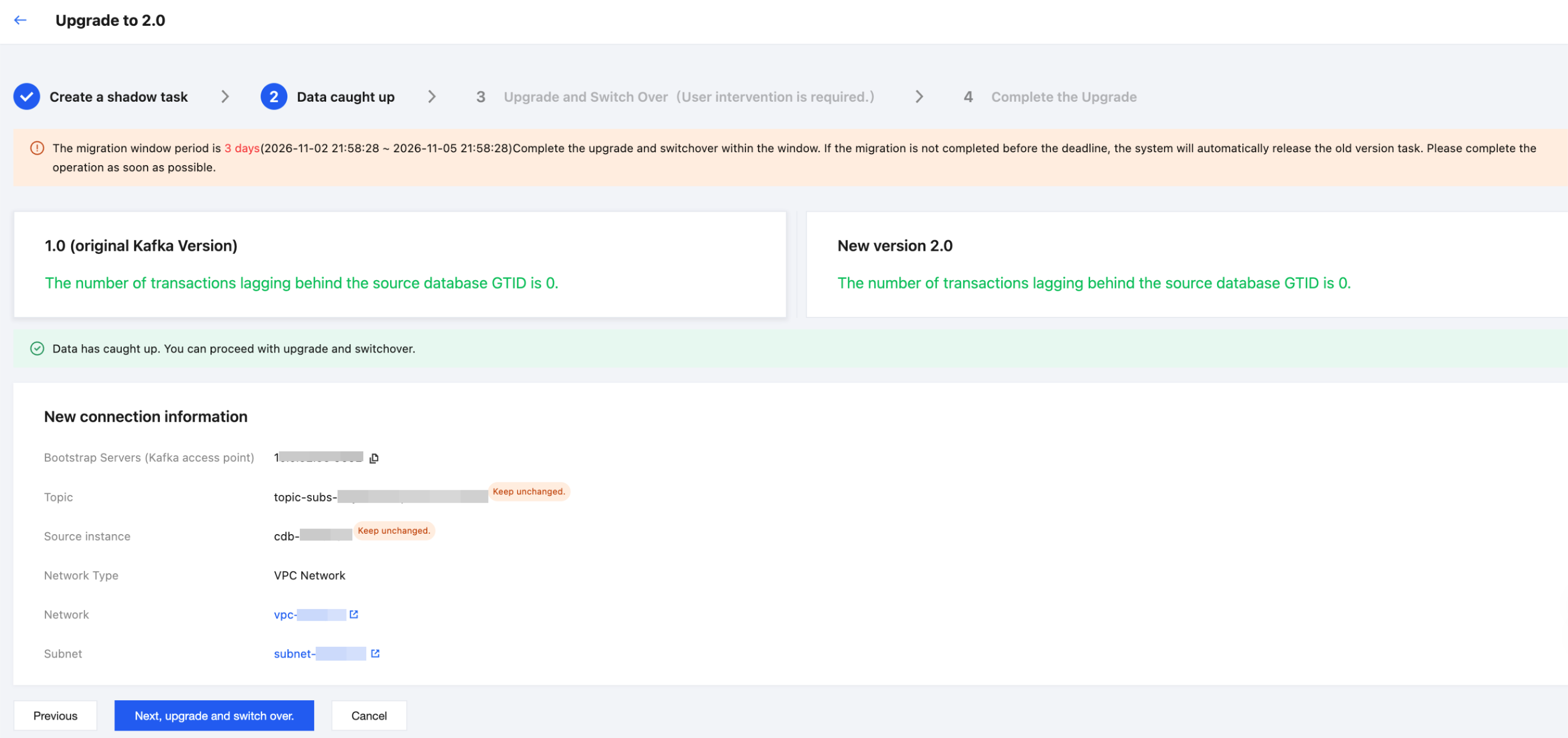
On the Data catch up page, wait for the data to catch up. When the green prompt Data has caught up. You can proceed with upgrade switchover appears, click Next, upgrade and switch over.
Note:
Data catch-up requirement: The GTID transaction gap between both 1.0 and the new 2.0 edition and the source database must be less than 5 before you can proceed to the upgrade switchover.
Step 4: Upgrade and Switch Over (User Intervention is required)
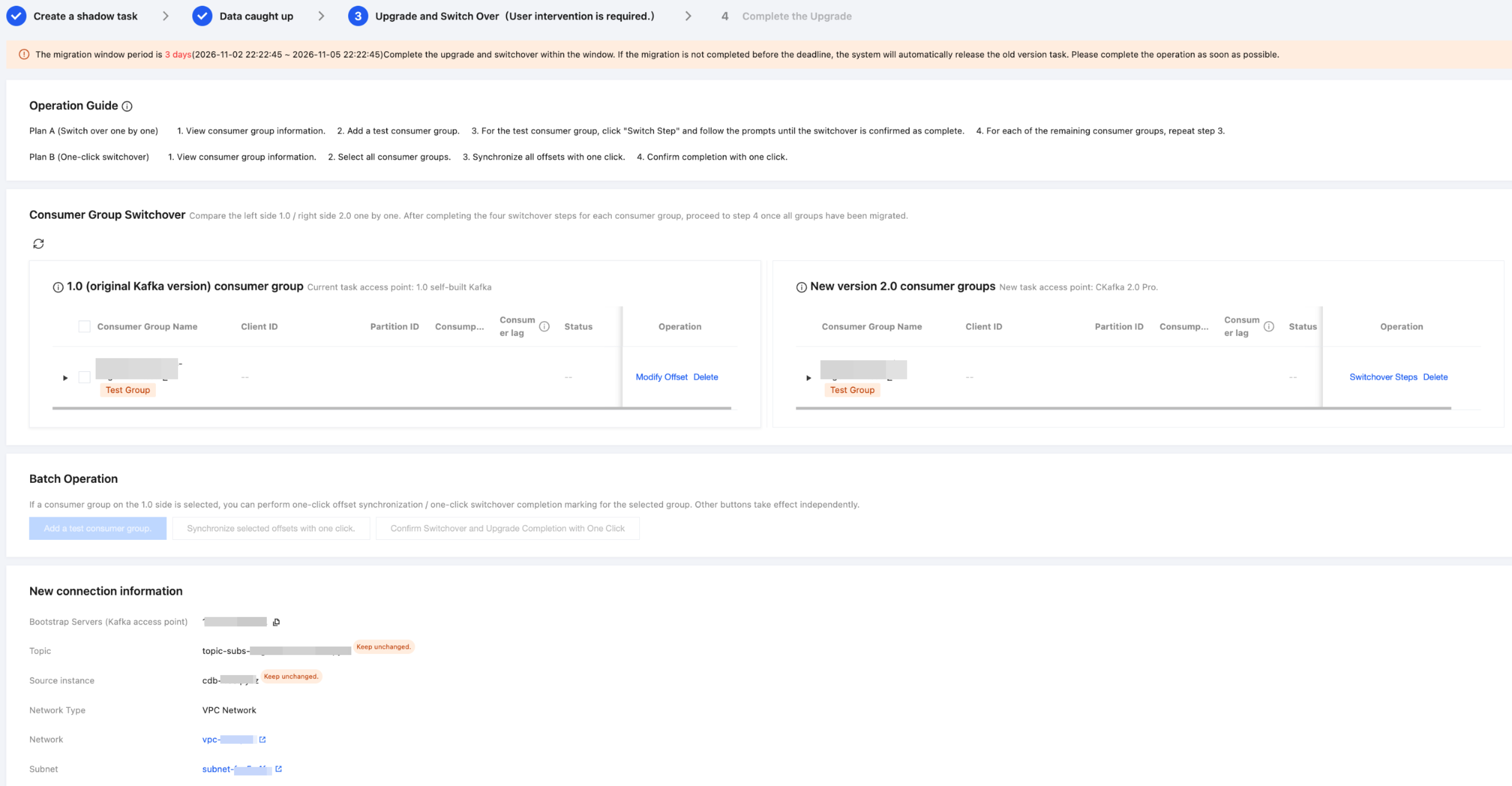
After entering the Upgrade and Switch Over phase, you need to complete the switchover operation for each consumer group one by one. DTS provides two switchover options:
Option A (Switch over one by one): View consumer group information > Create a test consumer group > Click "Switch Steps" for the test consumer group and follow the prompts until the switchover is confirmed complete > Repeat the previous step for the remaining consumer groups one by one.
Option B (One-click switchover): View consumer group information > Select all consumer groups > Synchronize all offsets with one click > Confirm completion with one click.
Consumer Group Switchover Steps (One by One)
For each consumer group, click Switchover Steps in the operation column of the new 2.0 consumer group on the right to enter the switchover process:
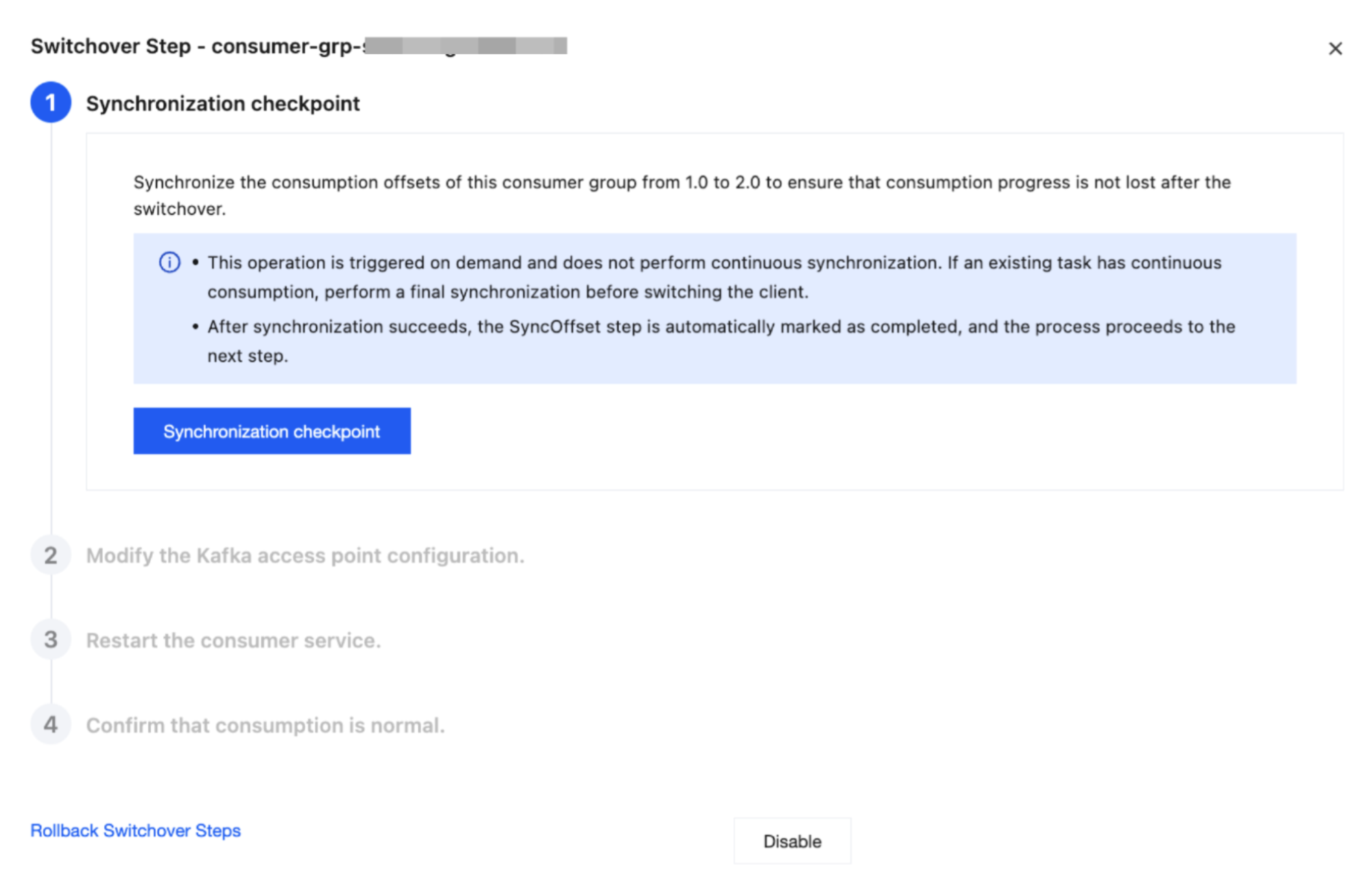
Step 1: Synchronization checkpoint
Synchronize the consumer offset of this consumer group in 1.0 to 2.0 to ensure that no consumption progress is lost after the switchover. Click Synchronization checkpoint.
Note:
This operation is triggered on demand and does not perform continuous synchronization. If the old task has continuous consumption, perform the last synchronization before switching the client.
After successful synchronization, the SyncOffset step is automatically marked as completed, and the process proceeds to the next step.
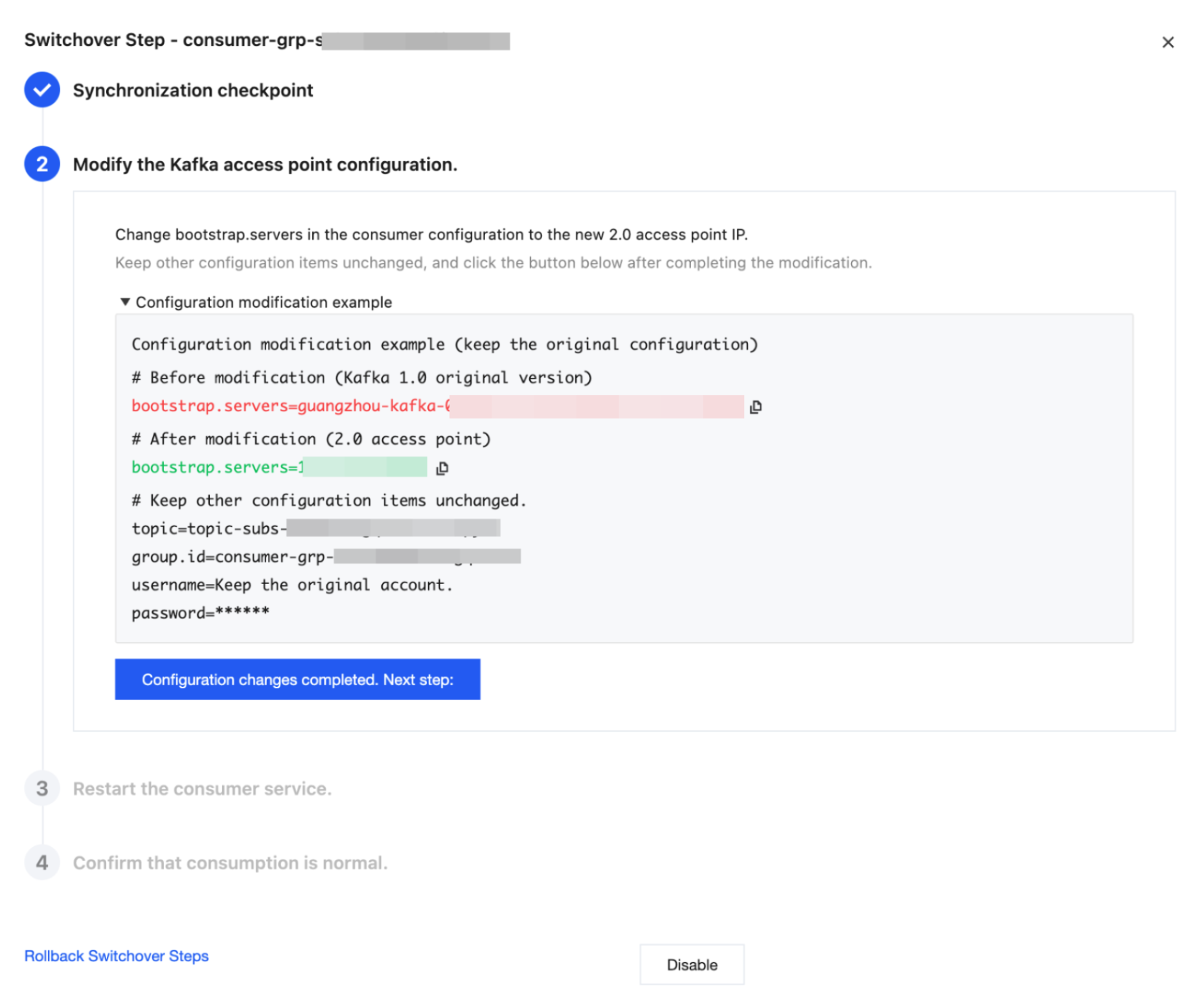
Step 2: Modify the Kafka access point configuration
Change
bootstrap.servers in the consumer configuration to the new 2.0 access point IP address, and keep other configuration items unchanged.After the modification is completed, click Configuration changes completed. Next step.
Step 3: Restart the consumer service
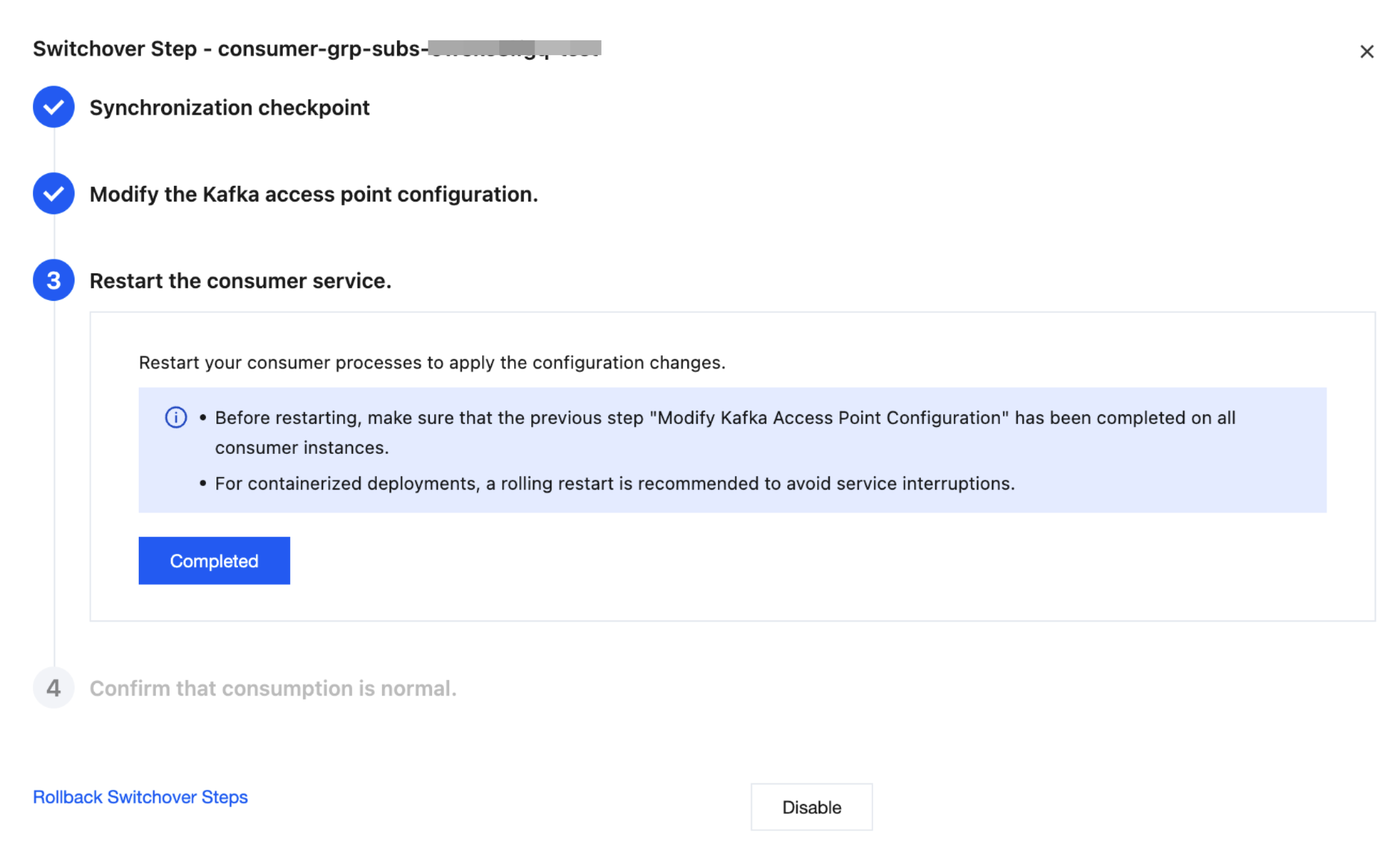
Restart the consumer process for the configuration changes to take effect, and click Completed.
Note:
Before restarting, confirm that the previous step Modify the Kafka access point configuration has been completed on all consumer instances.
If containerized deployment is used, a rolling restart is recommended to avoid business interruption.
Step 4: Confirm that consumption is normal
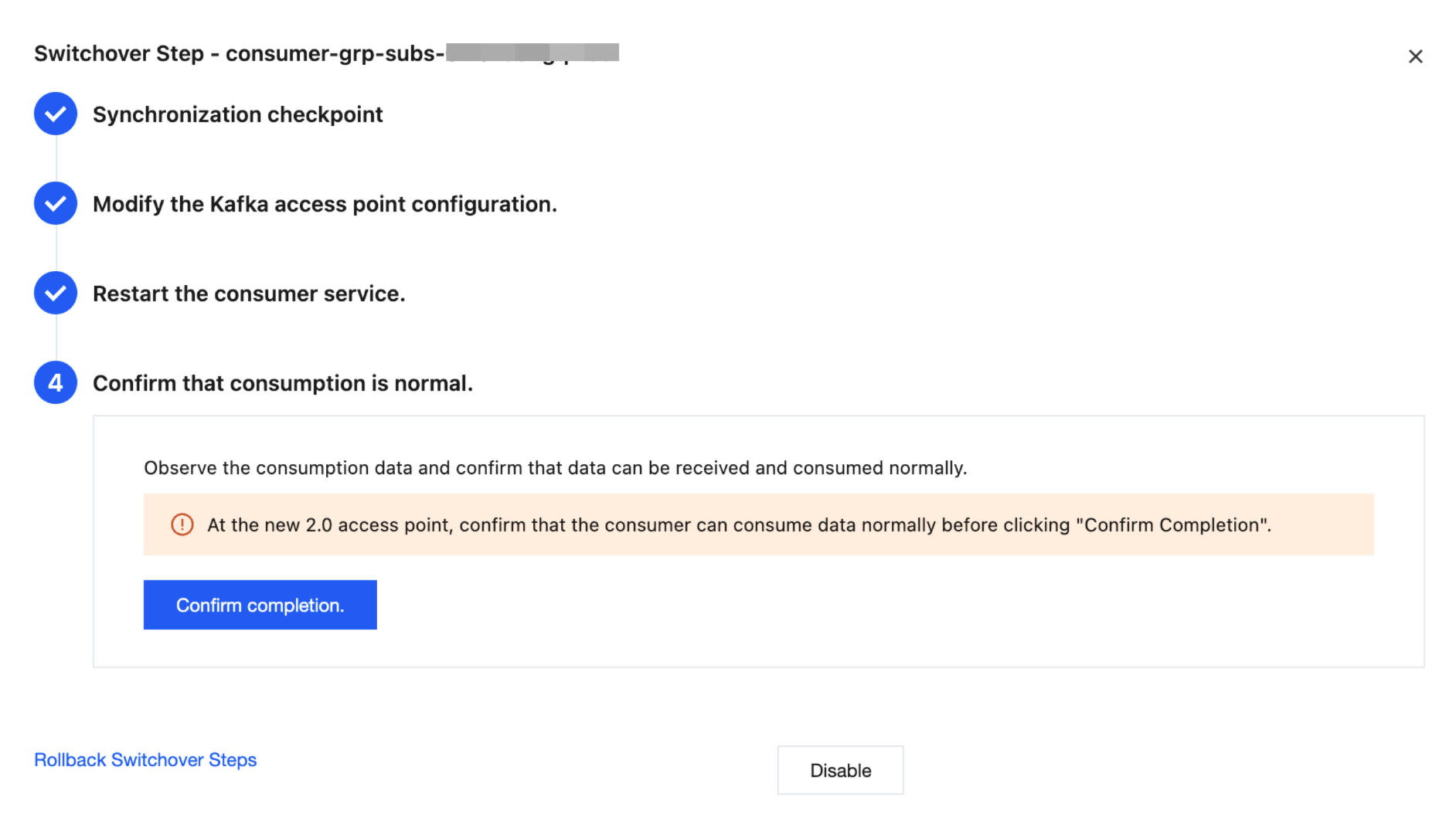
Observe the consumption data to confirm that data can be received and consumed normally. Click Confirm Completion, and in the dialog box that appears, click Confirm Completion.
Note:
Confirm that the consumer can consume data normally at the new 2.0 access point before clicking Confirm Completion.
After normal consumption is confirmed, access control is applied to the consumer group corresponding to 1.0 (the original Kafka version). If you need to use the 1.0 consumer group again, click Rollback Switchover Steps.
Consumer Group Rollback Operations
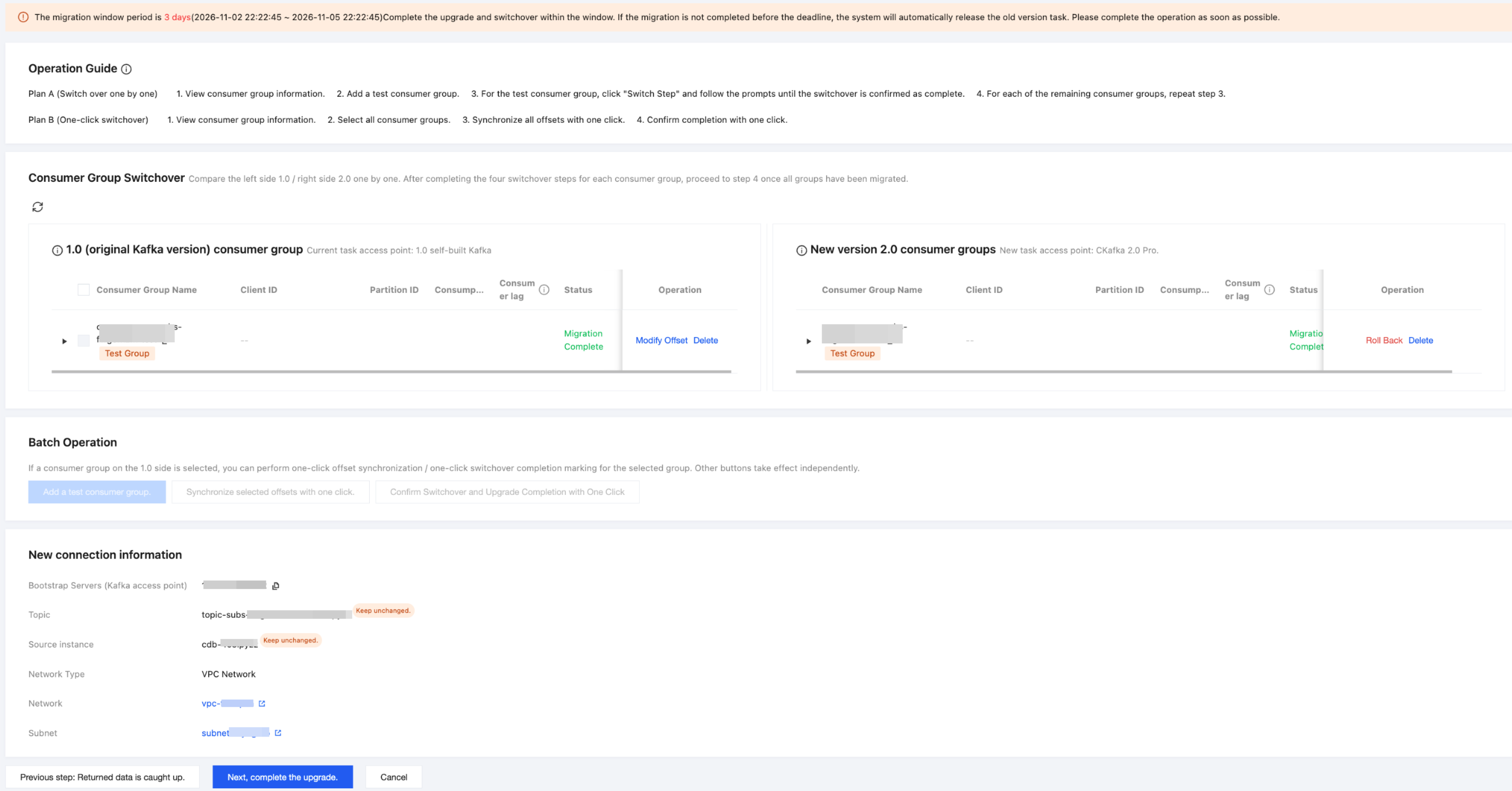
1. If an exception occurs during the switchover, you can roll back the switched consumer group. Click Roll Back in the operation column of the new 2.0 consumer group on the right.
2. In the pop-up dialog box, click Confirm Rollback to perform the rollback.
Note:
After the rollback, the switchover status of this consumer group in 2.0 will be reset to Not Switched, and all switchover processes must be performed again.
If you need to switch this consumer group again, click Switch Steps in the table and follow the instructions.
Batch Operations
If a 1.0 consumer group is selected, you can perform the following batch operations on the selected group:
Create Test Consumer Group: Add a test consumer group for switchover verification. The test consumer group is created on both 1.0 and 2.0 sides to verify the switchover process. When the upgrade is completed, the system automatically deletes all test consumer groups.
Synchronize All Offsets with One Click: Perform offset synchronization for all selected consumer groups simultaneously.
Confirm Switchover and Upgrade Completion with One Click: Mark the switchover as complete for all selected consumer groups simultaneously. Ensure that the consumer clients of all selected groups have completed configuration changes and restarts.
Step 5: Completing the Upgrade
1. After all business consumer groups (excluding test consumer groups) have completed the switchover process, click Next, Complete Upgrade at the bottom of the page.
2. In the pop-up Complete Upgrade dialog box, click Confirm.
Note:
After confirmation, you will no longer be able to return to this page to perform upgrade switchover/rollback operations.
After the 1.0 task is released, the corresponding instance will be reclaimed. The 2.0 Professional Edition task continues to provide services.
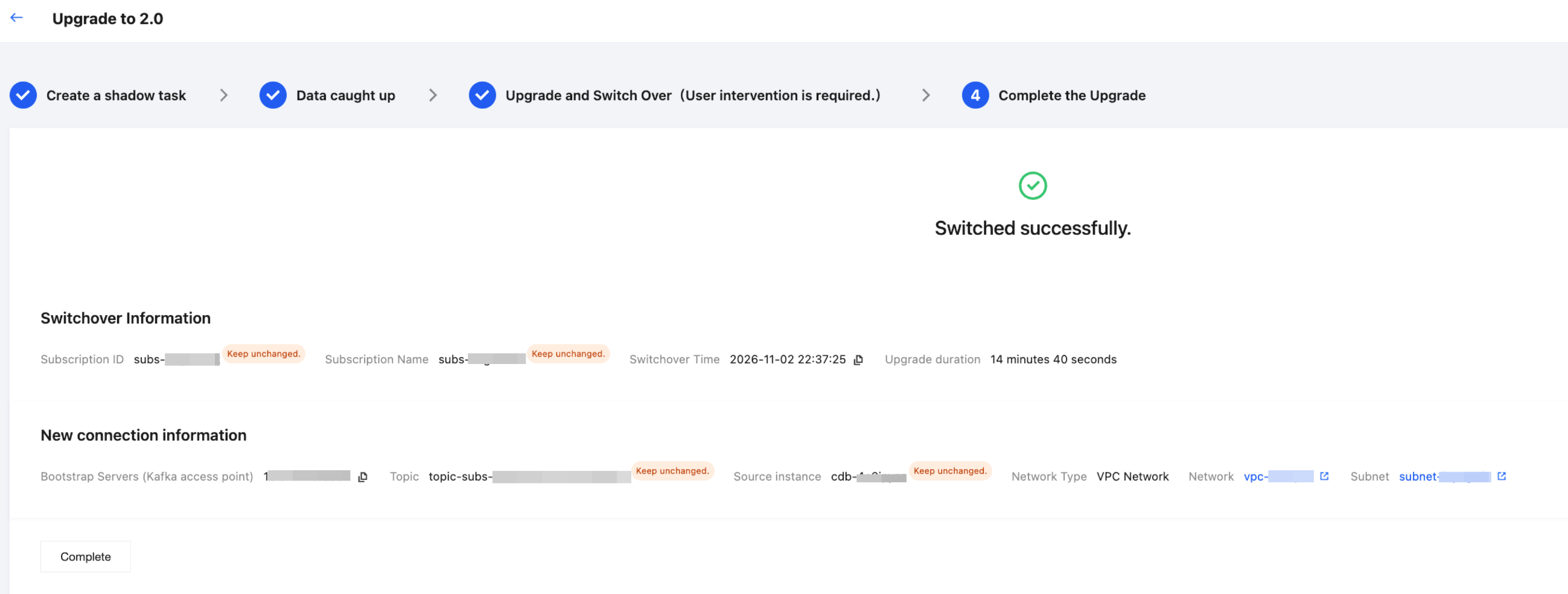
3. After the upgrade is completed, the Switched successfully message is displayed on the Complete the Upgrade page:
Switchover information: Subscription ID, subscription name, switchover time, and upgrade duration.
New connection information: Bootstrap Servers (Kafka access point), Topic, source instance, network type, VPC, and subnet.
4. Click Complete to return to the subscription list.
Following Steps
After the upgrade is completed, continuously monitor the consumption status of the consumer and confirm that data is consumed normally.
To configure monitoring alarms, see Configure Data Subscription Alarm Policies.
To learn about the detailed differences between Subscription 2.0 and 1.0, see Data Subscription 2.0 Upgrade Guide.
FAQs
Q1: What Happens After the Upgrade Window Expires?
The upgrade window is 3 days. If the migration switchover is not completed within this period, the system will automatically release the legacy 1.0 task. The system will send a notification before taking the 1.0 instance offline.
Q2: Will Topic and Consumer Group Names Change After the Upgrade?
They remain unchanged. Version 2.0 automatically creates topics with the same names as those in 1.0, and the platform pre-creates consumer groups with the same names on CKafka 2.0. Usernames and passwords also remain unchanged. You only need to modify the
bootstrap.servers access point address.Q3: Are There Additional Charges for the Upgrade?
No additional fees are charged. The price remains exactly the same before and after the upgrade (CNY 720/month).
Q4: How Does a Consumer in a Different VPC Access a 2.0 Subscription Instance?
By default, the new 2.0 subscription instance supports access only from CVMs within the same VPC. If the consumer CVM resides in a different VPC, you need to configure CCN to enable cross-VPC access.
피드백