Description of Preset Roles
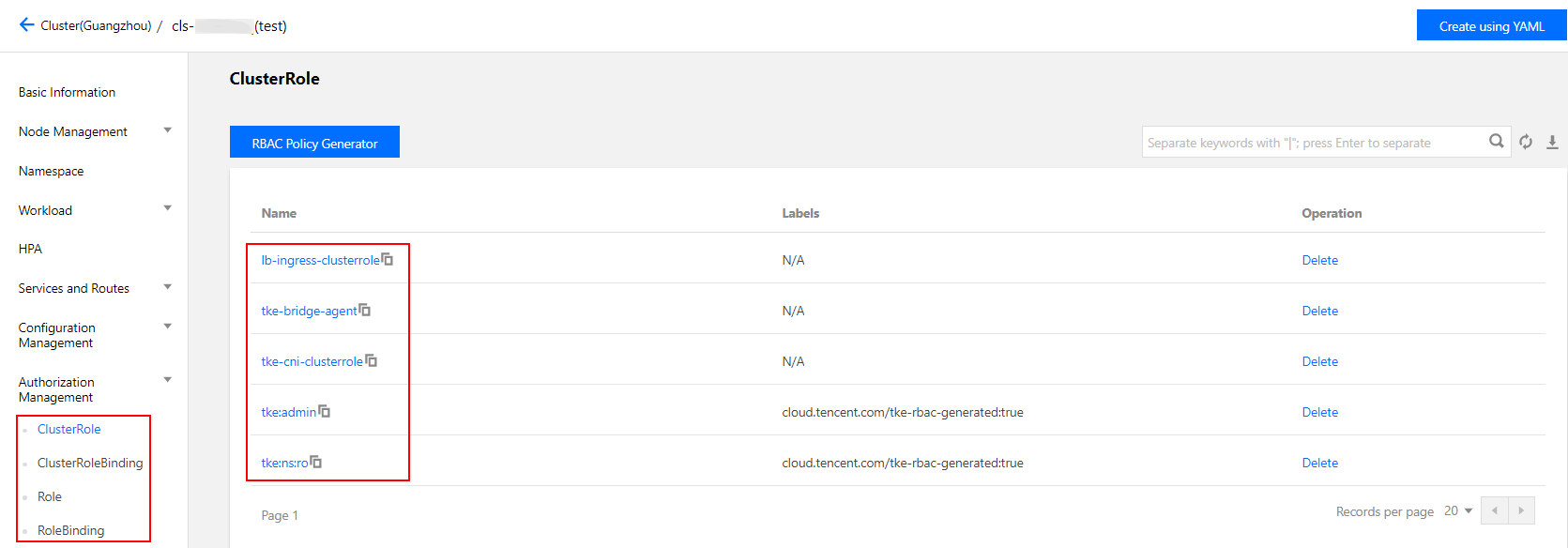
The Tencent Kubernetes Engine (TKE) console provides fine-grained permission control for Kubernetes resources based on Kubernetes’ native Role-Based Access Control (RBAC) authorization policies. It also provides the preset roles Role and ClusterRole, which are described below:
Role
The TKE console provides an access management page for which the root account and cluster creator by default have administrator permissions and can manage sub-accounts that have the DescribeCluster Action permission for a given cluster. See the following figure for more information.
ClusterRole
For all namespaces:
Administrators (tke:admin): have read/write permission for the resources in all namespaces, read/write permission for cluster nodes, storage volumes, namespaces, and quotas, and read/write permission for sub-account configurations.
OPS personnel (tke:ops): have read/write permission for the resources visible on the console in all namespaces and read/write permission for cluster nodes, storage volumes, namespaces, and quotas.
Developers (tke:dev): have read/write permission for the resources visible on the console in all namespaces.
Restricted personnel (tke:ro): have read-only permission for the resources visible on the console in all namespaces.
Custom: user-defined ClusterRole.
For a specified namespace:
Developers (tke:ns:dev): have read/write permission for the resources visible on the console in a specified namespace.
Read-only users (tke:ns:ro): have read-only permission for the resources visible on the console in a specified namespace.
All the preset ClusterRole policies contain the fixed label: cloud.tencent.com/tke-rbac-generated: "true".
All the preset ClusterRoleBinding policies contain the fixed annotation: cloud.tencent.com/tke-account-nickname: yournickname and the label: cloud.tencent.com/tke-account: "yourUIN".
Directions
Obtaining credentials
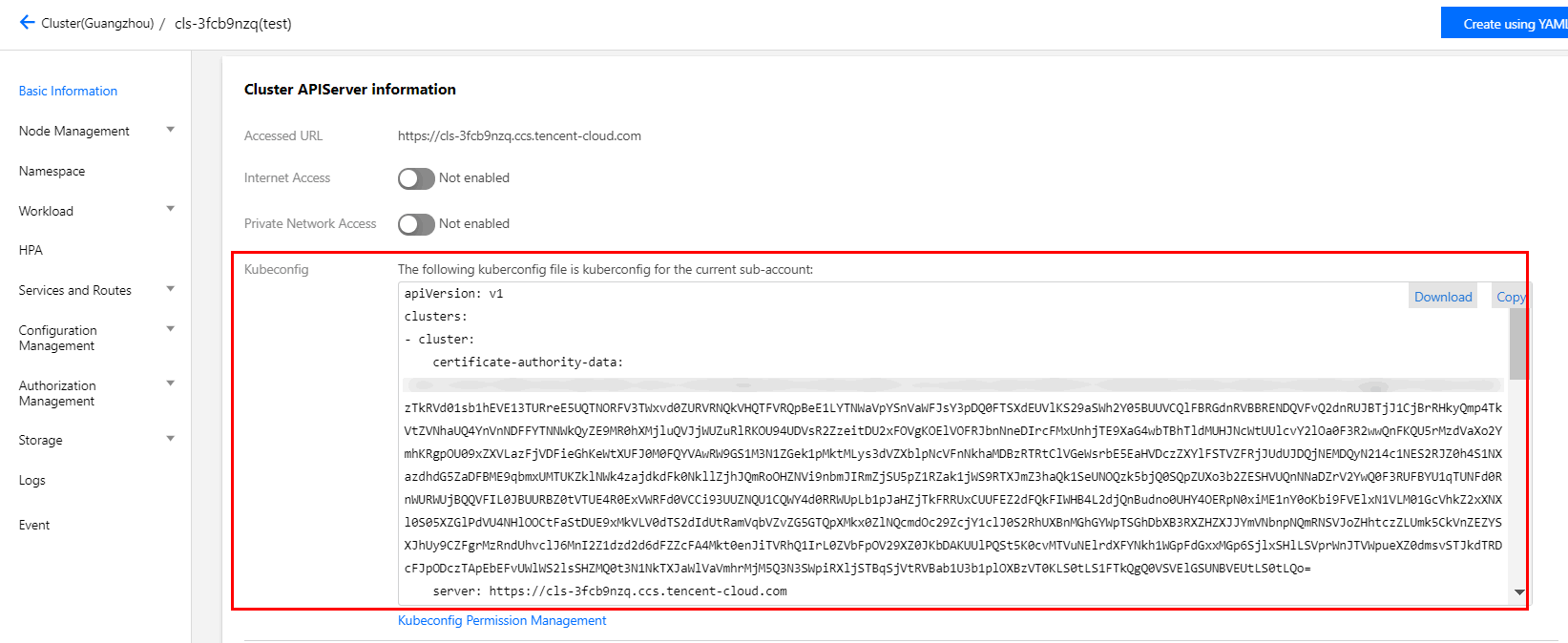
TKE will create independent credentials for each sub-account by default. You only need to access the cluster details page or call the Tencent Cloud API DescribeClusterKubeconfig to obtain the credential file Kubeconfig of the current account. The procedure for obtaining the file on the console is as follows: 1. Log in to the TKE console and click Cluster on the left sidebar. 2. On the Cluster Management page, click the ID of the target cluster.
3. On the cluster details page, select Basic Information on the left sidebar. Then, you can view and download the Kubeconfig file in the Cluster APIServer information section, as shown in the following figure.
Managing credentials
Authorization
Note:
Please contact cluster administrators (root accounts, cluster creators, or users with the admin role) for authorization.
1. On the Cluster Management page, click the ID of the target cluster.
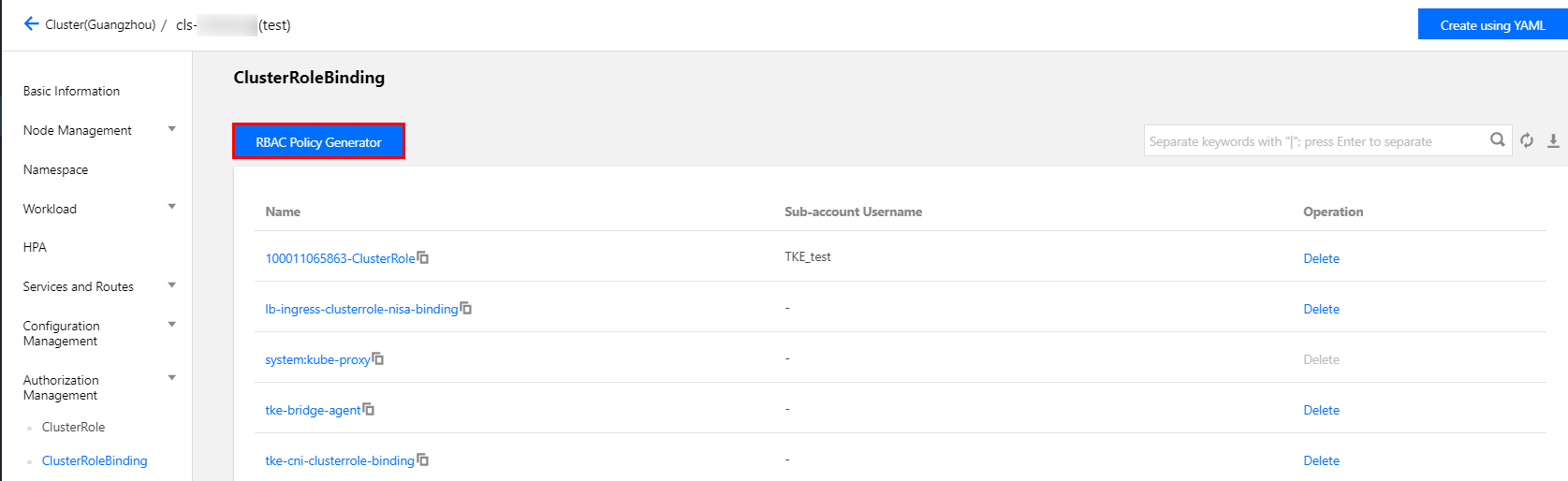
2. On the cluster details page, select Authorization Management -> ClusterRoleBinding on the left sidebar.
3. On the ClusterRoleBinding page, click RBAC Policy Generator, as shown in the following figure.
4. When you select a sub-account on the Administration Permissions page, select the target sub-account and click Next.
5. When you set the cluster RBAC, set the permissions as follows:
Namespace List: specify the namespaces for which the permissions apply.
Permissions: please reference the descriptions provided on the page and set permissions as needed.
Note:
You can also click Add Permission to set custom permissions.
Authentication
Log in to your sub-account and verify that the sub-account has the permissions in question. If so, this indicates that the authorization was successful.