릴리스 노트
제품 공지
GET /<ObjectKey>?watermark/2/text/<encodedText>/font/<encodedFont>/fontsize/<fontSize>/fill/<encodedColor>/dissolve/<dissolve>/gravity/<gravity>/dx/<dx>/dy/<dy>/batch/<type>/degree/<degree>/shadow/<shadow> HTTP/1.1Host: <BucketName-APPID>.cos.<Region>.myqcloud.comDate: <GMT Date>Authorization: <Auth String>
PUT /<ObjectKey> HTTP/1.1Host: <BucketName-APPID>.cos.<Region>.myqcloud.comDate: GMT DateAuthorization: Auth StringPic-Operations:{"is_pic_info": 1,"rules": [{"fileid": "exampleobject","rule": "watermark/2/text/<encodedText>/font/<encodedFont>/fontsize/<fontSize>/fill/<encodedColor>/dissolve/<dissolve>/gravity/<gravity>/dx/<dx>/dy/<dy>/batch/<type>/degree/<degree>/shadow/<shadow>"}]}
POST /<ObjectKey>?image_process HTTP/1.1Host: <BucketName-APPID>.cos.<Region>.myqcloud.comDate: GMT DateContent-length: SizeAuthorization: Auth StringPic-Operations:{"is_pic_info": 1,"rules": [{"fileid": "exampleobject","rule": "watermark/2/text/<encodedText>/font/<encodedFont>/fontsize/<fontSize>/fill/<encodedColor>/dissolve/<dissolve>/gravity/<gravity>/dx/<dx>/dy/<dy>/batch/<type>/degree/<degree>/shadow/<shadow>"}]}
watermark is the operation name and the number 2 indicates that the watermark is a text.Parameter | Description |
ObjectKey | Object name, such as folder/sample.jpg. |
/text/ | Watermark text, which must be URL-safe Base64-encoded |
/font/ | Font of the text, which must be URL-safe Base64-encoded. Default font: Tahoma.ttf (see Supported Fonts). |
/fontsize/ | Font size, in pt. Default value: 13. To scale the text watermark proportionally based on the original image, convert the text watermark to a PNG image. For more configuration information, see Image Watermarking. |
/fill/ | Font color. The value must be in hexadecimal format, for example, #FF0000. For format conversion, see RGB Color Codes Chart. The value must be URL-safe Base64-encoded. Default value: #3D3D3D (gray). |
/dissolve/ | Text opacity. Value range: 1−100. Default value: 90 (meaning 90% opacity) |
/gravity/ | |
/dx/ | Horizontal offset in pixels. Default value: 0 |
/dy/ | Vertical offset in pixels. Default value: 0 |
/batch/ | Whether to tile the text watermark. If this parameter is set to 1, the text watermark will be tiled across the input image. |
/degree/ | Angle to rotate text watermarks. This parameter is valid only when /batch/ is set to 1. Value range: 0−360. Default value: 0 |
/shadow/ | Text shadow effect. Value range: 0−100. Default value: 0, indicating no shadow. |
gravity parameter for an operation, the corresponding red dot becomes the reference point, and offsets will be relative to this point.
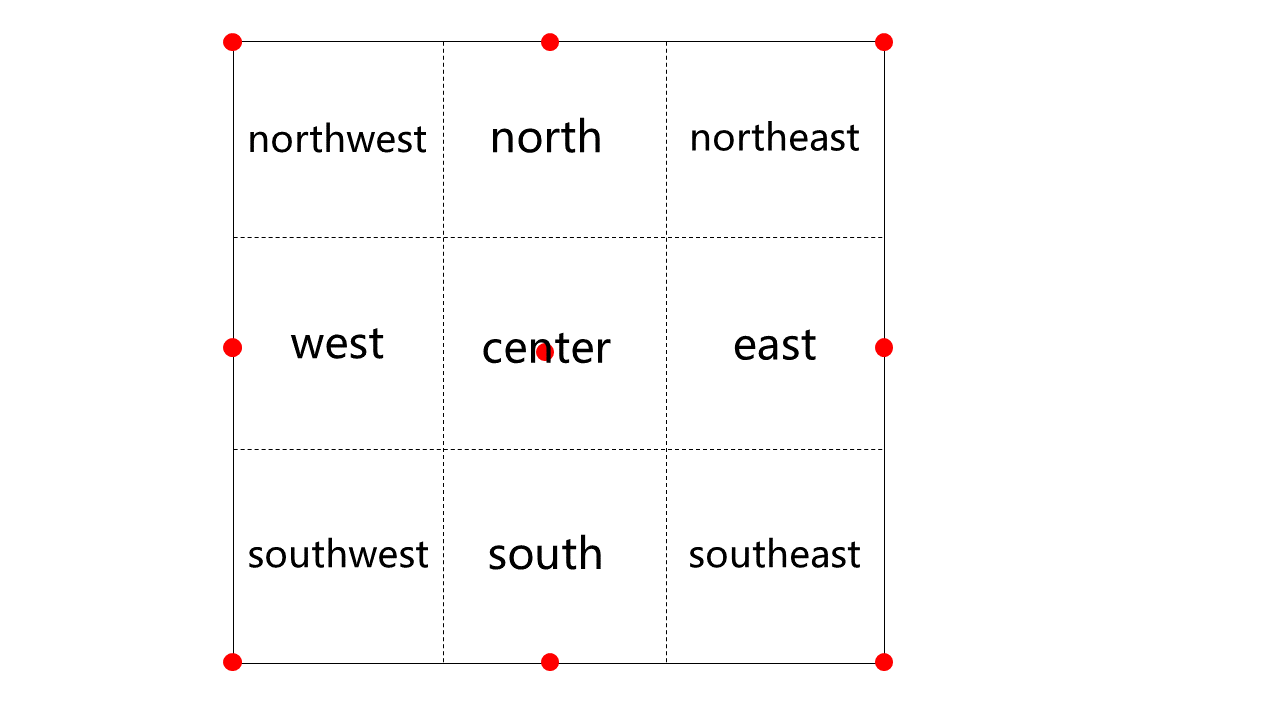
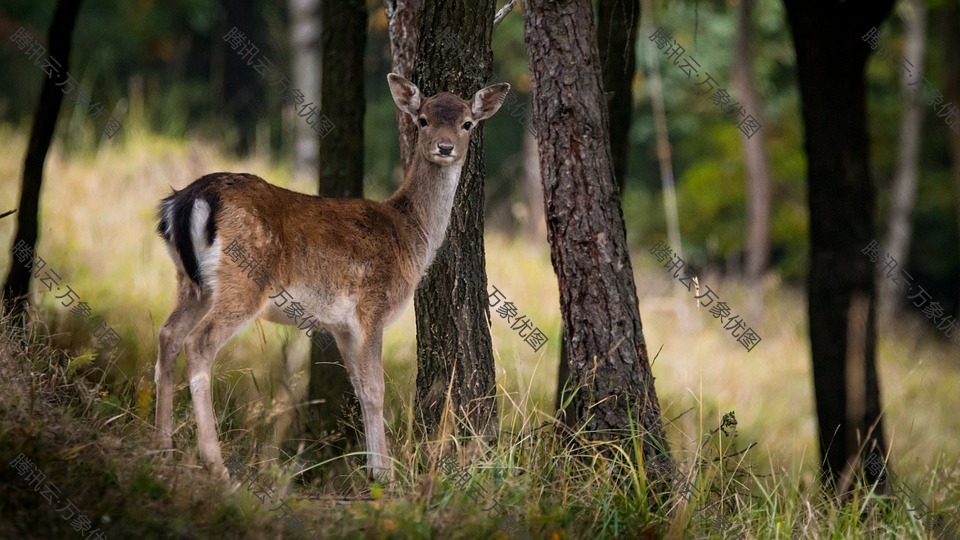
gravity is set to center, dx and dy are invalid.gravity is set to north or south, dx is invalid.gravity is set to west or east, dy is invalid.http://examples-1251000004.cos.ap-shanghai.myqcloud.com/sample.jpeg?watermark/2/text/6IW-6K6v5LqRwrfkuIfosaHkvJjlm74/fill/IzNEM0QzRA/fontsize/20/dissolve/50/gravity/northeast/dx/20/dy/20/batch/1/degree/45
http://examples-1251000004.cos.ap-shanghai.myqcloud.com/sample.jpeg?q-sign-algorithm=<signature>&watermark/2/text/6IW-6K6v5LqRwrfkuIfosaHkvJjlm74/fill/IzNEM0QzRA/fontsize/20/dissolve/50/gravity/northeast/dx/20/dy/20/batch/1/degree/45
http://examples-1251000004.cos.ap-shanghai.myqcloud.com/sample.jpeg?q-sign-algorithm=sha1&q-ak=AKID********************&q-sign-time=1593342360;1593342720&q-key-time=1593342360;1593342720&q-header-list=&q-url-param-list=watermark%252f1%252fimage%252fahr0cdovl2v4yw1wbgvzlteyntewmdawmdqucgljc2gubxlxy2xvdwquy29tl3nodwl5aw4uanbn%252fgravity%252fsoutheast&q-signature=26a429871963375c88081ef60247c5746e834a98&watermark/1/image/aHR0cDovL2V4YW1wbGVzLTEyNTEwMDAwMDQucGljc2gubXlxY2xvdWQuY29tL3NodWl5aW4uanBn/gravity/southeast
피드백